
Overview
This article provides a user guide for the Adyen S1F2 EFTPOS terminal. The information below is provided directly from the Adyen website.
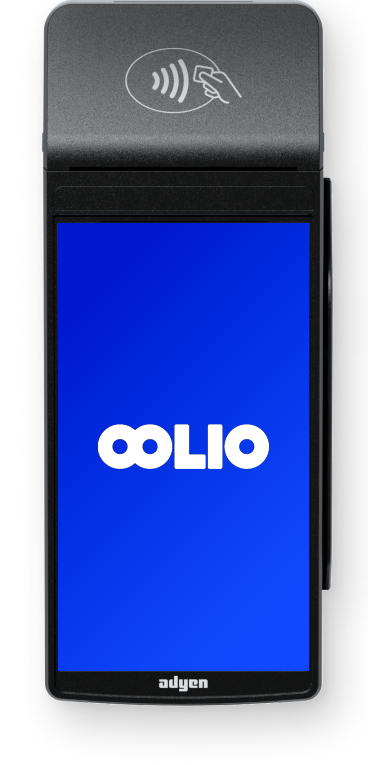
Insert the Thermal Receipt Paper Roll
-
Pull up the cover of the paper roll compartment.
-
Insert the paper roll making sure the paper sticks out a bit.
-
Close the cover of the paper roll compartment.
Note: Please use thermal receipt paper roll 57 x 40 mm (width x diameter).
- Insert the paper roll so the paper unwinds from the underside of the roll, with the loose end feeding toward the top edge of the terminal screen.
Connect to Your Network
Connect your terminal to the internet so that it can communicate with the Adyen payments platform and bepoz (SmartPOS, MPOS or Kiosk).
1. Connect to Wi-Fi
On the device:
Navigate to Settings > Network
Enter the Passcode
Select Wi-Fi
Ensure the WLAN 'Use Wi-Fi' toggle switch is on
Choose a Wi-Fi network from the list, or select the + sign and add the name (SSID) of the Wi-Fi network.
Enter the Wi-Fi password.
Select OK.
The terminal sets the Wi-Fi network as default automatically, and connects to it.
You'll now see a Wi-Fi icon (& signal strength) at the top-right of the display.
2. Updating the Connection Settings
If you need to change Wi-Fi usage later, repeat steps 1-3 as described above. You can now:
- Add another Wi-Fi network as outlined above.
Turn Wi-Fi on or off using the WLAN toggle switch as required. Turn Wi-Fi off to force the terminal to use the 4G mobile network connection via the installed SIM (see below).
3. 4G SIM Fallback
Your S1F2 terminal can automatically switch to processing payments using a mobile network connection when the internet connection fails. Adyen terminals come with a pre-installed and activated SIM (eSIM) card, so you can use the 4G mobile network immediately to board the terminal.
Turn On/Off
If you turn on the payment terminal for the first time or after it was off for a long time, it may make a maintenance call to synchronise the configuration and update the software. This can take 10 to 20 minutes.
When connected to a power supply, the battery charges. An icon at the top of the display indicates the battery charge level.
1. Turn On the Terminal:
Press and hold the power button until the display turns on. If necessary, connect the terminal to a power supply to charge the battery.
2. Turn Off or Restart the Terminal:
Press and hold the power button until a dialog box appears, then confirm you want to either:
Power off the terminal
Restart the terminal
Payment Terminal Menus
Your payment terminals have a menu with options related to payments, and a menu with options related to configuration. The access to some menu options is protected by passcodes.
| Menu/Button | Description | Access |
|---|---|---|
|
Settings
|
Device info: view information about the payment terminal, like the serial number, software and configuration versions, and store details. Update the software version (requires passcode). Network: enable and configure network connections. Enable airplane mode. Config: view the installed configuration version. Update the configuration. Display: adjust the screen brightness. Diagnostics: run network connections tests or send us a diagnostic report. Apps: overview of the apps and certificates installed on the terminal. If an app is scheduled to be installed or removed, this action is carried out when you open this menu.
|
Device info, Display, and Diagnostics: no passcode required. Network, Config, Apps, and updating software: the passcode that in your Customer Area is set up under Passcodes > Admin menu. |
|
Transactions |
History: View Stored Transactions on me terminal. Reprint the merchant/shopper receipt for an approved transaction. Totals: view and print a transaction totals report. Reset transaction totals. New transaction: start various types of payments when used as a standalone terminal. Select the AID priority.
|
Standalone Use: No Passcode required. Integrated setup: the passcode that in your Customer Area is set up under Passcodes > Transaction. |
|
Payment |
Start a normal payment when used as a standalone terminal. |


1. Device Info
To view information about the terminal:
- Select Settings > Device info.
The screen shows:
- Model and Serial number of the device
- Software version, OS version and Configuration version that the terminal currently uses.
- WebView version - this is just the system component the terminal uses to display web content inside apps
- Merchant account that the terminal belongs to, i.e. your venue
- IP address and MAC address - should you need to add this as a whitelist item to your network
- A button to show a QR code with device info.
2. View, Print, and Reset Totals
The terminal can generate a Totals report. This gives an overview of the total amounts for sales, refunds, gratuities (tips), and cancellations that the terminal processed since the last reset of the report. By resetting the report, you can use this functionality to get day totals or shift totals.
To obtain the Totals report:
- Select Transactions > Totals.
- Enter the Transactions passcode.
- You can now:
- View a Totals report for the period shown at the top of the report.
- Print the Totals report by selecting the print button:
- Start a new reporting period by selecting the reset button:
- Access the report from the previous reporting period.
3. Resetting Automatically
To automatically reset the Totals every day at a specific hour, contact bepoz Support.



Troubleshooting
For troubleshooting assistance, please see this article:
updated to: bepoz v4.9.0