
Overview
The backpanel URL along to the primary user credentials are going to be provided to the system admin at the conclusion of the deployment.
The system admin user is responsible to set other admin users as well as staff users into the backpanel.
The Dashboard is where the Backpanel user need to set up the main configurations of YourOrder.
Once a user has access to the backpanel they will then be able to log to the back-panel. If you do not know the back-panel URL or your credentials, please ask your system admin.
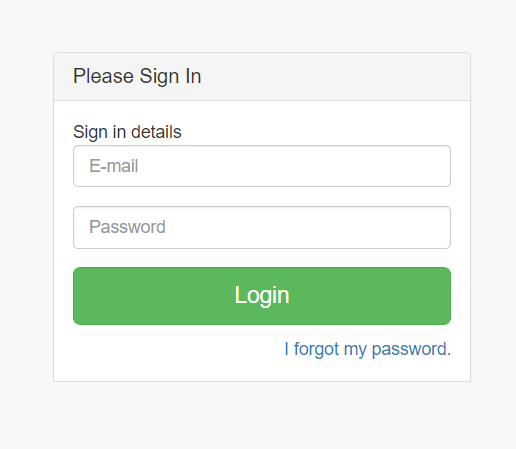
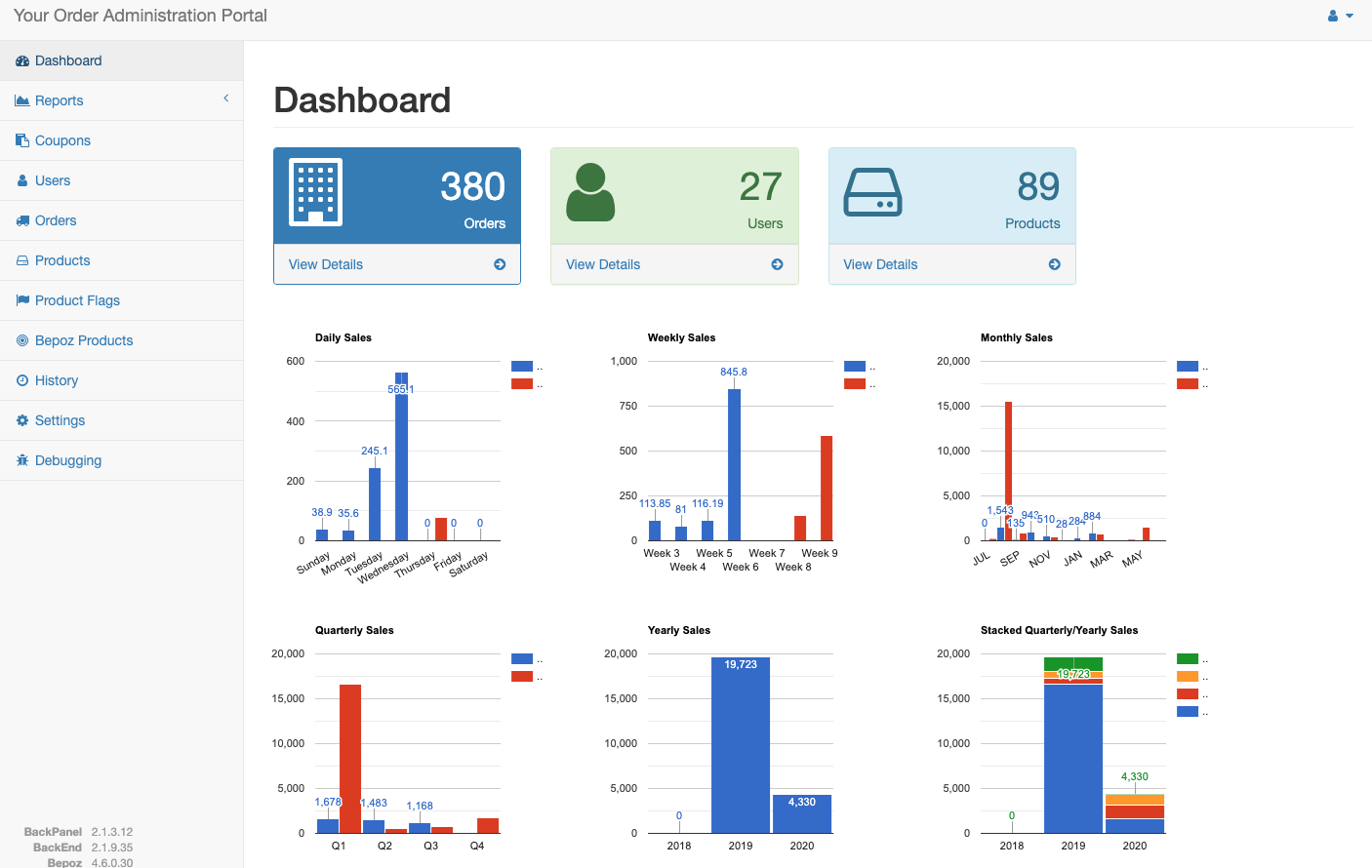
Once logged in, you will be able to see the navigation menu on the left side. On the top right corner, you have the ability to log out or change your user settings.
PLEASE NOTE: Any changes made to the Backpanel configuration in the following sections should be recommended outside business hours to avoid interruption to customers.
The Dashboard.
Dashboard is designed to give high-level information to operators. It also works as a shortcut to some pages, such as orders, users and products, which the user can access by clicking on “view details” on the respective pages. All charts for the existing period will be a comparison against the previous period figure.
For example, red lines in the Daily Sales chart represent Last week's sales figures, but blue lines represent the current week instead. The start month of the Monthly Quarterly and Yearly charts can be configured in the ‘Start Month of Year’ field (refer to Section 9.6 Times).
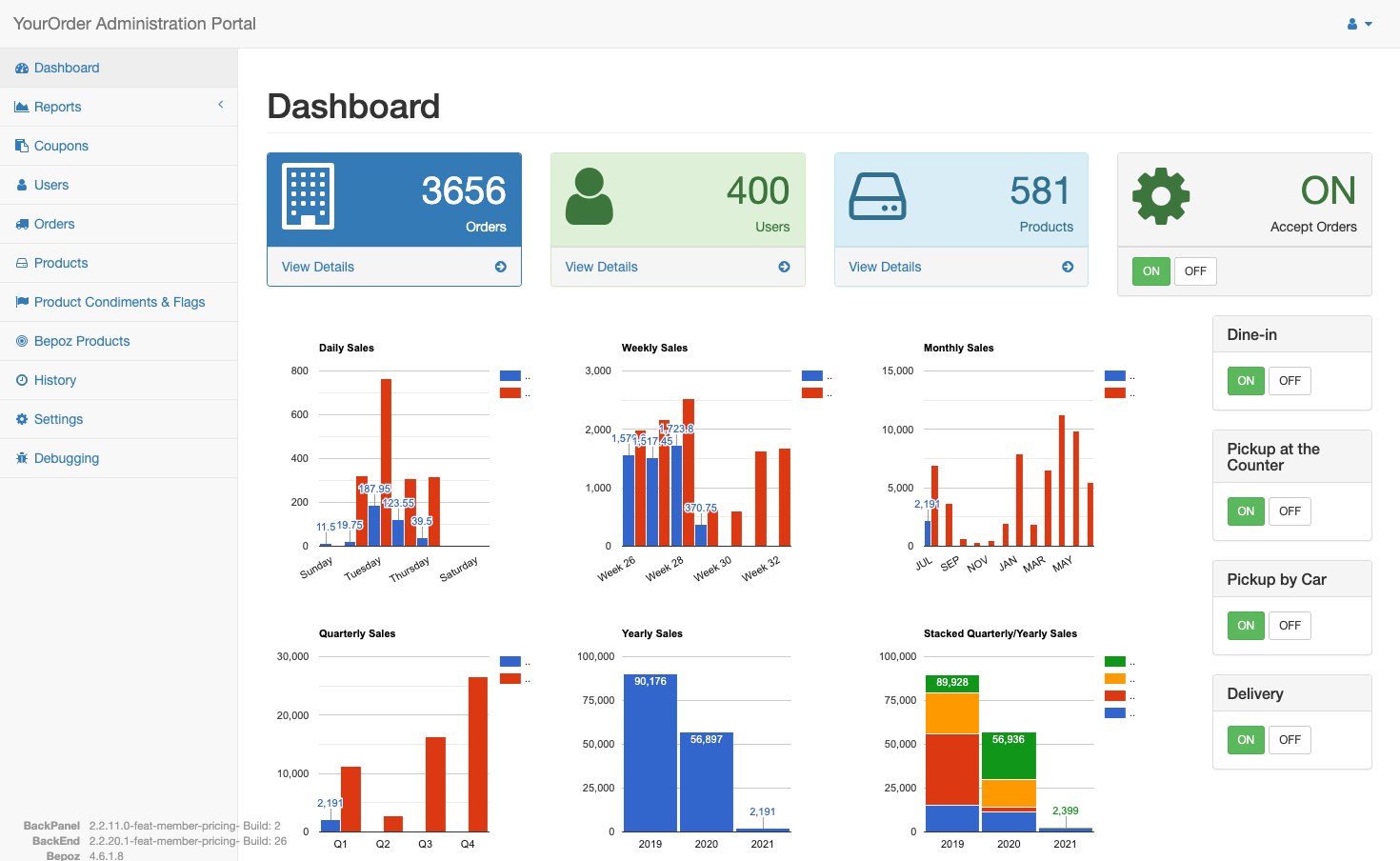
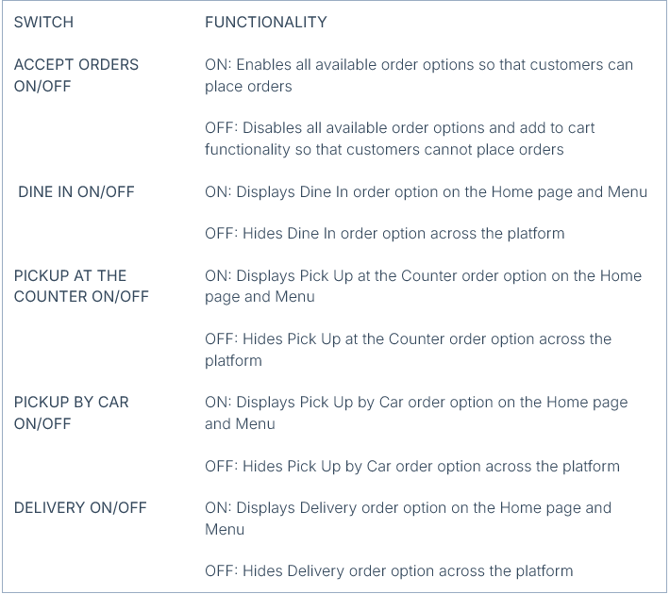
In addition, there are 5 switches available to control platform wide order options as described below.
About Dashboard Settings Menu
The settings menu can be found in the left-hand navigator. Once everything has been set, it will not be used very often.
All the fields in this section have a short description under it explaining to the Back-Panel user how to fill it in and a toggle to show the changes that have been done to that setting. When something is altered, you need to confirm the change by clicking on the green button on the side of it.
To cancel the changes, click on the red button. If the buttons are greyed out it means no changes were made to that field.
Click on the + button to expand each section and edit the settings.