
Overview
The MyPlace app allows users to purchase gift certificates and pay for them from within the app.
To purchase a gift certificate, navigate to the "gift certificate" page in the app by clicking the gift certificate button. The button can be placed on the home page, bottom menu and/or side menu.
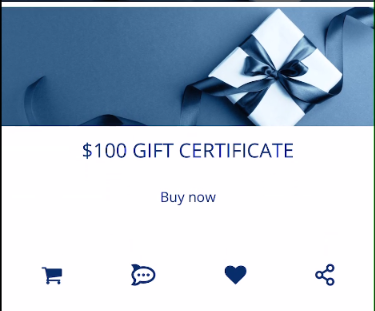
Click on the "Cart" button to initiate the purchase.
- You can click the "heart" to favourite this option.
- You can click the "dots icon" to send enquiries about this gift certificate option.
If the checkbox is ticked then the gift certificate will go to another person and three fields will appear. Enter the details for the gift certificate recipient and click submit
if the checkbox is unticked then the gift certificate will be purchased for themselves. No fields will appear and user will only need to click submit 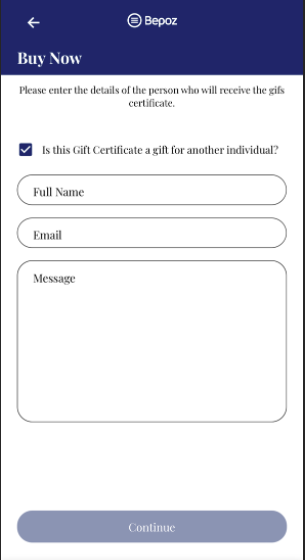
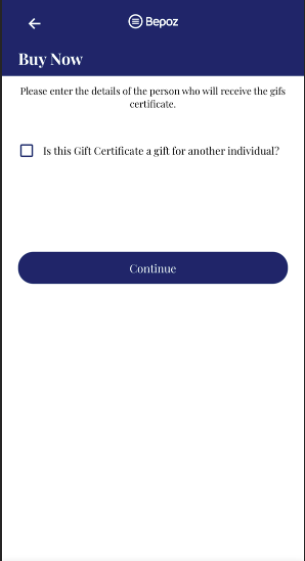
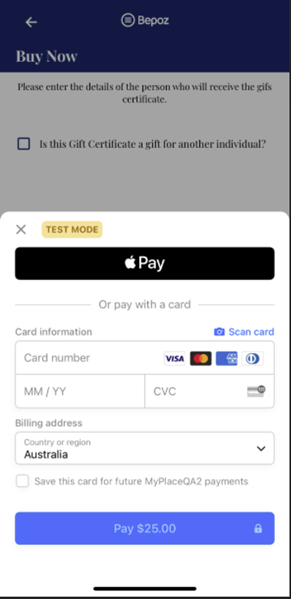
Enter your credit card details or use google/apple pay and click "Continue" to conclude the purchase.
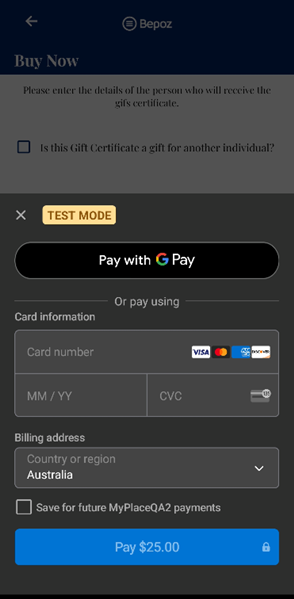
How the recipient receives the gift certificate?
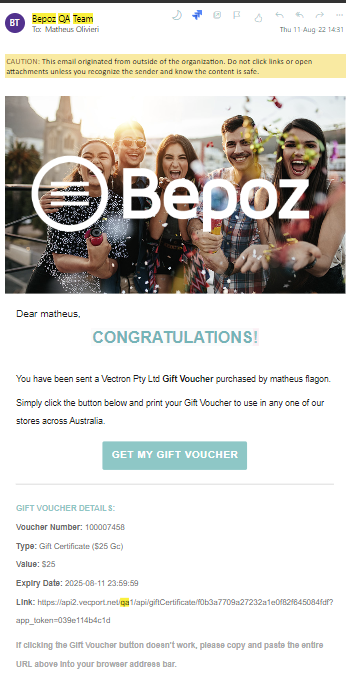
Via Email
The recipient will receive an email that contains a button/link to download the gift certificate pdf.
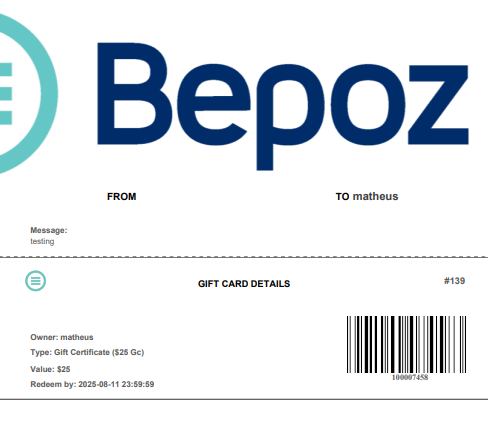
The pdf contains the gift certificate barcode that can be used at the till to redeem the gift certificate.
- Email Example
- Gift Certificate voucher pdf example
In-app
If the recipient's email address entered belongs to an app member or the purchase was for themselves, the gift certificate will also display under the vouchers section of the app. More details are below.
How are gift certificates displayed in the app? <
Gift certificates are displayed under the "Vouchers" in the app.
The MyPlace app will display for the member all gift certificates linked to the member account in Bepoz.
Gift certificates that are not linked to an account will not display in the app.