
Overview
bepoz Snapshots is our premium online reporting tool that provides access to a wide range of dedicated bepoz reports from a web browser or the Snapshots v2 mobile app.
Once Snapshots is activated and licensed, authorised users can access reports online from supported devices, including mobile phones and internet browsers.
Snapshots is a paid module. Contact your bepoz Account Manager for more information.
Prerequisites
Before you begin, confirm the following:
-
Snapshots has been activated for your venue
-
You have received the Snapshots welcome email
-
You know your Customer Access No.
-
You have a valid BackOffice operator email address
-
You have your BackOffice password
Accessing Snapshots
-
Activate your Snapshots account using the welcome email.
-
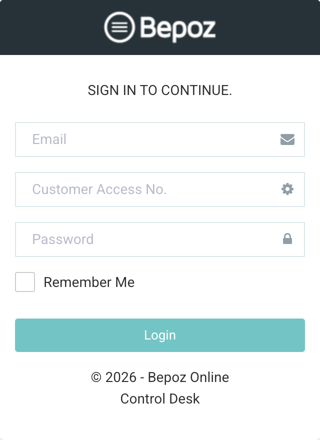
Go to bepozonline.com from any supported web browser.
 Alternatively:
-
Download the Snapshots V2 app from the Google Play Store on Android
-
Download the Snapshots V2 app from the Apple App Store on iOS
 Snapshots v2 (Apple App Store)
-
-
Enter your email address. This must be the same email address that received the welcome email and matches the operator's primary email address in BackOffice.
-
Enter the Customer Access No. This is the system ID of your venue, or the head office in a multi-venue environment.
-
Locate the Customer Access No. in Smart Controller > Authorisations > Enter New Code if required.
-
Enter your BackOffice password.
-
Click Log In.

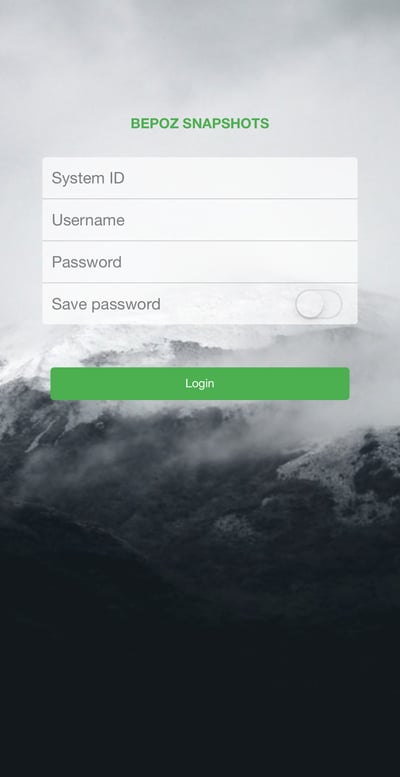
You should now be logged in to bepoz Snapshots.
Using bepoz Control Desk
If Snapshots is activated, the Snapshots link will be available in bepoz Control Desk.
-
Open bepoz Control Desk.
-
Click the Snapshots link.
-
Select a report from the left-hand menu.
-
Change the report filters and details as required, the same way you would in BackOffice.
Adding More Users to Snapshots
You can add more users to Snapshots if you have available Snapshots licences remaining.
-
Click Operator Management.
-
Click Admin in the left-hand menu.
-
Click Application Access.
-
Add Snapshots as an application for the required user.
-
Select the appropriate group.
-
Select the required user.
By default, only the first 10 users are visible.
-
Click Next if the user is not displayed.
-
Click the Access tab.
-
Tick the Snapshots flag.
-
Click Send Welcome Email.
-
Click Save.
Expected Result
After setup is complete:
-
Users can sign in to Snapshots using their operator email address and BackOffice password
-
Authorised users can access available online reports
-
New users receive a welcome email once access has been granted
updated to: bepoz v4.9.0