Skip to content
  • There are no suggestions because the search field is empty.

📄Account "Details & Address" Tab

This article covers the "Details Address" Tab and the relevant configurations available in BackOffice. 

Overview

This article covers the "Details & Address" Tab and the relevant configurations available in BackOffice.
 
The settings and fields that are covered in this article can be set when Creating a New Account or can be Edited for an Existing Account.


Prerequisites

  • To access Account Maintenance features, the applicable Operator Privileges will need to be enabled 

    • Operator Maintenance 'Maintenance' Tab

      • All "Accounts & Memberships" Flags


Account Settings Tabs

  • This lesson will focus on the "Details & Address" Tab of Account settings


"Details & Address" Tab
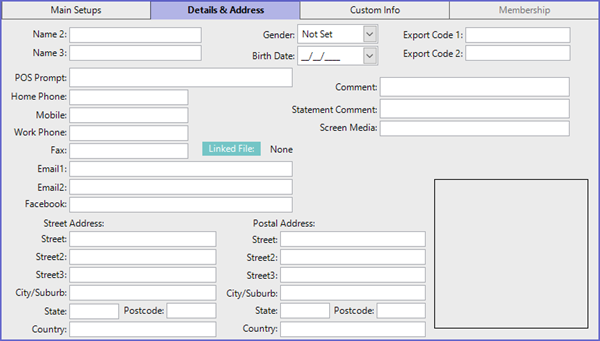
  • This will only cover fields which are not self-explanatory


Field

  Description/Information

Names 2 & 3

  • These are Additional names which can be added to the Account

POS Prompt

  • This will be displayed at the SmartPOS Workstation each time the Account is used

  • An Operator with Setup or Account Edit Privileges can clear this message at the Workstation

Gender 

  • This is used mainly with Member Accounts or Charge Accounts

  • This is useful when doing Member Reports or Advanced Marketing through Accounts Profiles

Birth Date 

  • This is the Date of Birth of the Account Holder

  • It is mainly used with Member Accounts and is useful in Membership Reports or advanced marketing through Accounts Profiles & Prize Promotions

Export Codes

  • These are optional user-defined fields that hold text data and allow fast filtering of information

Comment

  • This is an optional field for entering any relevant information or notes about the Account

                  Statement Comment

  • The text entered into this field will print on the Statement for the Account

  • If this is left blank for the Account, but the Account Group has a Statement Comment Setup, it will be used

Screen Media

  • Text entered into this field will be displayed on the customer screen of a SmartPOS Workstation
  • This can be used to add a Personal Welcome Message for the Account Holder to see when using entrance terminals or when there is a customer screen available on a SmartPOS Workstation
  • If this left blank for the Account, it will default to any Screen Media set for the group
    • This can be useful for presenting appropriate promotional material for specific markets
Image/Photo
  • This sets an Image for the Account