Skip to content
  • There are no suggestions because the search field is empty.

📄Account Maintenance "Main Setups" Tab

This article covers the "Main Setups" Tab within Account Maintenance and the relevant configurations.

Overview

The settings and fields that are covered in this article can be set when Creating a New Account or can be Edited for an Existing Account.


Prerequisites 

  • To access Account Maintenance features, the applicable Operator Privileges will need to be enabled 
    • All "Accounts & Memberships" Flags
    • Operator Maintenance 'Maintenance' Tab


Account Settings Tabs

  • Account Settings are divided into four (4) Tabs - Main Setups, Details & Address, Custom Info, and Membership
  • This lesson will focus on the "Main Setups" Tab


"Main Setups" Tab Details
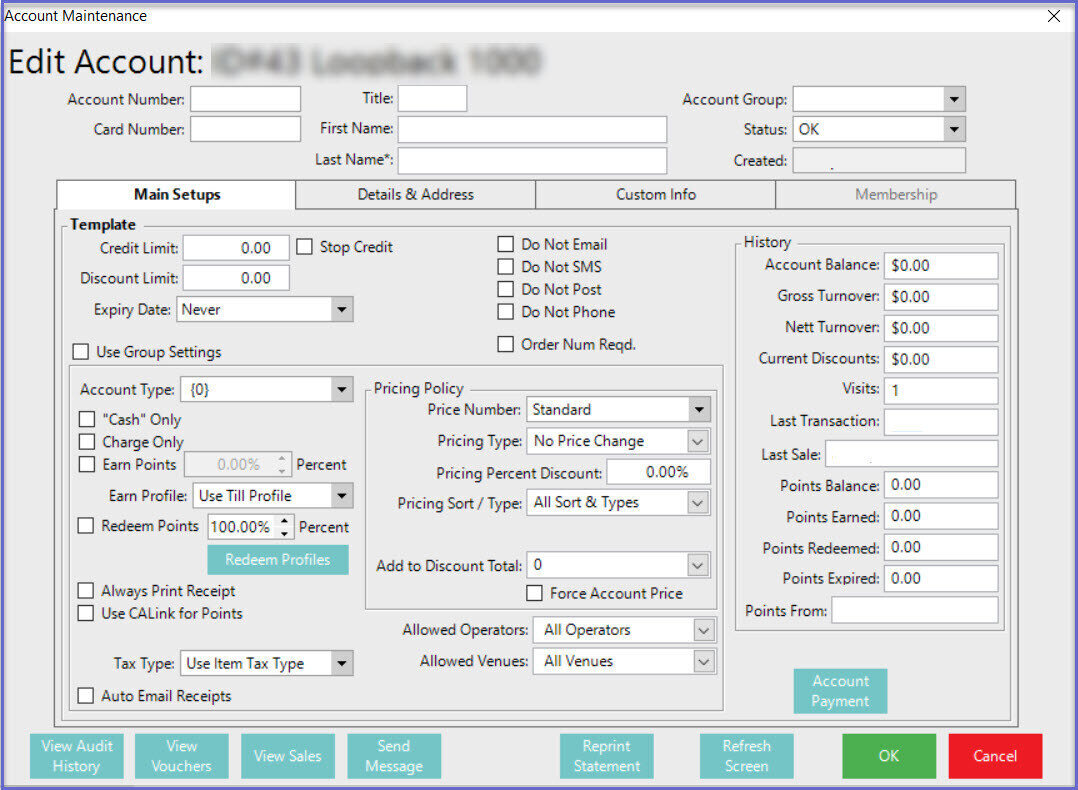
 

Individual Account Settings

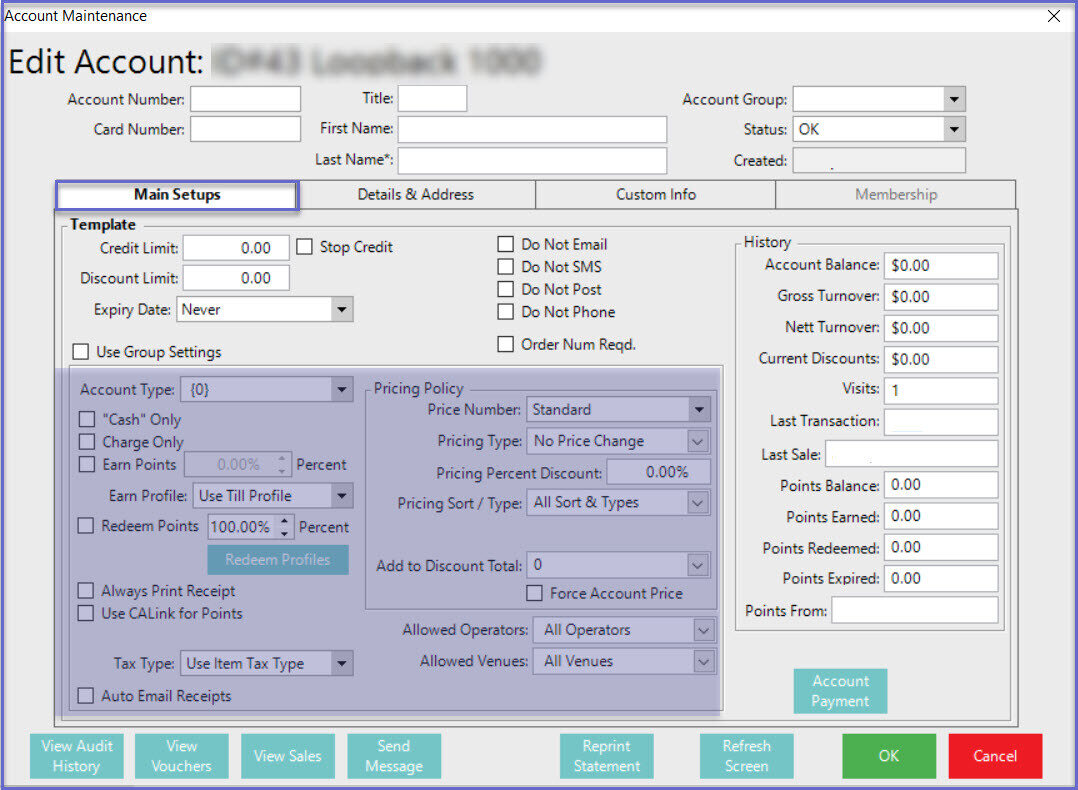
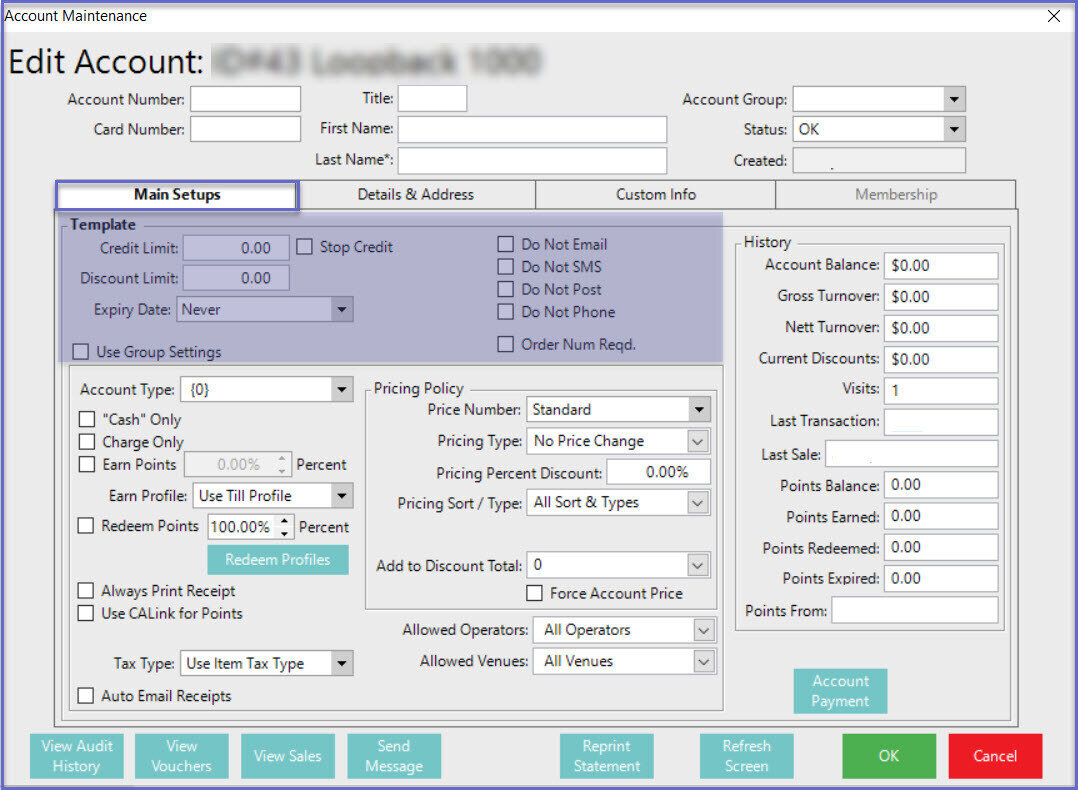
  • The highlighted section can be referred to as Individual account settings which allow setting unique details for individual accounts
 

Flag/ Setting/Field

 Description

Credit Limit
  • This is the amount that the Account is allowed to charge in debit
  • This is only valid when the Cash Only flag in Group Settings is disabled
Stop Limit
  • If this flag is enabled, the Credit Limit amount is overridden and the Account will essentially have Zero Credit with no ability to charge to the Account
  • This will not affect the use of Bonus Points, Discounts, etc.
 Discount Limit
  • Setting a Discount Limit will put a maximum on the amount of automatic discount given that adds to the Discount Total asset for the account
  • The automatic discount includes any Discount or pricing policy set for this account and any Product Promotion that adds to the same discount total
  • The amount of discount already can be seen in the Current Discounts field
Expiry Date
  • This sets a Date & Time for this Account to expire
Do Not Email Flag
  • Enabling this flag will stop the Account from receiving bulk emails
Do Not SMS Flag
  • Enabling this flag will stop the Operator from receiving bulk SMS messages
Do Not Post Flag
  • This flag is not utilized by the system but can be used for Operator's reference
Do Not Phone Flag
  • This flag is not utilized by the system but can be used for Operator's reference
Order Num Reqd. Flag
  • When purchasing at a SmartPOS Workstation, an order number must be entered to purchase
   Use Group Settings Flag       
  • Group Settings are designed for Accounts to adopt the settings of the Group it is in
  • This enables simple, efficient, uniform settings in relation to their points and pricing settings
  • When this flag is enabled, Operator cannot change anything within the Group Settings Section


Group Settings


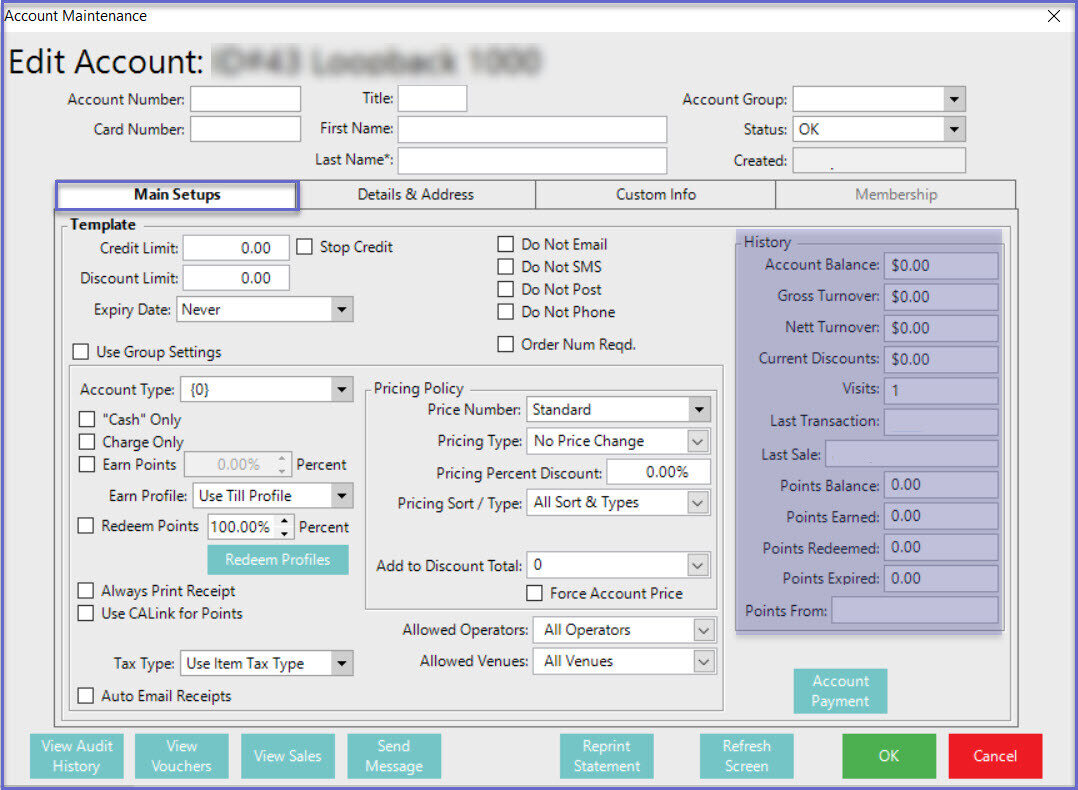
 History

  • The fields in the History section are not editable; they merely display the History of the Account from the date it was Created until the Current date & time
Flag/ Setting/ Field

Description & Information

       Account Type                           
  • There are sixteen (16) different Account Types which may be edited in Global Settings
    • These are user-defined fields which may then be used for reporting and filtering purposes
  • These are parallel to the Account Groups and provide additional analysis and classification of Accounts and Members
"Cash" Only
  • If this flag is enabled, the Account will not be authorized to make any Charges
  • When enabled, every transaction on this Account must be finalized with a Cash Payment
Charge Only
  • If this flag is enabled, the Account is only authorized to pay for transactions by charging to the Account
  • There must be available Credit on the Account
Earn Points
  • If this flag is enabled, the Account will accumulate points for Loyalty Programs
  • The percentage dictates the percentage of the Points to be awarded according to the Points Profile which has been assigned to the account holder
    • This can be 100% of the active points profile, greater than 100%, or less than 100%
Redeem Points
  • If this flag is enabled the Account holder can redeem points for products or cash depending on the system setup
  • If Earn Points is enabled, but Redeem Points is disabled, points can still accrue to the Account
Redeem Profile
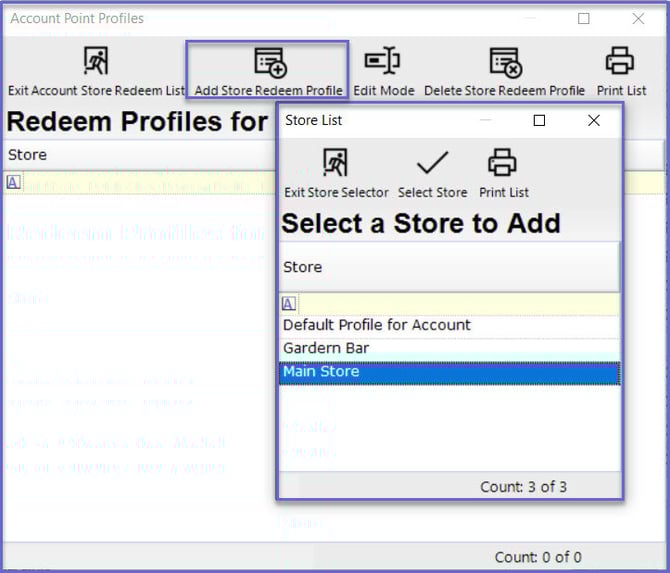
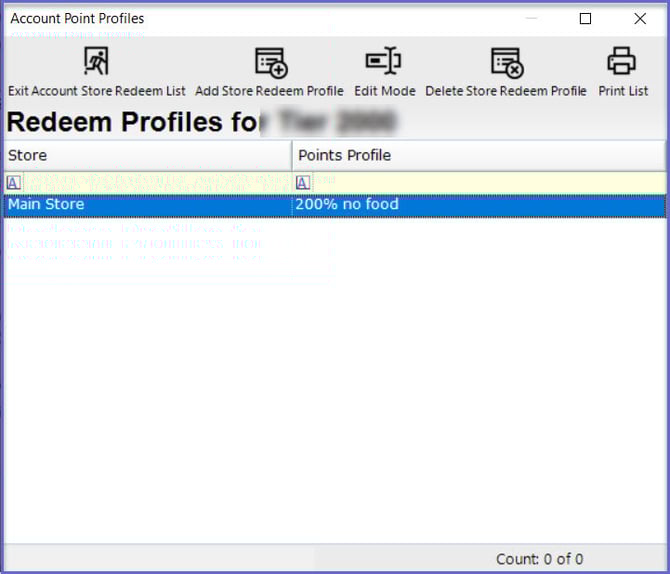
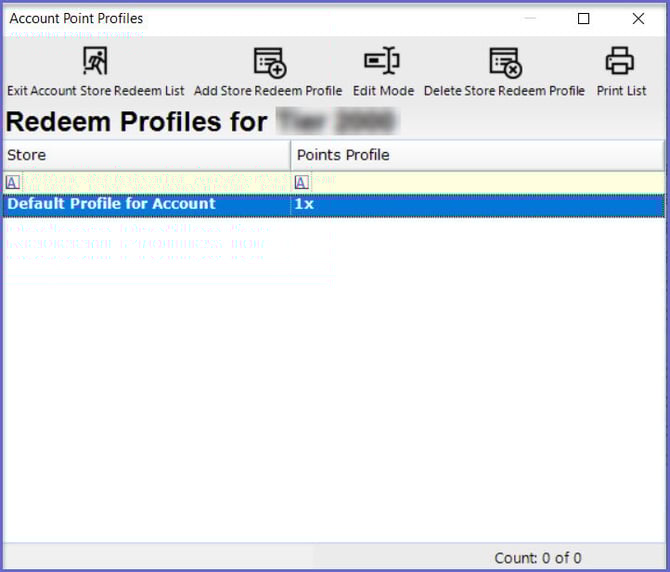
  • This option enables you to set different Redeem Profiles for the Account per Store
  • Click on 'Add Store Redeem Profile' and select any Store to add one of the Points Profile to that Store
    • This will override any Redeem Profile that has been set for each Workstation within the Store

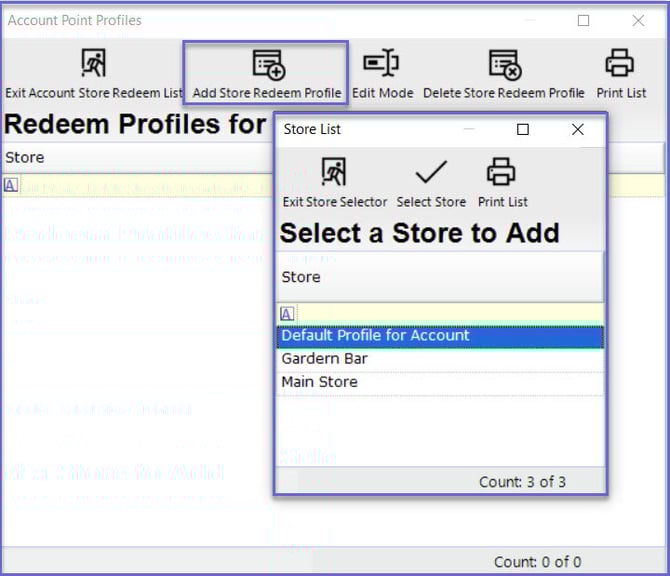
  • Click on 'Add Store Redeem Profile' and select Default Profile for Account to add one of the Points Profile
    • This will be the default for the selected Points Profile

Always Print receipt
  • If this flag is enabled, a receipt will always be printed upon completion of a transaction
    • The receipt will be printed from the Workstation's assigned Account Printer
Use CALink for Points
  • If this flag is enabled, accounts will use the Points Bank from the other System
Tax Type
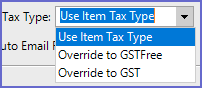
  • This can be used to override the Tax Type


  • This can be used if an Account always gets charged one item Tax Type regardless of what the product is
  • This would be set to Override to GSTFree for overseas Accounts to make them GST Free for export
Auto Email Receipts
  • If this flag is enabled, an email will automatically be sent to the Account's Email Address on file upon completion of a transaction
Allowed Operators
  • This specifies which Operator Group, or All Operators, can sell to and access the Account
Allowed Venues
  • This specifies at which Venue, or All Venues, where the Account can be used in a Multi-Venue environment


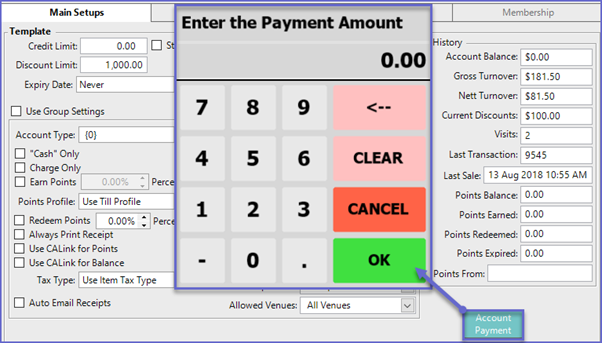
Account Payment

  • This allows for adding a Payment to the Account which will be applied to the Account Balance

  • With this option, Payments can be made through BackOffice without the use of a SmartPOS Workstation