Overview
Barcode Scanner can be used in every Stock Function to search for Products or to add a Barcode to an existing Product.
Prerequisites
- Minimum Bepoz version of 4.7 and onwards
- Completion of SmartPDE Mobile App Setup
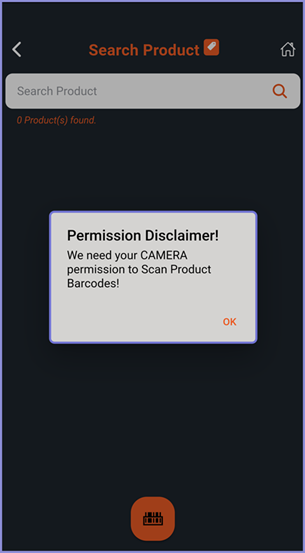
- SmartPDE Mobile app requires Camera permission to scan product barcodes
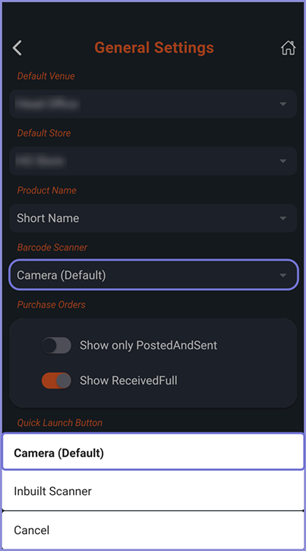
- Set the Barcode Scanner as desired from the SmartPDE Mobile General Settings
How To Guide
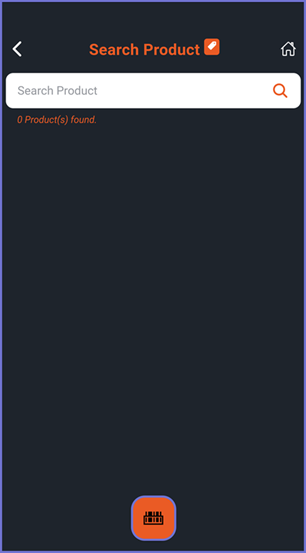
Note: For the purpose of showing an example, the Price Check Stock Function is being used, however, the same method will be required for any other Stock Function used in SmartPDE Mobile- From the Search Product screen, click the Barcode Scanner Button; it is the button with the Barcode icon on it
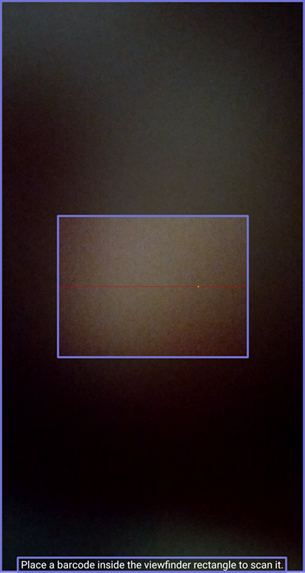
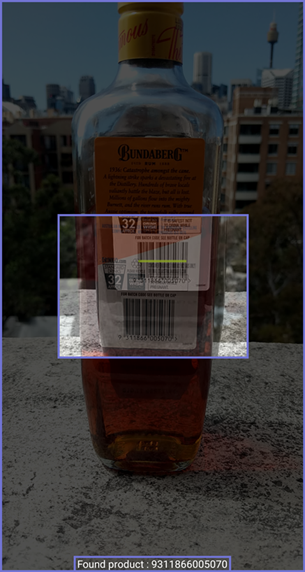
- The system will open the camera of the device and prompt you to place a barcode inside the viewfinder rectangle
- Once the barcode is scanned, it will either bring up the product that is already assigned to it or it will prompt you to assign it to a Product via the app
Barcode Already Assigned to a Product
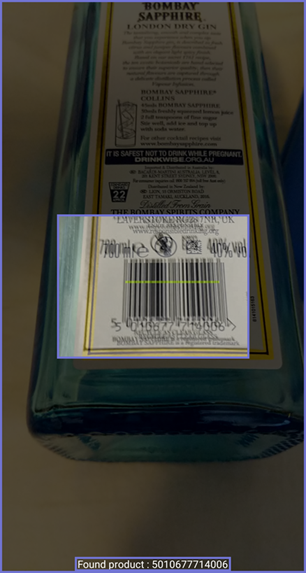
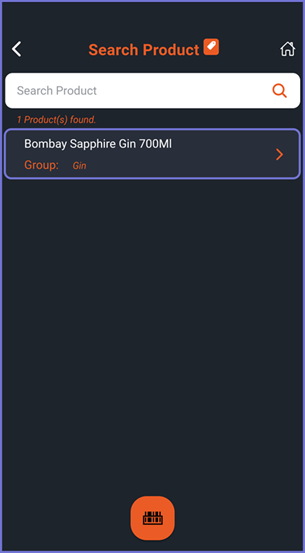
- The barcode is placed inside the viewfinder rectangle to be scanned
- It returns the assigned product on the Search Product screen
Barcode Not Assigned to a Product
- The barcode is placed inside the viewfinder rectangle to be scanned
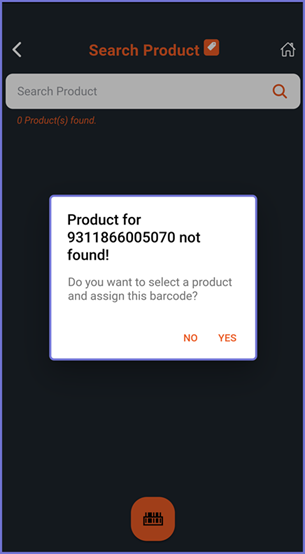
- If the barcode is not assigned to a Product, the app prompts the Operator to assign it to a Product
- Select Yes to continue or No to cancel this action
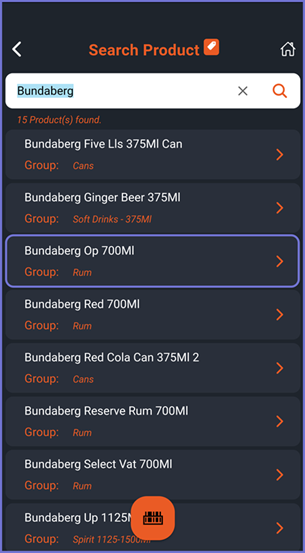
- After a Yes selection, the app opens the Search Product screen
- The Operator must search and select a product to assign the barcode to it
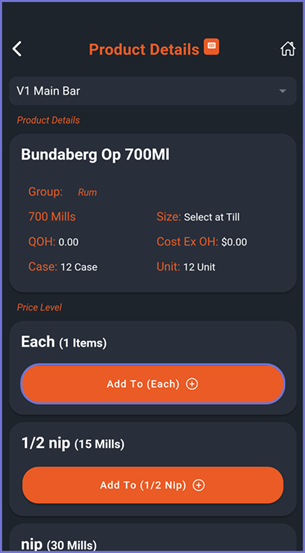
- In the Product Details screen, the Operator must choose a Size to which barcode must be attached by selecting the Add to Each button
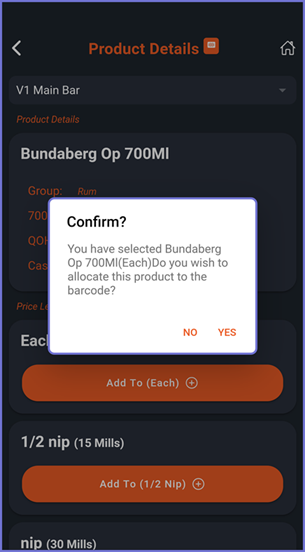
- A confirmation prompt will appear on the screen
- Select Yes to continue or No to cancel this action
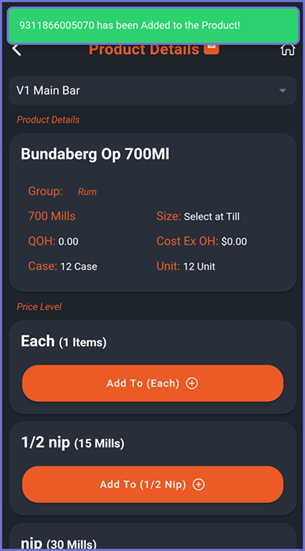
- After a Yes selection, a green notification bar appears on top of the screen with the message that the barcode has been added to the product