Skip to content
  • There are no suggestions because the search field is empty.

📄App Layout - Login Buttons

This article outlines the configurations within the login buttons tab 

MyPlace Prerequisite

  • To access and edit the "Tab" setting, the following Role Privileges will need to be enabled
    • Roles "Roles Maintenance" panel
      • Privilege Flags: "App Config


Login Buttons

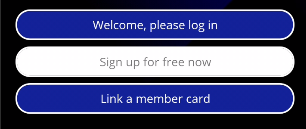
  • These buttons will appear on the app's initial screen
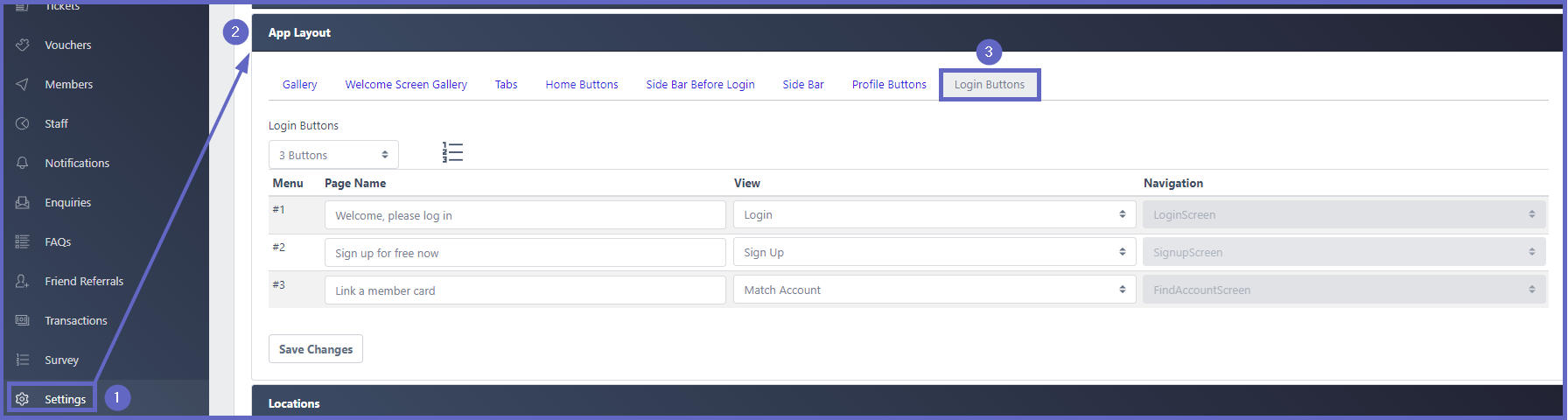
  • To access the Login Buttons tab:
    1. Click Settings on the menu sidebar
    2. Press App Layout
    3. In the expanded window, click Login Buttons


Login Button Configurations
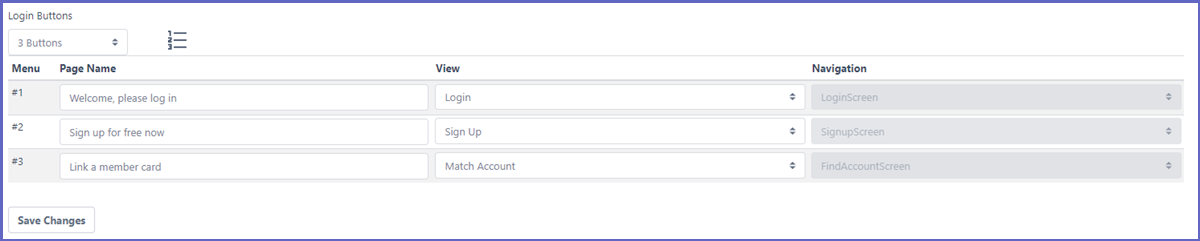
 
Function Description
Number of Login Buttons
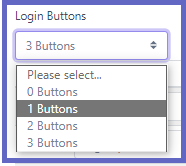
  • This field is a dropdown located under "Login Buttons" title. It is used to select the number of buttons that will display on the initial screen of the app
  • Click the dropdown and there will be options from 0 - 3 buttons. Select the desired choice and the list will automatically adjust.

Reorder Icon
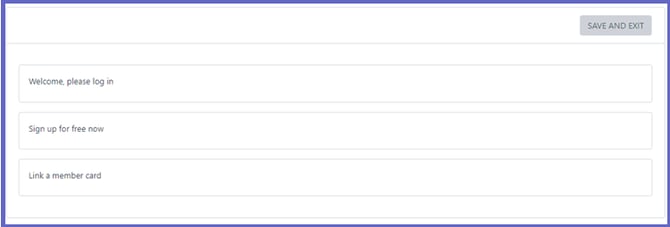
  • This icon allows changing the order of the login buttons
  • Clicking this icon will open a panel which displays the current order configuration
  • Click and drag the buttons into the desired order and press SAVE AND EXIT to confirm the change

Page Name
  • A display title for the login button
  • Input some text and it will display in the buttons on the initial screen of the app

View
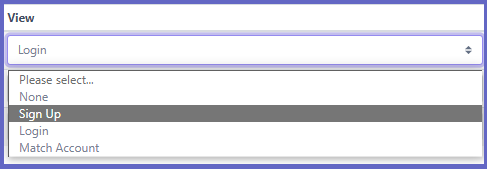
  • This dropdown list represents the screens that users will be moved to once they press the button. E.g., Login will guide user to the Login screen