Overview
By assigning Products to Suppliers , Products can easily be managed and ordered which will provide many benefits for everyday business operations, particularly Purchase Orders.
Prerequisites
To access Product and Supplier settings, the applicable Operator Privileges will need to be enabled:-
- Operator Maintenance 'Reporting' Tab
- Sales Reports: "Allow Stock Reports" Flag
- Operator Maintenance 'Reporting' Tab
Adding Products to a Supplier
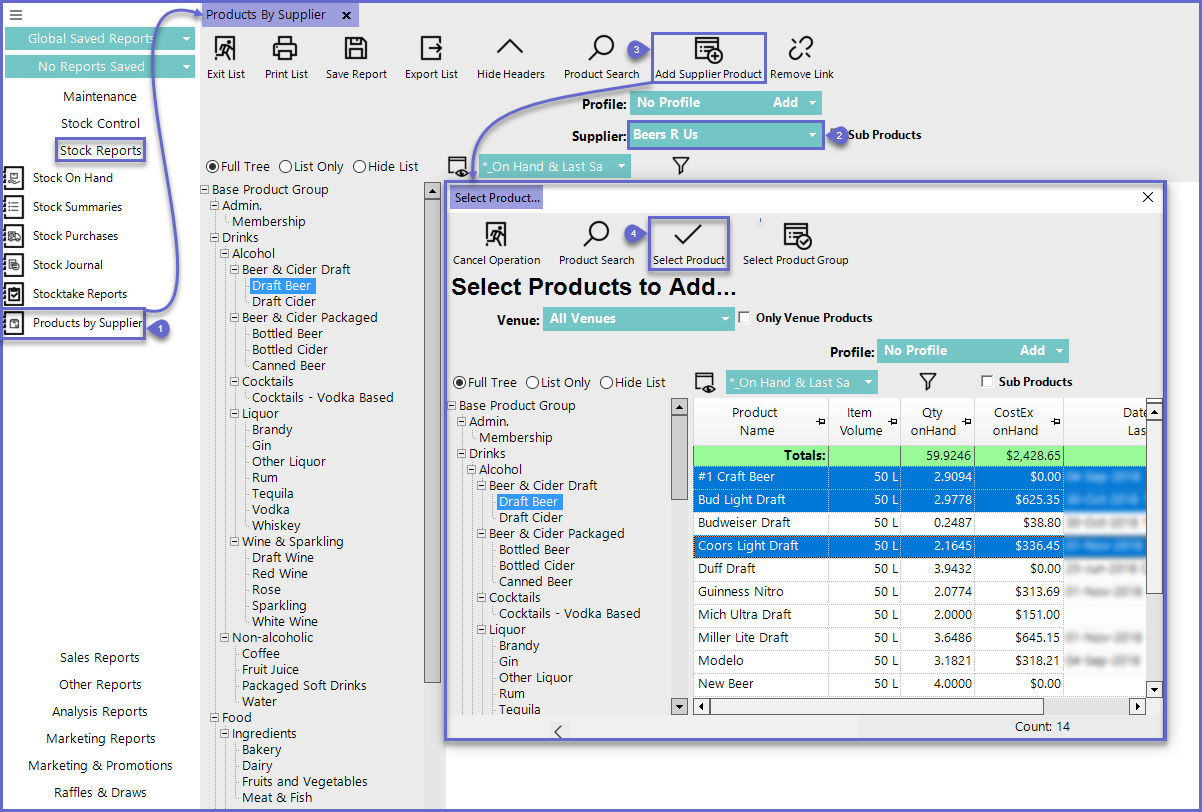
After logging on to BackOffice, follow the steps below to Assign Products to a Supplier:- From the Stock Reports menu, select Products By Supplier
- From the Supplier drop-down, select the Supplier to assign products to
- Click on the Add Supplier Product button
- Highlight all the Products to be assigned to the Supplier using standard controls and click on the Select Product button to assign
Removing Products from a Supplier
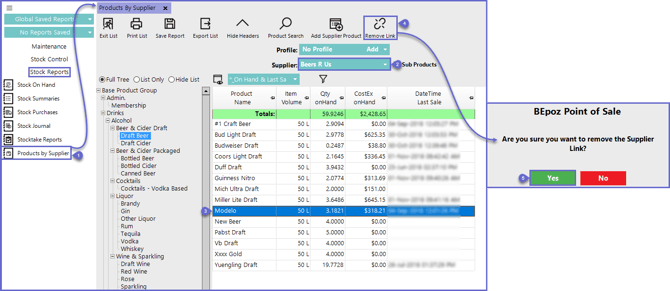
After logging on to BackOffice, follow the steps below to remove Products from a Supplier:- From the Stock Reports menu, select Supplier Products
- From the Supplier drop-down, select the Supplier
- Select the Product that will be removed from the Supplier by using the Full Tree Structure or Product Search Function
- Click on the Remove Link button
- A warning message will appear to confirm the removal of the Product(s) from the Supplier, Select Yes to complete the process