
Overview
An Account can be attached to a Split using the Account Function button. This Function will display the Account List allowing the Operator to attach an Account to a Split. The Account can then Tender Payment for their Split using an Account Charge or by Redeeming Points.
Prerequisites
- To access Split Bill Features, the applicable Operator Privileges will need to be enabled
- Operator Maintenance 'Till Privileges' Tab
- General: "Operate Tills" Flag
- Tables: "Table Sales" Flag
- Accounts & Discounts: "Account Til Functions" Flag
- Venue Maintenance "Flags" Tab
- Table Groups: "Ask Seat" Flag
- Table Groups: "Ask #Guests" Flag
- Table Groups: "Ask Splits as Guests" Flag
How-To Guide
- In the following example, there are four (4) Splits
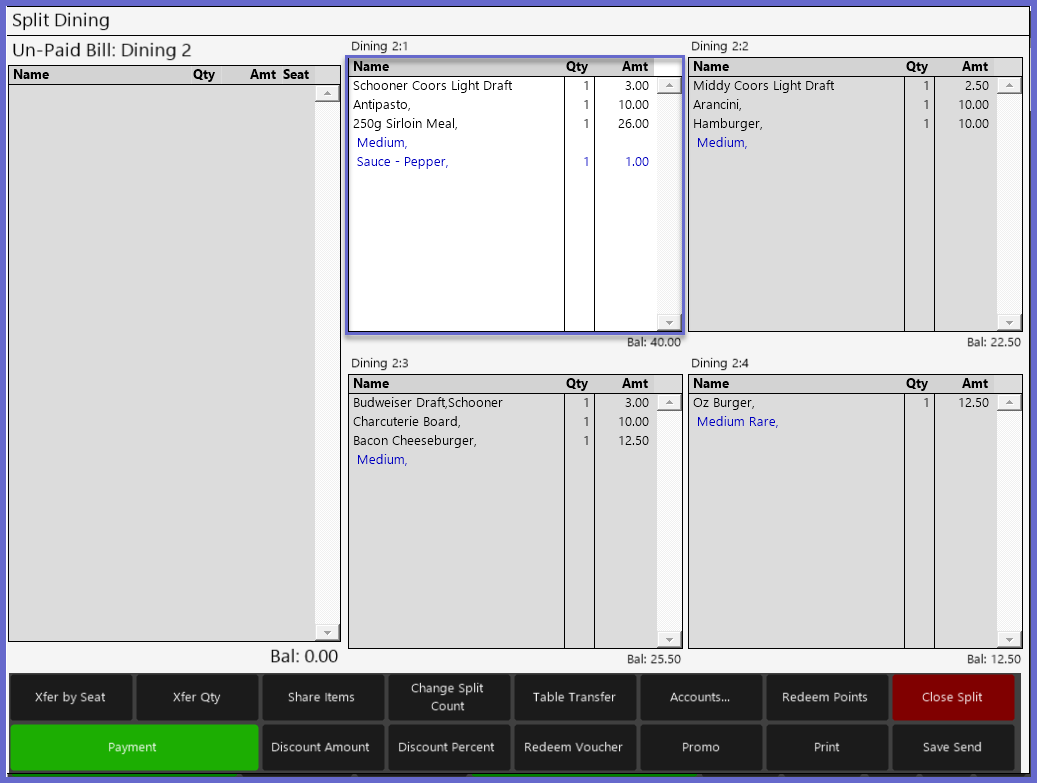
- In order to attach an Account to a Split, select the Split by tapping in its window
- The Selected Split window will change in appearance from having a gray background to having a white background
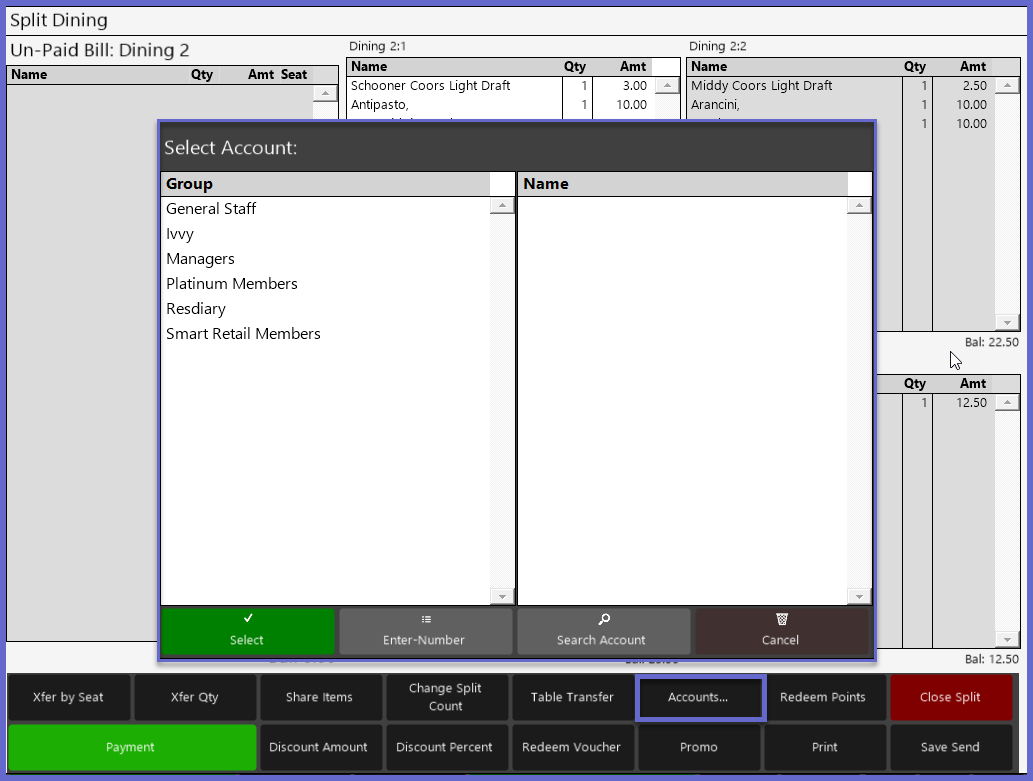
- After selecting the desired Split, tap the Accounts Function button which will open a Select Account window displaying all of the Account Groups
- Select the desired Account to be attached to the selected Split Bill
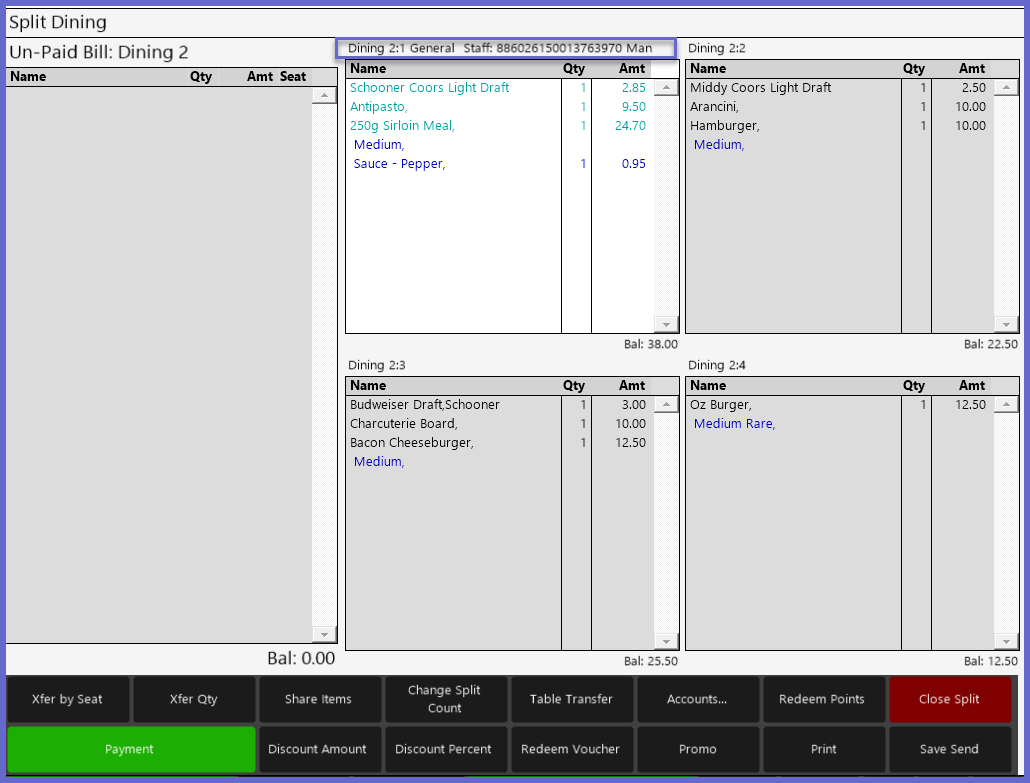
- The Account Group, Account ID # and the Last Name of the Account will now display next to the Split Table Number
- The Split can now be Tendered to an Account Charge or by Redeeming Points provided that the Account is configured to do so
Video Walkthrough