
Overview
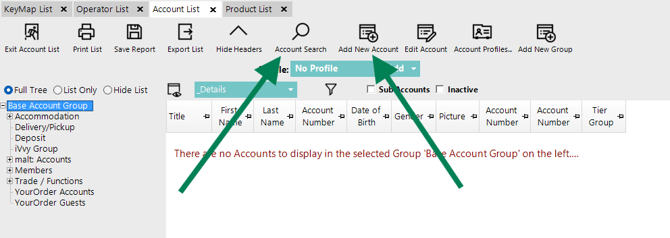
In most BackOffice menu sections, there are two primary keyboard shortcuts available wherever Search and Add functionality appear in the section’s menu header. As shown in the image, multiple tabs can be open at once, and each tab includes a similar set of function buttons at the top of the page. While the Search function is available, the most commonly used menu section tool is Add. The F3 key activates Search, and the Plus (+) key activates Add, and these shortcuts work consistently across those sections. Additionally, pressing either Alt or F10 followed by Enter will exit (shut down) the current menu section.
Once you enter Add or Edit mode within any of these menu sections, additional navigational keyboard shortcuts become available to help move between fields and options; these are outlined below.
BackOffice Menu examples where both Search and Add appear:
- Product
- Account
- Products by Supplier
- Member List
Keyboard Shortcuts
Key |
Action |
| F3 | Search |
| + (plus) | Add |
| Alt or F10 then Enter | Exits (closes) the current section tab |
| Home | Go to the first in the list |
| End | Go to the last in the list |
| Enter | Select |
| Left Arrow (←) | Move Left (used in conjunction with Alt) |
| Right Arrow (→) | Move Right (used in conjunction with Alt) |
| Up Arrow (↑) |
Move Up (in a group or list) |
| Down Arrow (↓) |
Move Down (in a group or list) |
| Tab | Move between Menu Header tools |
updated to: bepoz v4.8.2.1