
A receipt printer in bepoz terminology is a small thermal printer generally located near the POS workstation or POS till, primarily used for printing customer receipts as well as drink preparation dockets (for coffee orders, bar service, and similar tasks).
Receipt printers use thermal paper, which is smooth, thin, and heat-sensitive (no ink or ribbon required).
Below are some common POS thermal printer brands and models supported within bepoz environments.
| Brand | Thermal Printer Models |
|---|---|
| Gravity | BTP-S80II, BTP-S80 |
| Epson | TM-T88V, TM-T88IV, TM-T82II |
| Senor | GTP-290, GTP-250, GTP-150 |
| Bixolon | SRP-330II, SRP-E300, SRP-275II |
| Star | TSP650, TSP143, TSP100 |
Note: Model naming may vary slightly depending on revision. Always confirm printer settings using the self-test receipt.
Receipt printers in bepoz are supported using only two connection types:
-
Serial (Comm Port)
-
Ethernet (TCP/IP Network) (less common)
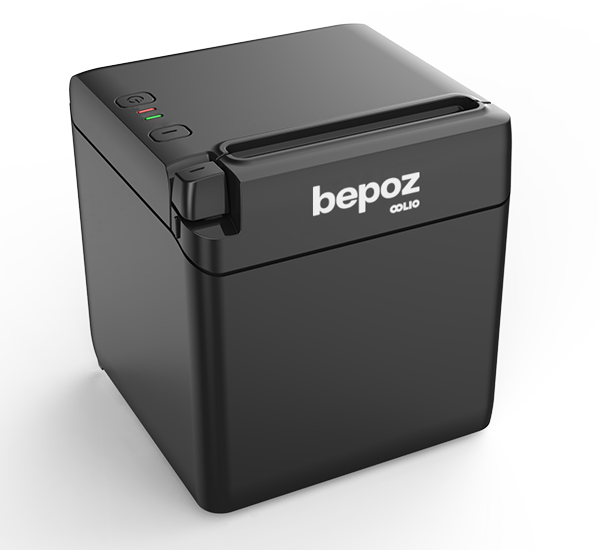
Image below is a Gravity BTP-S80II
Troubleshooting Process
Follow the four (4) steps below in order (click for fast navigation):

Step 1 — Identify the Issue
Before adjusting settings:
Confirm all cables are securely connected
Restart the controlling workstation or POS till
Restart the SmartPrint software
If there have been no recent system changes, a restart will often resolve temporary communication faults.
**If the printer still does not respond, proceed to Step 2.
 Step 2 — Physical Device Checks
2.a Power and Status Lights
Confirm the printer has power:
Is the power light on?
Is the status light green or blue?
If No Power:
Test the power outlet
Check the printer power pack and cable
Confirm the kettle-style power lead is firmly connected into the power pack
Tip: The kettle lead can sometimes be accidentally pulled loose, especially if the power pack is hidden inside a cupboard or behind the POS workstation or POS till.
If under warranty, contact bepoz Support with clear photos
To order a replacement power pack, email: supplies@bepozglobal.com
2.b Confirm Paper Installation
If powered but not printing:
Open the lid
Confirm thermal paper is installed correctly
Paper must feed from the correct direction
POS receipt printers require thermal paper, which is smooth, thin, and heat-sensitive. Standard bond or regular paper will not work.
You can confirm thermal paper by lightly sliding a fingernail across the shiny side. The friction should produce a small black mark. If no mark appears, the paper is likely not thermal.
Warning: Do not store thermal paper near heat sources, direct sunlight, or hot equipment, as heat exposure can prematurely darken or damage the paper.
To order new thermal paper rolls, contact:
email - supplies@bepozglobal.com
online - https://www.posgear.com.au/
2.c Perform a Self-Test Print
A self-test confirms the printer hardware is functioning.
Note: The self-test procedure may vary slightly depending on the printer make and model. If the steps below do not work, refer to the manufacturer’s documentation or contact bepoz Support for assistance.
General process:
Turn the printer off (using the printer power switch)
Press and hold the Feed button
While holding Feed, switch the printer on
Release after 2–3 seconds when printing begins
Press Feed again if required to complete the test
If a test receipt prints, retain it. It contains important configuration details such as baud rate, handshaking, and (for network printers) IP address.
If the printer cannot perform a self-test, contact bepoz Support.
2.d Check Printer Cabling
Serial printers are normally connected directly using a molded serial cable:
9-pin DB connector at the workstation or POS till end
25-pin or 9-pin connector at the printer end (model dependent)
Check:
No visible damage
Screws secured at both ends
Cable seated correctly
Restart SmartPrint after reseating cables.
2.e USB-to-Serial Converter (If Used)
If the workstation or POS till has no available Comm ports, a USB-to-Serial converter may be installed.
These adapters are common failure points.
Check:
Windows Device Manager
Confirm the adapter is installed correctly
Identify the assigned Comm Port number (e.g., COM3)
Confirm the correct Windows operating system driver is installed
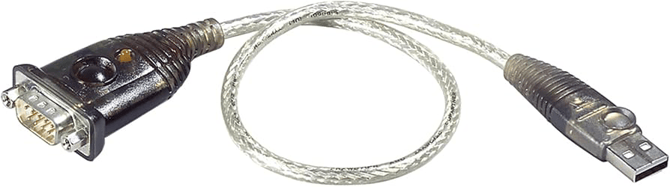
Image below is an ATEN USB-A to Serial (RS-232) adapter
If the device does not appear in Device Manager, or shows a warning symbol, the required driver may need to be installed or reinstalled. Refer to the adapter manufacturer’s website or contact bepoz Support for assistance.
2.f RJ50 Comm Port Converter Warning
Some POS tills use a DB-9(M)-to-RJ50 converter cable.
Important:
Only connect to the correct Comm port
Do not connect to the LAN/Ethernet port
⚠️ Only use the cables and adapters supplied by the printer or hardware manufacturer
Warning: RJ-style connectors may look similar to standard network cables, but they are not wired the same way. Substituting generic Ethernet cables or third-party adapters can result in communication failure or incorrect pin mapping.
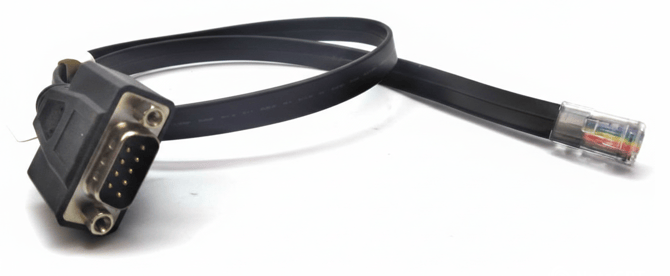
Image below is a DB-9(M) to RJ50 cable
If unsure, use the original cables provided in the manufacturer’s box or contact bepoz Support before replacing any cabling.
2.g DB-9 to RJ45 Serial Adapters (Structured Cabling Installations)
In some installations, a DB-9-to-RJ45 adapter is used at the POS workstation or POS till end.
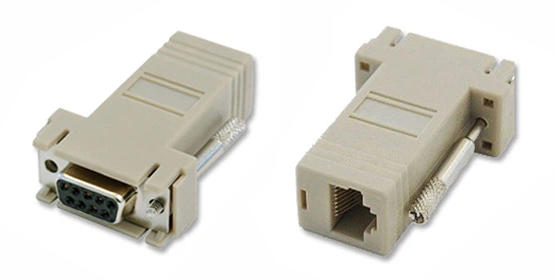
Image below is DB-9(F)-to-RJ45 adapter
This adapter connects into the RJ50-to-DB-9(M) converter or serial port, and a Cat-5e or Cat-6 cable is then used to carry the serial signal through the venue’s structured cabling.
The cabling may:
Run directly to another DB9M to RJ45 adapter at the printer, or
Pass through a data rack or patch panel and then route to another data point elsewhere in the venue before reaching the printer.
Important Considerations
These installations rely on correct pin mapping between adapters.
Standard Ethernet networking rules do not apply — this is still serial communication.
The cable must not be connected to an active network switch or LAN port.
Patch panel routing must be confirmed end-to-end.
If a structured cabling setup is used and the printer is not responding:
Confirm both DB9 to RJ45 adapters are secure.
Confirm the Cat-5e/Cat-6 cable is intact and correctly patched.
Trace the cable path where possible.
Test with a direct serial cable if available to eliminate building cabling as the fault source.
If unsure, contact your organisation’s internal IT team or bepoz Support before modifying any structured cabling.
**If all physical checks pass and the printer still does not respond, continue to Step 3.
 Step 3 — BackOffice Device Settings
3.a Confirm Printer Configuration (BackOffice Device Settings)
In BackOffice:
-
Navigate to System Setup → Venues → Stores → Tills
-
Locate and edit the relevant Receipt or Docket Printer device
-
Use the printer’s self-test receipt (see Section 2.c) to confirm the correct communication settings
When editing the printer device, ensure the following fields match the physical printer and connection type:
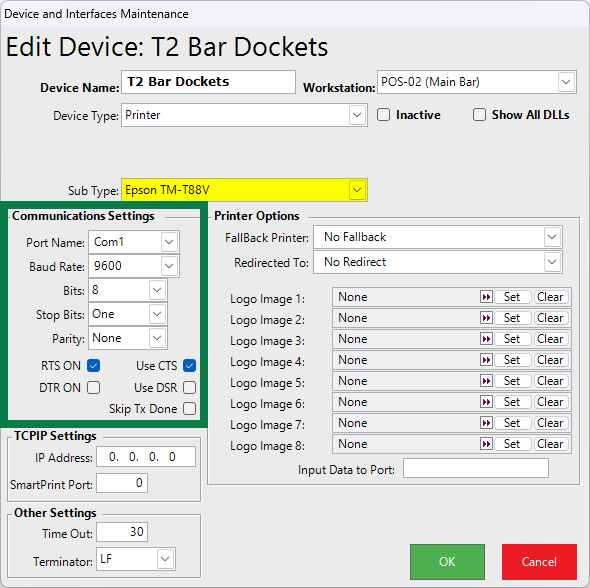
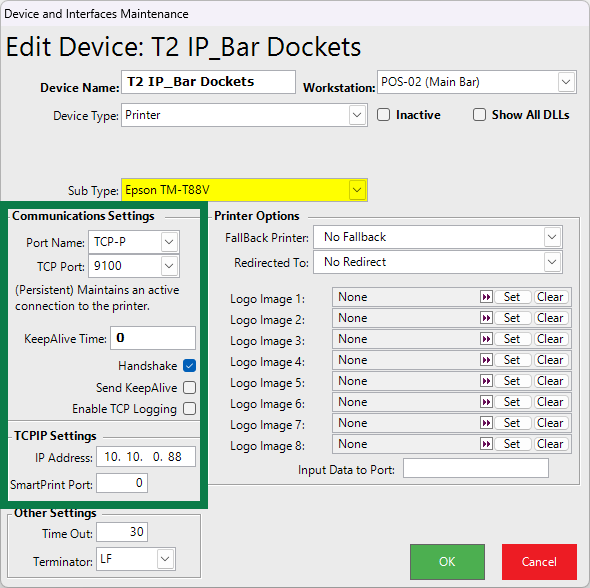
i. Printer Sub-Type (highlighted in images below)
The Sub-Type should closely match the printer’s make and model (for example, Epson TM-T88V).
This selection determines which driver interface bepoz uses to communicate with the printer.
ii. for Serial (Comm Port) Printers
If the printer is connected via Serial, confirm the following settings in the Communications Settings panel (as shown in the Serial example screenshot).
These values can usually be found on the printer’s self-test receipt (see Section 2.c):
Port Name (e.g., COM1, COM3) - the physical port it is plugged into
Baud Rate (commonly 9600, but confirm via self-test)
Bits (typically 8)
Stop Bits (typically 1)
Parity (commonly None)
In addition, the following handshaking options are required for bepoz serial printing:
RTS ON must be enabled
Use CTS must be enabled
Incorrect serial communication values will prevent printing even if the printer appears powered and ready.
Other values should remain at their defaults unless advised by bepoz Support.
iii. for Ethernet (TCP/IP) Printers
If the printer is connected via Network, confirm the following settings (as shown in the TCP/IP example screenshot):
Port Name should normally be set to TCP-P. Only use TCP-I if directed by bepoz Support.
TCP Port is typically 9100
IP Address must match the printer’s configured network address
Tip: The printer’s IP address can typically be found on the self-test receipt output (see Section 2.c).
iv. Workstation Assignment
Ensure the Workstation field at the top of the device window matches the PC or POS till that is responsible for controlling the printer.
This is usually the workstation or POS till that is running SmartPrint.
Note: A single POS till may control multiple printers, for example:
A locally attached receipt printer, and
A network kitchen or bar docket printer
Printer Location in Venue, Stores & Tills
The Workstation assignment also determines where the printer device appears within the Venue, Stores & Tills tree.
For example, if a printer is assigned to a different POS till, it may move under that till’s Store location (such as Dining Room, Public Bar, or Terrace).
In larger venues, it is common for multiple Stores to print to the same physical printer (such as a central dispense bar printer). In these cases, the printer device should still be assigned to the Workstation that is physically responsible for printing.
SmartPrint Must Be Running
The Workstation that the printer is assigned to must be powered on and have SmartPrint running, otherwise print jobs will not be processed or delivered to the printer.
Before troubleshooting further, confirm:
The controlling POS till or PC is switched on
SmartPrint is running and responsive
The printer device is assigned to the correct Workstation
3.b Apply Changes and Restart Services
After updating any values within the printer’s Device Profile (Edit Device window):
-
Click OK to save the configuration
-
Restart Smart Controller
-
Restart SmartPrint
-
Perform a test print to confirm operation
Failure to restart the required services may result in changes not taking effect.
 Step 4 — Communication Testing
Serial Printer Communication Test (CommTest)
For serial printers:
-
Log into the workstation or POS till that is controlling the printer
-
Shut down SmartPrint
-
Open CommTest (generally found in C:\BEpoz\Programs\commtest.exe)
-
Select the correct Comm Port and baud rate
-
Open the port and perform a test
If nothing prints, a hardware, cable, or port fault is likely.
Network Printers
If using an Ethernet printer and all settings appear correct but printing still fails, the issue may relate to network configuration or security software.
⚠️ Do not modify firewall or network security settings unless directed by your organisation’s internal IT team, managed service provider, or bepoz Support.
Final Escalation
If the printer still does not print after completing all steps:
Contact bepoz Support to arrange further investigation, onsite service, Return Merchandise Authorisation (RMA), or deeper diagnostics if required.
updated to: bepoz v4.8.2.1