
Overview
The Comment Display Only Product Mode allows a Product button to display information at the SmartPOS workstation instead of adding an item to the transaction.
When an Operator selects the Product button, the text entered in the Comment field on the Product Settings tab appears on screen. This is commonly used for checklists, staff reminders, operational instructions, or venue procedures.
Prerequisites
As these Products use a specific Product Mode, all relevant Operator privileges must be enabled for normal Product addition and/or editing.
Comment Display Only
Just like other Products in bepoz, Comment Display Only Products are usually created by copying an existing Product and then updating the required configuration.
The Product must have the following configuration completed:
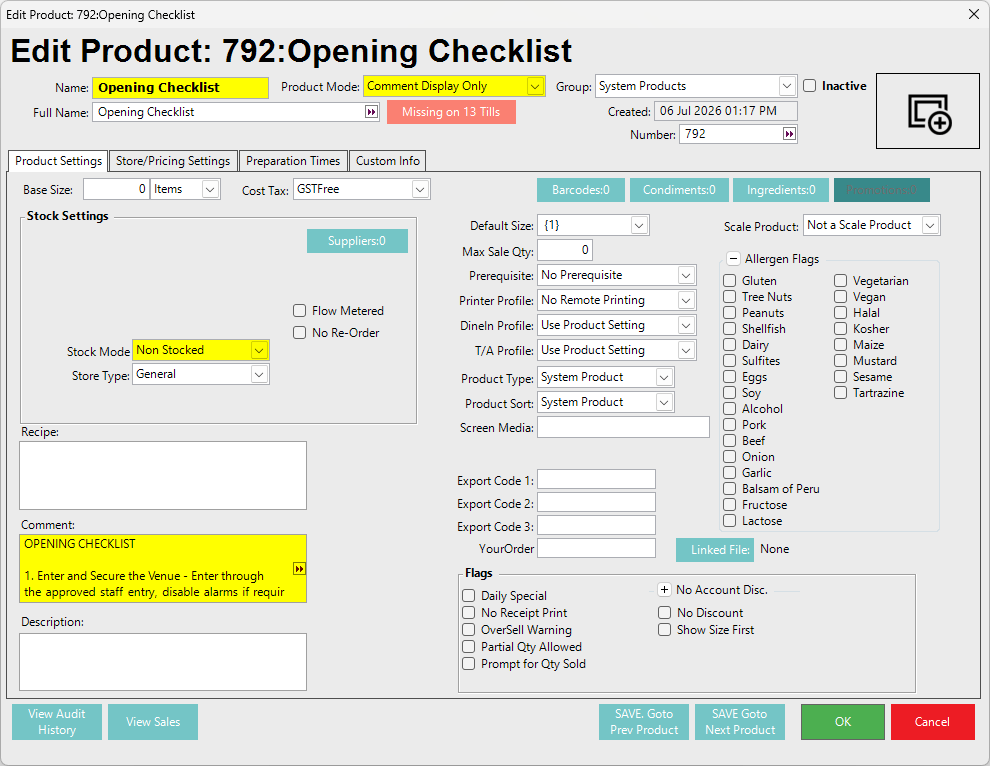
- Select Comment Display Only from the Product Mode drop-down in the Product header section.
- Select the Product Settings tab.
- Enter the required instructions or information in the Comment field.
- Confirm the Product is assigned to the required Product Group or KeyMap location.
- Click OK to save the Product.
The text entered in the Comment field is what appears at the SmartPOS workstation when the associated Product button is selected by the Operator.
For longer messages, it is recommended to draft the content in a plain text editor first, such as Notepad, then copy and paste it into the Comment field. This can make it easier to review spacing, wording, and line breaks before saving the Product.
Since this Product Mode is display only, the Product does not add an item to the transaction. For this reason, pricing, size, stock, and other sale-related Product details are usually not required and should be configured accordingly. It is recommended to set Comment Display Only Products as Non Stocked.
SmartPOS Example
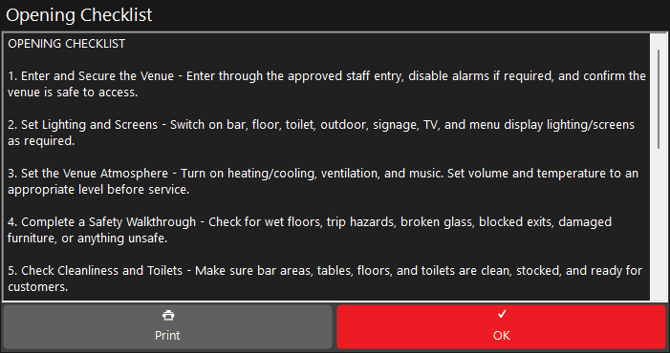
When the Operator selects the Comment Display Only Product button in SmartPOS, the configured Comment text opens as an on-screen message.
For example, an Opening Checklist Product can display venue opening tasks such as:
- Enter and secure the venue.
- Set lighting and screens.
- Set the venue atmosphere.
- Complete a safety walkthrough.
- Check cleanliness and toilets.
- Set up the bar station.
- Stock glassware and ice.
- Check fridges, stock, and taps.
- Prepare coffee and non-alcoholic service.
- Check tills, printers, and payment readiness.
- Review bookings, specials, and handover notes.
- Complete final customer-ready checks and open for service.
The Operator can review the checklist on screen and select either Print or OK when finished.
Printed Receipt Example
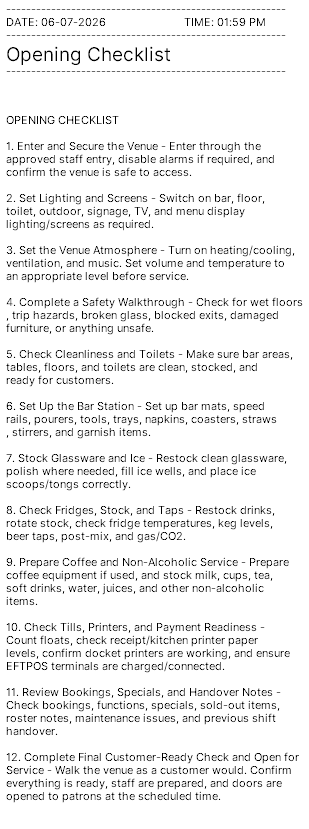
A Comment Display Only message can also be printed from the SmartPOS display where printing is available.
The printed receipt example includes:
- Date
- Time
- The Product name, such as Opening Checklist
- The full Comment text entered on the Product
- Each checklist item formatted as receipt text
This can be useful when a venue needs a printed copy of an opening checklist, closing checklist, handover note, or other operational reminder.
The printed output reflects the text configured in the Product Comment field, so any updates to the checklist should be made directly on the Product in BackOffice.
Video Link
See the following link which outlines Comment Display Only and Composite Product modes in a short video:
updated to: bepoz v4.9.0.4