
Overview
A Composite Product is sold like a normal product at SmartPOS, but it also sells the products assigned to its condiment list at the same time.
This Product Mode is useful when a venue needs several products to be sold together, without using a Package Fixed Product, Package Selection Product, promotion, or discounted package price. The Composite Product can have its own selling price, or it can be set with no base price and allow the linked condiment products to make up the total sale value.
Common uses include:
- Equipment hire bundles
- Function hire product sets
- Mandatory add-ons
- Bottle or other returnable deposits
- Product combinations where staff should not need to remember every individual item to add at SmartPOS
Composite Products are different from package products because the linked items are not being sold as part of a discount structure. They are separate products that are automatically added to the transaction when the Composite Product is sold.
Prerequisites
As these Products use a specific Product Mode, all relevant Operator privileges must be enabled for normal Product addition and/or editing.
BackOffice Product Tree Examples
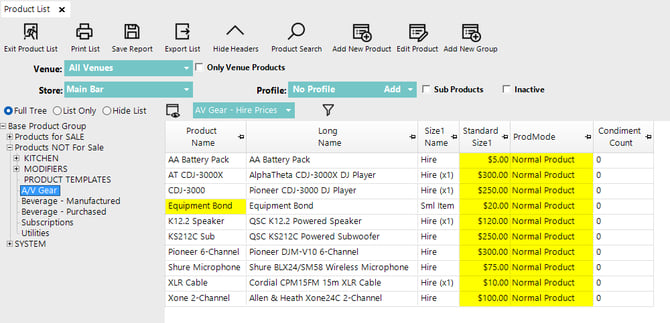
In the Product Tree, the individual products used inside a Composite Product should be created as Normal Product records first. These products are the final saleable items that will be added to the transaction when the Composite Product is sold.
For the below examples:
- A/V Gear may contain Normal Products such as K12.2 Speaker, XLR Cable, Pioneer 6-Channel, and Equipment Bond which has multiple specific Sizes - this is explained later.
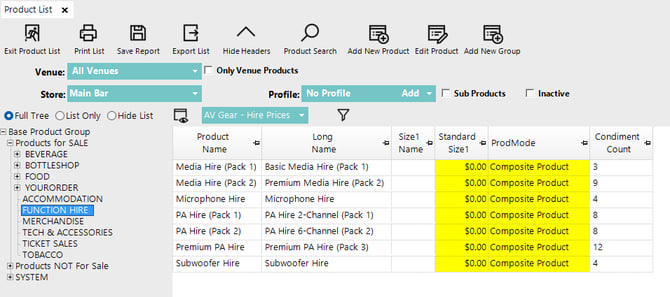
- FUNCTION HIRE may contain Composite Products such as PA Hire (Pack 2).
Although the venue may label these items as packs, the Product Mode determines the behaviour. A product named PA Hire (Pack 2) can still be a Composite Product, while the speaker, cable, mixer, and bond products linked to it remain Normal Product records.
Composite Product Setup
To configure a Composite Product:
- Open BackOffice.
- Navigate to Products.
- Open the product that will act as the main product sold at SmartPOS.
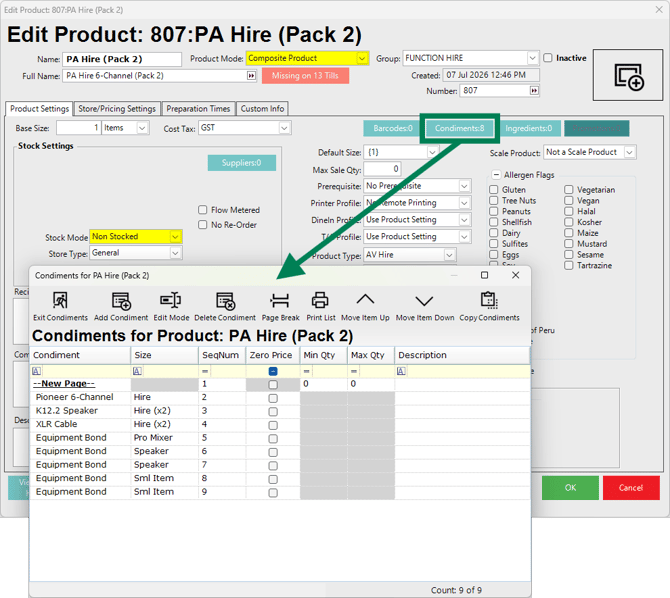
- Select Composite Product from the Product Mode drop-down in the product header.
- Confirm the product is assigned to the correct Group.
- Open the Product Settings tab.
- Set the Stock Mode to Non Stocked.
- Click Condiments.
- Add the products that should be sold automatically with the Composite Product.
- Select the required Size for each condiment product.
- Zero Price should be disabled for each condiment line.
- Click OK to save the condiment list.
- Click OK again to save the product.
For example, a venue may create a Composite Product called PA Hire (Pack 2). Although the venue has named it a pack, it is still configured as a Composite Product, not a Package Fixed or Package Selection Product.
The PA Hire (Pack 2) product may have no base price of its own. Instead, the sale value can come from the products in the condiment list, such as:
- Pioneer 6-Channel
- K12.2 Speaker (Hire x2)
- XLR Cable (Hire x2)
- Equipment Bond for all four (4) Products
In this example, the Composite Product is used to make sure the correct hire items and equipment bond are added to the sale together.
If the products in the condiment list should contribute to the transaction total, leave Zero Price turned off for those condiment lines. This is generally normal practice for condiments in a Composite Product.
If a condiment product should be included for tracking or operational purposes only, and should not add a price to the sale, enable Zero Price for that line.
Min Qty and Max Qty do not have any effect when using Composite Product Mode.
‼️ Important: Composite Products cannot be nested. If a Composite Product is added as a component of another Composite Product, bepoz will sell the parent product only and will not automatically expand the child Composite Product into its own component products. If every component must be included in the transaction, add each required Normal Product directly to the parent Composite Product condiment list. Composite Products should be designed using the final saleable Products required for the transaction, rather than relying on other Composite Products to expand automatically.
SmartPOS Example
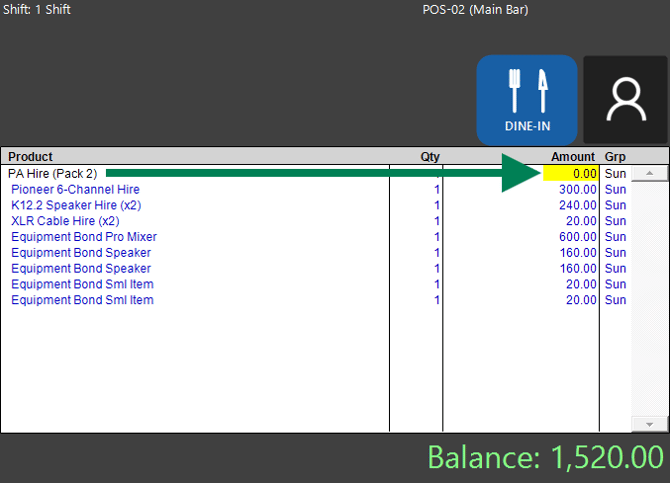
When the Composite Product is sold at SmartPOS, the linked condiment products are added to the transaction automatically.
Using the function hire example, staff can sell PA Hire (Pack 2) instead of manually adding each hire item and bond line one at a time. This reduces missed charges and keeps the transaction consistent.
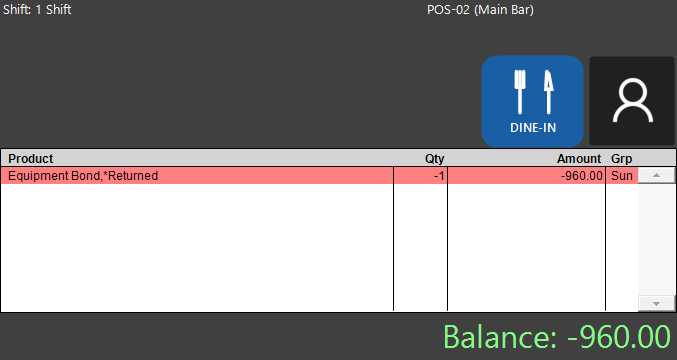
As mentioned earlier, the Equipment Bond product can include multiple sizes for different bond amounts or hire scenarios. A size named *Returned can be used after the function has finished so the bond can be refunded back to the customer.
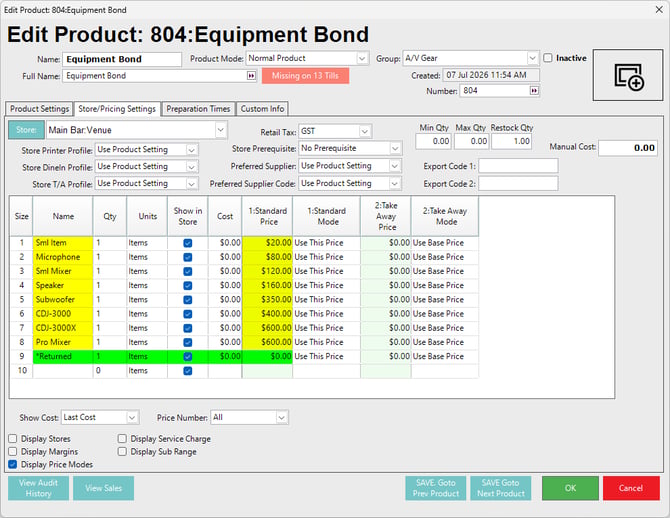
At SmartPOS, staff can select the *Returned size and use the minus function on the NumberPad. This allows the bond refund to be processed against the same Equipment Bond product, instead of relying on staff to manually create an unrelated refund item.
Video Link
See the following link which outlines Comment Display Only and Composite Product modes in a short video:
updated to: bepoz v4.9.0.4