
Overview
Condiment Groups contain a list of Condiments. These do not need to be Condiment Products.
When a Condiment Group is added as a Condiment to another Product, the Condiment Group's list of Condiments displays at the SmartPOS Workstation when the Product is selected. This allows standard lists of Condiments to be added to multiple Products. Editing the Condiment Group will update all Products linked to the group.
Prerequisites
To access and manage Condiment Products, the applicable Operator Privileges must be enabled.
Confirm the Operator has access to:
- Operator Maintenance
- Maintenance tab
- All Products flags
Condiment Group Creation and Editing
To create a Condiment Group:
- Select Condiment Group from the Product Mode drop-down in the header section.
- Enable Non-Stocked in Stock Settings on the Product Settings tab.
- Click Condiments on the Product Settings tab to open the Condiments window.
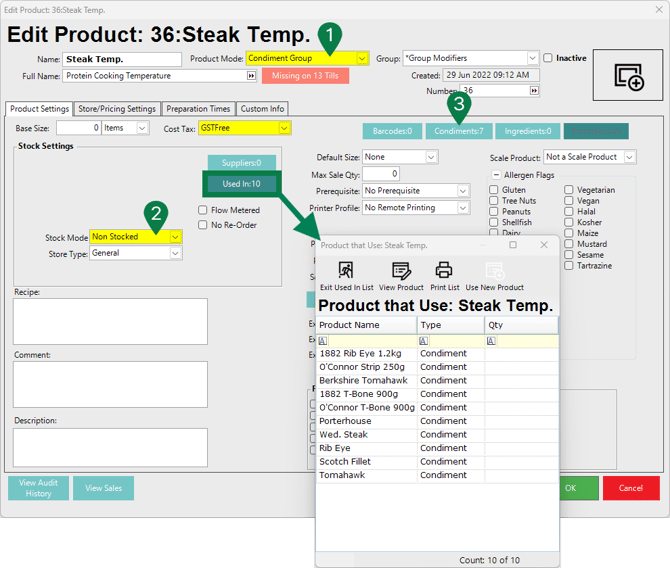
The Used In function shows which Products currently use the selected Condiment Group. Click Used In to open a list of linked Products, then review where the Condiment Group is assigned before making changes.
Clicking the Condiments function will present you with a pop-up, review the warning that appears.
Select Yes to view the Products currently using the Condiment Group, select No to continue without viewing them, or select Cancel to stop.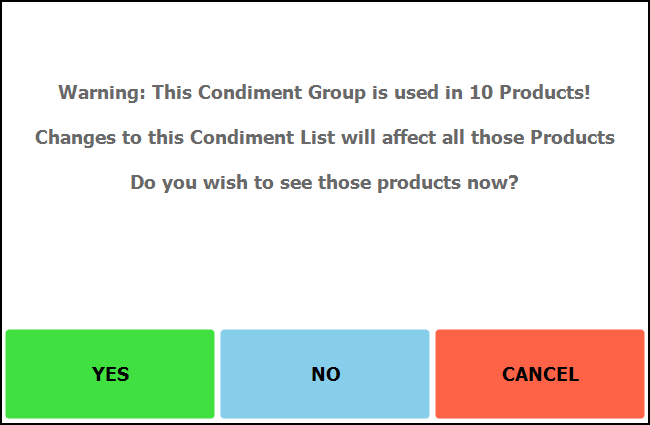
- Click Edit Mode to add, edit, or remove Condiment Items as required.
Zero Price is set by default, untick any Condiments in the list which have associated prices. - Set the Minimum and Maximum quantity of Condiment Items that must be selected when selling the Product.
- Click on any Product in the list and move them into place up/down as required.
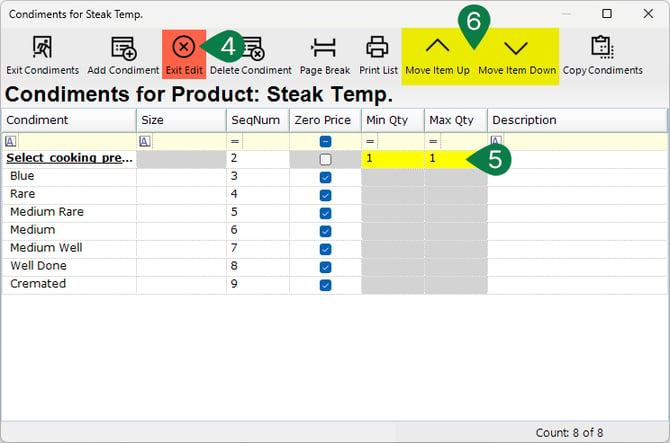
If no Min or Max quantity is entered, there is no limitation on condiment selection during SmartPOS transactions.
Setting the Min quantity to 0 means the Condiment is optional and may be skipped at the POS during the transaction.
SmartPOS Workflow Example
-
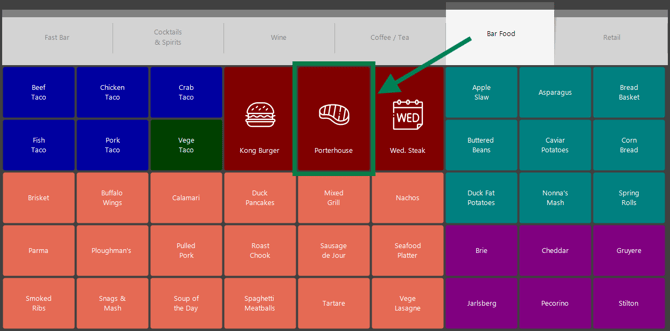
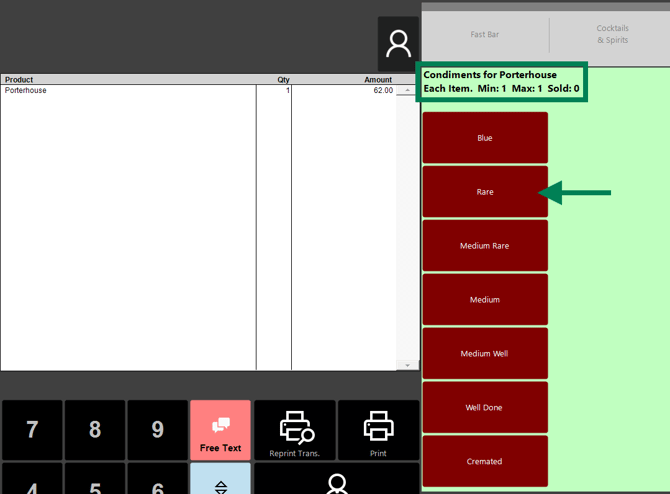
In this example, a Porterhouse steak, the Condiment Group called Steak Temp. can be added as a Condiment:
-
Once the Product is selected, all Condiments within that group display on the SmartPOS Workstation. The Min and Max are displayed on the screen for the Operator to see.
For the example, Rare will be selected:
-
Since the Min Qty and Max Qty parameters have both been set to 1, it is mandatory to select one Condiment from the list, and only one Condiment can be selected.
-
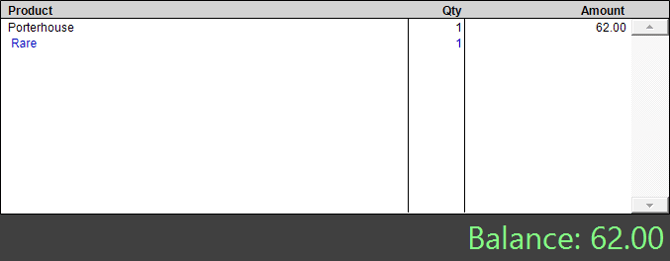
The Condiment will be added to the transaction window and the price updated accordingly.
updated to: bepoz v4.9.0.3