
Overview
Prize promotions are used to give rewards for Purchases of some kind in Bepoz
Prerequisite
- To access Prize Promotion, the Operator Privileges will need to be enabled
- Promotions: "Maintain Prize Promotions" Flag
- Marketing & Promotions Tab
Prize Promotion Setup
- After logging into BackOffice, follow the process below to access and create a new Prize Promotion:
Step 1 - Accessing Prize Promotion on BackOffice
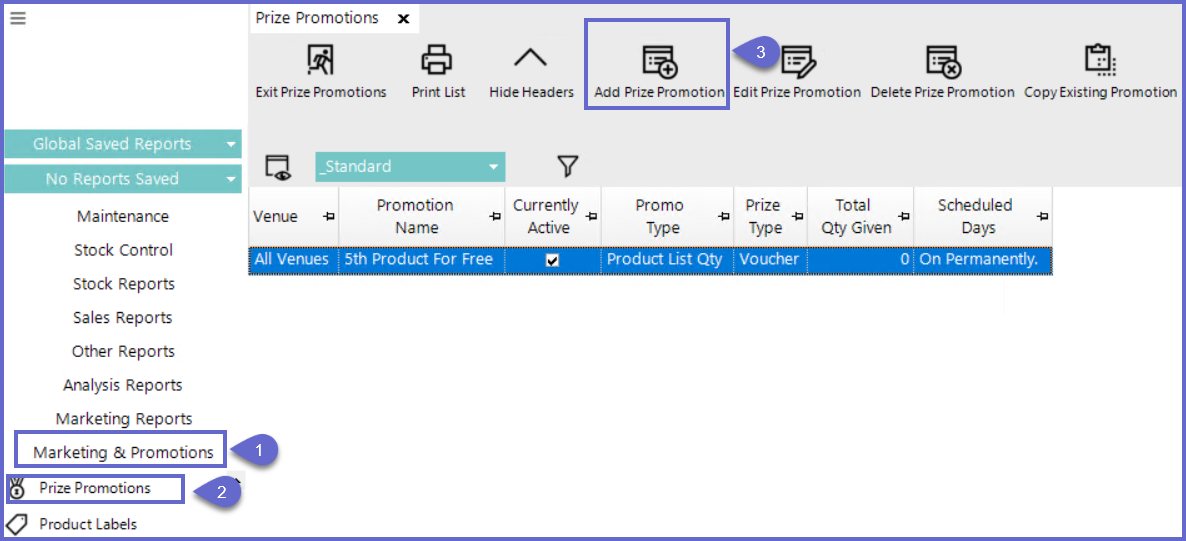
- Click Marketing & Promotions located on the menu sidebar. The section will expand with several options
- Click Prize Promotion and a new window will appear
Step 2 - Add or Edit a Prize Promotion
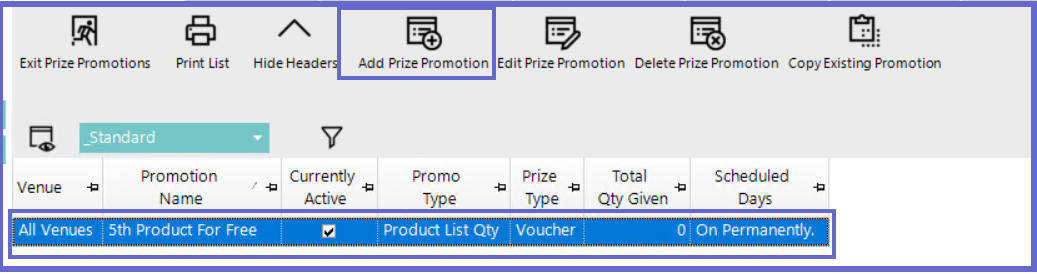
- Press Add Prize Promotion located in the header menu to add a new Prize or double-click an existing promotion from the list to edit it
- Both paths will open the 'Price Promotion Maintenance' window
Step 3 - Prize Promotion Maintenance
- This window is where users can configure a Bepoz prize promotion
- This step will outline different sections within the Prize Promotion Maintenance
General Settings
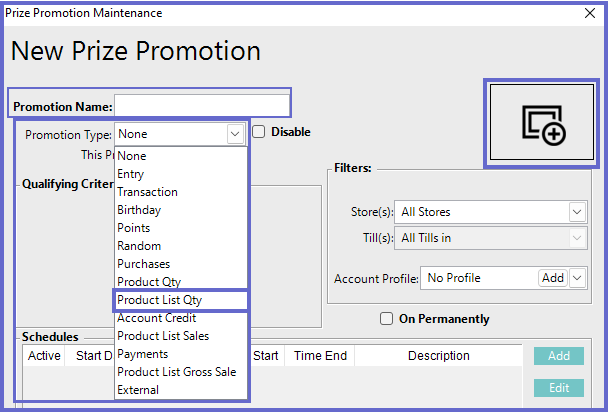
- Promotion Name
- A title for the promotion. Input desired text into this field
- The name should include the product name to clearly define which products are being used for this promotion
- Promotion Type
- Product List Qty option will award individuals based on the quantity purchased of a specific product
- A dropdown list containing a variety of options
- Example: Select Product List Qty
Qualifying Criteria
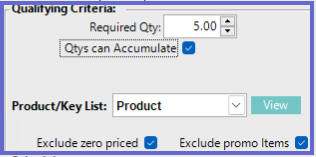
- Required Qty
- The necessary quantity that needs to be achieved before the promotion will issue a reward
- Click the up and down arrows to change the value, Alternatively, can highlight the value in the field and type a number
- Qtys can Accumulate
- This flag should be enabled. It allows users to collect the quantities of a single product over several transactions
- Product/KeyList
- A dropdown list that displays KeyLists configured in BackOffice
- KeyLists include the products that will apply to the Prize Promotion
- If there is no Keylist available, then a new one will need to be created. Follow these steps to create a KeyList
- From the Prize Promotion window, Click Maintenance in the menu sidebar
- Click Product KeyMaps and a new window will open
- Click View/Edit Key Lists in the page header
- In the new KeyList Names window, Press Add A New KeyList
- Type in a title and press OK
- On the new screen, press Add Another Product
- Click Product Search in the panel header
- Type in the appropriate fields and press OK
- Click the product. Choose size, if applicable
- Repeat steps 6 to 10 until all desired products are listed
- Exit both panels
- Exclude Zero Priced Flag
- ON: All products with a price of zero will not apply towards the quantity amount in the Prize Promotion
- OFF: Products that have a zero price will be included in the Prize Promotion
- Exclude Product Promo
- ON: Products that are included in a Product Promotion will not apply towards the quantity amount of this Price Promotion
- OFF: Any products attached to a Product Promotion will be included in the quantity amount of this Prize Promotion
Filters
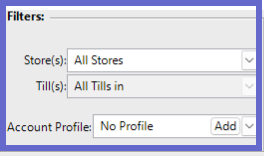
- Store(s)
- This field Limits which stores the prize promotion will apply to
- A drop-down list that contains a list of Stores set in Backoffice
- Select the desired store to specify this prize promotion to only that store or All Stores to allow every store to use the promotion
- Till(s)
- This field limits which tills the prize promotion will apply to
- If Store(s) field is set to 'All Stores' then this field will be locked to 'All Tills in', which will use all Tills created in Backoffice
- If Store(s) is set to a different option then this field will open a dropdown list when clicked. The selectable options will be tills that are set up in the Backoffice. Selecting a specific till will apply this prize promotion to only that till
- Account Profile
- Used to limit the accounts the prize promotion will apply to
- A drop-down list that displays all Account Profiles set up in BackOffice
- The 'Add' button next to this field, will let users create and add a new Account Profile
Schedule
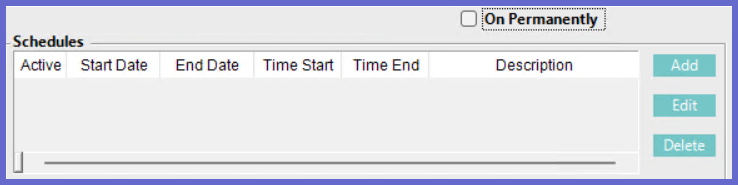
- On Permanently Flag
- ON: The prize promotion will run forever with no end date
- OFF: Schedules configuration will be available. if no schedule is added and this flag is off the Prize Promotion will never be awarded
- Schedules
- Overall Start and End Dates click the boxes next to the start/end date to choose the current date or click the down arrows next to the start/end date to open a calendar and choose a date
- Lets users set a start and end time/date for Prize Promotion to be active. Any time/date outside the set schedule will not invoke the Promotion
- Add: When users click this button a 'New Schedule' panel will appear

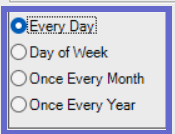
- Choose the repetition period by clicking the radio button next to the desired option
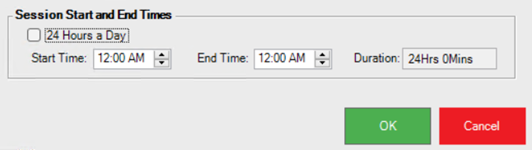
- By default 24 Hours a Day flag will be ON. This will mean the session start time will start when the schedule is created and end in 24 hours
- If this flag is OFF, then users can choose a start and end time by inputting a time or using the arrows
- Click OK to save OR cancel to discard
- Edit: First choose an existing schedule in the schedules list. When the edit button is clicked it will open the configurations of the selected schedule
- Delete: First choose an existing schedule in the schedules list. When the Delete button is clicked the selected schedule will be removed
Prize Details
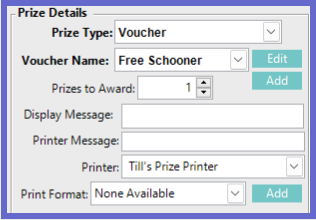
- Prize Type
- A dropdown list that shows different types of rewards that can be issued after the prize promotion requirements have been achieved
- Example: Select the Voucher option.
- Voucher Name
- The title of the voucher created in BackOffice
- A dropdown list will appear with all available vouchers.
- Making a selection and clicking edit will direct users to the 'Voucher Setup' panel for this voucher
- clicking Add will direct users to a "Voucher Setup" panel with empty fields
- For more details about Vouchers refer to 'Creating a voucher in bepoz'
- Prizes to Award
- The number of rewards that will be given upon completion of prize promotion requirements
- Click the arrows to change the value or highlight the number in the field and type a new one
- Display Message
- Displays text when the prize is rewarded
- Printer Message
- Text that is sent to a printer when the prize is rewarded
- Printer
- A dropdown list containing printers set up in Backoffice
- The selected option will print out the printer message TBC
- Print Format
- A structure that information will print out in.
- If no format is selected then a prompt will appear when clicking OK to add one
Maximum and Counts
- This section allows users to set the max amount in various situations. This prevents accounts from exploiting prize promotions
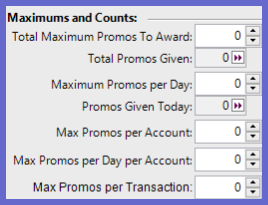
- Total Maximum Promos To Award
- The Maximum number of times that the prize promotion can be given starting from the creation of it
- Set it to zero to apply no limit to the total awarding limit
- Set it to a value greater than zero and the prizes will stop being awarded when the limit is reached
- Total Promos Given
- The total number of times the promotion has been triggered since it's creation
- Maximum Promos per Day
- The Maximum number of times that the prize promotion can be given each day
- Set it to zero to apply an unlimited amount that can be issued each day
- Set it to a value greater than zero and the prizes will stop being awarded each day when the limit is reached
- Promos Given Today
- The total number of times the promotion has been triggered for the current date
- Max Promos per Account
- The total maximum number of times a single account can receive this prize promotion
- Set it to zero to apply an unlimited amount that can be issued to the account
- Set it to a value greater than zero and the prize promotions will stop being awarded for a single account when the limit is reached
- Max Promos per Day per Account
- The maximum number of times a single account can receive this prize promotion each day
- Set it to zero to apply an unlimited amount that can be issued to an account each day
- Set it to a value greater than zero and promotions will stop awarding to a single account each day if the limit is reached
- Max Promos per Transaction
- The maximum number of times that a prize promotion can be issued on one transaction
- Set it to zero to apply an unlimited amount that can be issued on a single transaction
- Set it to a value greater than zero and promotions will stop awarding on a single transaction if the limit is reached
Step 4 - Save
- After all the necessary fields are configured in the 'Prize Promotion Maintenance' Screen, Click Save to apply the changes or Cancel to discard