
Overview
Creating a new product in bepoz BackOffice is always completed by copying an existing product.
Copying an existing product means finding the product in the database that is most similar to the new product being created. For example, where possible, select an existing product with the same Base Size, product type, stock setup, or similar pricing behaviour.
This copies relevant product setup and reduces the amount of configuration required for the new product.
There are two (2) supported ways to copy an existing product and create a new one:
-
Use the Add New Product function button.
-
Right-click an existing product and select Copy Highlighted Product as New Product...
Prerequisites
Before creating a new product, ensure the operator has:
-
Access to BackOffice.
-
Permission to access Maintenance.
-
Required privileges for the Product section.
Getting Started
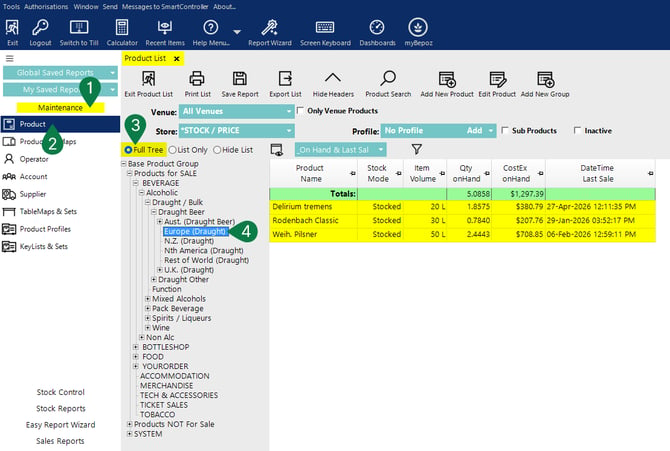
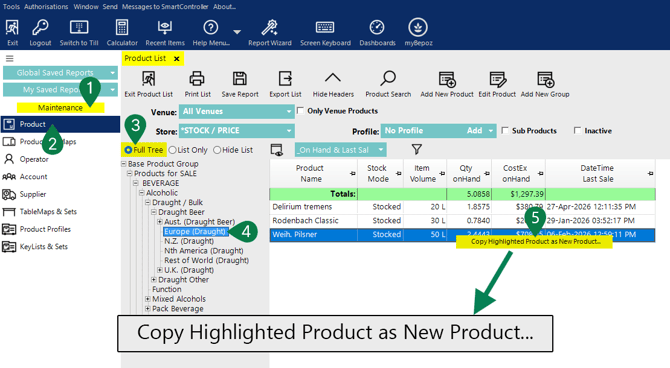
After logging in to BackOffice, use the Product List window to locate the correct product group.
-
Select Maintenance.
-
Select Product.
-
Select Full Tree (if not set by default).
-
Select the Product Group where the new product will be added.
-
The products within the selected Product Group will appear in the product list on the right, as shown above.
Method 1 - Add New Product
Use this method when creating a product from the selected Product Group.
-
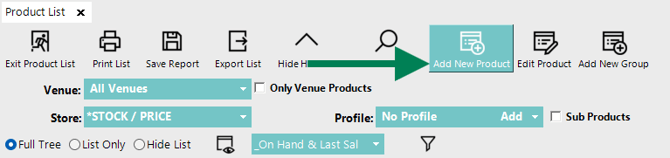
Click Add New Product.
-
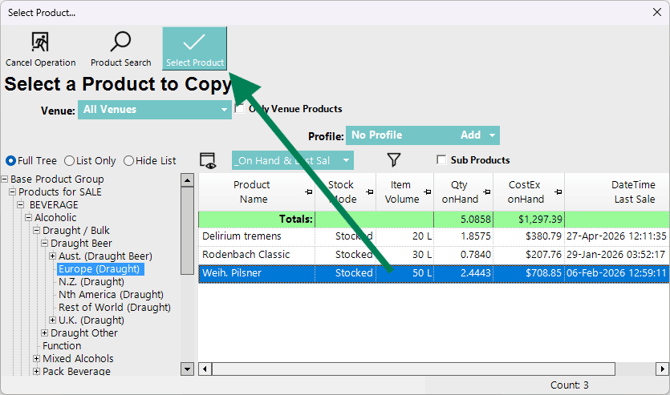
Select the product to copy.
-
Click Select Product (double-clicking will also select the product).
-
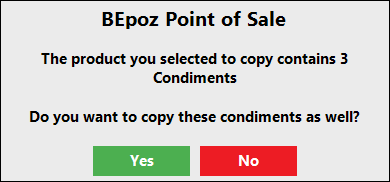
If the selected product contains additional copied values, bepoz will display confirmation prompts before opening the new product.
Image below shows the prompt asking whether custom field values should be copied.
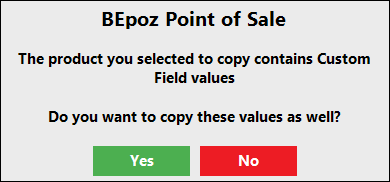
Image below shows the prompt asking whether condiment settings should be copied.
-
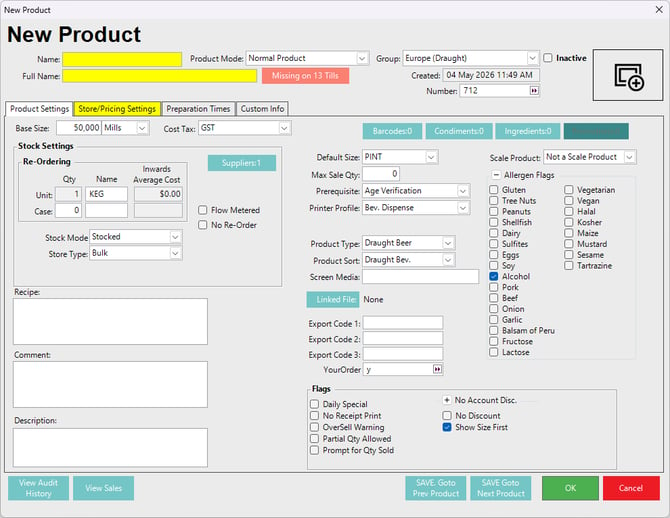
The New Product window opens after the product has been selected and any applicable prompts have been answered. Enter the required product details (e.g. the Product Name) and review the copied settings before saving. Ensure to enter the correct selling price(s) in the Store/Pricing Settings tab.
Method 2 - Copy Existing Product
Use this method when copying directly from a highlighted product in the product list.
Complete the Getting Started steps 1-4 at the beginning of this article, then select a product from the list displayed.
5. Right-click the highlighted product and select Copy Highlighted Product as New Product...
-
The New Product window opens after the copied product has been selected. Review the copied settings, enter the new product details, then save the product.
Additional Considerations
When a product is copied, selected product settings are carried through to the new product intentionally. This helps reduce manual setup, improves consistency across the product database, and lowers the chance of missed or incorrect configuration.
Operators can still review and update these settings in the New Product window or later from Product Maintenance.
For optional copied values (pop-up notifications):
- Select Yes to copy the values from the original product.
- Select No to create the new product without copying those values.
Custom field values and condiment settings may only prompt if they exist on the product being copied.
Product Specific Details
Some product details are unique to each product and are not copied when creating a new product.
Examples include:
-
Image
-
Number (PLU Number)
-
Barcodes
-
Ingredients
-
Recipe
-
Comment
-
Description
- Supplier Product Codes
updated to: bepoz v4.9.0.1