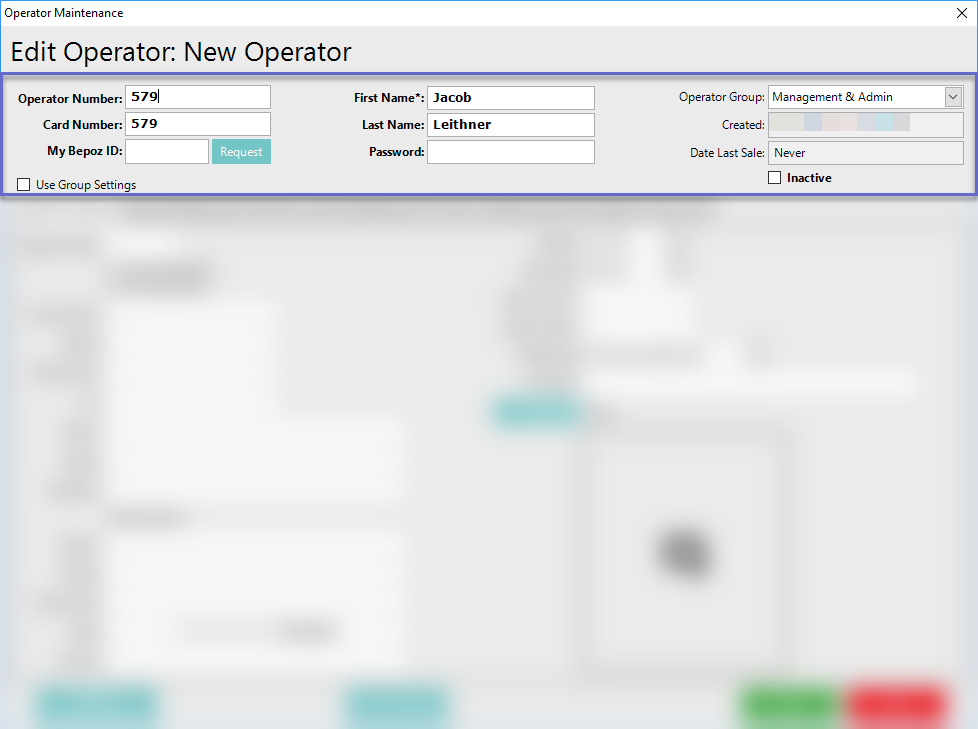
Overview
Operators are the users/staff who will need to log in to Bepoz, whether that is at a SmartPOS Till or a BackOffice Workstation.
Operators can be created from scratch or can be copied from other existing Operators.
Prerequisites
- Operator Privilege to access BackOffice
- Operator Privileges to View, Create and Edit Operators
Adding a New Operator
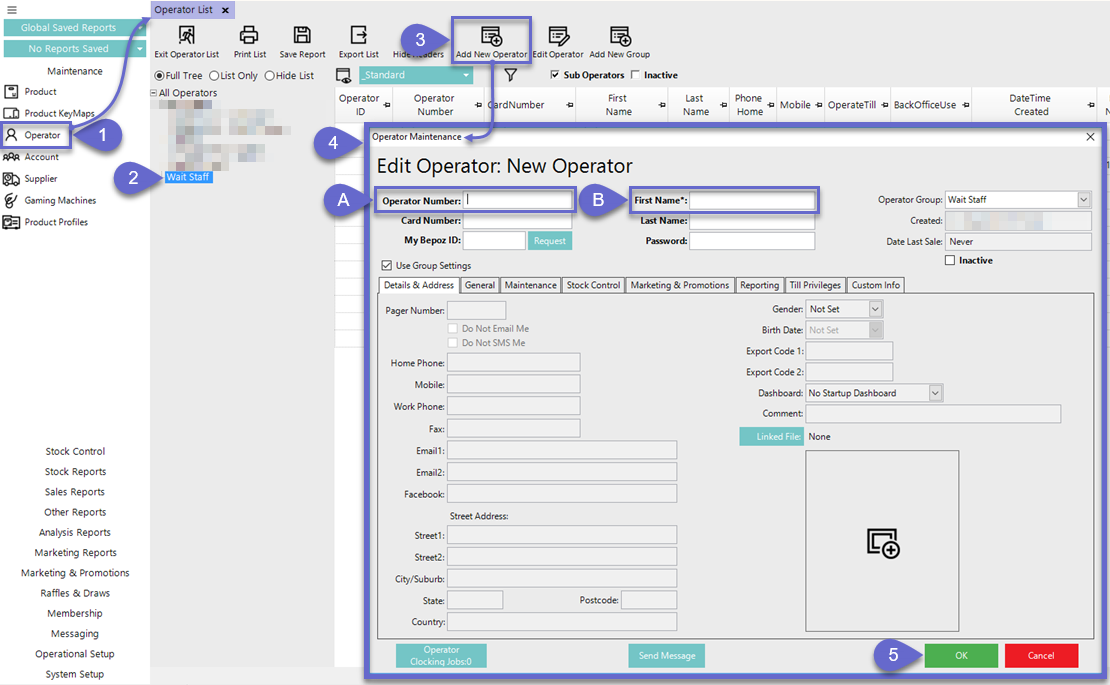
To add a New Operator, follow these steps after logging in to BackOffice:- From the Maintenance component of the sidebar menu, select Operator which will open the 'Operator List' tab
- From the Operator Group List, select the Operator Group to add the New Operator in to by highlighting the Operator Group in the list
- Click the 'Add New Operator' button in the Header Section
- An Operator Maintenance window will then open; at a minimum, to create a New Operator, the following information must be entered:
- Operator Number (must be unique)
- First Name
- Click OK and the New Operator will now be added
Copying an existing Operator
When adding a New Operator in BackOffice, it will always be easiest to copy an existing Operator, whenever possible.
To add a New Operator by copying an existing Operator, follow these steps after logging in to BackOffice:
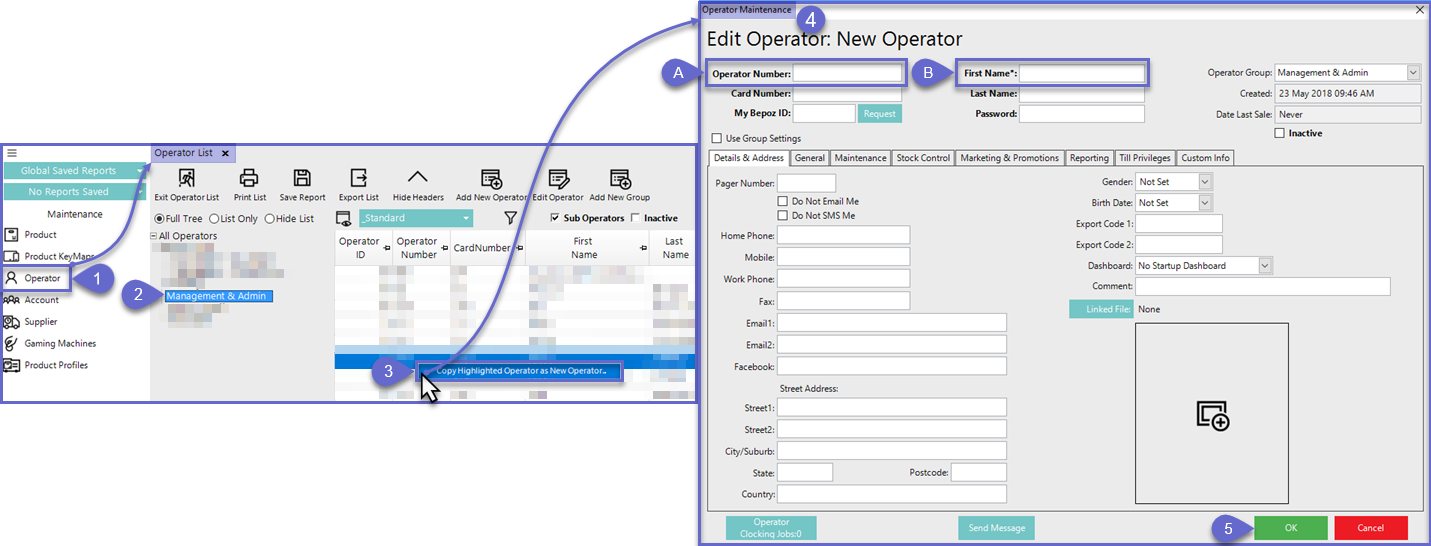
- From the Maintenance component of the sidebar menu, select Operator which will open the Operator List tab
- From the Operator List, select the Operator Group to add the New Operator to by highlighting the desired Operator Group in the list
- Right-click on the individual existing Operator to copy and click 'Copy Highlighted Operator as New Operator'
- As in the above instructions for "Adding a New Operator", an Operator Maintenance window will then open; at a minimum, to create a New Operator, the following information must be entered:
- Operator Number
- First Name
- Click OK and the New Operator will now be added
Again, these are the bare minimum requirements to create a New Operator; additional fields may be completed and additional settings edited prior to finishing.
Most settings will transfer over when copying an existing Operator to a New Operator.
However, there are several Operator settings that are never copied; these include:
- Operator Number
- Card Number
- First Name
- Last Name
- Password
- Address Details
- Comment
- Operator Clocking Jobs