
Prerequisites
- Operator Privileges for the entire Accounts & Memberships section
Creating a New Account
- To add a New Account, follow these steps after logging into BackOffice:
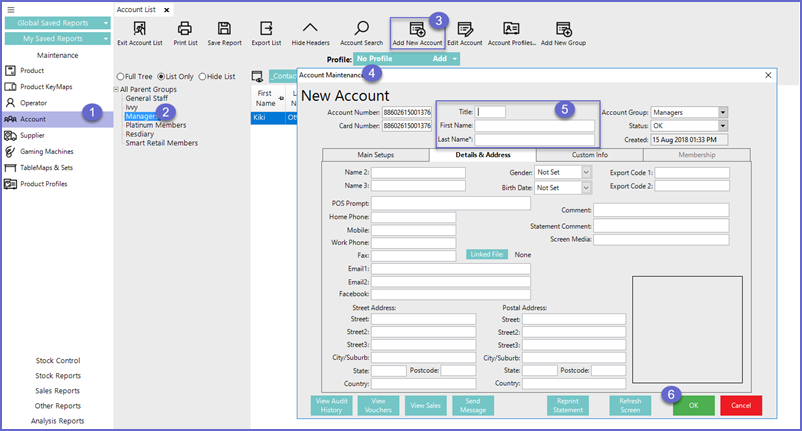
- From the Maintenance menu, select Account
- Select the Account Group for which New Account is being added by highlighting the Account Group in the tree
- Click the Add New Account button in the Header Section
- A window will open asking you to either Select a Blank Account or Copy an Existing Account
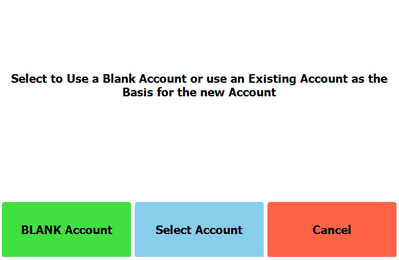
- When creating a New Account, it is best to copy an Existing Account that is similar to the one that will be created
- By copying an Existing Account, certain Account settings will be copied into the new Account, and don't need to be set each time a New Account is created
- Alternatively, by applying settings to an Account Group, and then creating a New Account within that Group, the New Account will retain certain settings that have been assigned to that Group
- Operators can use any of these methods to Create the New Account
- A window will open asking you to either Select a Blank Account or Copy an Existing Account
-
An Account Maintenance window will then open
- The Account Number and Card Number will auto-populate based on the order in which the Account was created, however, both fields can be changed
- The Account Number and Card Number will auto-populate based on the order in which the Account was created, however, both fields can be changed
-
It is mandatory to enter at least a Last Name while creating an Account
- This is the bare minimum requirement to create a new Account; Operators may fill in additional fields and edit settings prior to finishing
- Information on editing additional details and settings can be found in other Knowledge Base Articles
- This is the bare minimum requirement to create a new Account; Operators may fill in additional fields and edit settings prior to finishing
-
Click OK and the New Account will now be added
- Most settings will transfer over when copying an Existing Operator to a New Operator
- However, there are several Operator settings that are never copied; these include:
- Account Number
- Card Number
- Title
- First Name
- Last Name
- Details & Address
"Account Maintenance" Header

Account Number** - The Account Number is a unique field identifying the Account
Card Number** - This is the number used for activation at the POS when using Access Tokens or Devices such as Member/Account Cards, Barcodes or RFID Tags
Title - Title of the Account Holder
First Name - Forename of the Account Holder
Last Name** - Surname of the Account Holder
Account Group - Group the Account belongs to. (Account's Parent Group)
Status - Account Status; whether Inactive, OK, Deceased, Suspended, Pending or On Hold. 'OK' is the only recognised status as Valid, i.e. Working/enabled. All others are for Information.
Created - Date and Time the Account was Created.