Overview
If required, KeySets can be deleted within the Product KeyMaps Menu. A KeySet cannot be deleted if it is currently assigned to a SmartPOS Workstation.
Prerequisites
- Operator Privilege to access BackOffice
- Operator Privilege to Maintain Keymap Settings
Deleting KeySets
- To Delete a KeySet, follow these steps after logging in to BackOffice:
- From the Maintenance menu, select Product KeyMaps
- Click to KeyMap Sets button in the Header Section of the KeyMap List Tab
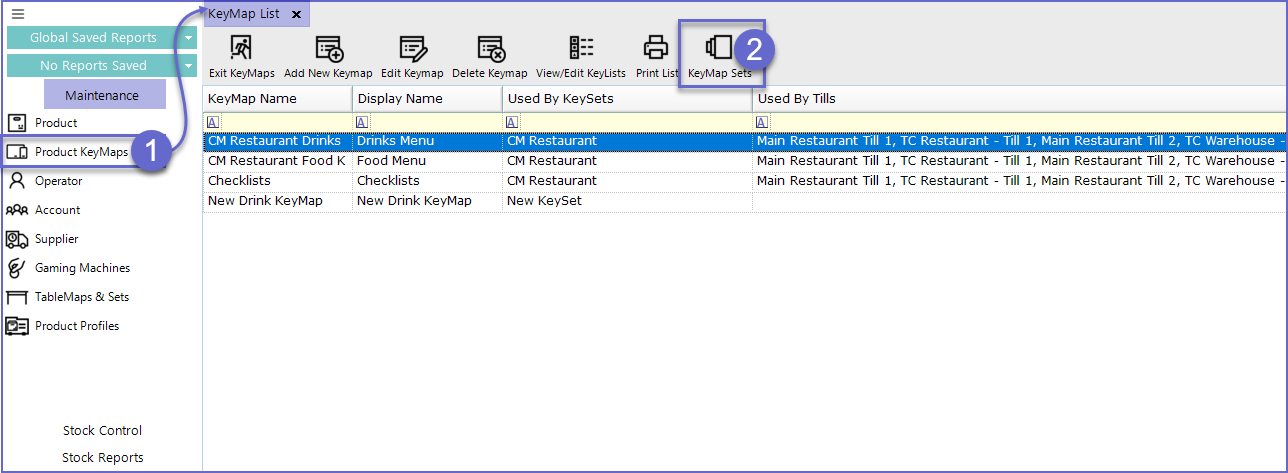
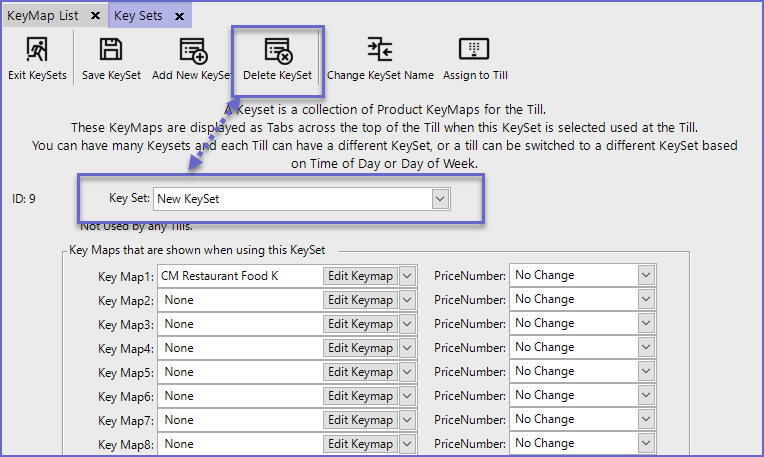
- This will open a new Tab titled Key Sets
- Ensure that the correct KeySet for Deletion is selected from the Key Set drop-down selector
- Click the Delete KeySet button in the Header Section
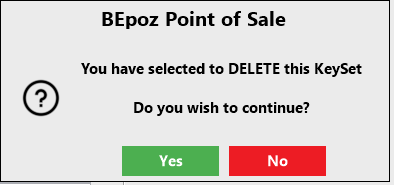
If you get this message:
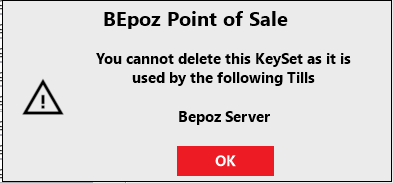
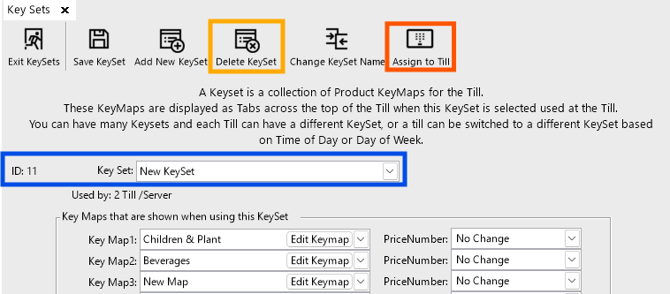
It means the Keyset is being used by the mentioned Tills.
You MUST Assign a different KeySet to the Till:
- Select the New KeySet from the Key Set drop-down (Blue)
- Click Assign to Till (Red)
- Select your Till.
- Switch Back to the KeySet to be deleted (from the Key Set drop-down)
- Click Delete Keyset. (Orange)