Skip to content
  • There are no suggestions because the search field is empty.

📄KeyMap Tab and Button Details

This article covers an overview of the available KeyMap Tab and Button Configurations in BackOffice.

Overview

Once a KeyMap has been created, there are various customizations and options available.

These options provide a myriad of KeyMap layout designs that can be made to suit the needs of everyday business operations.

KeyMap buttons have various configuration Options available including Button Type, Displayed Texts / Fonts, Sizes & Colours, and Images & Display Modes.


Prerequisites 
  • To access KeyMap features, the applicable Operator Privileges will need to be enabled 
    • Products: "Maintain Keymap Settings" Flag
    • Operator Maintenance 'Maintenance' Tab


KeyMap Tab Details & Settings 
Function/Settings

Description & Information

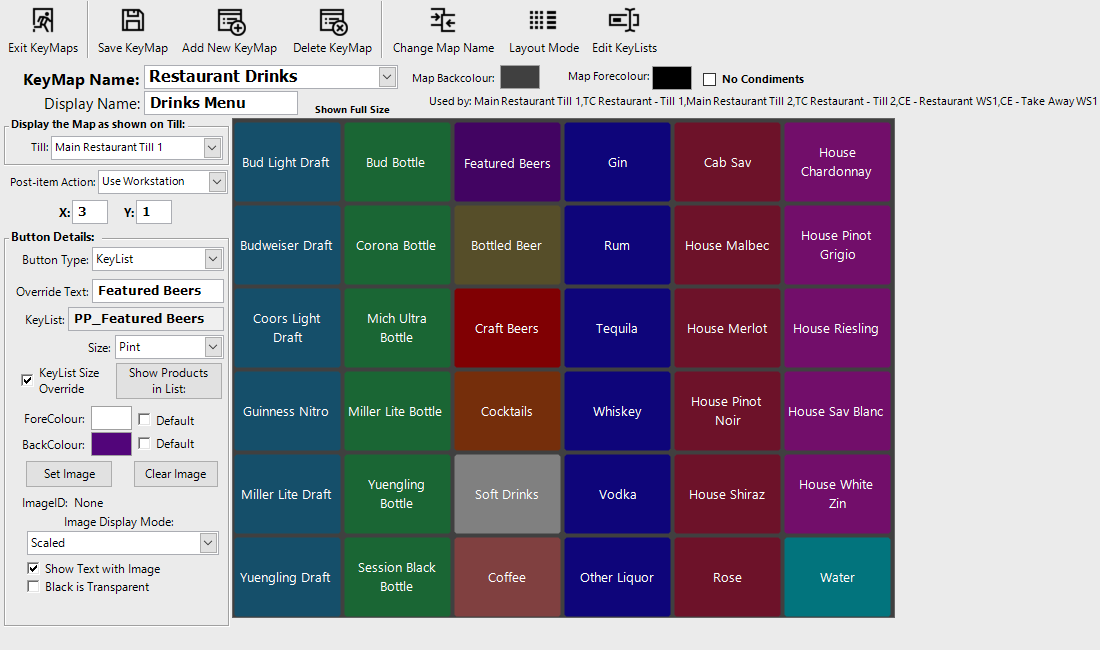
Change Map Name
  • This button allows operators to change the Name of the current KeyMap selected and being displayed
Layout Mode
  • This button displays the KeyMap as it would look on the selected SmartPOS Workstation (Till)
    • This will show double keys
    • This will also hide keys for Products which are not currently existing in that Till's Store
    • Operators cannot add Keys while Layout Mode is enabled
Edit KeyList
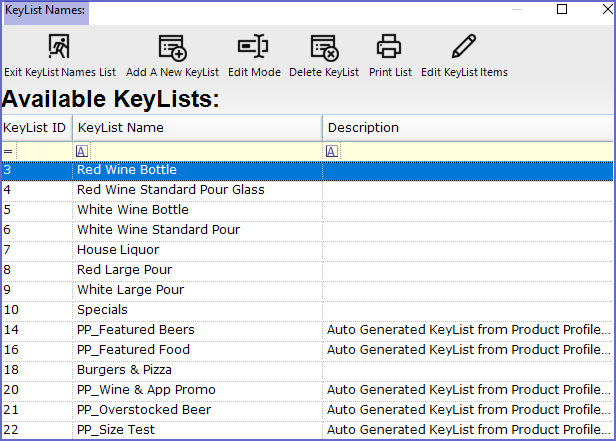
  • This button will open a new window where Operators are able to View and Edit all KeyLists in the system


KeyMap Name
  • This is the name of the current KeyMap being displayed for editing
  • To quickly switch to a different KeyMap, click the drop-down and select the desired KeyMap
Display Name
  • This is the Name which will be displayed on the SmartPOS Workstation Screen
  • If this is left blank, the KeyMap Name will be displayed on the SmartPOS Workstation Screen

Map BackColour

  • This is the default Backcolour for the KeyMap
  • This Backcolour will be used if the Default flag is enabled as a button's Backcolour
  • This will also be the color shown in any spaces where there are no buttons set
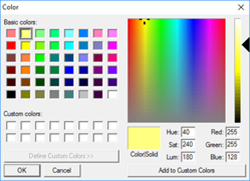
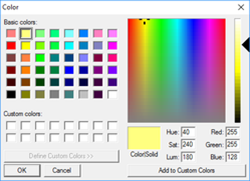
  • To change the Map Backcolour, click on the box to the right
    • A new window will open where a color can be selected
Map ForeColour
  • This is the default Forecolour for the KeyMap
  • This Forecolour will be used if the Default flag is enabled as a button's Forecolour
  • To change the Map Forecolour, click on the box to the right
    • A new window will open where a color can be selected
No Condiments
  • If this flag is enabled, Condiments and Condiment Groups will not be displayed when sold from that KeyMap for Products that would normally have them displayed
    • This can be useful if Operators wish to sell the same Product with and without Condiment options, but from different KeyMaps
Used By
  • This is a list of SmartPOS Workstations that use the current KeyMap being displayed
  • Alternatively, 'Not Used' will be displayed if the current KeyMap is not being used by any SmartPOS Workstations
Till Drop-Down
  • Selecting a Till will display the KeyMap as it would appear on that Till
  • Since each Till may have a different number of Keys available, this may vary by Till, but will not affect the actual KeyMap
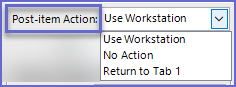
Post-Item Action
  • This drop-down allows operators to set the action performed after any product from the KeyMap is selected in SmartPOS


X & Y
  • These fields set the column (X) and row (Y) of the current Key Space Selected


Button Details  

Field

Description

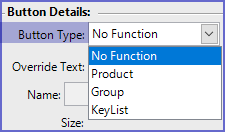
Button Type
  • Button Type is used to Select what type of button is added to the Key Space


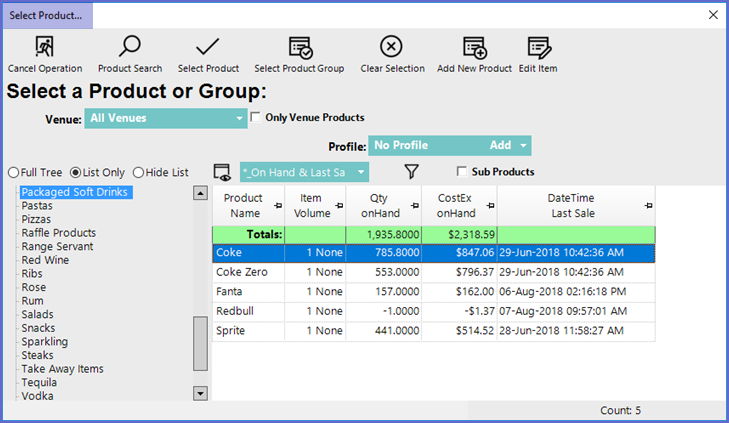
  • If a Product or Group is Selected, a Product List window will open where operators can either select a Single Product or a Product Group to be displayed in that Key Space 
    • To select a Single Product, either select a Product and click the Select Product button, or double-click on a Product
    • To select a Product Types either select a Group from the Tree and click the Select Product Group button, or double-click on a Product Group


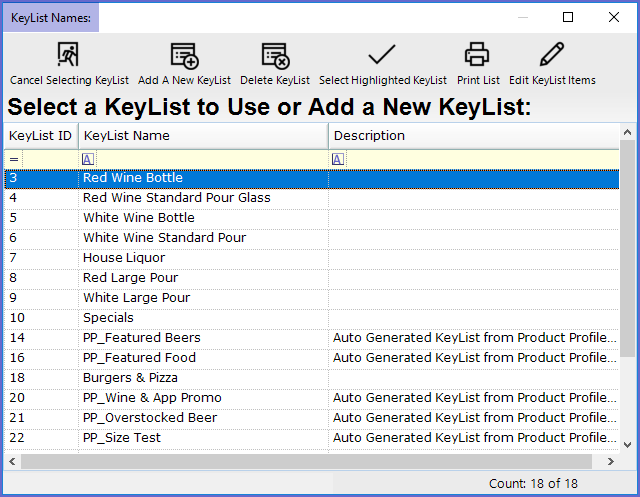
  • If KeyList is selected, a window will open asking operators to select the KeyList to be  displayed in that Key Space


Override Text
  • This is an optional field for entering alternative text to display on the selected button
  • By default, the button text will display the Name of the Product, Product Group or KeyList selected
    • If text is entered in this field, it will display on the button instead
Name
  • This is the name of the Product, Product Group, or KeyList that is assigned to the selected Key Space
Size
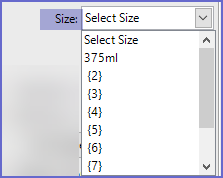
  • This refers to the Size of the Product or the Sizes of the Products within a Product Group or KeyList that will be sold via this button
    • If 'Select Size' is chosen and there are multiple Sizes for the Product, the operator will be prompted at the SmartPOS Workstation to select a Size
    • This only appears/applies to KeyList Button Types if the 'KeyList Size Override' flag is enabled


    • For a Single Product or for a KeyList, Operators can select a specific Size Name to be sold via this button

    • For a Product Group, Operators can select a specific Size Number for all of the Products within the Group to be sold via this button
KeyList Size Override
  • This flag only applies to KeyList Button Types
  • When enabled, a drop-down will appear where the Operator can select a specific Size which will then be applied to all Products in the KeyList when the button is selected in SmartPOS
    • E.g., set the Size to Large and then when the button is selected in SmartPOS, all Products will be set to Large - this eliminates an extra button press in the workflow when compared with having the Size set as "Select Size"
  • This reduces the need for either having multiple multiple KeyLists with the same Products set to different Sizes and this also makes manually selecting the Sizes for all Products in a KeyList a thing of the past, which was especially ineffective in the case of large Auto-Generated KeyLists from Product Profiles
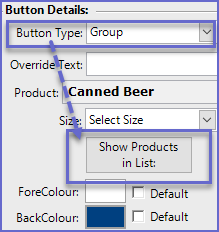
Show Products in List
  • When a Product Group or KeyList is selected, a new button will appear titled Show Products in List which allows Operators to view all of the Products in the Group or  KeyList

ForeColour
  • This is the Forecolour of the selected button
    • When a new button is added, it will be set to the Default KeyMap Forecolour
    • To change the Forecolour, click on the box to the right
      • A new window will open where a color can be selected
      • Once a new color is selected, the Default flag will become disabled
      • To switch back to the default Map Forecolour, enable the Default flag
BackColour
  • This is the Backcolour of the selected button
    • When a new button is added, it will be set to the Default KeyMap Backcolour
    • To change the Backcolour, click on the box to the right
      • A new window will open where a colour can be selected
      • Once a new color is selected, the Default flag will become disabled
      • To switch back to the default Map Backcolour, enable the Default flag
Set Image
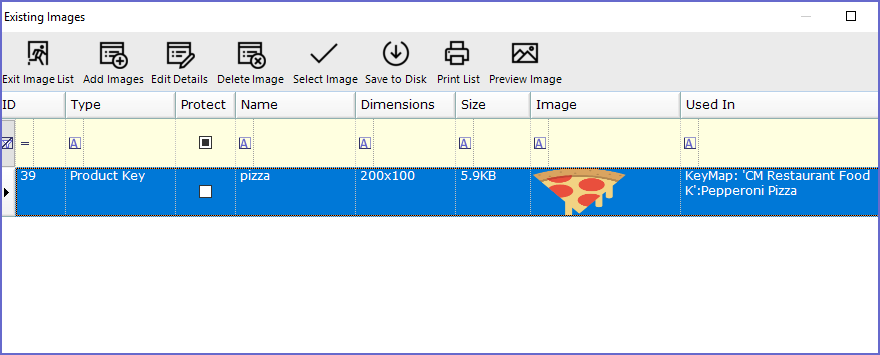
  • Click this button to set an image for the selected button
    • If a Product has an image already attached to it in the Product Settings, the system will give an option to add it to the button here
    • Alternatively, if the Product has no image already attached to it in the Product Settings or would like to set a different Image, operators can select an image from their desktop or capture one with an attached, compatible webcam

Clear Image
  • If the selected button has an image assigned, this will clear the image from the button
    • This will not Delete the image from the database
Image ID
  • This is the database ID of the selected Image for the button
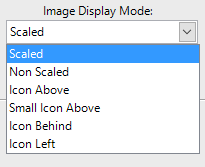
Image Display Mode
  • These are the different ways in which an image can be displayed on the button
Show Text With Image
  • If this flag is enabled, Text will be displayed with the image on the button as well
Black is Transparent
  • Enabling this flag will set any Black color in the image to Transparent
    • If operators wish to add  an image with 'transparent' areas in it, it is best to create the image as a PNG file type with the proper transparent area set
    • As an alternative, Operators can use a JPG file with the desired transparent areas set as black and enable this flag