
Overview
This article provides examples of common Product setup types, including non-stocked Products, ingredient-based Products, food Products, bulk Products, and stock-controlled Products purchased through BackOffice.
Use these examples as a guide when deciding whether a Product should be Stocked, Non Stocked, ingredient-based, or configured using bulk stock quantities.
For stock-controlled Products, it is important to distinguish between purchasing quantities and Product Sizes:
- Purchase Orders and receiving use Units or Cases only.
- Base Size defines the physical quantity represented by one purchasing Unit.
- Case Qty defines how many Units make up one Case.
- Product Sizes 1–10 are used for selling and stock deduction. They do not determine how stock is purchased or received.
Prerequisites
Before creating or editing Products, ensure the Operator has the required privileges to:
- View, edit, and create new Products and Product Groups
- Edit Prices and Product Sizes
- Edit Product Store Info
📌 Note: For Stocked Products and to use the stock functions within bepoz, the Stock Control module must be authorised and active.
Example Products
Product setup depends on how the item is sold, costed, purchased, and controlled for stock.
Common examples include:
- Cocktails
- Food Products — manual cost or stocked
- Ingredient-based Menu Items
- Bulk Beverages — for example, draught beer
Example 1 — Cocktails
Cocktails are typically configured as Non Stocked Products, with cost calculated from Stocked Products used as Ingredients.
- Open the Product.
- Select the Product Settings tab.
- In Stock Settings, set Stock Mode to Non Stocked.
- Select Ingredients.
- Add the required ingredients and quantities.
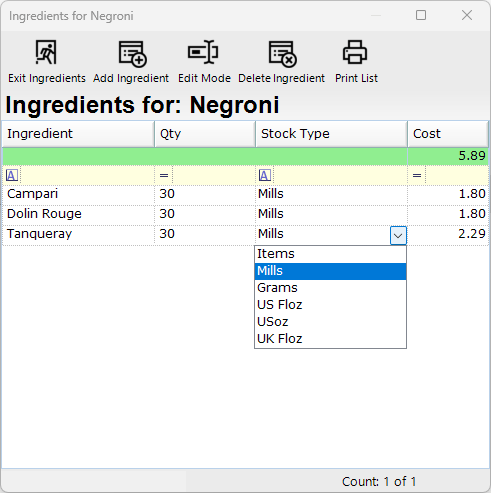
The Ingredients window allows ingredients to be added, edited, or deleted for the Product.
From this window, Operators can also create and print a PDF of the ingredients list.
By default, a whole base size, such as 1 Items, is added when a new ingredient is added to the ingredients list. This can be set to Mills, Grams, US Floz, USoz, or UK Floz as required.
The quantity configured against an Ingredient controls how much of that Ingredient Product is deducted. It is separate from Purchase Order and receiving quantities.
Image below shows an example cocktail Ingredients setup.
Example 2.a — Manual Cost Food Products
Use this setup when the Product does not need to reduce stock quantities and the cost is entered manually.
- Open the Product.
- Select the Product Settings tab.
- In Stock Settings, set Stock Mode to Non Stocked.
- Select the Store/Pricing Settings tab.
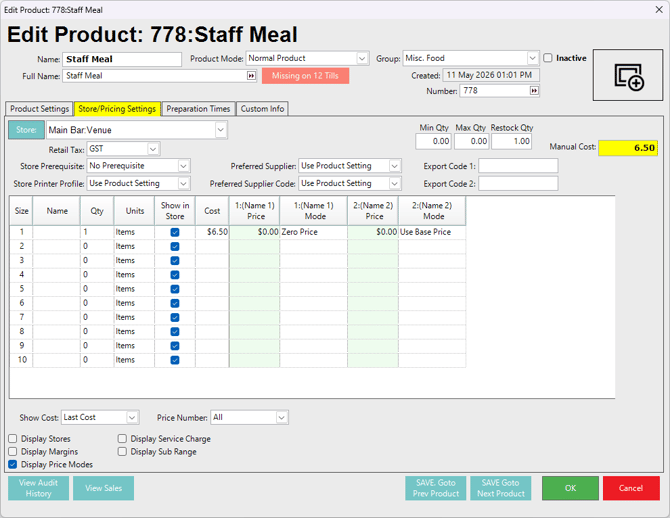
- Enter a manual cost for the Product.
This setup is useful for Products such as staff meals, where ingredients may vary but the general cost is expected to remain similar.
If Ingredients are added to a Product, a manual cost cannot be entered. The cost will calculate from the Ingredients instead.
Image below shows an example manual cost Product setup.
Example 2.b — Stocked Food Products and Other Items
Use this setup for items purchased for resale within the venue.
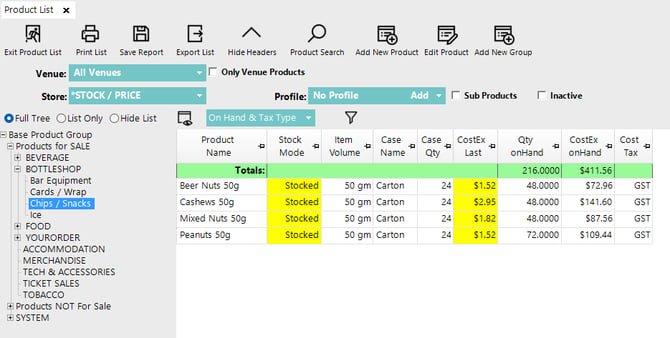
The Product is stock-controlled, and its cost is added or updated when the supplier invoice is received into BackOffice.
Examples include packets of nuts or chips sold across the bar.
When these Products are purchased through BackOffice, the quantity received is entered as Units or Cases. Product Sizes are not selected during receiving.
Image below shows an example Stocked food or resale Product.
Example 3 — Non Stocked Food Products from Ingredients
Use this setup when the sale Product does not need to reduce its own stock level as a finished item, unless the Oversell Warning is flagged on, but the Product cost should calculate from and, when required, decrement the base Ingredients.
- Open the Product.
- Select the Product Settings tab.
- In Stock Settings, set Stock Mode to Non Stocked.
- Select Ingredients.
- Add each required Ingredient.
- Select the appropriate Size and quantity for each Ingredient.
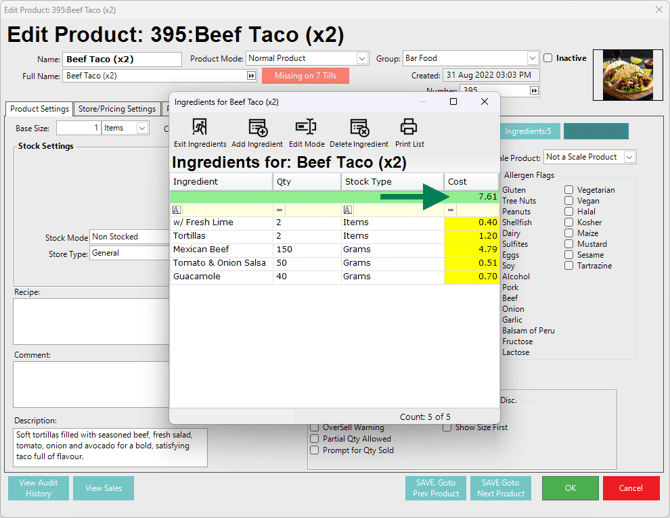
The Product cost will calculate from the Ingredients added to the Product.
The Size selected against an Ingredient determines how much of the Ingredient Product is deducted. This does not create an alternative purchasing or receiving size for that Product.
Image below shows an example Ingredient-based food Product setup.
Example 4 — Bulk Beverages
Bulk beverage Products are typically configured as Stocked Products with a Bulk Store Type.
This setup can be used for Products that are purchased as a larger physical stock unit and sold in smaller measured quantities, such as beer, cider, wine, and cocktails.
For example, a 50 litre keg can be configured so that:
- one purchasing Unit represents one 50 litre keg
- Base Size is 50000 Mills
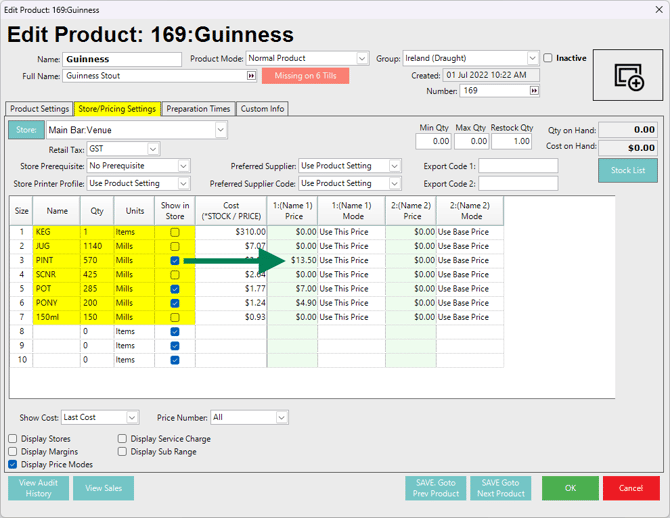
- smaller Product Sizes, such as a jug, pint, or pot, deduct the appropriate measured quantity when sold
The Product Size does not determine what is received. When the keg is purchased or received in BackOffice, the quantity is entered as a Unit or Case.
- Open the Product.
- Select the Product Settings tab.
- In Stock Settings, set Stock Mode to Stocked.
- Set Store Type to Bulk.
- Set the Base Size for one purchasing Unit. For example, a 50 litre keg is entered as 50000 Mills.
- Configure Case Qty according to how the Product is purchased. If kegs are purchased individually rather than by the Case, set Case Qty to 0.
- Select the Store/Pricing Settings tab.
- Configure the required selling Product Sizes.
- Set the correct quantity and unit values for each selling Size.
When Case Qty is 0, the Product is purchased and received using Units only.
The Product cost comes from the invoice and is applied through stock control.
Image below shows an example Bulk Product stock configuration.
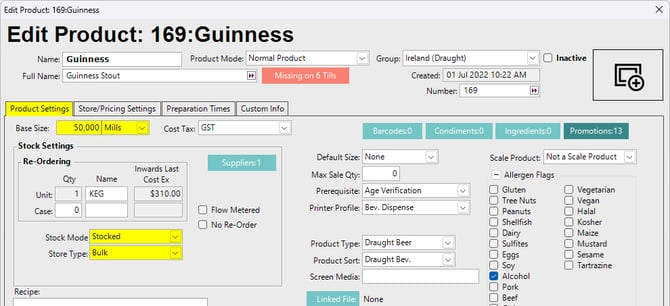
Image below shows an example Bulk Product selling Size configuration.
The table below is an example bulk beer or cider Product Size setup.
These are selling Sizes only. They determine how much stock is deducted when the Product is sold and are not used to select the quantity received on a Purchase Order.
Size Name Qty Units 1 KEG 1 Items 2 JUG 1140 Mills 3 PINT 570 Mills 5 POT 285 Mills In this example, KEG represents one whole base item if a complete keg is sold. It does not make Size 1 the receiving size. Receiving one keg is performed by entering 1 Unit, because the Product's Base Size already defines one Unit as the complete keg.
The table below shows common keg size examples that may be used when setting the Product Base Size. Confirm the actual keg volume with the supplier before configuring the Product, as keg formats and supplier packaging can vary.
Keg Size Keg Type Common Countries 19.55 L US 1/6 Barrel Keg US 20 L Slimline Keg AU, NZ, UK 20.45 L Pin / Half Firkin UK 30 L KeyKeg AU, NZ, UK, US, JP 30 L Euro Keg / DIN Keg AU, NZ, UK, JP 40.91 L UK Firkin / Cask UK 50 L Euro Keg / DIN Keg AU, NZ, UK, JP, IN 58.67 L US 1/2 Barrel Keg US The Store Type: Bulk setting is used so beverage stock can be managed from a single holding location in a multi-Store Venue setup.
When an invoice is processed in BackOffice, the stock is received into the selected receiving Store. That Store then holds the stock until it is sold, transferred, or adjusted.
For bulk beverages, Bulk Store Type redirection allows multiple Stores within the same Venue to draw from one holding Store when stock is sold by measured volume. This means each selling location can sell the Product without requiring an internal stock transfer into every individual Store first.
This is different from other stock-controlled Products, which usually require internal stock transfers from the Store that receives the invoice to the Store where the items are sold or used.
Examples include:
- Spirits / Wine
- Bottled beer
- Packaged drinks
- Other food or bar stock items
Ensure each selling Size is configured with the correct quantity so stock depletion calculates correctly when the Product is sold.
Purchasing and Received Units
For stock-controlled Products, purchasing and receiving in BackOffice use Units or Cases only.
Product Sizes 1–10 are not purchasing quantities and are not selected when creating or receiving a Purchase Order.
The purchasing structure is:
| Setting or Quantity | Purpose |
|---|---|
| Qty of Units | Number of individual purchasing Units ordered or received |
| Qty of Cases | Number of complete Cases ordered or received |
| Base Size | Defines the physical quantity represented by one Unit |
| Case Qty | Defines how many Units are contained in one Case |
| Product Sizes 1–10 | Defines how much stock is deducted when a configured Size is sold |
The quantity labels can reflect the Product configuration. For example, Qty of Units may appear as Qty of Bottles, while Qty of Cases may appear as Qty of Cartons.
Regardless of the label, the Purchase Order quantity is still a Unit or Case quantity.
‼️ Important: Product Sizes do not need to include a full bottle, keg, case, or carton simply so that the Product can be received. Receiving is controlled by Base Size, Case Qty, and the Unit or Case quantity entered in BackOffice.
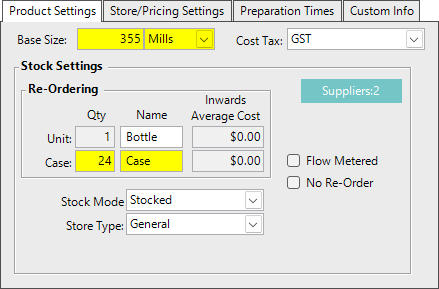
For a packaged drink where one bottle contains 355 ml:
- Set Base Size to 355 Mills.
- One purchasing Unit then represents one 355 ml bottle.
- If the supplier's case contains 24 bottles, set Case Qty to 24.
- Enter 1 in Qty of Cases to receive one complete 24-bottle case.
- Enter 24 in Qty of Units to receive 24 individual bottles.
- Product Sizes can then be configured independently according to the pack quantities that are actually sold.
If the Product is not purchased by the Case, set Case Qty to 0. The Product is then purchased and received using Units only.
Image below shows an example packaged Product Base Size and Case Qty configuration.
The table below shows an example packaged drink Product Size setup.
These are selling Sizes only. A Size named Case, 12pk, 6pk, or similar determines how many base Units are deducted if that pack is sold. It does not control how the supplier stock is received.
| Size | Name | Qty | Units |
|---|---|---|---|
| 1 | Case | 24 | Items |
| 2 | 12pk | 12 | Items |
| 3 | 6pk | 6 | Items |
| 4 | 4pk | 4 | Items |
| 5 | 3pk | 3 | Items |
| 6 | ea | 1 | Items |
For example, selling 12pk deducts 12 Units from stock. Receiving a supplier carton of 24 bottles is still performed using the Purchase Order's Case quantity, based on Case Qty = 24.
If the venue does not sell a complete case, a Product Size named Case is not required simply for purchasing or receiving purposes.
Products Purchased in Different Physical Sizes
A Product has one Base Size. This means one Product cannot represent two different physical purchasing Unit sizes.
For example, if the same spirit is purchased in both:
- 700 ml bottles
- 1 litre bottles
Product Sizes 1–10 cannot be used to choose between those bottle formats on a Purchase Order. Product Sizes are selling configurations and do not change the Product's Base Size.
Adding the same Product to a Purchase Order twice also does not provide two different purchasing sizes. Both lines reference the same Product and therefore use the same Base Size.
Where genuinely different physical purchasing formats must be stocked separately, separate Product configuration may be required so that each format can have its own Base Size, supplier item, and cost.
Confirm the required setup with bepoz Support before restructuring an existing Product, as separating one Product into multiple Products can affect stock-on-hand and reporting.
Summary
Use the Product setup type that matches how the Product is managed operationally:
- Use Non Stocked where the Product itself is not stock-controlled.
- Use Ingredients where Product cost should calculate from component items.
- Use manual cost only where Ingredients are not being used.
- Use Stocked and Bulk for measured beverage Products such as beer, cider, wine, and cocktails where one purchasing Unit is sold in smaller measured quantities.
- Use Bulk Store Type redirection where multiple Stores need to draw measured beverage stock from one holding Store.
- Set Base Size to the physical quantity represented by one purchasing Unit.
- Set Case Qty to the number of Units contained in one supplier Case.
- Set Case Qty to 0 when the Product is purchased by Unit only.
- Create and receive Purchase Orders using Units or Cases only.
- Configure Product Sizes according to how the Product is sold and how much stock each selling Size should deduct.
- Do not use Product Sizes to represent alternative purchasing formats for the same Product.
Correct Product setup helps ensure accurate costing, reporting, stock receiving, and stock depletion.
updated to: bepoz v4.9.0.1