
Summary
Gift Certificates are a type of Voucher that has monetary worth and can be used as a means of payment for a Transaction.
This Voucher is a complete Gift Certificate tracking system
Gift Certificates are a type of Voucher that are set up and reported on in the same way as other vouchers
Gift vouchers; however have extra reporting in the Balance Reports due to their inherent “value” rather than a discount amount
Both “Gift Certificate Issued” and “Gift Certificate Redeem” totals are reported separately
Gift Vouchers are typically sold for face value but can be issued via a Prize Promotion or issued from the BackOffice
Pre-Printed Gift Certificates or pre-programmed magnetic cards are also supported
Prerequisites
- To access Voucher Setup features, the applicable Operator Privileges will need to be enabled
-
- Promotions: "Maintain Voucher Setups" Flag
- Promotions: "Issues/Edit Vouchers " Flag
-
- System Setup "Maintain Till Function Maps" Flag
- Sales Reports: "Allow Cash Reports" Flag
-
Getting Started
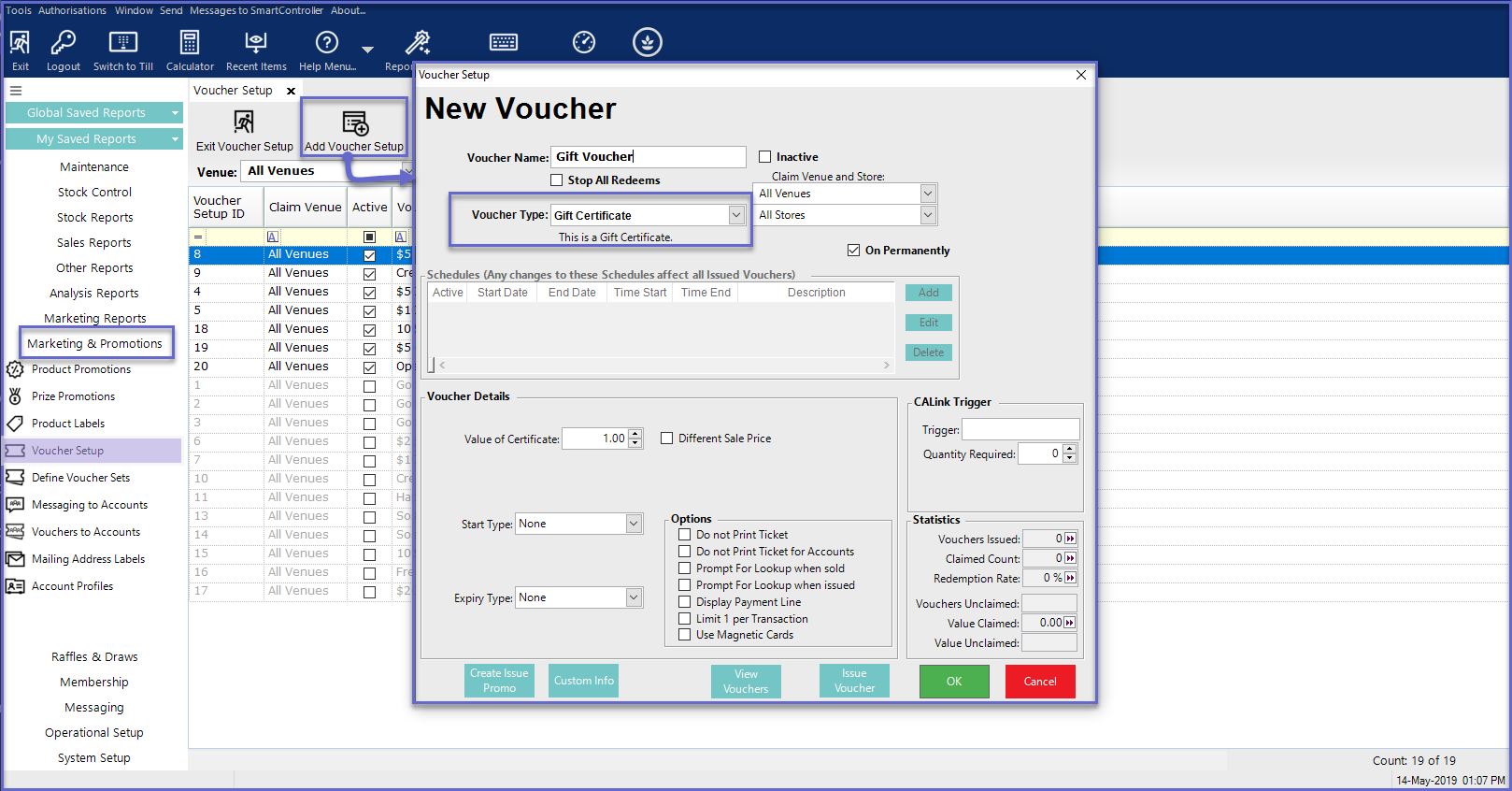
- To Create a Gift Voucher setup, go to Marketing & Promotions > Voucher Setup
- Click on Add Voucher Setup to Create a New Voucher or Edit Voucher Setup to Edit an existing Voucher Setup
- Type the Voucher Name and Set the Voucher Type as Gift Certificate
Additional Voucher Details
- The Value of Certificate field allows to set an amount for gift certificate; to prompt the operator to manually enter a value for the Gift Certificate, set the Value of Certificate to '0.00'
- When issuing the Gift Certificate, the issuer will be asked to enter the lookup number or scan the Gift Certificate to supply the Lookup Number
- Then the Gift Certificate is either scanned or the lookup number is then entered to redeem the voucher at a later date
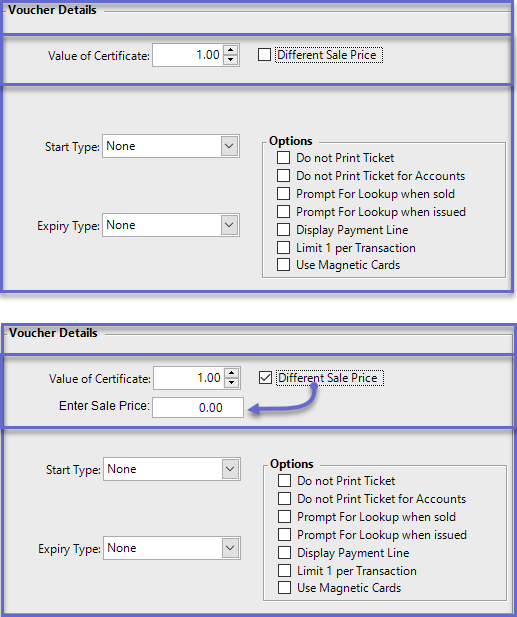
- The Different Sale Price flag allows to sell a Gift Certificate at a desired price value which could be different to the Value of Certificate
- To sell Gift Certificate at a different price, turn ON the Different Sale Price flag
- Note: If this flag is turned ON and the Enter Sale Price field is left to $0.00 then the Gift Certificates will be sold at $0.00 on Smart POS
- Once this flag is turned ON, it will display the Enter Sale Price field which allows to enter the desired price amount for the Gift Certificate
- When issuing Credit Notes or selling Gift Certificates, the Till will use the Print Format as set as the Prize Promotion Print format for that Till or Workstation
Gift Certificate Transactions
- Gift Vouchers are typically sold from SmartPOS but can also be issued via a Prize Promotion or issued from BackOffice
Via Prize Promotions
- To issue a Gift Voucher using a Prize Promotion, an Operator can link the Voucher to a Product which, when sold, will trigger the Voucher issue
- These Certificates can also be linked to Accounts which can be done through Voucher Setup
Direct Selling
- The Gift Vouchers can either be sold directly for their face value or can be sold at a different price from SmartPOS
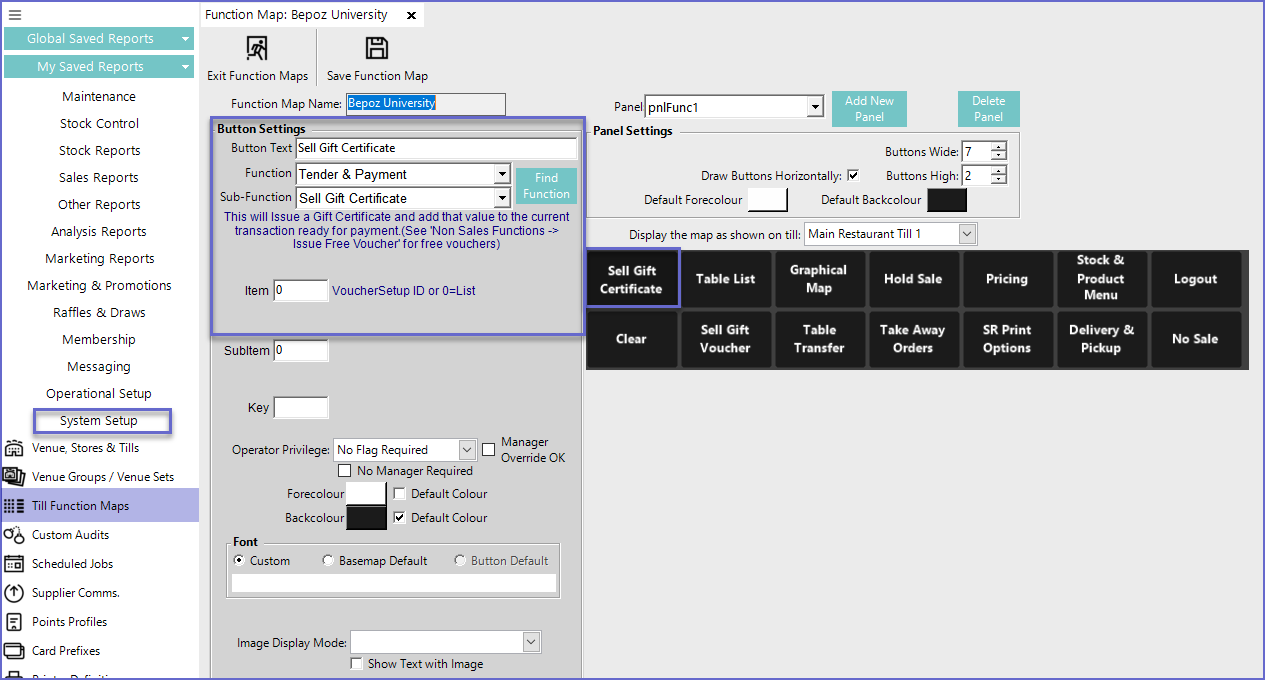
- Once the Gift Certificate Voucher Setup has been created, a function to sell these Vouchers has to be configured in the Till Function Map
Till Function Configuration
- For Till Configuration, go to System Setup > Till Function Maps
- Select the desired Function Map and Panel to place the Till Function on
Configuration Option
|
Description |
| Button Text |
|
| Function |
|
| Sub-Function |
|
| Item |
|
- Once finished, Save the Function Map so that the Till Function can be used in SmartPOS
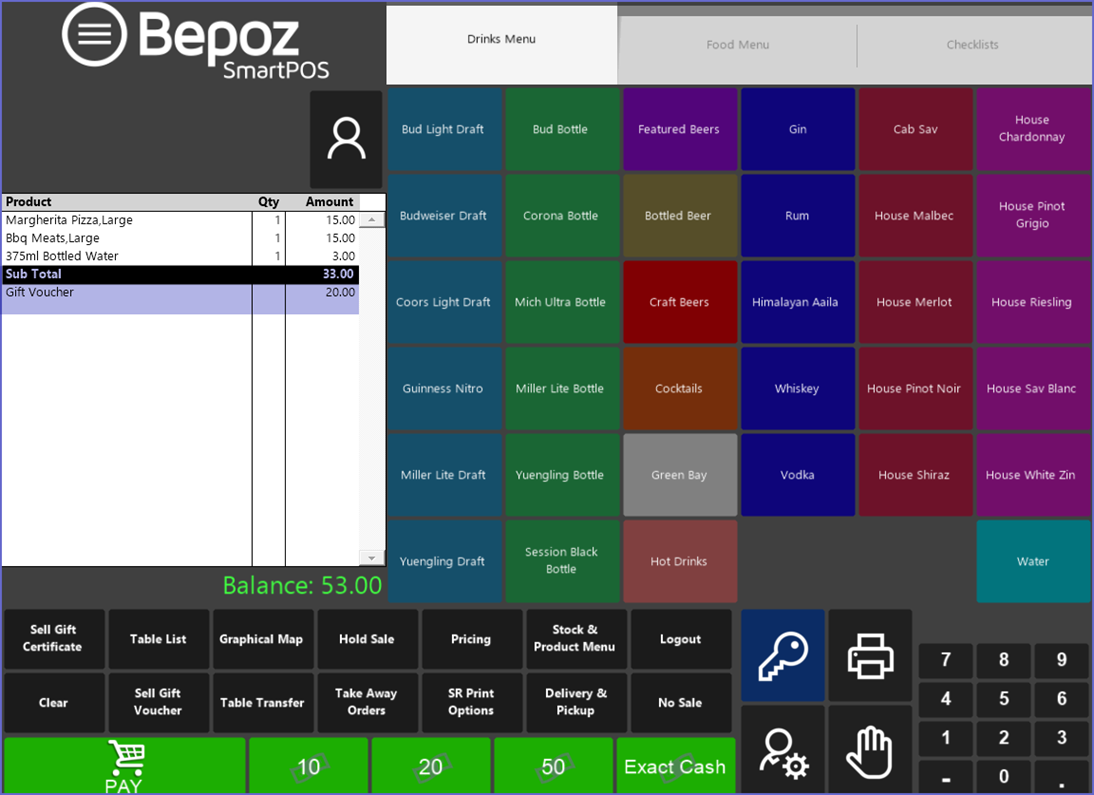
- The Gift Voucher can now be sold directly from SmartPOS as a Product
- As mentioned above, the Price of these Vouchers is either pre-determined or left for manual entry
- Any changes to the Voucher Setup will also change the feature of the Voucher that is being sold through SmartPOS
Gift Certificate Reporting
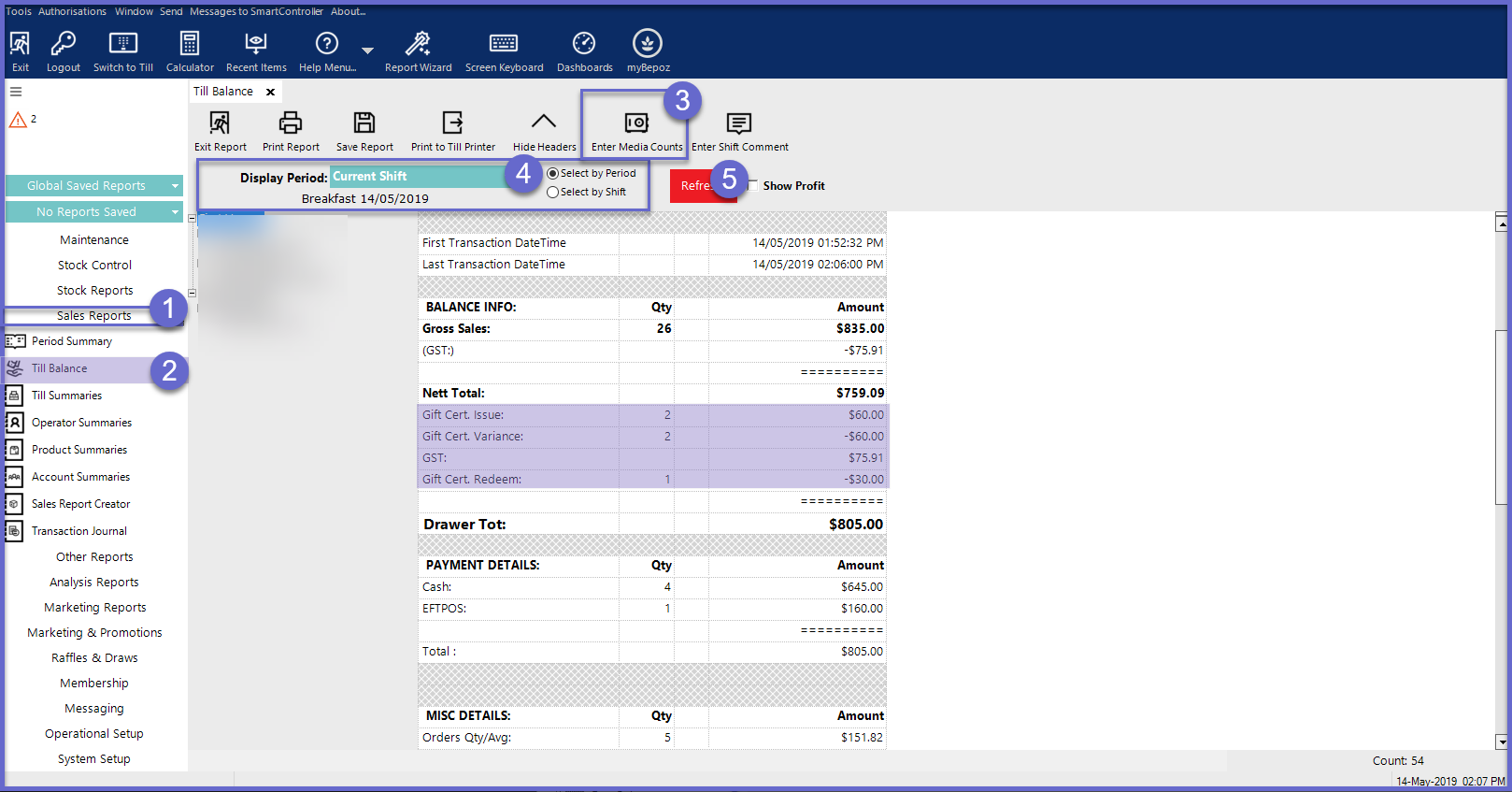
- To view the report, go to Sales Report > Till Balance
- Add necessary Media Counts
- Select the Time and Period for which the report is being generated
- Click the Display button
Video Walkthrough