Prerequisites
-
To access and edit Stock Transfer Settings, the applicable Operator Privileges will need to be enabled:
-
Purchasing and Receiving: "Create / Edit Purchase Orders" Flags
-
Purchasing and Receiving: "Post Purchase Orders" Flags
-
-
Operator Maintenance 'Stock Control' Tab
Getting Started
-
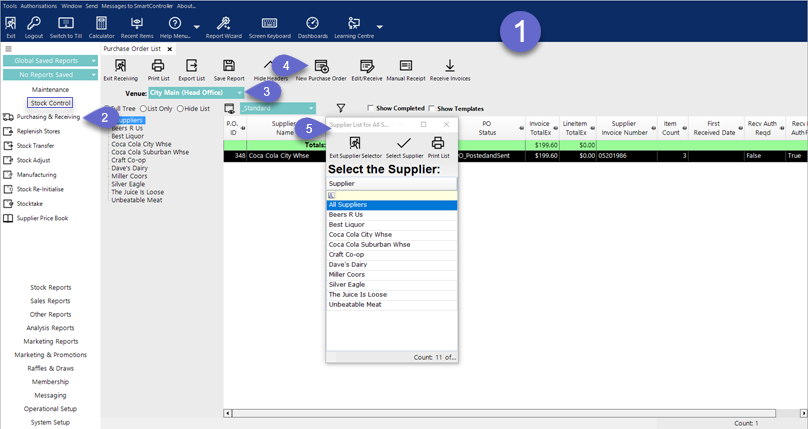
Navigate to the Stock Control from the Side Menu
-
Click on the Purchasing & Receiving option which will open a window titles Purchase Order List
-
Choose the corresponding Venue from the drop-down selection
-
Click on the New Purchase Order button
-
A Supplier List will appear; select the desired Supplier
-
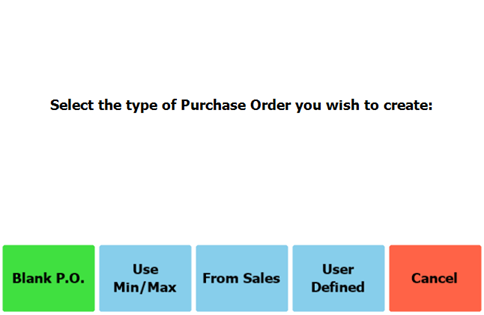
After selecting a Supplier, the below screen will be displayed:
-
Select the "Blank P.O" button
-
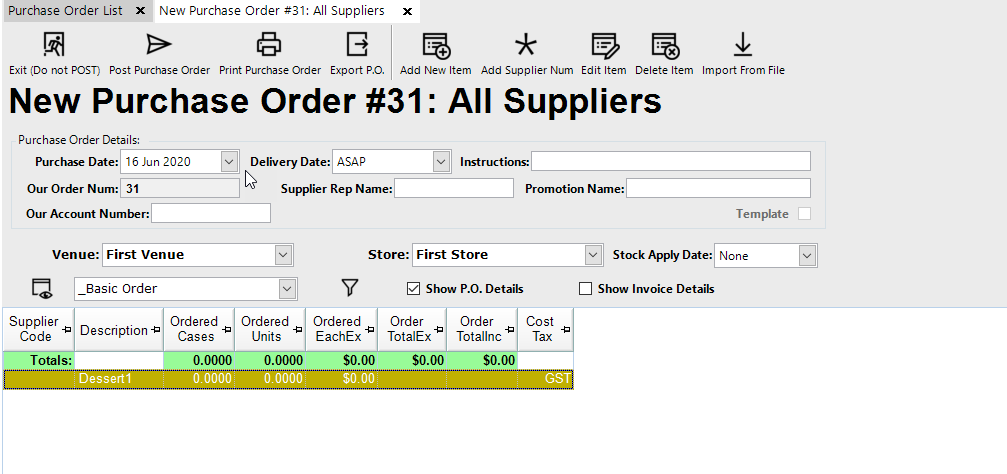
A New Purchase Order tab will open
-
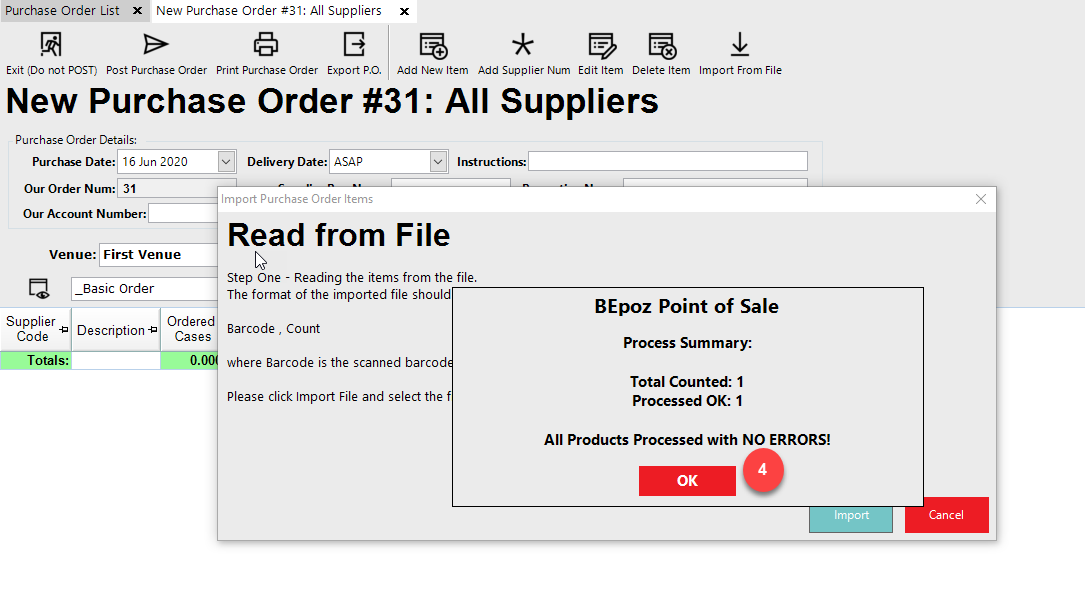
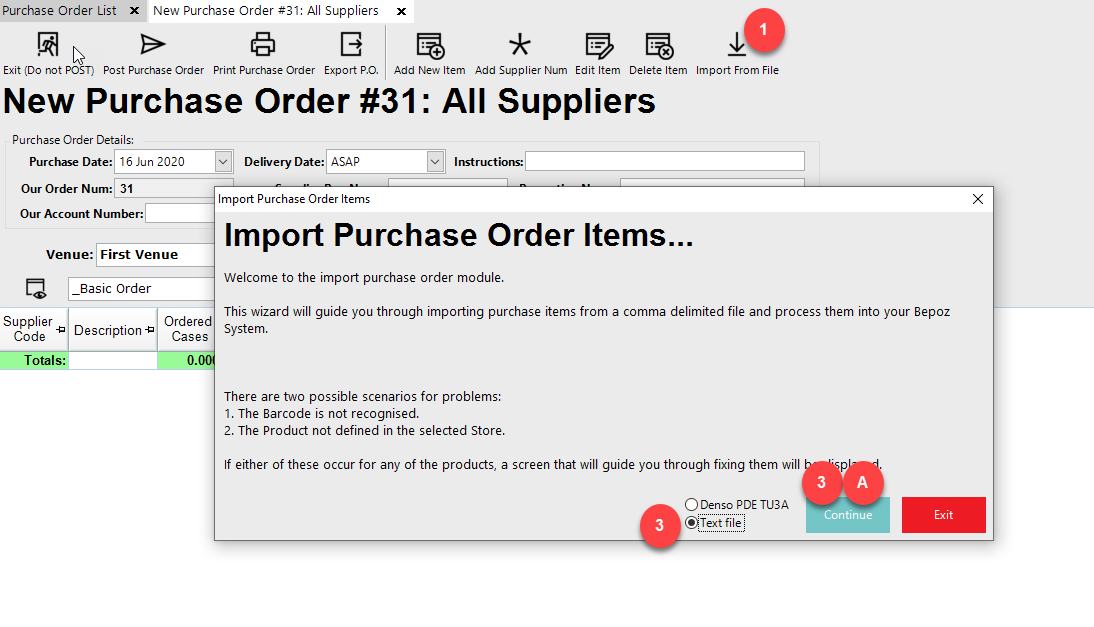
Select Import from File, this will display an Import Purchase Order Items window
- Select Text File and select Continue
-
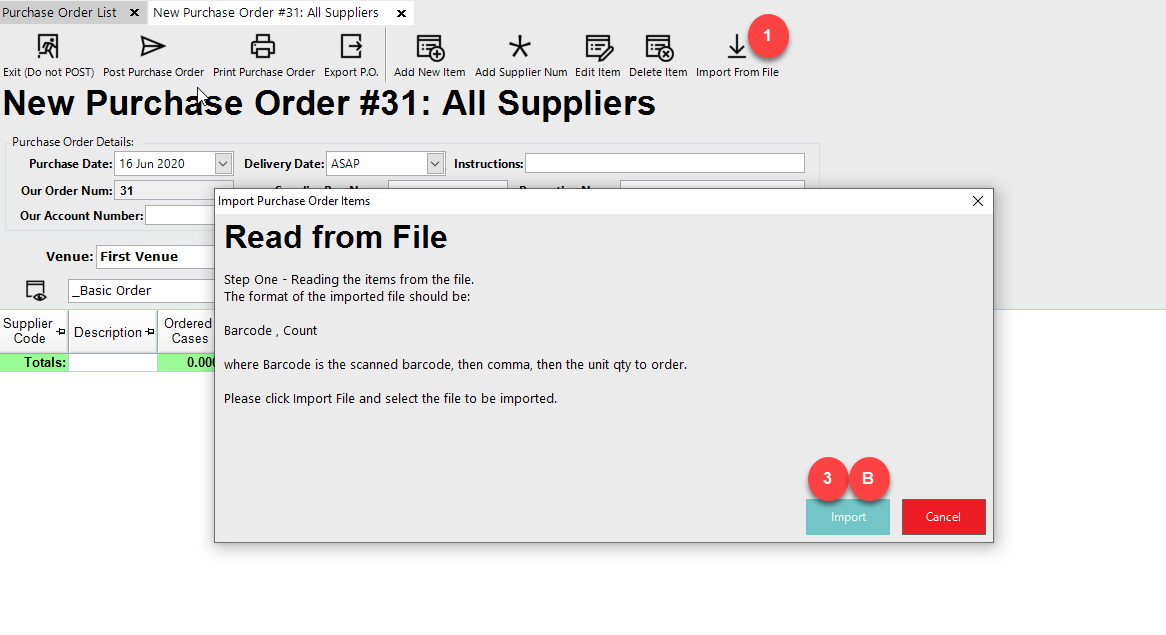
Select the Import button to select the file to be imported
-
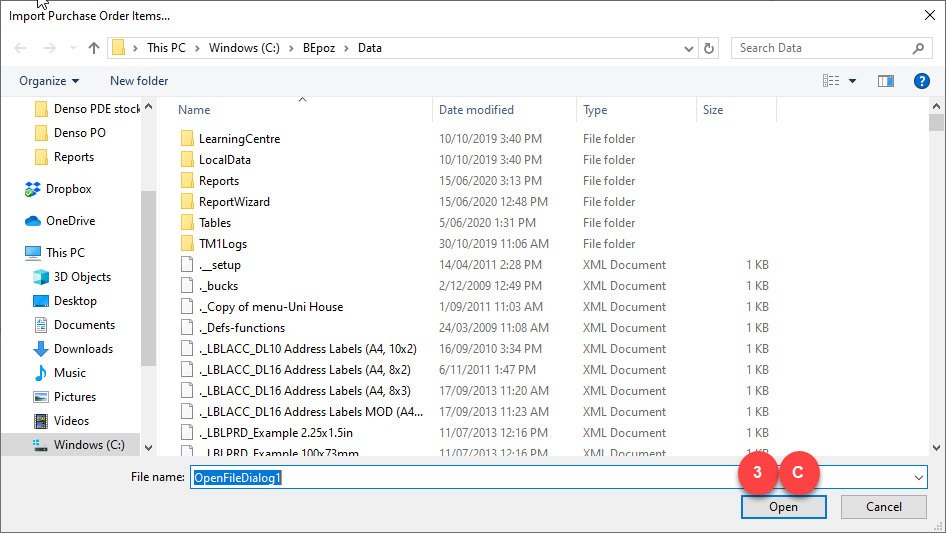
Select the file and select Open
-
Use the barcode to match the product and size in Bepoz
-
If the size qty for the barcode is 1 Item, then use ordering size unit
-
If the barcode size qty matches the order size case qty, use the ordering size Case
-
If the barcode size qty does not match the Unit or Case ordering qty, mark as an error line to be fixed
-
The operator will need to select either the unit or case order qty and use that selection on the PO
-
Use the Qty value from the file to be the Qty to transfer for that product and size