Overview
This article is intended for a person who uses a PDE or 3rd party and then wants to import these counts into a Backoffice stock function
Prerequisites
- To access and edit Stock Transfer Settings, the applicable Operator Privileges will need to be enabled:
- All "Purchase & Receiving" Flags
- Operator Maintenance 'Stock Control' Tab
Getting Started
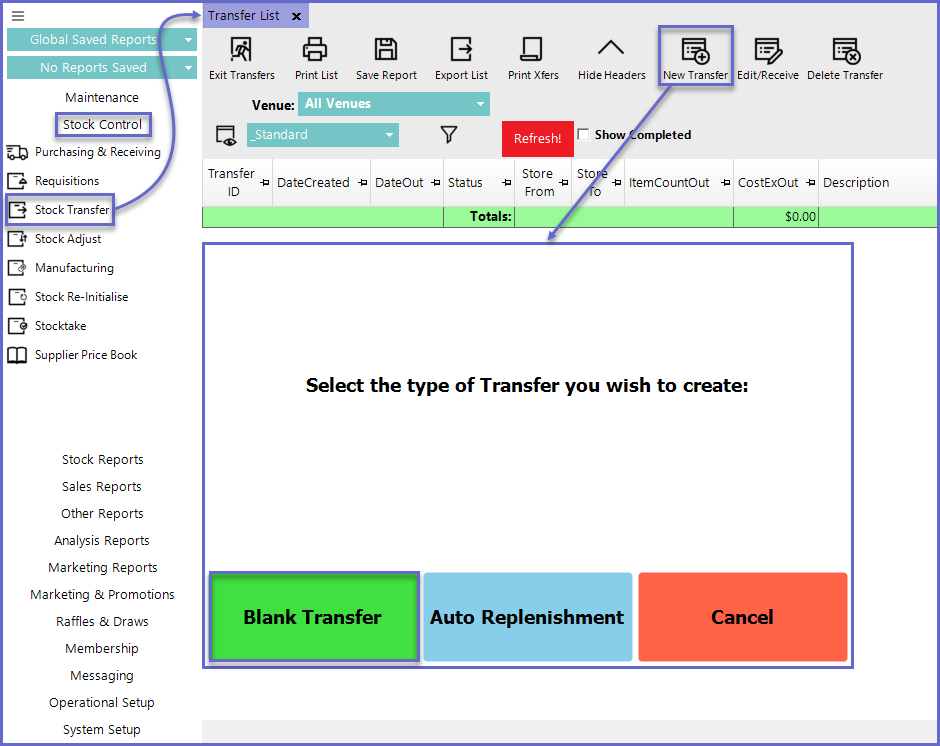
- Run BackOffice and Log In
- From the Stock Control menu, select Stock Transfer
- Click the New Transfer button
- A new window will appear where the Operator will be prompted to "Select the type of Transfer you wish to create"
- Click on Blank Transfer
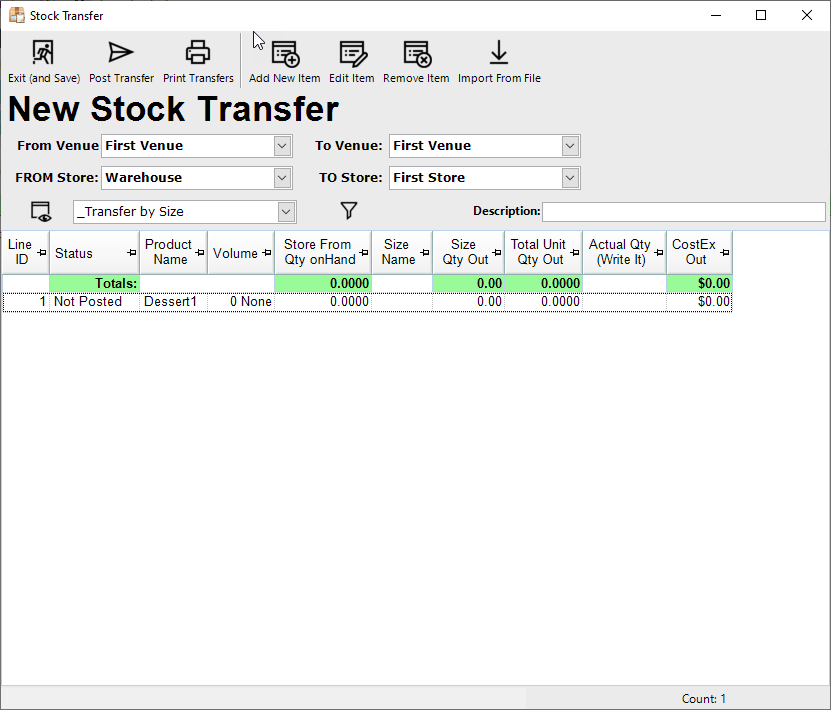
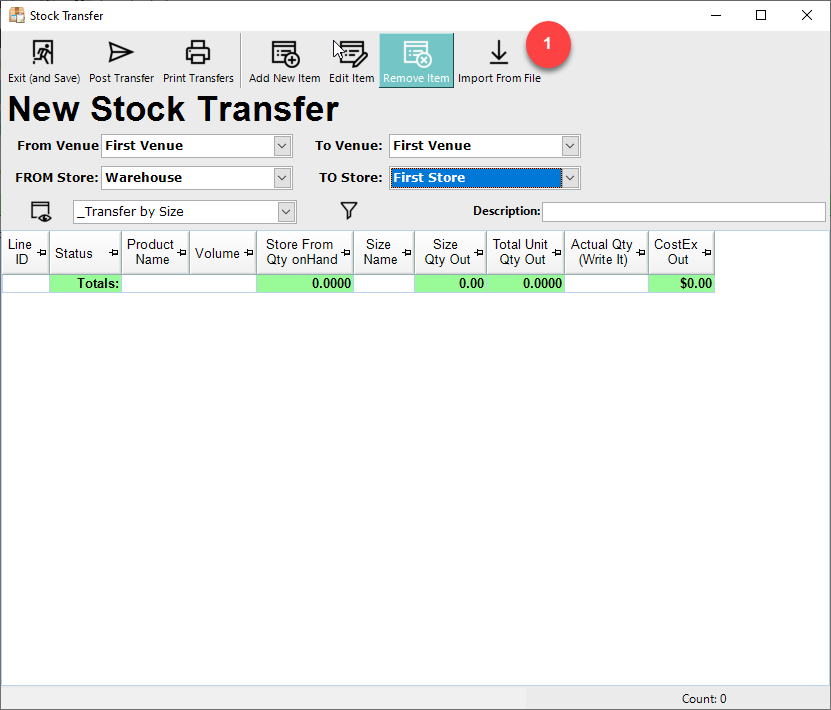
- Select the "From Store" and "To Store" fields from the available options
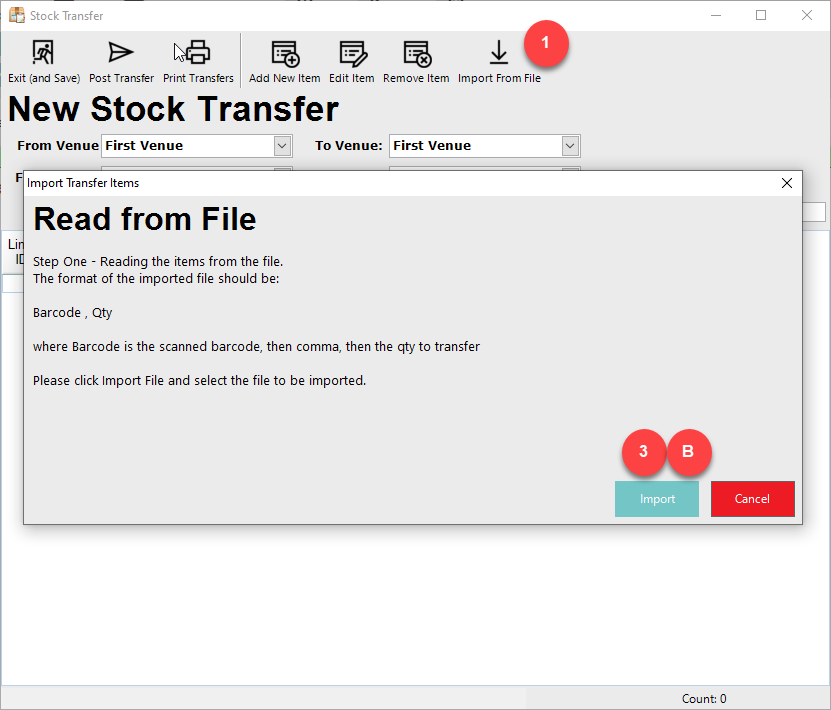
- select the Import from File button from the header; this will display an Import Stock Counts window
2. Select Text File
3A. Select Continue
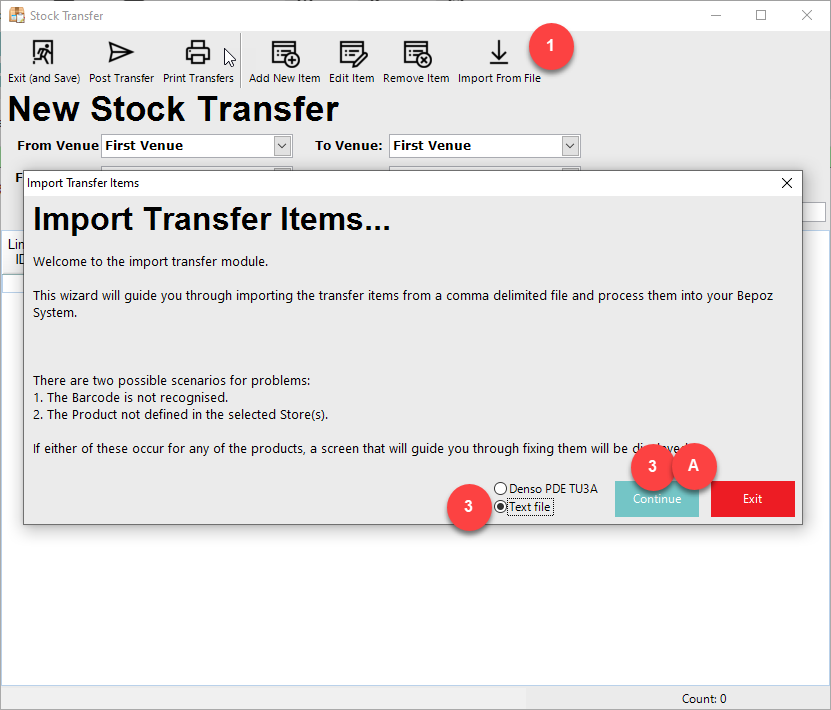
3C. Select the file and select Open
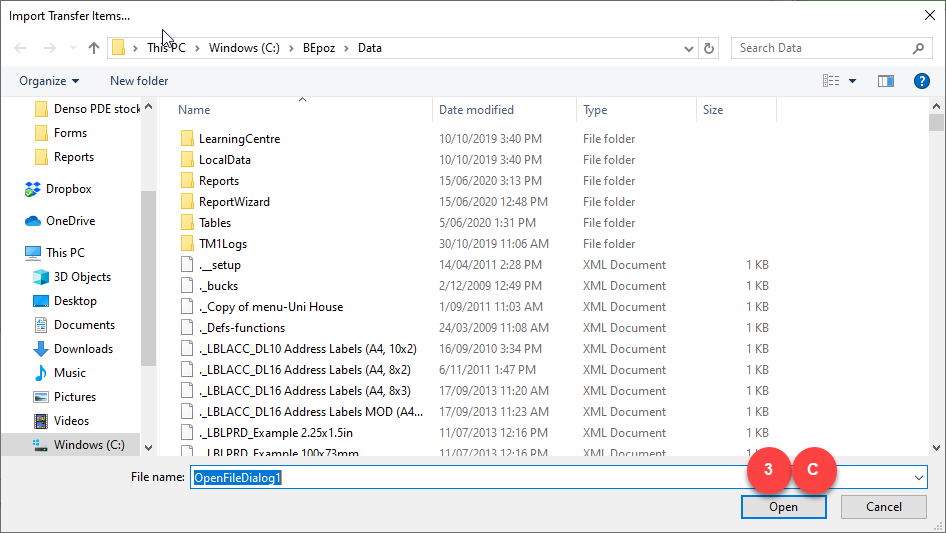
- Use the barcode to match the product and size in Bepoz and use the Qty value from the file to be the Qty to transfer for that product and size