Overview
The Product Promotions screen can be used for a number of different purposes. It is often in relation to Price Promotions for specific Products or Multi-Buy setups. It can also be utilized in Voucher purchases for Products.
The Promotions can be assigned with multiple Schedules and can be configured to include or exclude Cash sales, Account Sales, and specific Account Groups.
Promos can be assigned to a specific Venue, Stores, Store Groups, and even individual SmartPOS Workstations.
Prerequisites
- To access Product Promotion features, the applicable Operator Privileges will need to be enabled
- Promotions: "Maintain Product Promotions" Flag
- Marketing & Promotions Tab
Product Promotion Maintenance
- To get started, log in to Backoffice
- Go to Marketing & Promotions > Product Promotions
- A Product Promotions Tab will open
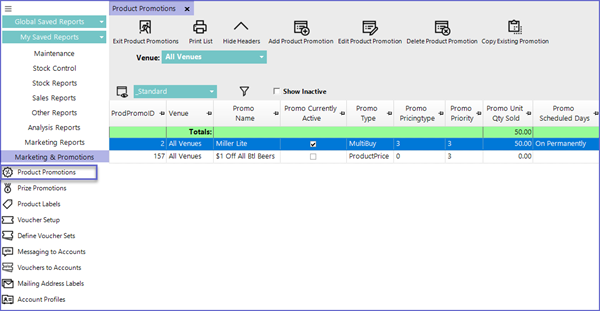
- To add a New Promotion, click on the "Add Product Promotion" button which will open a Product Promotion Maintenance window
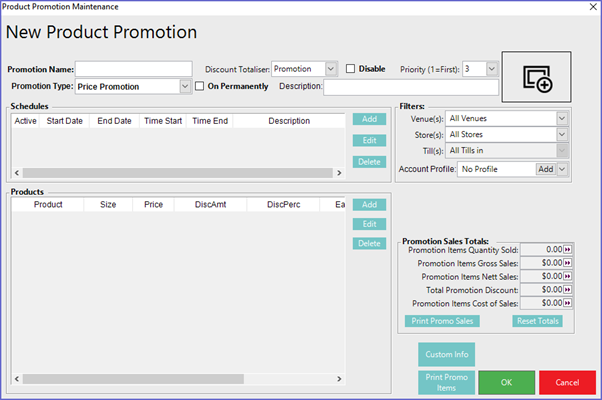
General Settings
Schedules
- Schedules allow for the Promotion's times and dates to be automated in advance, meaning NO manual human interaction is required to trigger the promotion and that an organization can guarantee that the correct promotions are run at the correct an appropriate times only
- To Add a new schedule; select the Add button to the right of the Schedule Display Box
- A new window will appear as shown below:
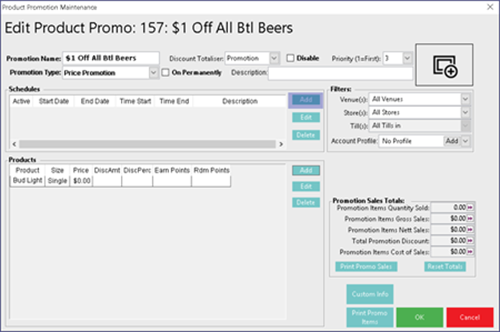
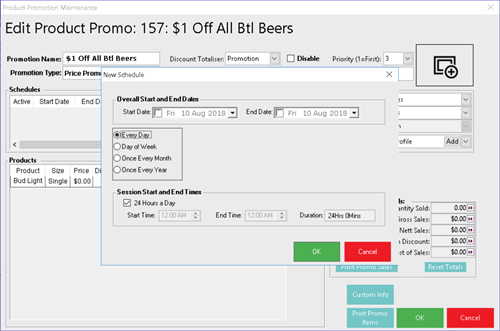
- The overall Start and End Dates control when the promotion is valid from and to, if this is blank then the promotion will run perpetually
- Session Start and End Times control when the promotion will be active on the given day
- If promotions run at different times on different days/dates or at more than one time per day, multiple schedules can be Added
- A promotion can have many schedules attached to it that means there are fewer requirements for duplicating promotions and enhances the reporting functionality
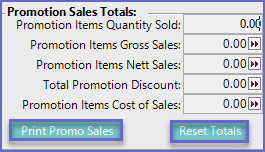
Promotion Sales Totals
- Promotion Items Quantity Sold
- This is the number of Products that have been sold on throughout the Promotion
- Promotion Items Gross Sales
- This is the Gross Sales amount before the Promotion is applied
- Promotion Items Nett Sales
- This is the Nett Sales amount at the Promotion price
- Total Promotion Discount
- This is the total of the discounts given as a result this Promotion
- Promotion Items Cost of Sales
- This is the total cost of the Products that have been sold on this Promotion
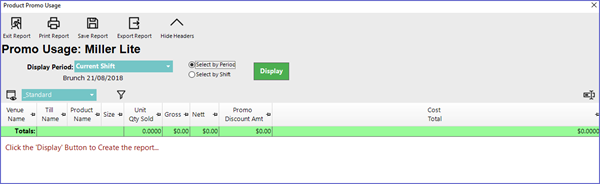
- Print Promo Sales
- This will open up a report of all promotion sales, the operator can choose a period to display create a new view use filter, save the report for later or print this report
- Reset Totals
- This button resets the Promotion Sales Totals back to zero
- This is not reversible