Overview
Manual Discounts requires Operators to manually enter the Discount for each individual Transaction as they are not pre-determined in BackOffice.
These Discounts can be applied to individual Items or to the entire Transaction in the form of monetary amounts or as a percentage of the price. Some examples of Manual Amount Discount types are - "Item % Discount", "Item $ Discount", "Order % Discount", etc.
Prerequisites
- Operator Privilege to Operate Tills
- Operator Privilege for Manual Amount Discounts
Using Manual Discounts
- Most Manual Discounts can be applied either to a single Product line or to the entire Transaction
- To utilise a Manual Discount, the Operator will need to have an active, Non-Finalised Transaction
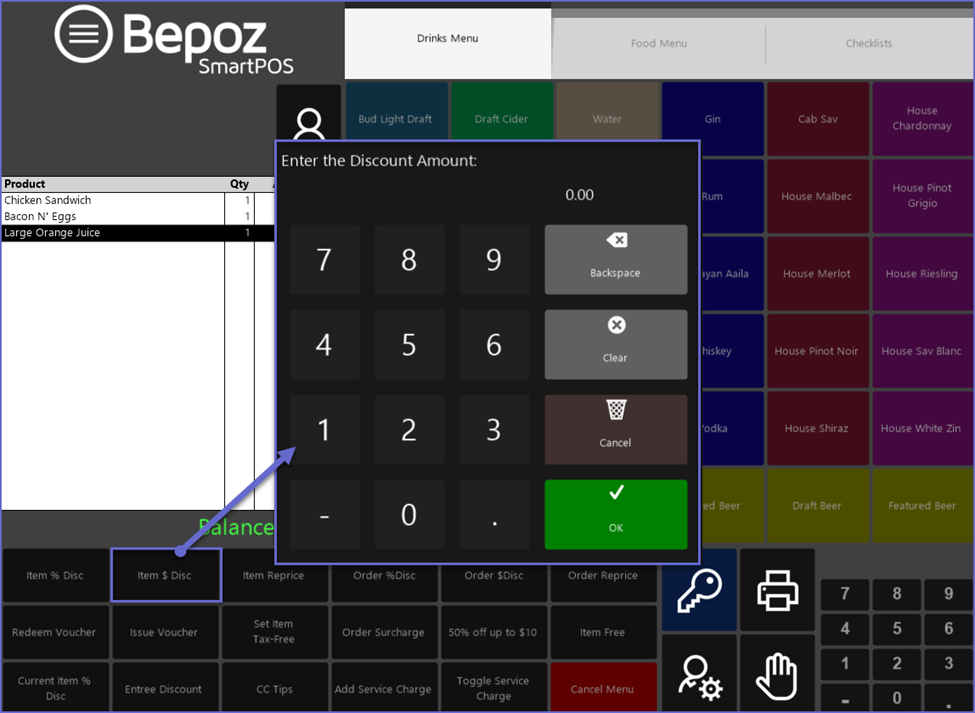
- Upon selecting the desired Manual Discount button, a window will open for the Operator to enter either the Percentage (%) or the Amount ($) depending on the specific Discount Till Function chosen
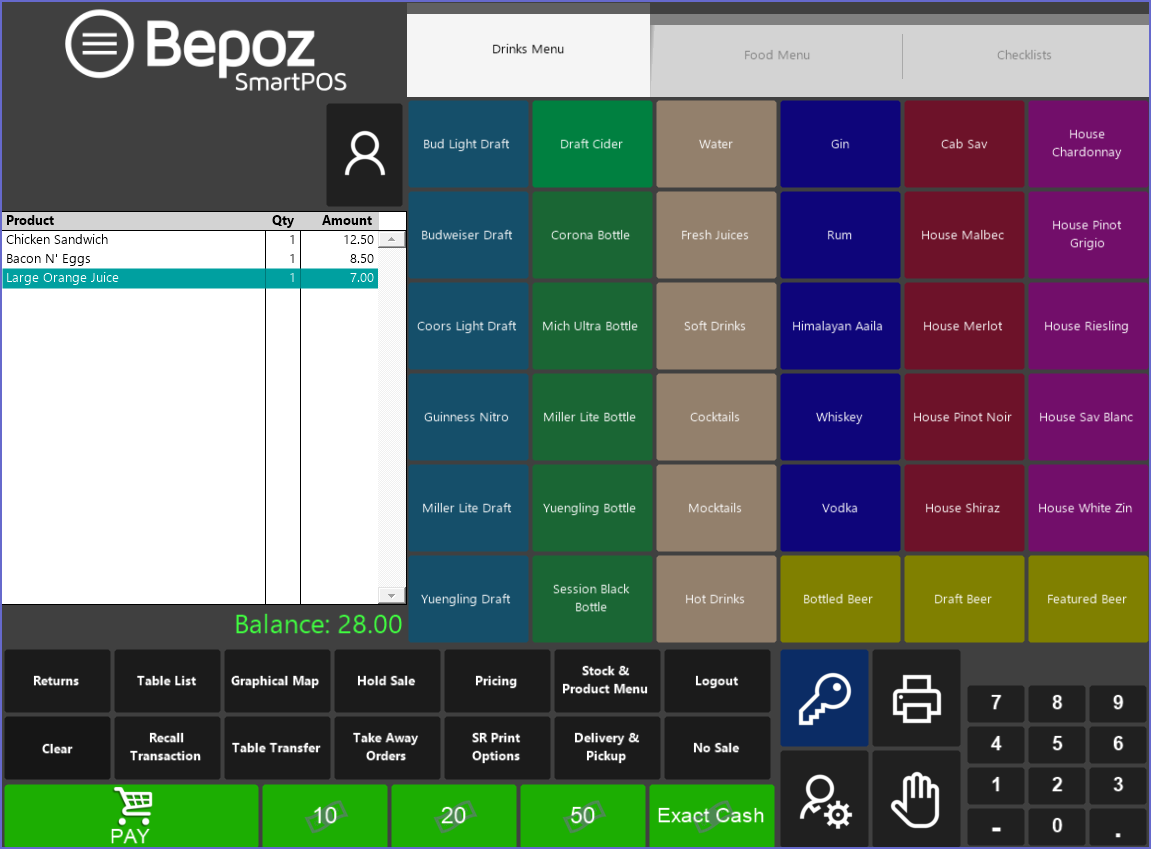
- If an Individual Product line is discounted, it will change to be Teal in colour
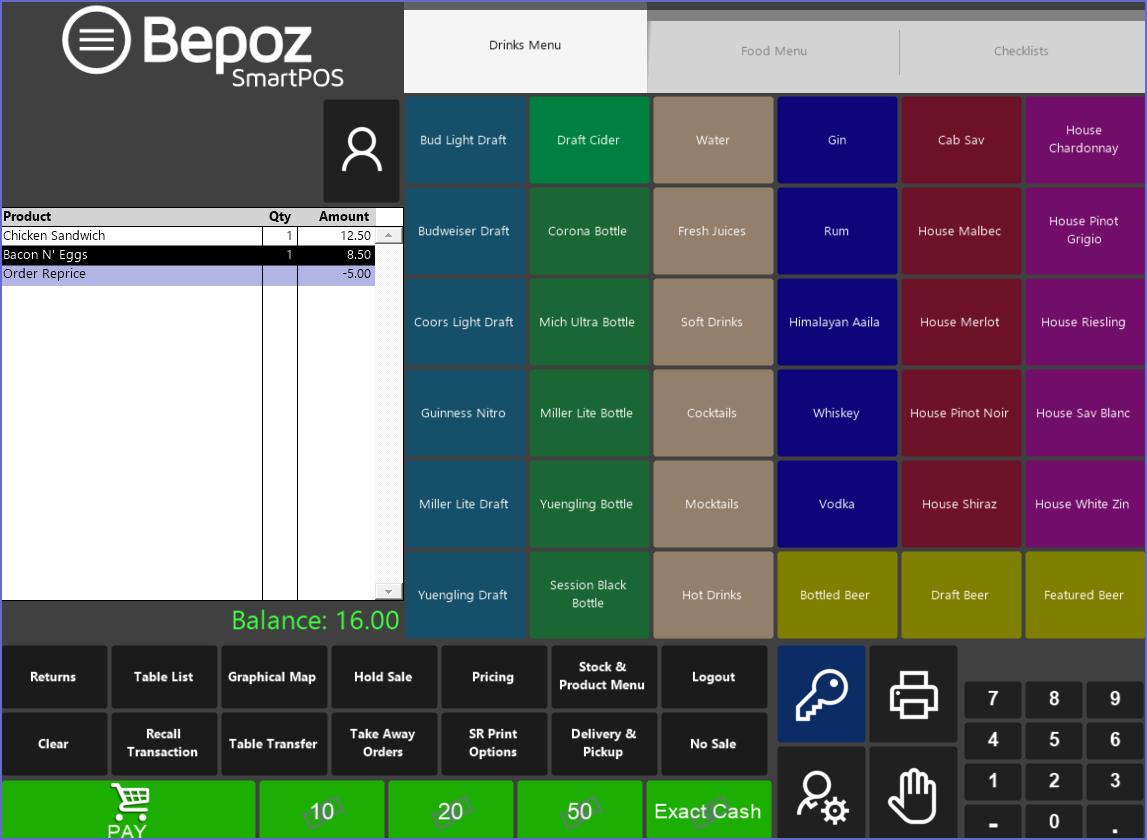
- When a Discount is applied to the entire Transaction, the Discount will appear as a line item beneath the Products within the Transaction Window