
Overview
This allows for only one (1) Product record to exist in the database for a Product which may have different Product codes on the Supplier end for various reasons.
E.g., a Supplier may use one code almost exclusively but may use an alternate code for Product with Halloween packaging.
Prerequisites
- Minimum Bepoz version of 4.6 is required for this functionality
- To access Supplier Code features, the applicable Operator Privileges will need to be enabled
- Products: "View Products" Flag
- Products: "View Products" Flag
- All "Purchase & Receiving" Flags
- Operator Maintenance 'Maintenance' Tab
- Operator Maintenance 'Marketing & Promotions' Tab
How-To Guide
- Adding multiple Supplier Codes for a Product is accessible via the Maintain Supplier Codes button when opening the Supplier Links window for a Product via the Product Maintenance 'Product Settings' tab
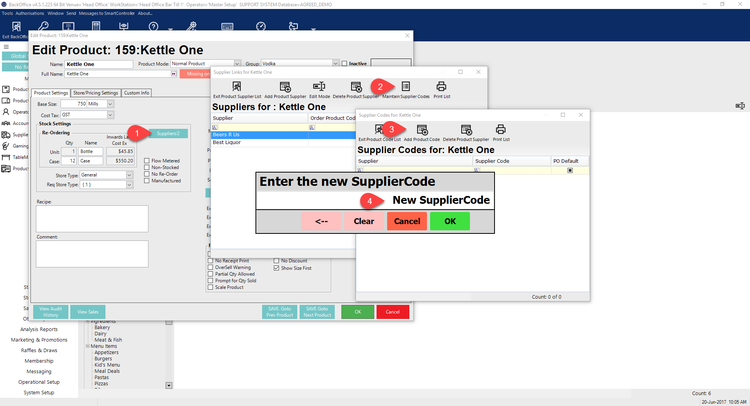
- To add a new Supplier Code, complete the following steps:
- First, open the desired Product and select the Suppliers button from the Stock Settings section which will open the Supplier Links window for that Product
- From the Supplier Links window, select the Maintain Supplier Codes button from the header section which will open the Supplier Codes window for the Product
- Select the Add Product Code from the Supplier Codes window
- A prompt will display allowing entry of the New Supplier Code; enter the code and click OK
- To delete a Supplier Code, highlight & select the Delete button
- The next section will cover how to set/change the PO default Supplier Code
Using Default Supplier Codes
-
To set a Default Supplier Code, use the Edit Mode from the Supplier Links window, then choose an available Code from the drop-down
-
To enter Edit Mode, either click the Edit Mode button within the header section or double-click anywhere on the list
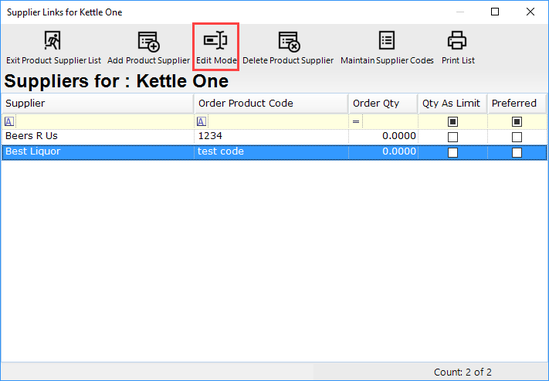
-
After entering into Edit Mode, a drop-down containing the available Supplier Codes for the Product will be accessible
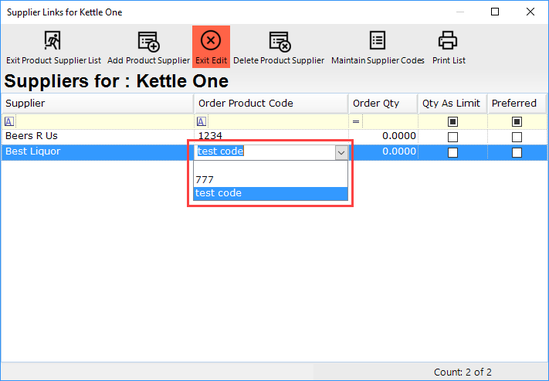
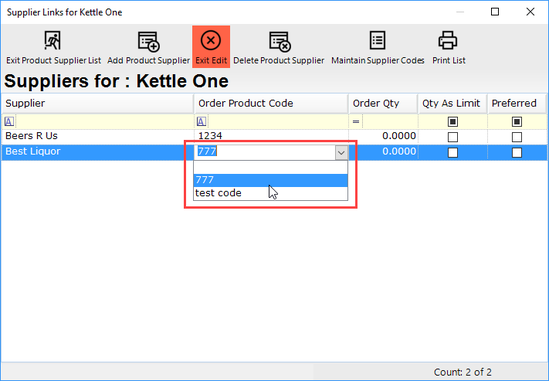
- Select the desired Code and click Exit Edit
- The selected Code will now be the PO Default Supplier Code
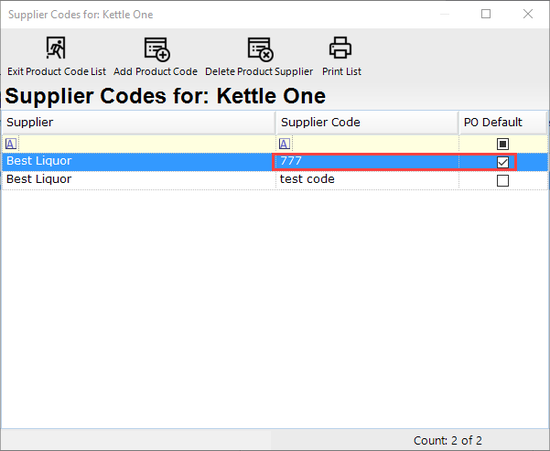
-
When creating a PO and adding this Product, the PO Default Product Code will be entered as the Supplier Code