
Overview
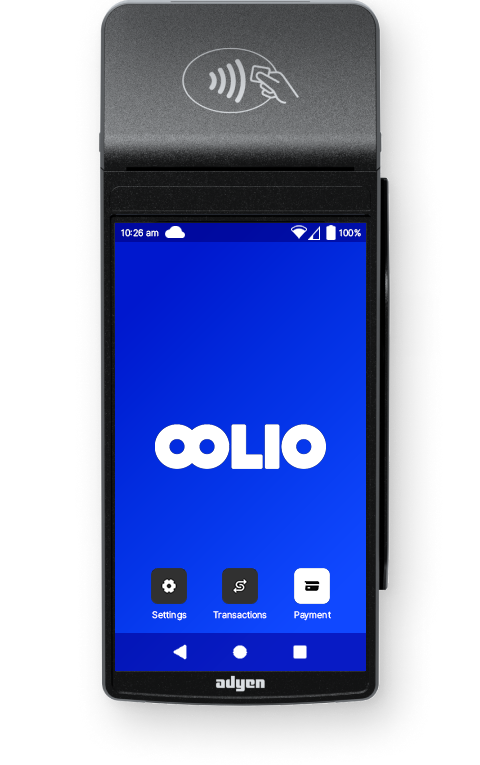
The S1F2 is an Oolio EFTPOS terminal used with bepoz. S1F2 stands for Saturn 1000 / F2.
Oolio Pay is an EFTPOS integration used by bepoz and owned by Oolio.
It uses Oolio EFTPOS terminals that integrate with the bepoz system.
Some terminals can perform multiple roles. In addition to EFTPOS, they may also operate as a SmartPDE or MPOS device.
S1F2 Troubleshooting & Tips
1. General Tips
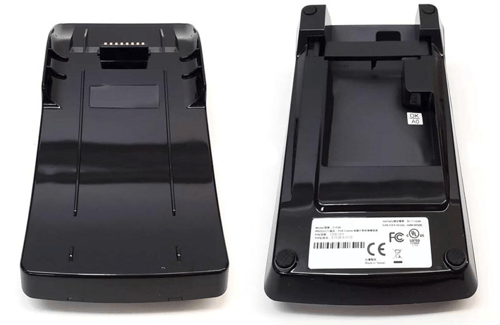
The charging dock supports power only via a 9V-45W transformer and does not include a data connection. Only use the supplied power supply and cable.
The PINpad device uses Wi-Fi and includes a 4G eSIM for mobile network backup.
The device does not support wired Ethernet.
The power button is located on the left-hand side of the device.
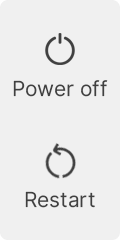
Press and hold the power button for 1-2 seconds, this will slide out a option on the device screen to either Power off or Restart the device.
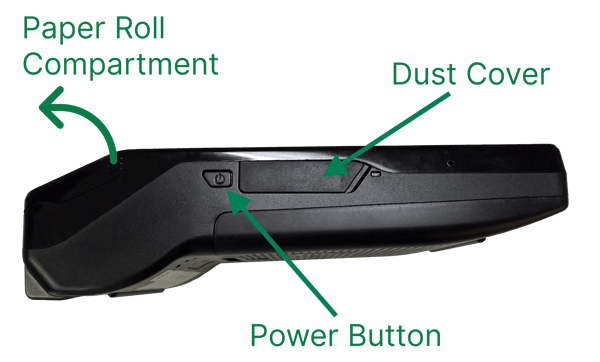
When the device is removed from the charging dock, or is not charging via the USB-C port beneath the dust cover, the screen will turn off to conserve battery power. Pressing the power button once briefly will wake the device from sleep mode. While in sleep mode, the device can still receive payment calls from its integrated parent hardware.
You can identify whether the pinpad is Integrated or Standalone by checking for the presence or absence of the Payment button, however, most newer configurations of Oolio Pay will now show the Payment option for both setup modes.
2. On-screen Device Buttons
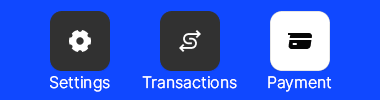
These three (3) main buttons are located at the bottom of the device screen:
Their sub-functions are outlined below, click your required area of interest from the list for fast navigation:
Settings
The Settings menu provides access to some high-level device information and configuration options, some of which require an Administrative Passcode. Where required, these menu options are denoted by a lock symbol.
1. Device info
Press Settings, then Device Info.

Enter the admin passcode.
From this screen, you can obtain the serial number and confirm it against the device recorded in bepoz BackOffice.
2. Network
Press Settings, then Network.

Enter the admin passcode.
Select Wi-Fi to connect the terminal to the venue’s Wi-Fi network, or to toggle Wi-Fi on/off.

Select the required network (SSID) and enter the Wi-Fi password.
3. Configuration
Press Settings, then Configuration.

Enter the admin passcode.
From this screen you can see whether the device is up-to-date, or if an update is required.
If required, select Update to ensure the device has the latest configuration.
4. Display
Press Settings, then Display.

This menu lets you adjust the brightness of the LCD screen.
5. Diagnostics
Press Settings, then Diagnostics.

This menu contains several options, with the most useful being the ability to check the health of the battery.
6. Power
Press Settings, then Power.

Enter the admin passcode.
This provides another way to access the options for Restart and Power Off.
Transactions
The Transactions menu provides access to payment history, totals and some extra payment options, all of which require a Transaction Passcode. These menu options are denoted by a lock symbol.
1. History
Press Transactions, then History.

Enter the transaction passcode to display a list of transactions.
Individual transaction receipts may be printed by selected the required one.
2. Totals
Press Transactions, then Totals.

Enter the transaction passcode to display terminal totals.
Totals can be printed by pressing the Print option.

Totals can be reset by pressing the Reset option.

3.a - Refund (via New transaction)
Contact Oolio Pay Support to enable refunds. Activation requires 2 working days.
The merchant must have unreferenced refunds enabled before refunds can be processed.
Press Transactions, then New Transaction.

Enter the transaction passcode, then press Refund.

Enter the amount and press Continue.
The customer can then tap or insert their card to process the refund.
If the wrong amount is entered, press X to cancel the transaction.
3.b - MOTO (via New transaction)
MOTO stands for Mail Order / Telephone Order. It is a card payment method used when the customer is not physically present and the card is entered manually instead of being tapped, inserted, or swiped. This is typically used for payments taken over the phone or from pre-approved remote orders.
To activate this payment method, contact your Account Manager, as MOTO requires signed documentation to be submitted for approval.
Once approved and activated, repeat the steps outlined in Refund to access the New transaction menu, and select MOTO payment.

Payment
Note: For integrated setups, the POS till, MPOS or Kiosk will send the payment amount direct to the EFTPOS device without the need for extra operator actions.
-
For standalone PINpads, press Payment.
-
Enter the amount, then press Continue.
-
The customer can then tap or insert their card to process the payment.
-
If the wrong amount is entered, press X to cancel the transaction.
updated to: bepoz v4.9.0