
Overview
A Package Fixed Product is used when one sellable Product is sold at a set price, but the Product is made up of a fixed group of other Products.
In a Package Fixed Product, the Sub-Products are set and do not change during the sale.
An example of a Package Fixed Product may be a meal deal or family banquet option where the included Products always remain the same.
Prerequisites
Ensure:
- The Operator has the required privilege to access BackOffice.
- The Operator has the required privilege to view Products.
- The Operator has the required privilege to edit Products.
Package Fixed Product
To create a Package Fixed Product:
- Open/edit the Product in BackOffice.
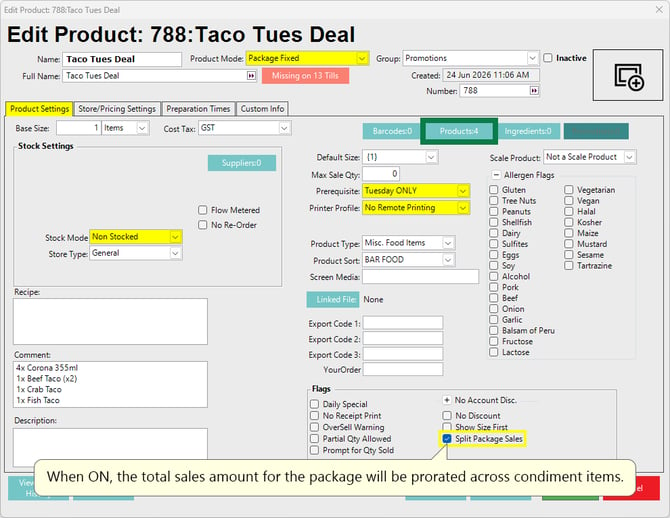
- Select Package Fixed from the Product Mode drop-down in the Product header.
- Select the Product Settings tab.
- Select Non Stocked from Stock Mode in the Stock Settings area.
- Confirm the required Prerequisite is selected if required.
- Confirm the required Printer Profile is selected.
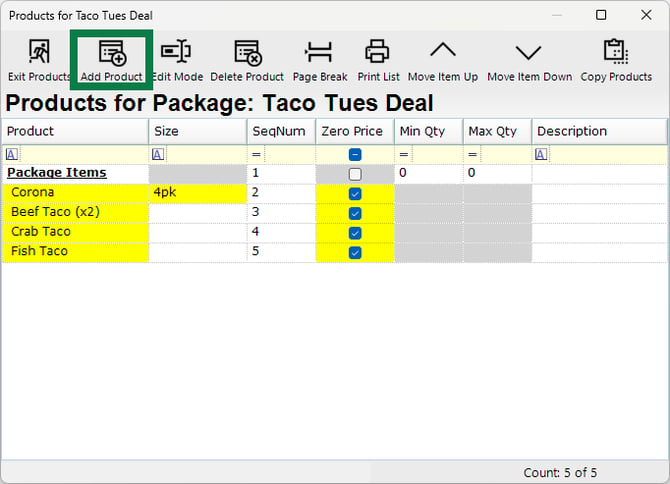
- Select Products on the Product Settings tab to add the Sub-Products.
- Add each required Sub-Product to the package.
- Enable Zero Price for the Products added to the package.
- Select the Store/Pricing Settings tab.
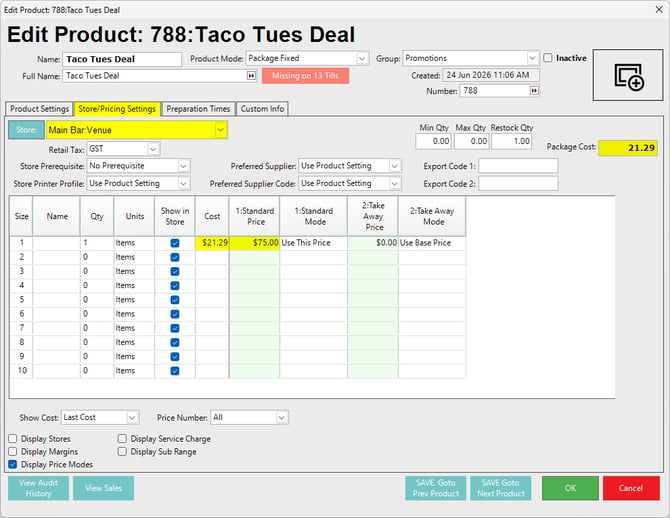
- Enter the selling price for the Package Fixed Product.
- Click OK to save the Product.
Expanded details follow below.
Product Settings Tab
The Product Settings tab is used to define the core Product behaviour for the Package Fixed Product.
For a Package Fixed Product:
- Set Stock Mode to Non Stocked.
- Use the Products button to open the Sub-Products window.
- Add each Product that must be included in the package, along with the Size if necessary.
- Enable Zero Price for each included Product so the package sells at the fixed package price.
- Configure Printer Profile as required for the package. Setting the profile to No Remote Printing will default the Products to their actual respective Printer Profiles.
- Enable Split Package Sales if the total sales amount for the package should be prorated across the package items.
- For this example, a Prerequisite has also been set up to restrict the sale of this promotional package to Tuesday ONLY.
- A Comment may be added to the Package Fixed Product to inform the staff what Products the package contains.
Store/Pricing Settings Tab
The Store/Pricing Settings tab is used to enter the selling price for the Package Fixed Product.
For each required Store:
- Select the required Store.
- Enter the package selling price in the required price column.
- The Package Cost value will be calculated automatically from the Products set in the package.
- Confirm the required Price Mode behaviour.
- Confirm the package price is entered against the main Package Fixed Product, not against the zero-priced Sub-Products.
Confirmation
To confirm the Package Fixed Product is configured correctly:
- The Product Mode is set to Package Fixed.
- The Product is set to Non Stocked.
- The required Sub-Products are added through the Products window.
- Zero Price is enabled for the Sub-Products.
- The package selling price is entered on the Store/Pricing Settings tab.
- The required printing behaviour is configured for the package and/or its included Products.
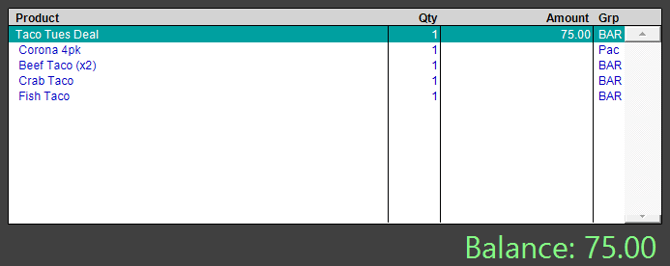
At the SmartPOS workstation:
- The Packaged Fixed Product will show first with the price on the same line; the colour should display in teal.
- The Products set in the package will show underneath, they should display in blue and have no prices.
updated to: bepoz v4.9.0.3