
Overview
Points are used for loyalty systems where they can be earned through purchases and redeemed for Products.
The value of a point is determined by its Earn and Redemption values (for example spend $1 = 1 point, redeem 10 points = $1) and once this value is set over the entire Venue it should not be changed.
The amount of points an Account holder is awarded largely depends on their Account settings and the SmartPOS Workstation settings. Each Account and Workstation has a specified Points Profile to follow which can increase or decrease the number of Points awarded according to spend.
Each Account also has another setting which, again, can increase or decrease the number of Points to be awarded by specifying a percentage of the Points Profile to be used.
Point Profiles determine the percentage of Points according to the Point Value to be awarded for each Product Type or Sort multiplied by the Purchase amount; this enables some Products to be excluded from Point Systems or the opposite in that some Products may award more Points than others.
Point Profiles are saved then allocated to SmartPOS Workstations and Accounts.
By allocating a Points Profile to an Account Group, that Points Profile will be allocated to all Accounts in that Group that have the Use Group Settings flag enabled.
Prerequisites
- To access Points Profile Settings, the applicable Operator Privileges will need to be enabled
- System Setup: "Maintain Points Profiles" Flag
- Operator Maintenance 'General' Tab
Accessing Points Profiles
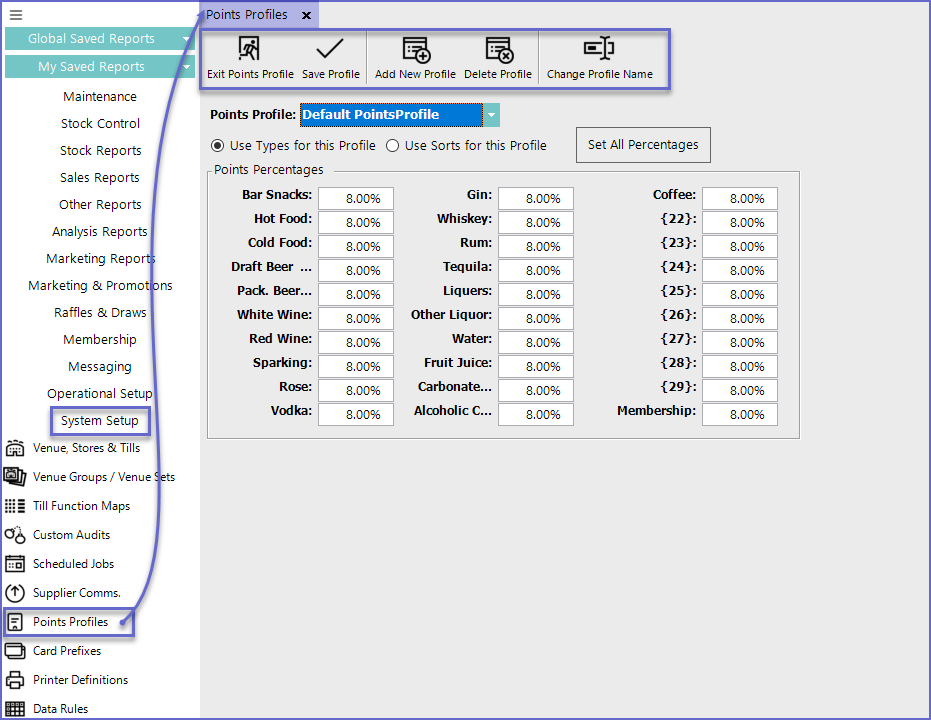
- To access and edit Points Profile, navigate to the System Setup component in the side menu of BackOffice and select Points Profile which will open a Points Profiles window
- This window contains a number of buttons which can be used for Adding a New Points Profile, Changing Points Profile Name and Saving a Points Profile
Adding New Profile
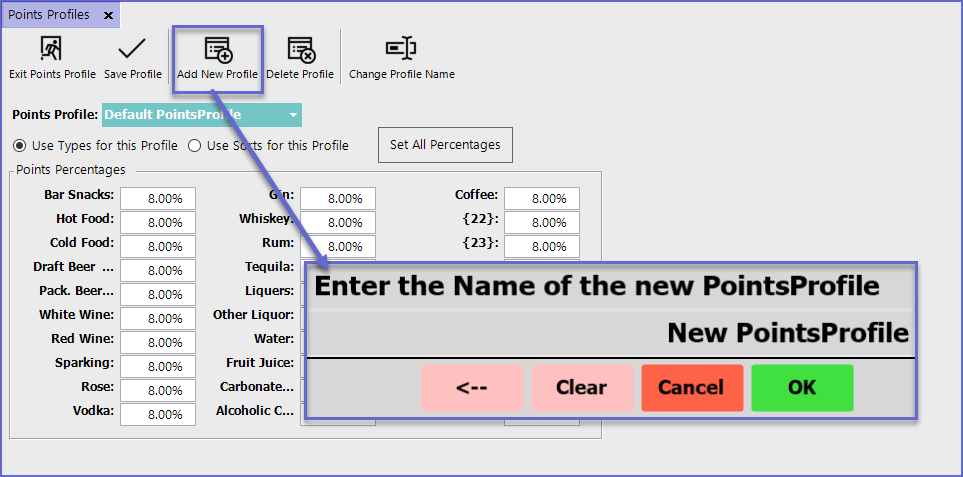
- To Add a New Points Profile, Click on the 'Add New Profile' button in the header which will open a dialog box prompting to enter the Name of the new Points Profile
Points Settings
-
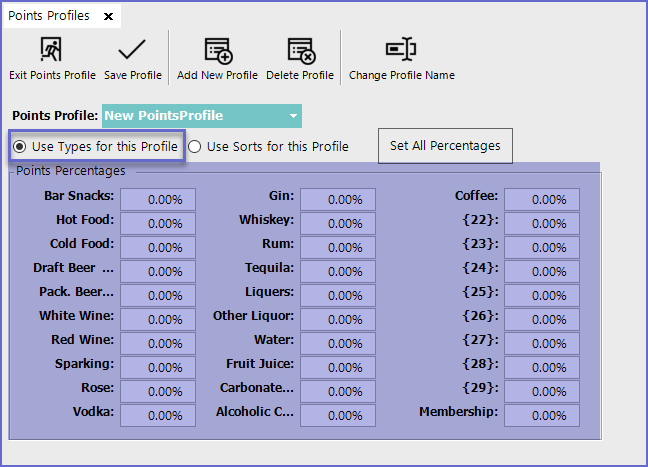
Use Types for this Profile
- This option will select the System's Product Types to set the Points percentage for the Profile
-
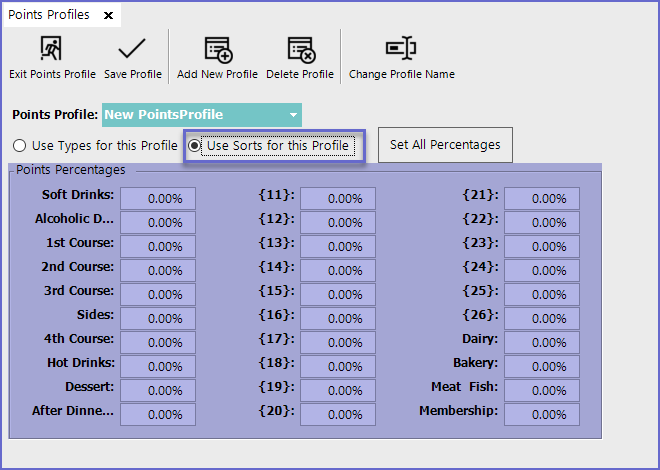
Use Sorts for this Profile
- This option will select the System's Product Sorts to set the Points percentage for the Profile
-
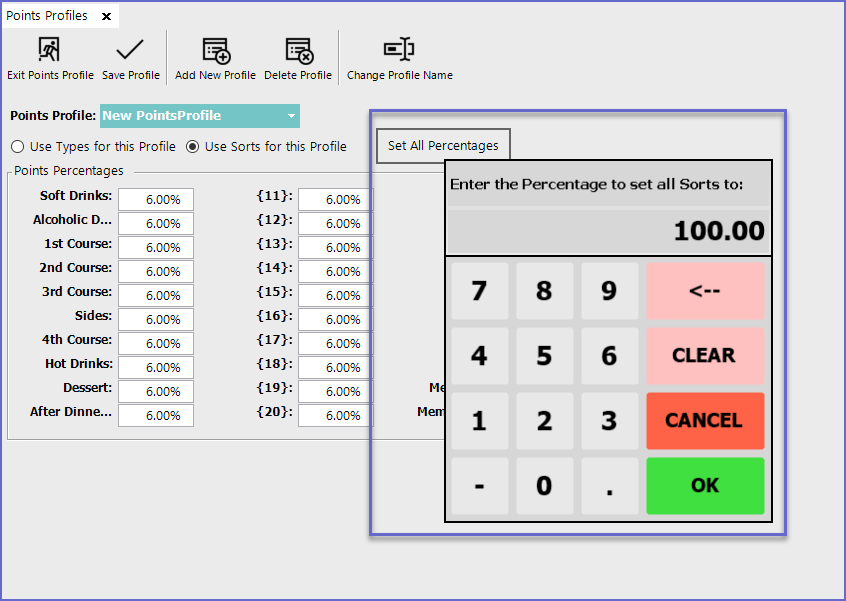
Set All Percentage
- This option allows setting the same Points percentage for every Product Type/Sort
Deleting a Profile
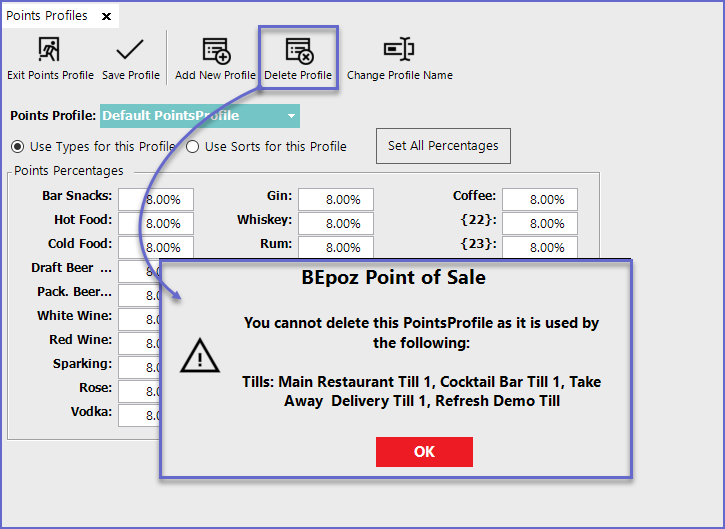
- To Delete a Profile, highlight the Profile to be deleted and click on the 'Delete Profile' function button in the header
- This will delete the Profile from the profile list
- However, the system will not allow Deleting if a Profile is currently being used by any of the Tills
Change Profile Name
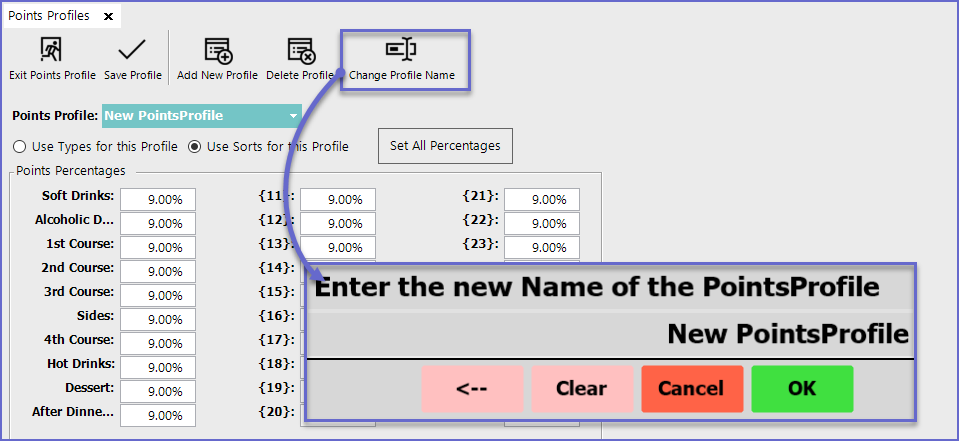
- To change the Name of a Profile, highlight the Profile and Click on the 'Change Profile Name' button in the header
Till Settings Points Profiles
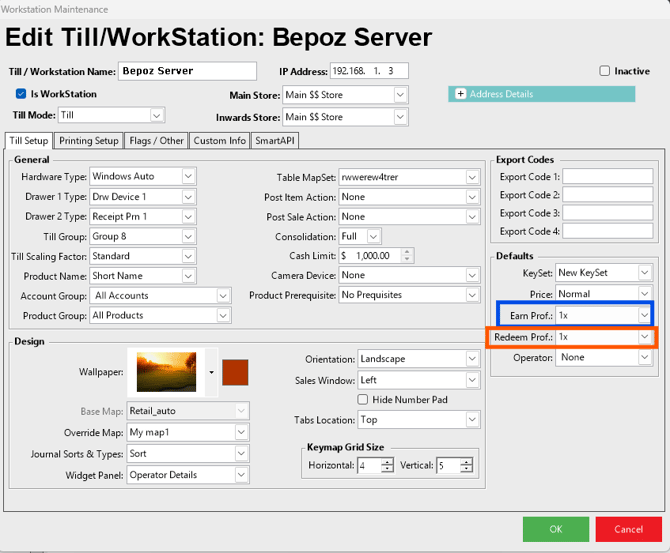
There is no requirement to set an Earn or Redeem Points Profile at the Till, however, if one is set it will Override (or additional to) the Account Points Profile
The desired Points Profile must be Selected in the Defaults Section of Workstation Maintenance > Till Setup
Accounts Points Profile
- Alternative and additionally to the Workstation Setting, the Profile can be linked to Point Settings earned by a Member/Accounts
- If an option other than "Default Points Profile" is selected, this will override the Workstation setting
- To link the Points Profile with Accounts, go to Member Maintenance for the desired Account and then the Main Setup tab
- Tick the 'Earn Points' flag On and Select the required profile in the Points Profile Field
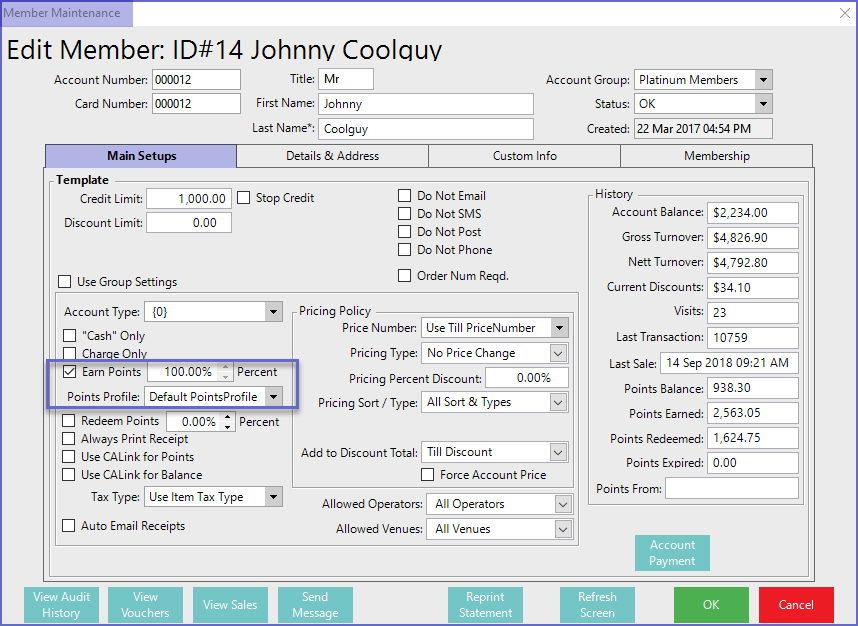
- If Earn Points is set to 100%, the Account will Earn 100% of the Venue Points Earn and that are allocated to a Product.
SmartPOS Examples
- After the prerequisites have been met, the Points Profile can now be used in SmartPOS
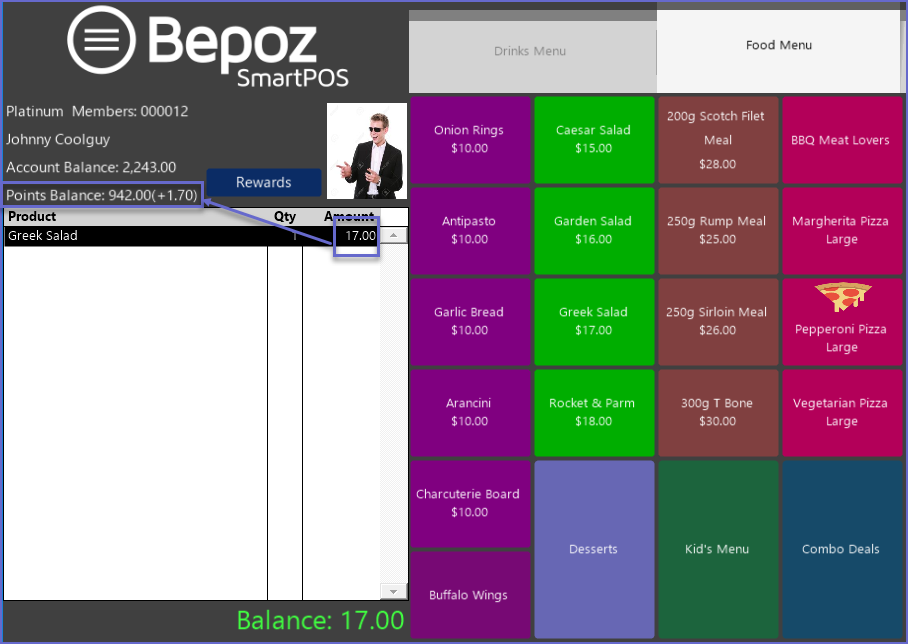
- Here, the Point for each Product Type/Sort is set to 10% in the Points Profile and Earn Points in Member Maintenance is set to 100%
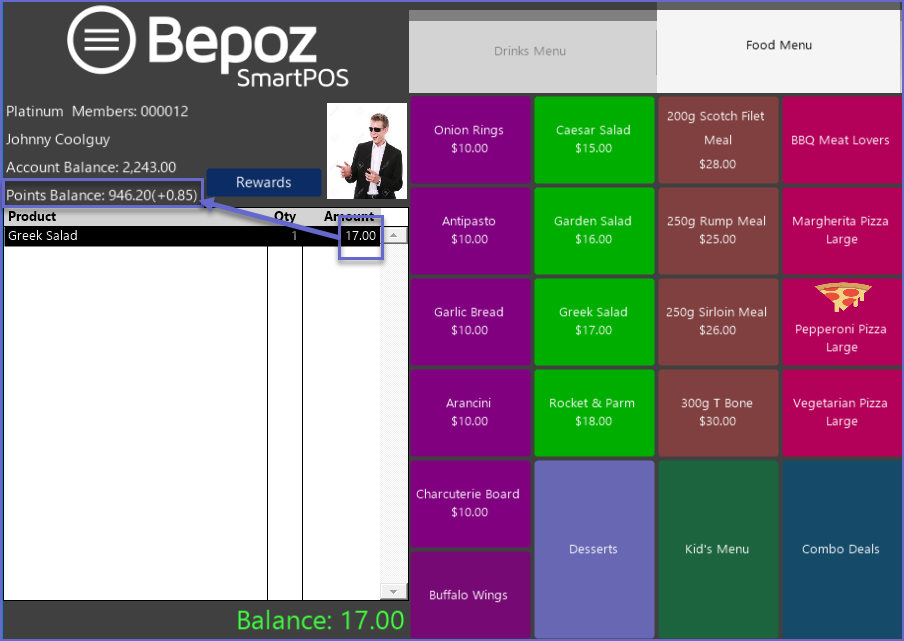
- If the Earn Points in Member Maintenance is set to 50%, members will only earn 50% of the total points allocated to the Product Type/Sort
Points Calculation Spreadsheet
(Opens in Excel)