
Overview
This article explains the different Price Modes that can be added within bepoz so the same Product can be charged differently according to Customer Type, Promotional Schemes, Order Type, Store, Venue, or other operational requirements.
The bepoz system allows operators to use different Price Modes for the same Product depending on the transaction type.
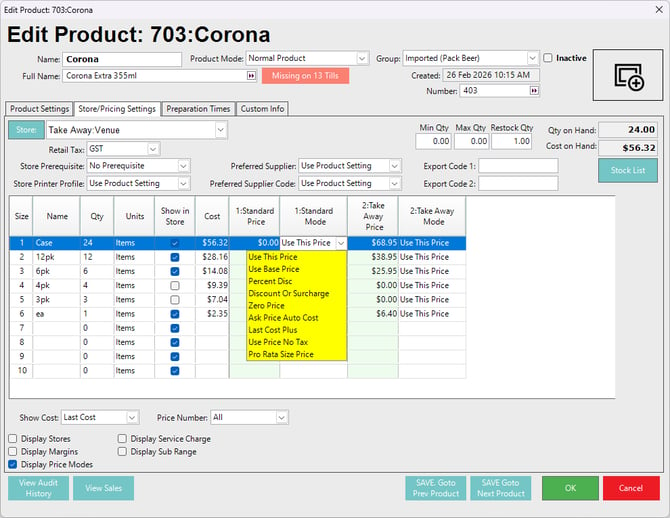
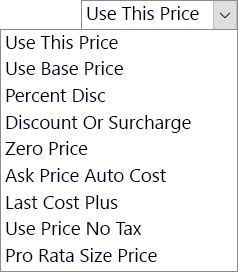
Price Modes are shown within a Product in the column to the right of the price or value. If the Display Price Modes flag is disabled, bepoz will continue to use the Price Modes setup against each Price Name (Price Level).
Prerequisites
The Use Price Modes flag must be enabled before Price Modes can be used.
When Use Price Modes is enabled, Price Modes can be used for each existing Price Number.
When Use Price Modes is disabled, all prices are treated as simple price amounts and are used instead of the original price.
Price Modes
‼️Important:
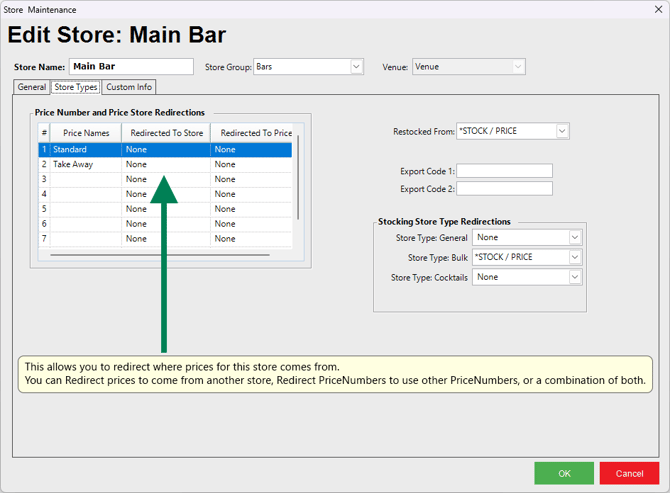
When no Store Redirects are active, or when the Venue is a single-Store site, Price Number 1 must remain the default base price and be set to 'Use This Price'.
Other Price Numbers in the same Store can then use applicable Price Modes to calculate from, discount from, surcharge from, or reference Price Number 1.
Image below shows no active Store Redirections
1. Use This Price
Use This Price is the default Price Mode.
The system uses the price entered in the Price column as the selling price.
2. Use Base Price
Use Base Price applies when the price is a redirected price, as configured in Store setup.
If the price is redirected, the system uses the price from the original Price Number and original Store as the selling price.
Operators must configure a Price Redirect within Store Maintenance before this Price Mode can apply.
This mode is often used in a Table or Account scenario where the same base price should be used, but another charge or pricing rule applies.


3. Percent Disc(ount)
Percent Disc applies when the price is a redirected price, as configured in Store setup.
If the price is redirected, the system uses the Price field as a discount percentage to apply to the original Price Number and original Store selling price.
To apply a Percent Disc, enter the amount as a whole number - the system will display this as a whole decimal.
For example, a five per cent discount should be entered as 5.00 (see image below).


This is not usually the recommended method for offering discounts because reporting is limited.
It is recommended to use an Account discount or Product Promotion where possible.
4. Discount Or Surcharge
Discount Or Surcharge applies when the price is a redirected price, as configured in Store setup.
If the price is redirected, the system uses the Price field as a discount amount to apply to the original Price Number and original Store selling price.
To apply a Discount, enter the amount as a positive number (see image below).
To apply a Surcharge, enter the amount as a negative number.
For example, a surcharge of 10 cents should be entered as -$0.10 (see image below).


This is not usually the recommended method for offering discounts because reporting is limited.
It is recommended to use an Account discount or Product Promotion where possible.
5. Zero Price
Zero Price disregards any price setup and sells the Product at zero price.
This does not prompt the operator to enter a price at the till.
If a Product price is simply set to zero without using Zero Price, the till will ask for a price.
This mode may be used for condiment Products or other Products that are usually sold free of charge.
6. Ask Price Auto Cost
Ask Price Auto Cost disregards any price setup and asks for the selling price at the till.
The cost is calculated based on the Default Margins configured for the Store.
This should only be used for Non-Stocked Products.
7. Last Cost Plus
Last Cost Plus uses the Price field as the percentage to add to the Product’s last cost to calculate the selling price. This is calculated ex tax.
In the example below, if the last cost is $2.00 and the Price field is set to 10, the system adds 10% to the last cost to calculate the selling price, resulting in a selling price of $2.20.




8. Use Price No Tax
Use Price No Tax works the same as Use This Price, except the tax component is set to No Tax (Tax Free/GST Free).
9. Pro Rata Size Price
Pro Rata Size Price uses the Price field to reference another Size Number on the Product, then calculates the selling price from the quantity of the current Size against the price of the referenced Size.
This means decimal-referenced prices multiplied by the quantity.


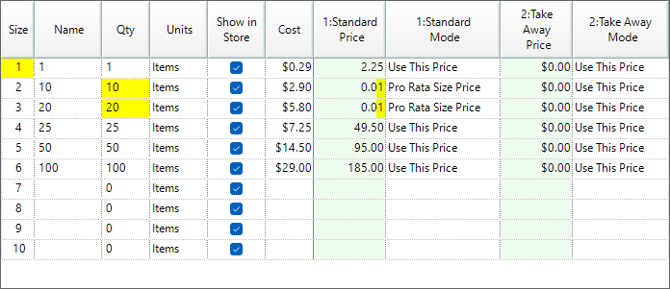
Example: Golf Tees sold as singles or in pack quantities
- Size 1 is configured as 1 Item at $2.25
- Size 2 is configured as 10 Items at $0.01 - this will use the Price of Size 1 and multiply by 10 when sold at the POS
- Size 3 is configured as 20 Items at $0.01 - this will use the Price of Size 1 and multiply by 20 when sold at the POS
- Price Mode for Size 2 & Size 3 is set to Pro Rata Size Price
- The remaining sizes have their own selling price giving a greater discount for purchasing higher quantities.
updated to: bepoz v4.9.0.3