Skip to content
  • There are no suggestions because the search field is empty.

📄Prize Promotion Custom Info

This article explains the four fields of "Custom Info" which are Flags, Numbers, Dates, and Text Field that can be configured maintained for Prize Promotions.

Prerequisites 

  • To access Prize promotion features, the applicable Operator Privileges will need to be enabled 
    • Marketing & Promotions Tab 
      • Promotions: "Maintain Prize Promotions" Flag
      • Promotions: "View Prize Promo Custom Info" Flag
      • Promotions: "Edit Prize Promo Custom Info" Flag


Prize Promotion Custom Info

  • The "Custom Info" tab allows operators to Add extra information about the product
  • This information is not mandatory but can be used for report purposes or for operator's knowledge
  • The additional data also helps during decision making


Getting Started

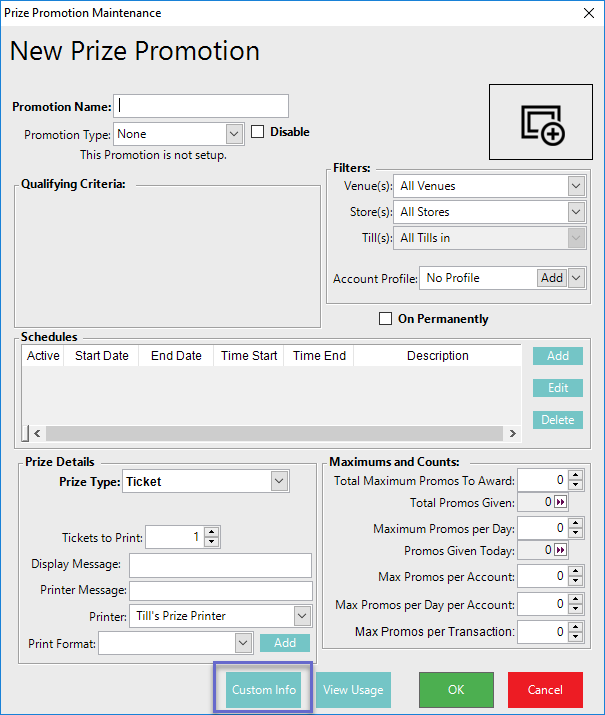
  • To access the Custom Info window for an individual Prize Promotion, click the button below the Prize Details section
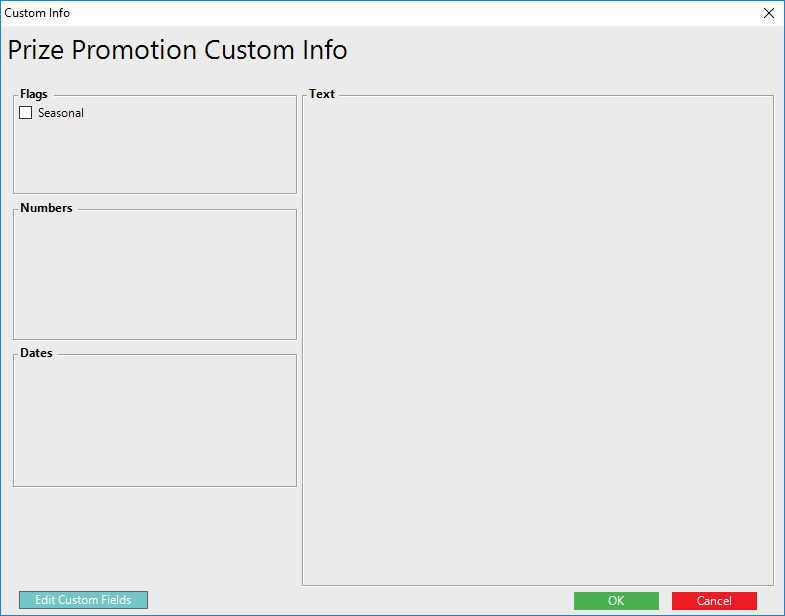
  • Once the button is clicked, it will open up a new window that displays all the extra information (or may be blank if none have been configured yet)
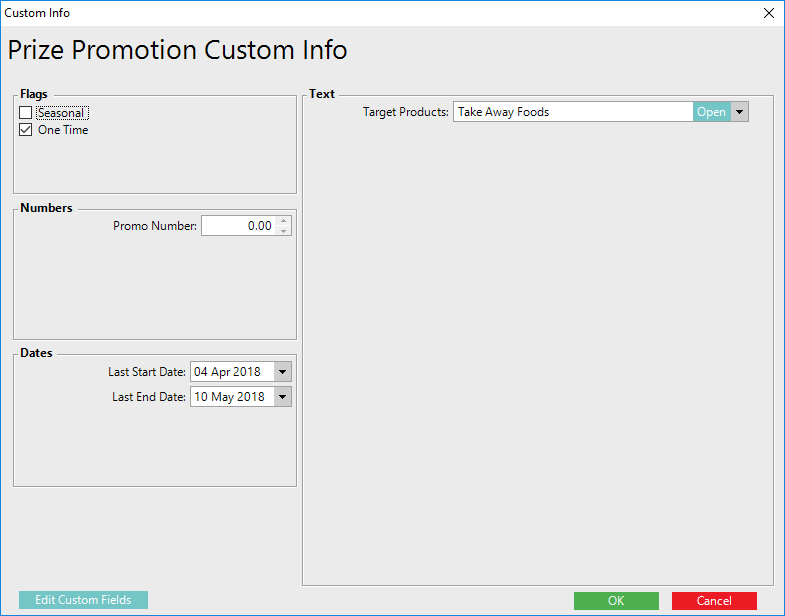
  • This information is in the format of Flags, Numbers, Dates and Text groups
 

Maintaining Custom Fields

  • The Custom Info tab contains Optional Fields which be Edited to suit an Organization's needs and/or preferences
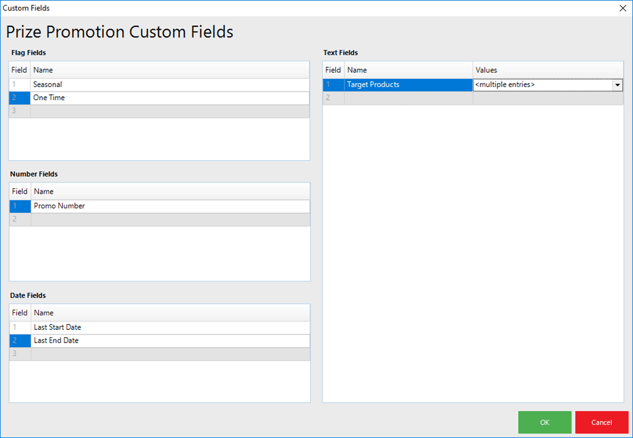
  • To maintain these field, begin by clicking on the Edit Custom Fields button in the bottom right corner which will open a Custom Fields edit window
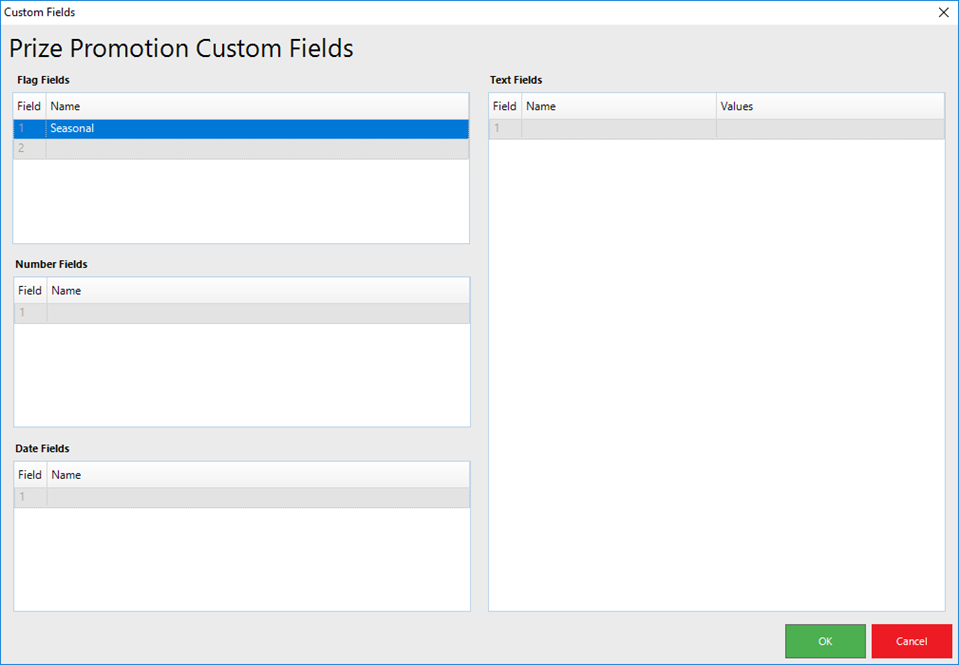
  • Click within the Field Names to Enter information
 

Field Types

Description & Information

Flag Fields
  • Operators can create up to ten (10) Custom Flags to add
  • These can be used for marking flags for any relevant information
    • One example could be the nature of the promotion
  • Once created, these can be Edited or Removed
Number Fields
  • Operators can create up to Five (5) Number Fields to add
  • These can be used for any relevant information
    • One example could be to enter the Promotion Number        
  • These fields would be Optional to complete for each Account
Date Fields
  • Operators can create up to Five (5) Date Fields to add
  • These can be used for tracking any Dates which may be relevant
    • One example could be the last time the promotion was used
  • These fields would be Optional to complete for each Account
Text Fields
  • Operators can create up to Twenty (20) Text Fields to add
  • These can be used for tracking many types of information which may be relevant
    • This is a two-part field including the Name of the field and any Values 
    • Double-click in the Values box to add Multiple Entries
  • These fields would be Optional to complete for each  Promotion
 

  •  After the fields are added, the information can be Viewed and Edited in the Custom Info window for an individual Prize Promotion