
Overview
The Custom Info tab allows additional information to be added to Products in bepoz.
Custom Info fields are optional Product-level fields that can be used to record extra information that is not covered by the standard Product fields. These fields can also be used in other workflows, such as Product Profiles and auto-generated KeyLists.
There are four types of fields available in the Custom Info tab:
| Custom Field Type | Description |
|---|---|
| Flag Fields | Tick-box fields that can be selected or cleared for a Product. |
| Number Fields | Numeric fields that can store Product-related numbers. |
| Date Fields | Date fields that can store Product-related dates. |
| Text Fields | Text-based fields that can store selected values or other Product information. |
Prerequisites
To access and maintain Product Custom Info, the relevant Operator must have the required privilege flags enabled.
The required privilege flags are:
View Product Custom Info
Add Product Custom Info
Edit Product Custom Info
Maintain Product Custom Fields
Editing Custom Fields
To edit the fields available on the Custom Info tab:
- Open the required Product.
- Select the Custom Info tab.
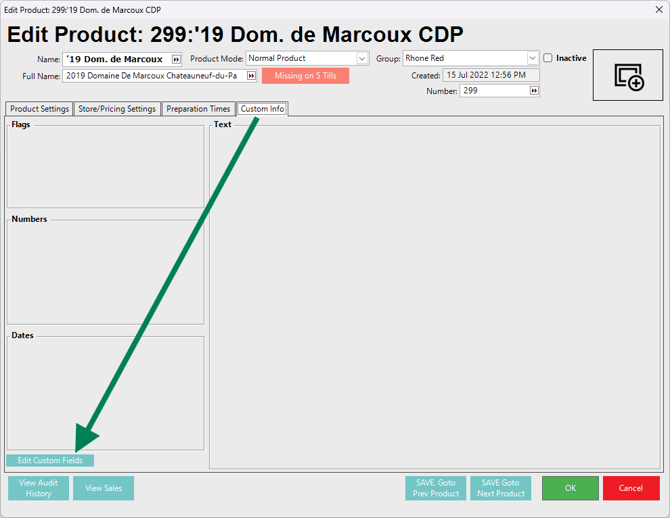
- Click Edit Custom Fields.
Image below shows the Custom Info tab before fields have been configured.
- The Product Custom Fields window will open.
Image below shows the Product Custom Fields window.
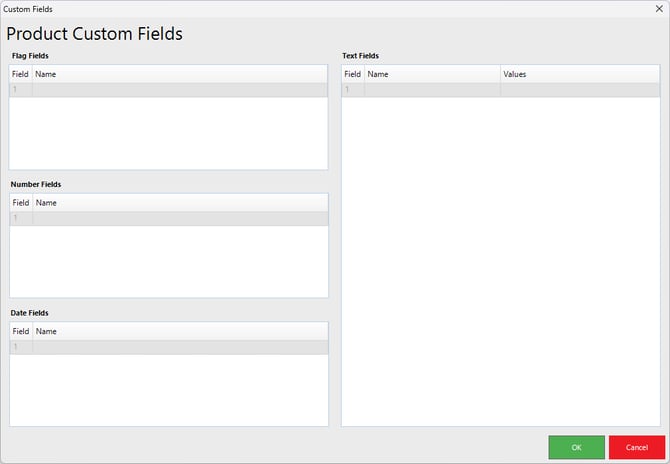
- Within this window, custom fields can be created or edited for each field type.
- Once Custom Fields are added or edited, they will appear on the Product’s Custom Info tab and can be used for each Product as required.
Types of Custom Fields
| Custom Field Type | Description |
|---|---|
| Flag Fields | Flags can be added to the Custom Info tab and selected for Products when required. Up to 10 Flag Fields can be customised. |
| Number Fields | Number Fields can be added to record Product-related numeric values, such as recommended quantities, sizes, limits, or other operational values. Up to 5 Number Fields can be customised. |
| Date Fields | Date Fields can be added to record Product-related dates. These may be useful for seasonal Products, limited availability, review dates, or expiry-related information. Up to 5 Date Fields can be customised. |
| Text Fields | Text Fields can be added to record additional Product information. Text Fields can also include a list of selectable values. Up to 20 Text Fields can be customised. |
Adding or Editing Custom Field Names
To add or edit Custom Field names:
-
Open the Product Custom Fields window.
-
Click into the required Name field.
-
Enter or edit the field name.
-
Repeat for each required Flag Field, Number Field, Date Field, or Text Field.
-
Click OK.
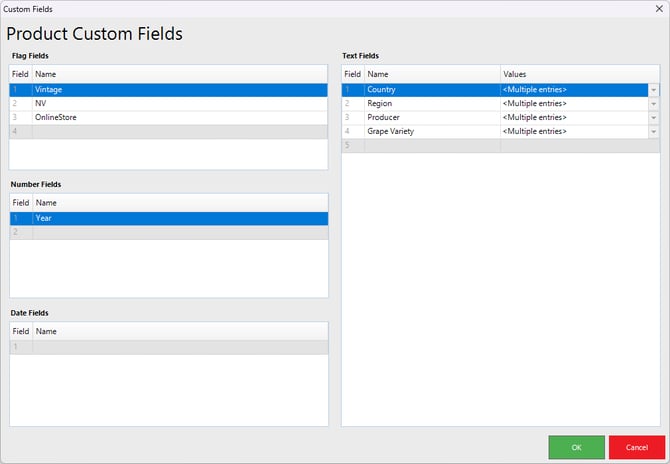
Image below shows the Product Custom Fields window following customisation of some fields.
Adding Values to Text Fields
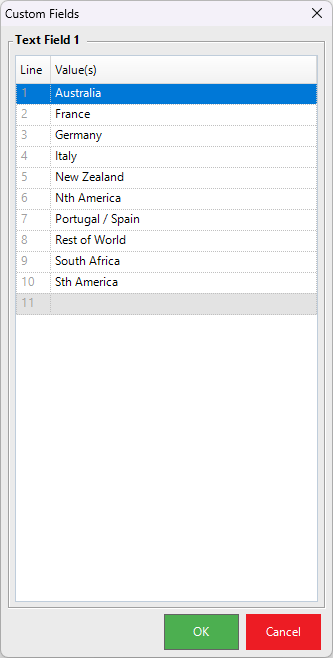
Text Fields can include selectable values.
In the Product Custom Fields window, the Values column may show <Multiple entries> when more than one value has been configured for a Text Field.
To add or edit values for a Text Field:
- Locate the required Text Field.
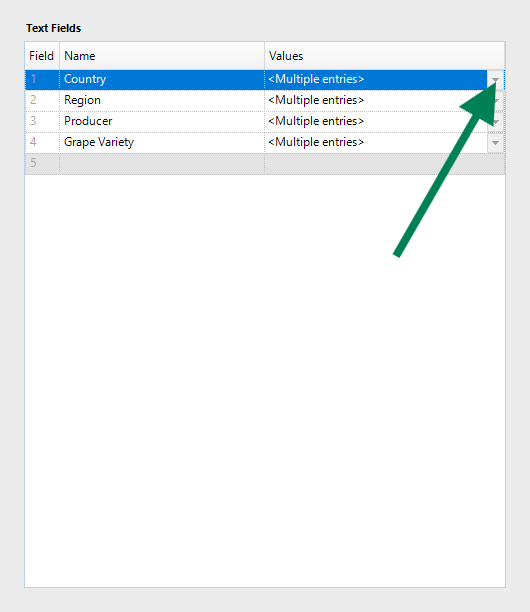
- Double-click the drop-down arrow in the Values column.
Image below shows the drop-arrow to double-click.
- Enter, edit, or remove the required values.
Image below shows selectable values being maintained for a Text Field.
- Click OK.
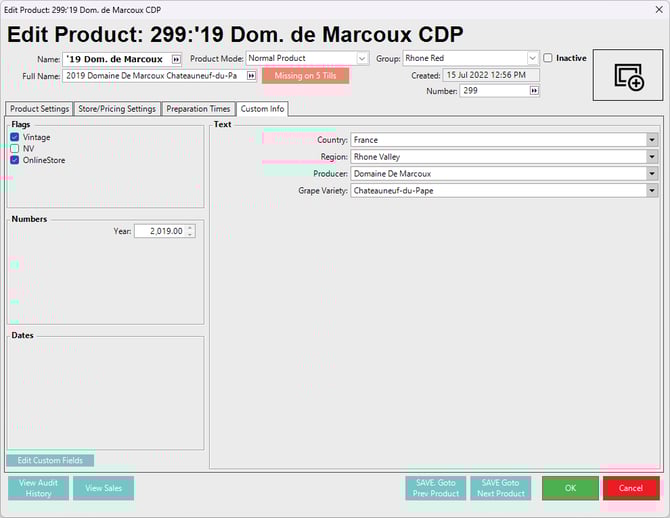
- After values have been added, they can be selected from the Product’s Custom Info tab.
Using Custom Info on a Product
After Custom Fields have been configured:
- Open the required Product.
- Select the Custom Info tab.
- Complete the relevant Flag, Number, Date, or Text fields.
Image below shows the Custom Info tab with values applied to a Product.
- Click OK to save the Product.
- Custom Info fields are optional. A Product only needs to use the fields that are relevant to that Product.
Using Custom Info with Product Profiles
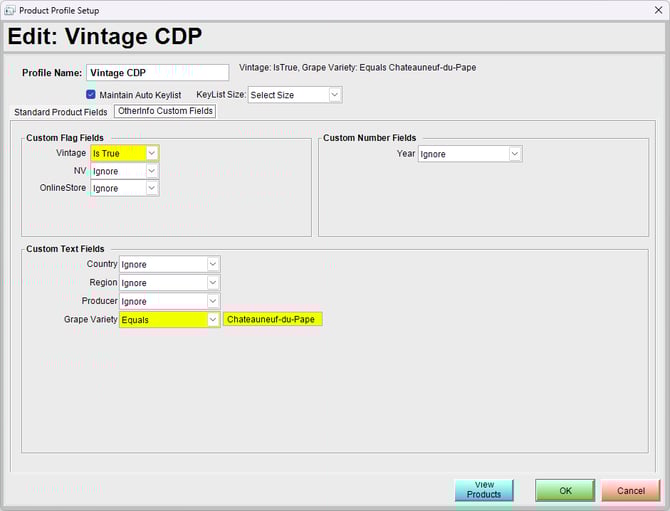
Custom Info can be used with Product Profiles to group Products based on custom field values.
For example, a Product Profile can be configured to include Products where:
-
A specific Flag Field is selected.
-
A Text Field equals a specific value.
-
A Number Field or Date Field matches the required profile criteria.
Image below shows a Product Profile using Custom Info fields.
-
When configuring a Product Profile, select the Other/Info Custom Fields tab to apply Custom Info conditions.
-
If Maintain Auto Keylist is enabled, bepoz can automatically maintain a KeyList based on the Products that match the Product Profile.
Auto-Populating a KeyList
Once a Product Profile has been created and Maintain Auto Keylist is enabled, the generated KeyList can be viewed from the KeyList selection window.
Image below shows an auto-generated KeyList created from a Product Profile.
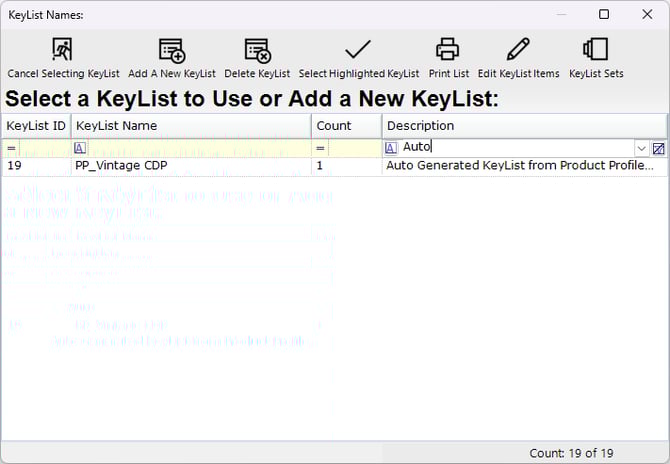
This allows Products matching the Product Profile criteria to be grouped automatically.
The generated KeyList can then be assigned to a POS button, allowing Operators to quickly access the relevant Products at the POS.
Image below shows adding a POS button (Set as KeyList) to a KeyMap in BackOffice.
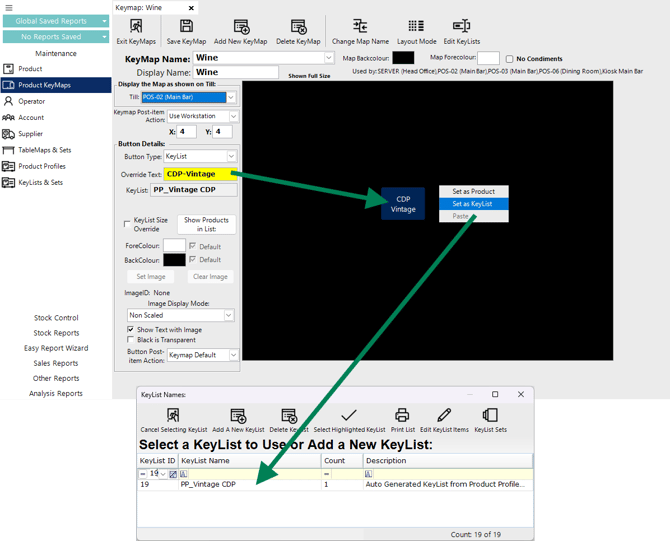
Tip: You can use the Override Text field to rename the KeyList button to whatever is required.
Additional Information
Operators can create custom views using Custom Info fields to sort, filter, or identify Products.
Custom Info fields can be useful when Products need additional classification beyond the standard Product fields, such as internal reporting values, operational categories, Product attributes, or POS grouping requirements.
updated to: bepoz v4.9.0.1