
Overview
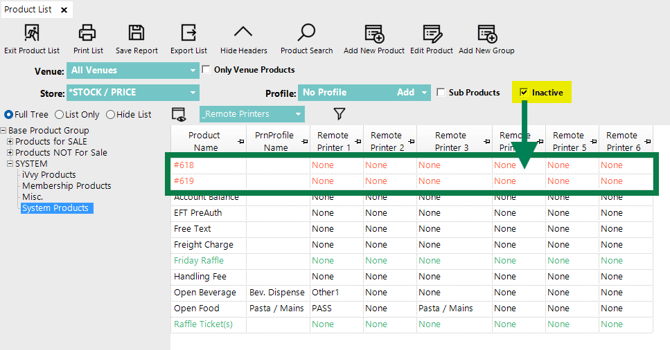
The Product List tab in bepoz BackOffice displays the Products configured in the system and provides access to common Product maintenance functions. Operators can use this area to review Products, change the displayed Product information, search and filter Product lists, manage Product Groups, create new Products, edit existing Products, and save or export Product List views.
The top area of the Product List tab contains the main toolbar, Product selection controls, Product Group options, and the current Product List view. The toolbar includes options such as Exit Product List, Print List, Save Report, Export List, Hide Headers, Product Search, Add New Product, Edit Product, and Add New Group. The header also includes commonly used controls such as Venue, Store, Profile, Only Venue Products, Sub Products, and Inactive.
Click on any of the below icons or bullet-list items for fast navigation:


Prerequisites
To access and manage the Product List tab, the Operator must be allowed to:
-
View Products
-
Edit Products
Product List Tab Overview
1. Exit Product List
Exits the Product List tab.
Returns the Operator to another open list or to the bepoz welcome screen.

2. Print List
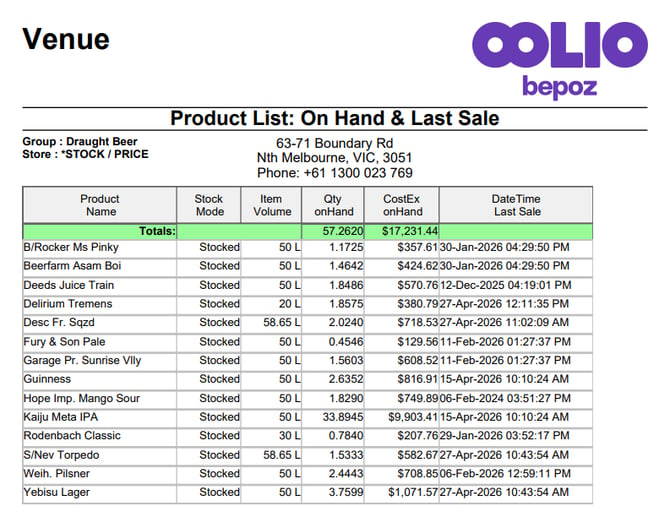
Prints the current Product List view.
You will have the option to preview a PDF or email the report.
The PDF or printed output reflects the Products, columns, view, filters, Venue, Store, and Product Group selection currently displayed.
3. Save Report
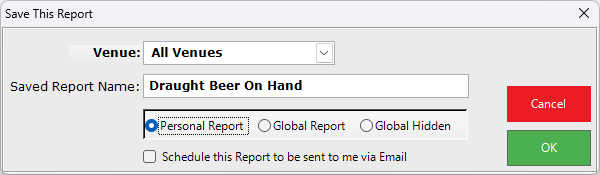
Saves the current Product List view as a report.
The report can be saved as a Personal Report, Global Report, or Global Hidden report.
A saved report can be named before it is saved.
-
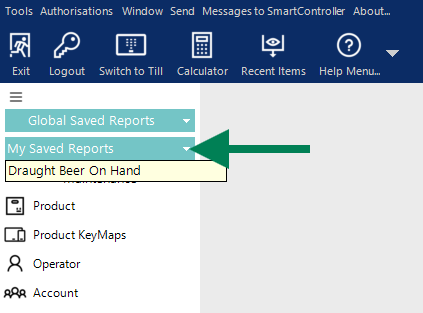
The saved report can be found under My Saved Reports when saved as a Personal Report, or under Global Saved Reports when saved as a Global Report.
-
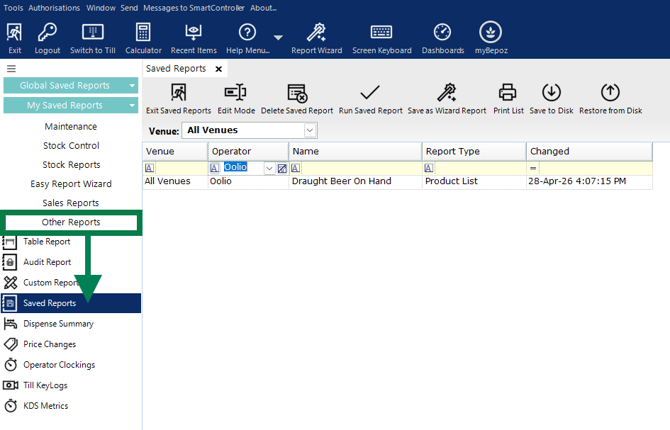
The saved report can also be found under Other Reports in Saved Reports - if the report was saved as Global Hidden, this is the only place to access the saved report.
4. Export List
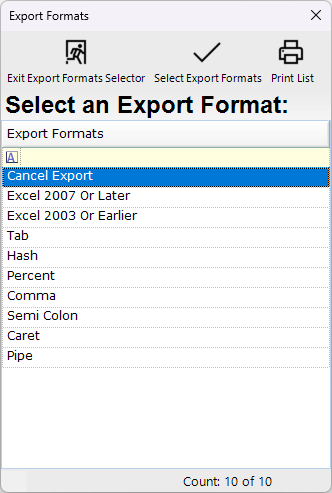
Opens the Export Formats selector.
Exports the current Product List view to the selected export format.
Available export formats include Excel 2007 Or Later, Excel 2003 Or Earlier, Tab, Hash, Percent, Comma, Semi Colon, Caret, and Pipe.
Select Exit Export Formats Selector to exit without exporting.
5. Hide Headers
Hides the report setup options at the top of the Product List tab.
Provides more screen space for viewing the Product List.
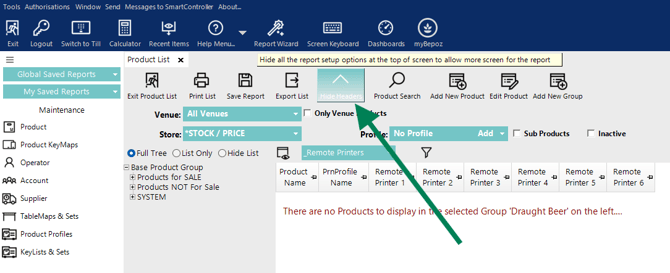
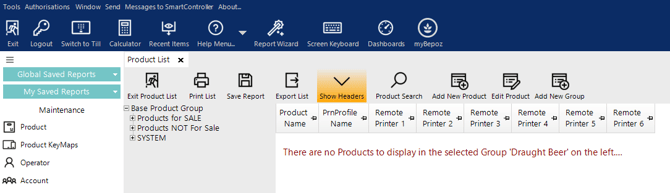
When headers are hidden, the button changes to Show Headers.
Click Show Headers to restore the header options.
6. Product Search
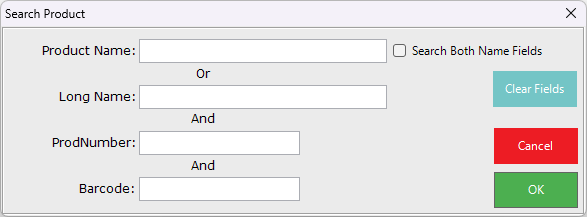
Opens the Search Product window.
Searches the Product List by Product Name, Long Name, ProdNumber, or Barcode.
The Search Both Name Fields option can be enabled when searching Product names.
Click Clear Fields to remove entered search criteria.
Click OK to run the search.
7. Add New Product
Opens a window that allows a new Product to be added by copying an existing Product.
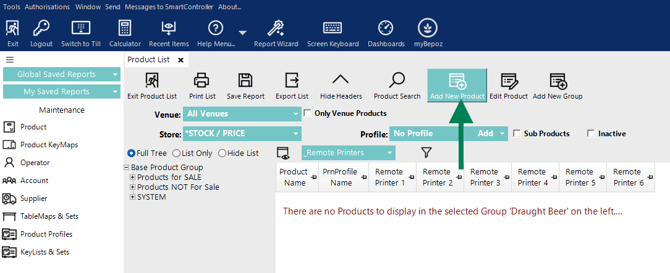
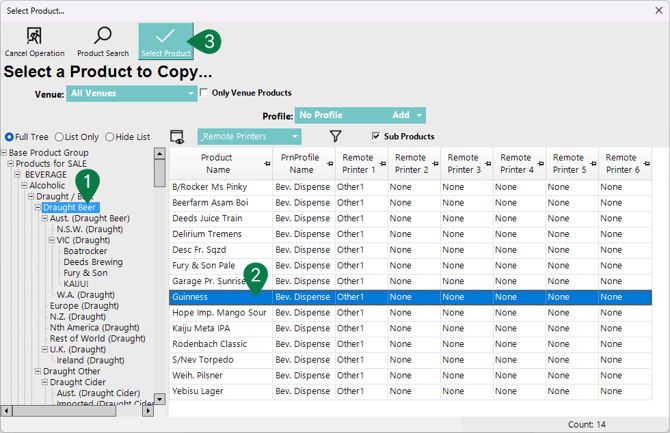
Select or expand the relevant Base Product Group and Product Group.
Select the Product to be copied from the list on the right.
Click Select Product to copy the selected Product.
Alternatively, double-click the Product to copy it.
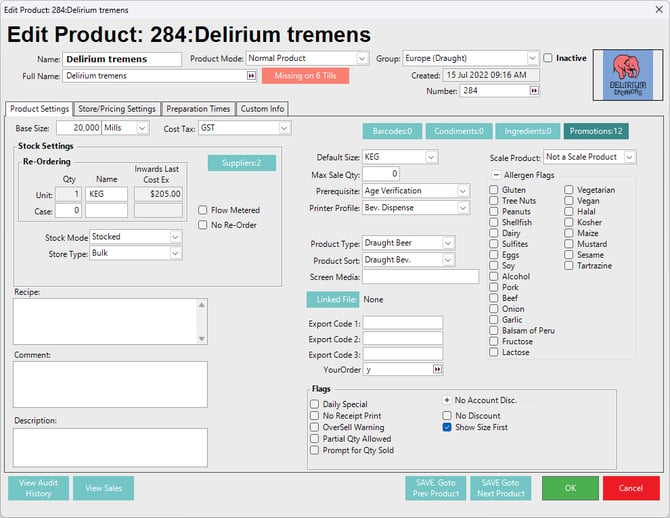
8. Edit Product
Opens the Edit Product window for the Product currently selected in the Product List.
Use this option when changes are required to the full Product setup.
9. Add New Group
Select the Parent Group that the new Product Group will be added under.
Click Add New Group.
Enter the new Product Group name, then click OK.
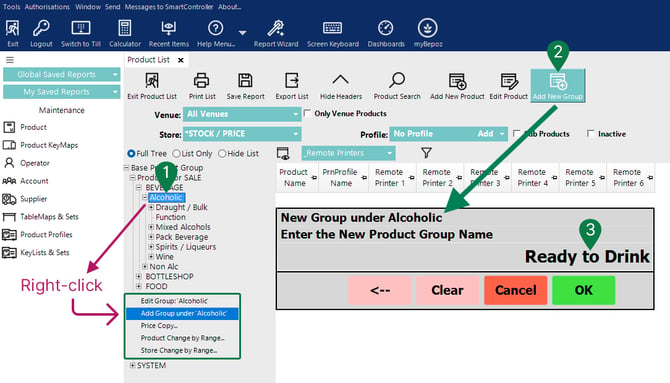
Alternate method:
Right-click the relevant Parent Group in the Product Group tree.
Select Add Group under the selected Group.
Enter the new Product Group name, then click OK.
10. Edit Mode (On/Off)
Enables editing of selected Product information directly in the Product List window.
This can be used to make quick changes without opening the full Edit Product window.
This is useful when making the same type of change across multiple Products.
Once Edit Mode is enabled, a cancel icon replaces the Edit Mode icon.
Click the cancel icon to exit Edit Mode.

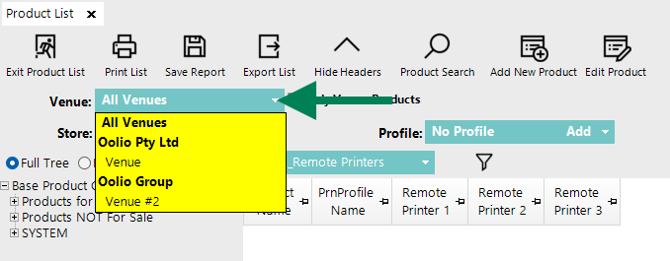
11. Venue
Selects which Venue the Product List is being viewed or edited for.
When a Venue is selected, only the Stores available for that Venue can be selected.
The All Venues option can be selected when Products need to be viewed across all Venues.
12. Only Venue Products
Shows only Products that are currently available in at least one Store within the selected Venue.
This option is useful when reviewing Venue-specific Products.
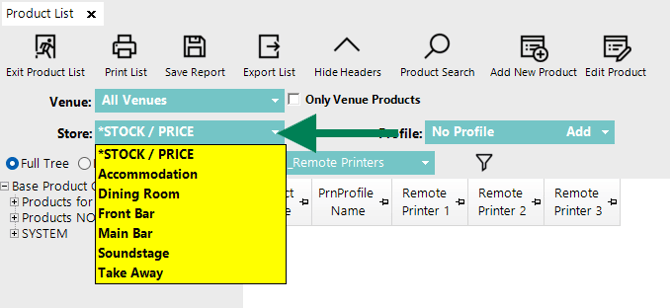
13. Store
Selects which Store Products are being viewed or edited for.
The Store selection affects the Product List information displayed.
14. Profile
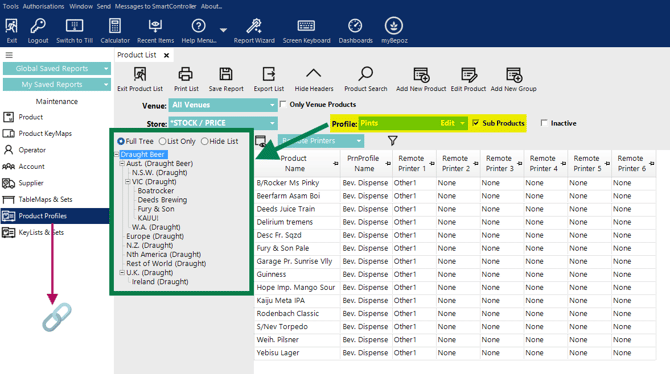
Selects the Product Profile used for the current Product List view.
The default selection may display as No Profile.
Click Add to add a Profile where required.
When a Product Profile is set up, you may see a limited selection in the Product Tree.
Additional Reading:
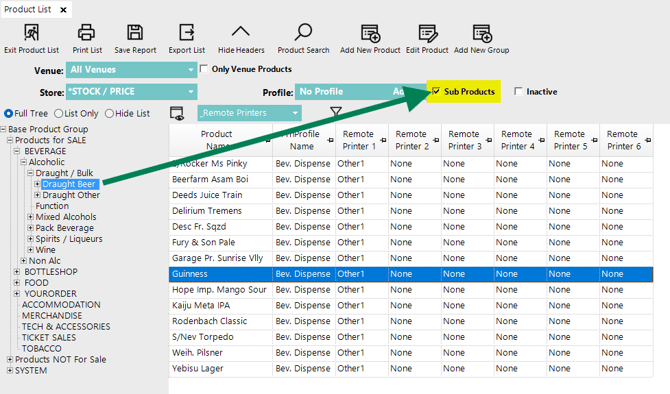
15. Sub Products
Shows all Products within a Parent Group when that Group is selected.
This allows Products from child Groups to be displayed together.
Disabling Sub Products limits the list to the selected Product Group only.
16. Inactive
Shows Inactive Products in the Product List View.
Disabling Inactive hides Inactive Products.
Inactive Products will display in a different text colour to help identify them.
17. Full Tree
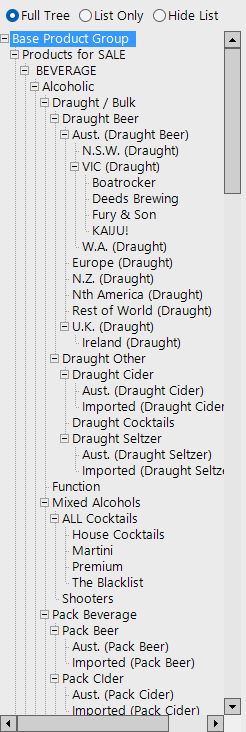
Displays all Parent Groups and Product Groups in the Product Group tree.
Product Groups appear in their full hierarchy.
Products for the selected Product Group display in the Product List window.
18. List Only
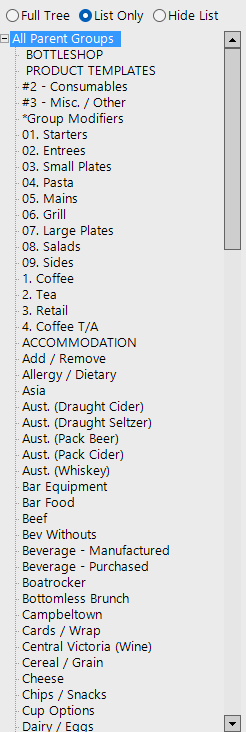
Displays Product Groups in a straight list instead of a branched tree structure.
All Groups are ordered alphabetically in List Only view.
Products for the selected Product Group display in the Product List window.
19. Hide List
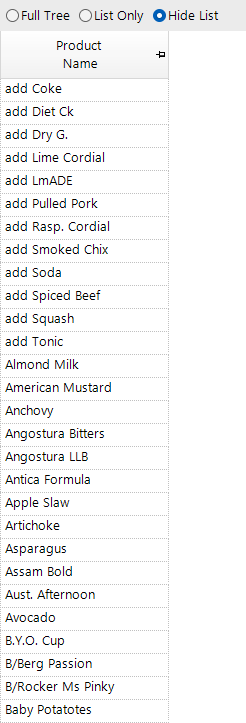
Hides the Product Group list.
Displays Products without showing the Group tree on the left.
This is useful when more space is required for the Product List itself.
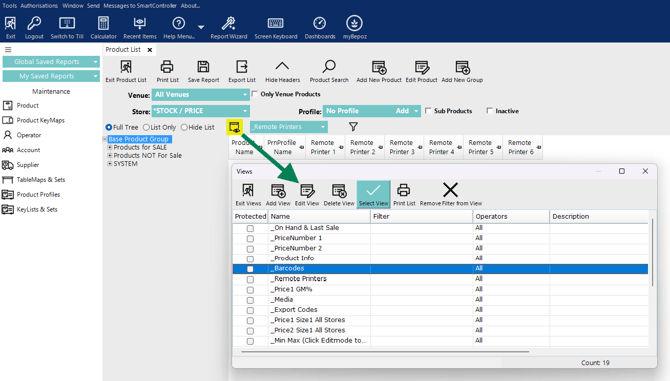
20. View Editor
Opens the Views window.
Allows Operators to select, add, edit, delete, print, or remove filters from Product List Views.
The Select View button applies the highlighted View.
Custom Views can be tailored to all Operators or configured for specific use. Standard Views will be available to all Operators with correct permissions.
21. Views
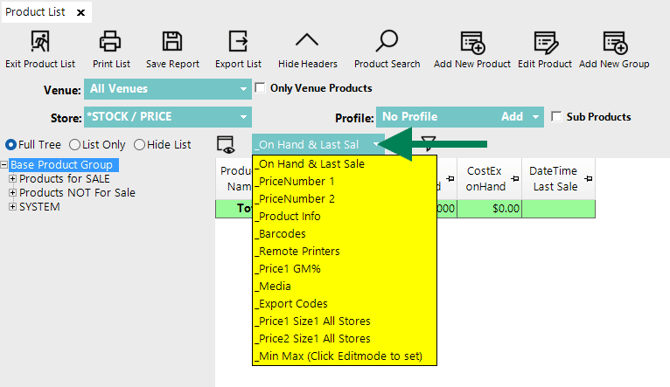
Controls which Product information columns are displayed in the Product List.
Default views can include On Hand & Last Sale, PriceNumber 1, PriceNumber 2, Product Info, Barcodes, Remote Printers, Price1 GM%, Media, Export Codes, Price1 Size1 All Stores, Price2 Size1 All Stores, and Min Max.
Selecting a different View updates the columns shown in the Product List.
22. Filter
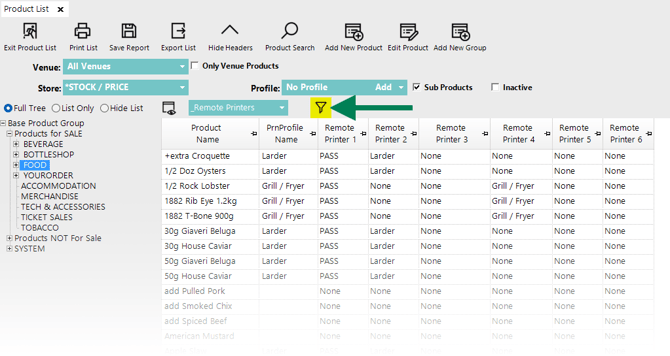
Sets criteria to narrow the Products displayed in the selected View.
Filterable columns depend on the View currently selected.
After applying a filter, clicking the Save Filter icon you will be prompted whether to create a new View with the filter definition.
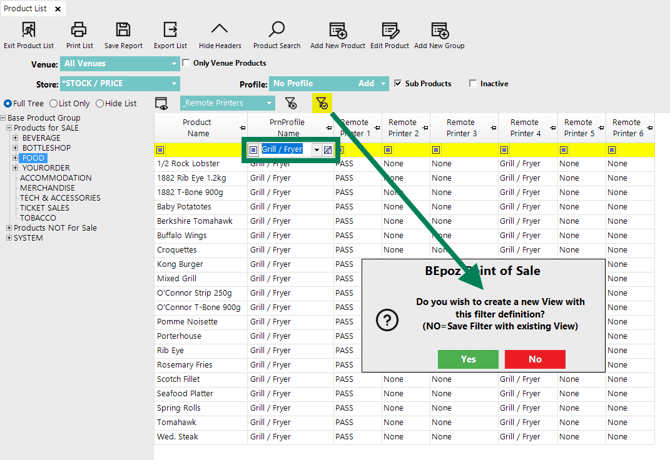
Select Yes to create a new View.
Select No to save the filter against the existing View.
updated to: bepoz v4.9.0.1