
Overview
This article explains how to change product prices in BackOffice.
Product prices can be changed in two ways:
-
From Product List when direct edit mode is enabled.
-
From the Edit Product window on the Store/Pricing Settings tab.
Use the Product List method when updating prices directly from a list. Use the Edit Product method when reviewing or changing pricing for a specific product, product size, or store.
Price changes are live once they are saved in BackOffice. There is no need to push an update or synchronise POS tills to BackOffice.
Prerequisites
Ensure the operator has the required BackOffice privileges:
-
Access BackOffice.
-
View products.
-
Edit products.
-
Edit prices.
1. Change Prices from Product List
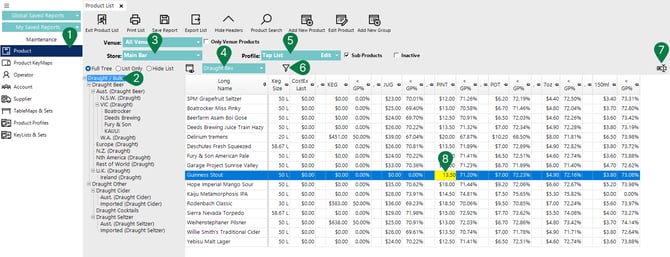
Once logged in to BackOffice:
-
Select Product from the Maintenance Menu
-
Navigate through the Product Tree and select the Product Group to edit.
-
Select the required Store from the Store drop-down.
-
Select a view that displays the prices to be changed. The default price view is PriceNumber 1.
In the example image, a custom view displays available draught beverage sizes and GP%. -
Select a Product Profile if required.
In the example image, the Product Profile limits the Product Tree to the 'Draught / Bulk' Product Group only. -
Use the filter to limit the displayed products if required.
-
Click the Edit Mode button on the far right.
When Edit Mode is enabled, the icon changes to a 'cancel' icon; click this to exit out of Edit Mode.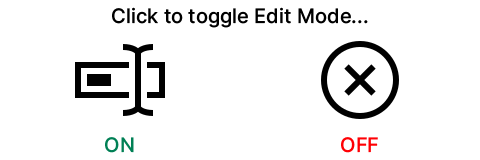
-
Click the price to be changed and enter the new price.
While in Edit Mode, use the arrow keys to move between products and use the Tab key to move right between columns.
The selected Store and Product can be changed while Edit Mode remains active.
🔗 Further Reading:
2.a - Change Prices from the Edit Product Window
Once logged in to BackOffice, navigate your way to the required Product you wish to edit:
-
Select Maintenance → Product
-
Either use the Search function in the header, or
-
Find the correct Product Group → select the appropriate Product
-
Double-click the Product to open the edit window.
Within the Product Edit Window:
-
Select the Store/Pricing Settings tab.
-
Select the required Store from the Store drop-down.
-
Click the price for the product size to be changed and enter the new price.
-
Click OK to save the product price changes.
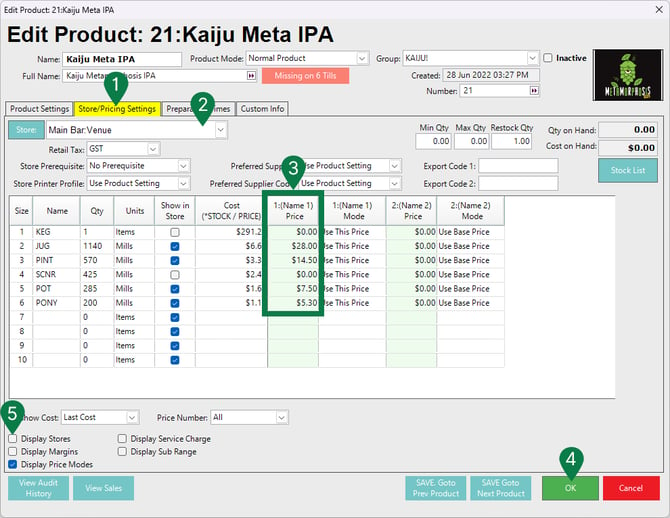
- Enabling the Display Stores flag will change the fields in the Edit Window (see next example and image below).
2.b - Change Prices Across Stores in the Edit Product Window
-
Open the required product in the Edit Product window.
-
Select the Store/Pricing Settings tab.
-
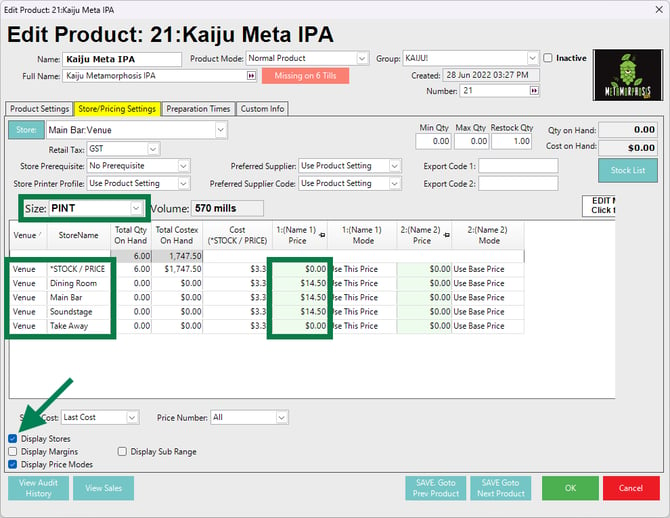
💡 Enable Display Stores.
-
Select the required Size.
-
Review the store rows displayed for the selected size.
-
Click the price to be changed for the required store.
-
Enter the new price.
-
Click OK to save the product price changes.
Confirmation
After changing product prices:
-
Confirm the correct Store was selected when the price was changed.
-
Confirm the updated price appears in the relevant Product List or product pricing screen.
-
Confirm the correct Product Size was updated where the product has multiple sizes.
updated to: bepoz v4.9.0.2