
Overview
This article outlines the Product Settings tab and the configurations that can be made to Products in bepoz BackOffice.
The settings and options on this tab are used to configure general Product behaviour, including stock settings, re-ordering details, product defaults, allergen flags, export codes, and product-level flags.
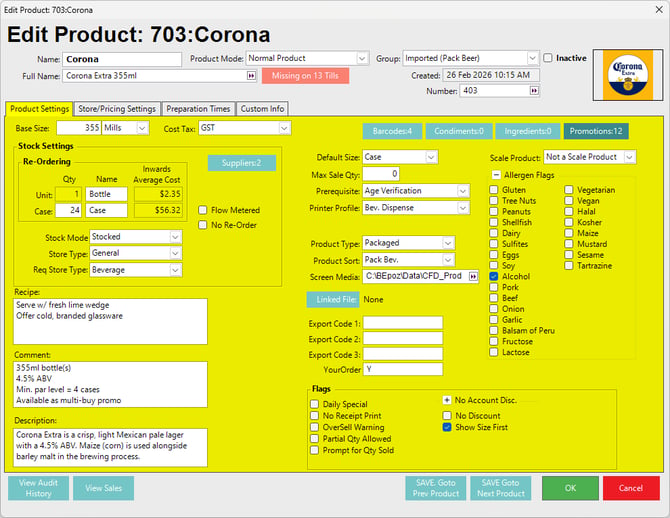
Product Settings Tab Sections
The Product Settings tab is grouped into several functional areas:
1. Base Size and Stock Configuration
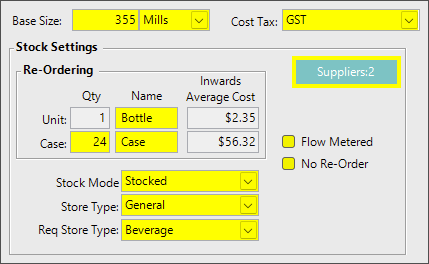
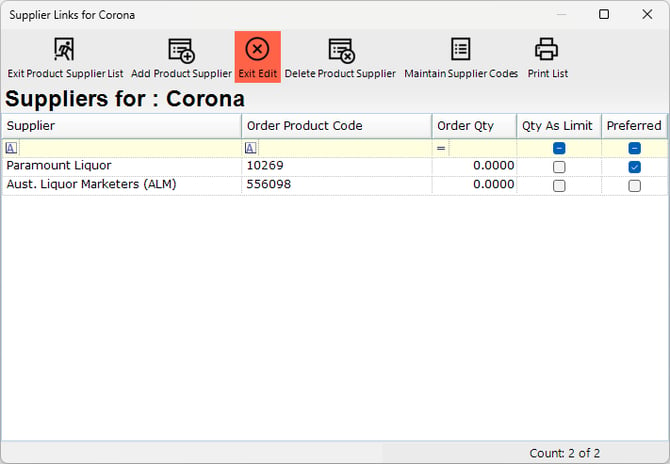
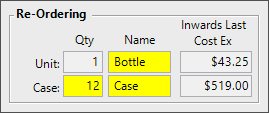
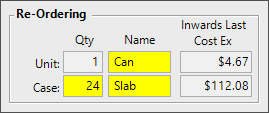
Setting/Field Description Base Size Defines the Product’s base volume, weight, or size. If a Product is sold only in whole units, this field may be optional. If a Product is sold in portions less than a whole unit, this must be set correctly. Base Size Unit Sets the corresponding unit for the base size, such as Items or Mills. Cost Tax Defines the Product’s default purchased cost tax type. If there is no cost tax for the Product, select the applicable tax-free option from the drop-down. Re-Ordering Unit Qty Defines the unit quantity used for re-ordering. This is locked to one (1). Re-Ordering Unit Name Defines the description used for a single unit. Re-Ordering Unit Inwards Average Cost Displays or records the inwards average cost for the unit. Re-Ordering Case Qty Defines the case quantity used for re-ordering. Re-Ordering Case Name Defines the description used for the case. Re-Ordering Case Inwards Average Cost Displays or records the inwards average cost for the case. Suppliers Opens the supplier list for the Product. Suppliers can be added or removed, supplier codes can be maintained, and a preferred supplier can be nominated.
Flow Metered Used where the Product is interfaced with a metering system. When enabled, sales information for the Product can be sent to the metering system. No Re-Order Prevents the Product from being added to a purchase order or receipt and prevents it from appearing in re-order reports. This is commonly used for Products being phased out. Stock Mode Defines how the Product behaves for stock control.
- Further Reading: 🔗 Stock Modes Explained
Store Type Assigns the Product to a store type for decrementation. Req Store Type Assigns the Requisition store type for the Product.
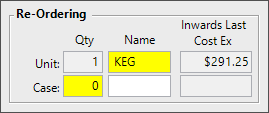
Re-Ordering Quantity Examples:
Product Type Example Draught Beverages
Setting the Case Qty to zero (0) prevents this option from displaying during the purchase/receiving workflow.
Spirits/Liqueurs & Wine
Pack Beverages
2. Free-text Fields
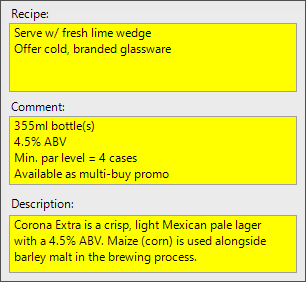
Setting/Field Description Recipe Text description of how this product is to be made. It can be displayed and printed at the SmartPOS workstation for use by the POS Operator. Example use case; recording cocktail recipe and procedure, or serving requirements. Comment Text description of details about this product. It can be displayed and printed at the SmartPOS workstation for use by the POS Operator. Description Available for a menu-like Product description. This field is used for the self-serve Kiosk available from bepoz v4.8.2 onwards.
3. Product Detail Buttons
Button Description Barcodes Barcode configuration for the Product. The button displays the number of barcodes currently configured. Click to add/edit and delete Barcodes for this Product. Condiments Condiment configuration for the Product. The button displays the number of condiments currently configured. Click to add, edit, and delete condiments for this Product. Ingredients Ingredient configuration for the Product. The button displays the number of ingredients currently configured. Click to add, edit, and delete ingredients for this Product. Promotions Promotion information for the Product. The button displays the number of promotions currently configured. Click to view and modify Promotions that this Product is part of.
4. Product Sale Parameters, Reporting, Media and Accounting
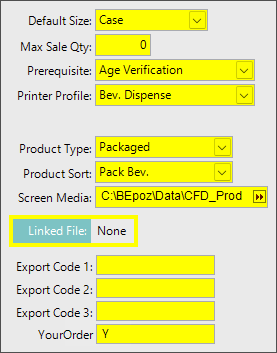
Setting/Field Description Default Size Sets the default selling size for the Product. Used primarily with reporting processes in BackOffice. As of bepoz v4.8.2 is also used to display on the Kiosk where multiple Product sizes are available. Max Sale Qty Sets the maximum sale quantity for the Product per transaction. Prerequisite Sets a Prerequisite that must be met before the Product can be sold. Printer Profile Sets the Printer Profile used for the Product. Product Type Sets the Product Type for various Reporting and other BackOffice purposes. Product Sort Sets the Product Sort for various Reporting and other BackOffice purposes. Screen Media Sets the screen media path. This is the image shown on the Customer Facing Display if used in the venue. Linked File Displays the linked file-path for the Product if set. Export Code 1 Available for Product export mapping to Accounting apps. Export Code 2 Available for Product export mapping to Accounting apps. Export Code 3 Available for Product export mapping to Accounting apps. Export Code 4
(YourOrder)Available for Product export mapping to Accounting apps. This field has been overwritten for use with mapping to the YourOrder app.
5. Scale Product Configuration and Allergen Flags
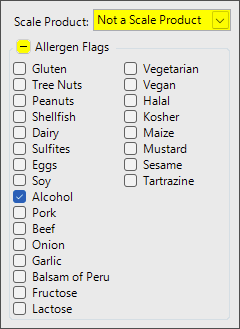
Setting/Field Description Scale Product Defines whether the Product is a scale Product. An integrated scale must be connected and configured. This is used for grocery-type businesses. Allergen Flags Available for use with self-serve Kiosk from bepoz v4.8.2 onwards. Use the +/- toggle to show or hide the allergen list. Tick the required allergens so they display for the Product on the Kiosk.
For this example, additional Allergen Flags have been configured in BackOffice.
- Further Reading: 🔗 Allergen Flags
6. Flags
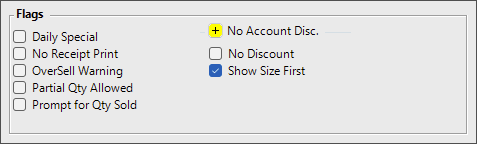
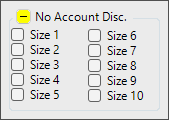
Flag Description Daily Special Marks the Product as a Daily Special. This allows for the sale price and name to be be edited directly from the SmartPOS workstation. No Receipt Print Prevents the Product from printing on the customer receipt. OverSell Warning Displays a warning when the Product stock level reaches the OverSell Qty number set in BackOffice, and when the Product is out of stock. Partial Qty Allowed Allows the Product to be sold in partial quantities. This is mainly used for grocery-type businesses. Prompt for Qty Sold Prompts the operator to enter the quantity sold. No Account Disc. Prevents any Account Discount from applying to the Product. Use the +/- toggle to show or hide the Product Sizes which this can be set against.
No Discount Prevents any discount from applying to the Product. Show Size First Displays the Product Size Name before the Product name in the Sales Window of the SmartPOS workstation as well as dockets and receipts.

Additional Information
Some settings shown on the Product Settings tab are dependent on the selected Product Stock Mode. Not all settings may appear for every Product.