
Overview
This article outlines the Store/Pricing Settings tab in the Product Edit window in bepoz BackOffice.
The Store/Pricing Settings tab allows a Product to be configured at a Store-specific level. Begin by selecting the required Store from the drop-down, then review and update the pricing, size, stock, and display settings for that Store.
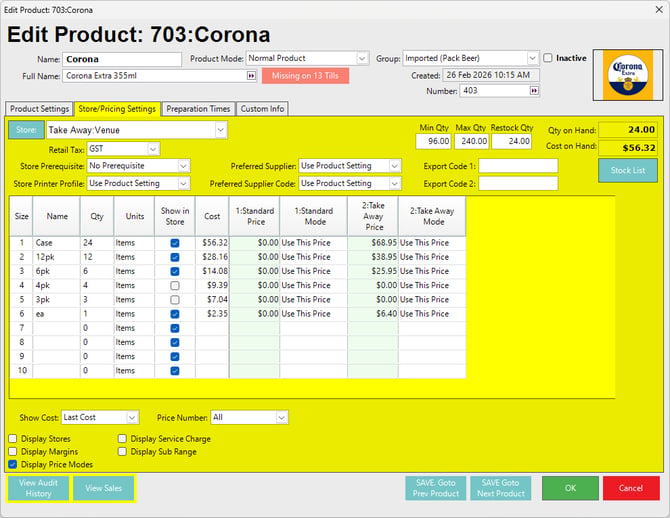
Store, Supplier, Tax, and Stock Settings
| Setting | Description |
|---|---|
| Store Drop-Down |
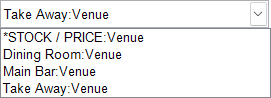
Selects the active Product Store for the tab. The values shown on the Store/Pricing Settings tab apply to the selected Store.
|
|
Store Button
|
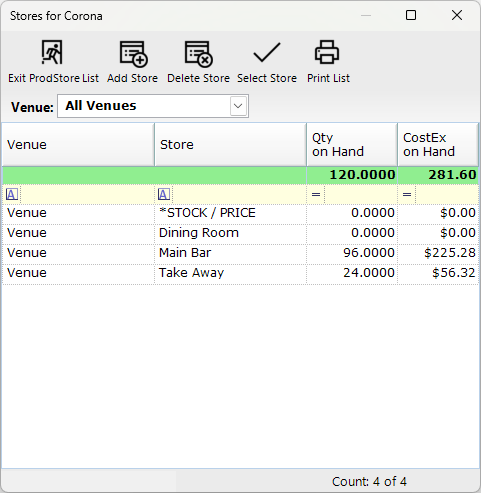
Opens the Product Store selection window. From this window, Product Stores can be reviewed, added, or deleted. Double-click a Store to make it the active Store on the tab.
|
| Retail Tax | Sets whether the retail price for the Product in the selected Store includes tax. The available options may vary by country or region, such as GST or GST Free. |
| Store Prerequisite | Sets a Store-specific prerequisite that must be fulfilled before the Product can be sold in the selected Store. If a prerequisite is also set on the Product Settings tab, both prerequisites must be fulfilled. |
| Store Printer Profile | Sets a Store-specific printer profile for the Product. This overrides the Product-level Printer Profile when the Product is sold from the selected Store. Select Use Product Setting to use the Product-level printer profile. |
| Preferred Supplier | Sets the preferred supplier for the Product in the selected Store. Select Use Product Setting to use the Product-level preferred supplier. This setting is used by Auto PO and Requisition processes. |
| Preferred Supplier Code | Sets the preferred supplier code for the Product in the selected Store. Select Use Product Setting to use the Product-level preferred supplier code. |
| Min Qty | Sets the minimum stock level for the Product in the selected Store. This is used when calculating Store restock quantities and supplier reorder quantities. |
| Max Qty | Sets the maximum stock level for the Product in the selected Store. This is the quantity the Store can be restocked to when using Min/Max stock control. |
| Restock Qty | Sets the suggested restock multiple for the Product in the selected Store. This is commonly set to the carton quantity when used in the main Store. |
| Export Code 1 | Available for Store-specific Product export mapping. |
| Export Code 2 | Available for Store-specific Product export mapping. |
| Qty on Hand | Displays the current quantity on hand for the Product in the selected Store. |
| Cost on Hand | Displays the total cost on hand for the Product in the selected Store. |
|
Stock List
|
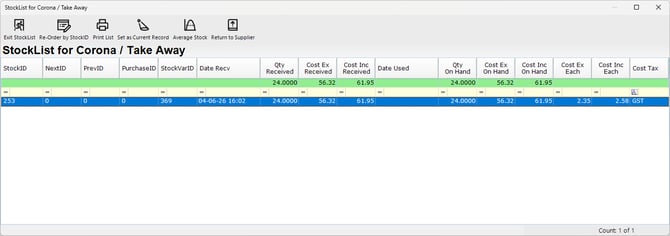
Opens the FIFO stock list for the Product in the selected Store. The stock list can show details such as receipt date, quantity received, and cost (image below). |


Size and Price Settings
| Setting | Description |
|---|---|
| Size | Displays the Product size number. A Product can be configured with up to 10 sizes. |
| Name | Defines the size name, such as Case, 12pk, 6pk, or ea. Size names should be entered when the Product is sold in more than one size. |
| Qty |
Defines the quantity for the size. This quantity is used with the selected Units value to determine how much stock is deducted when the size is sold. Sizes with a quantity set to zero (0) will not be available in that Store. |
| Units | Defines the unit type for the size, such as Items, Mills, or Grams. One Item is equivalent to the Product’s base size. |
| Show in Store | Controls whether the selected size is available in the selected Store. If unticked, that size will not be available for selection or search in that Store. |
| Cost | Displays the cost price for each size. The value is calculated from the size quantity and units as they relate to the Product’s base size and re-ordering cost. |
| Price Column | Displays and allows editing of the selling price for each size and price number shown. |
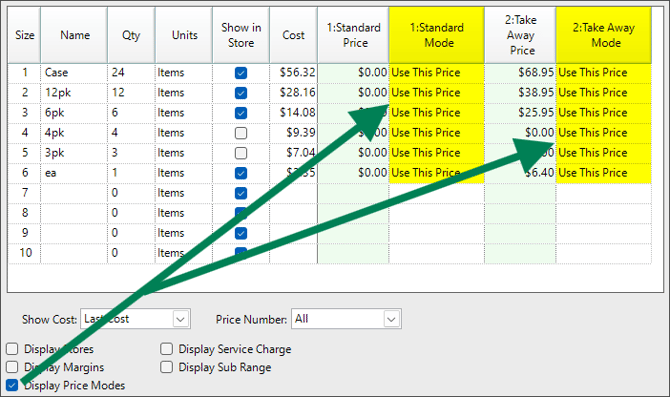
| Price Mode Column |
Displays the pricing method used for each size and price number when Display Price Modes is enabled. Refer to the existing Price Modes article for the full list of Price Mode options and behaviour.
|
Display and View Options
| Setting | Description |
|---|---|
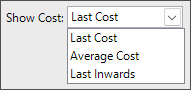
| Show Cost |
Selects which cost value is displayed in the Cost column. Available options include Last Cost, Average Cost, and Last Inwards.
|
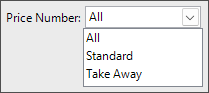
| Price Number |
Selects which price number is displayed in the size grid. Select All to show all available price numbers. Price names are configured in Venue Maintenance.
|
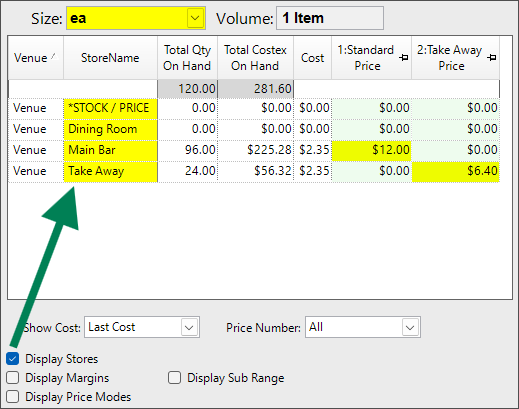
| Display Stores |
Changes the grid view to show pricing and stock information across the Product’s Stores for the selected size.
|
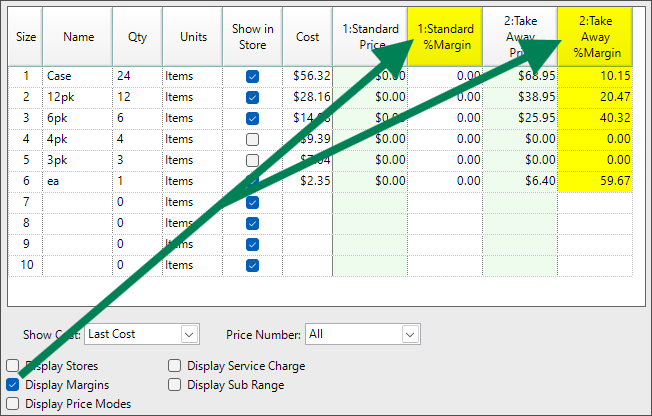
| Display Margins |
Displays GP% margin information for the selected price number or price numbers.
|
| Display Price Modes |
Displays the Price Mode column or columns for the selected price number or price numbers.
|
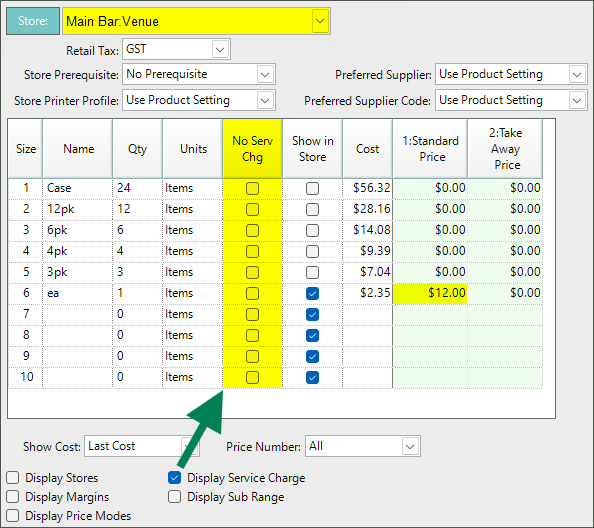
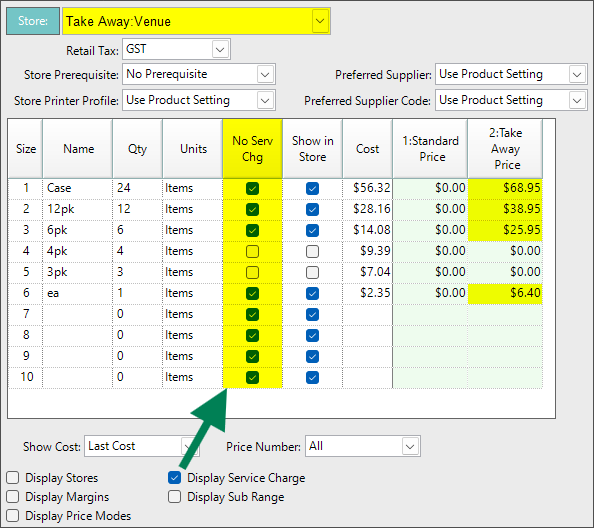
| Display Service Charge |
Displays a No Service Charge column. Ticking the flag for a size prevents service charge from being added to that Product size.
Image 1. Service Charge set for Size 6 in 'Main Bar' Store.
Image 2. Service Charge disabled for all sizes in 'Take Away' Store.
|
| Display Sub Range |
Displays a Sub Range column. This allows Product settings and pricing to be updated by sub range where configured. The venue must have a linked Metcash account for this feature to work. Available from bepoz v4.7.2.3 |
Audit and Sales Buttons
| Button | Description |
|---|---|
|
View Audit History
|
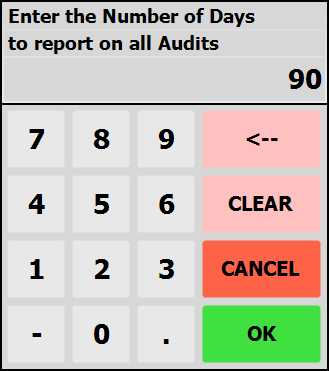
Opens the audit history for the Product. The report will display the information based on the number of days from the pop-up prompt - the default is 90 days.
|
|
View Sales
|
Opens sales information for the Product. |


Additional Information
Product Size setup should be kept consistent where possible. Products of the same type should use the same size order, even where a size is not used for every Product.
Video Walkthrough
updated to: bepoz v4.9.0.3