Prerequisites
-
Suppliers are available in the Stock Control and this module requires authorisation. Contact Your Account Manager.
-
To access and edit Product Supplier Options, the applicable Operator Privileges will need to be enabled:
-
All "Products" Flags
-
Purchasing & Receiving: "Create / Edit Purchase Orders" Flag
-
-
Operator Maintenance 'Maintenance' Tab
-
Operator Maintenance 'Stock Control' Tab
Preferred Supplier Drop-down
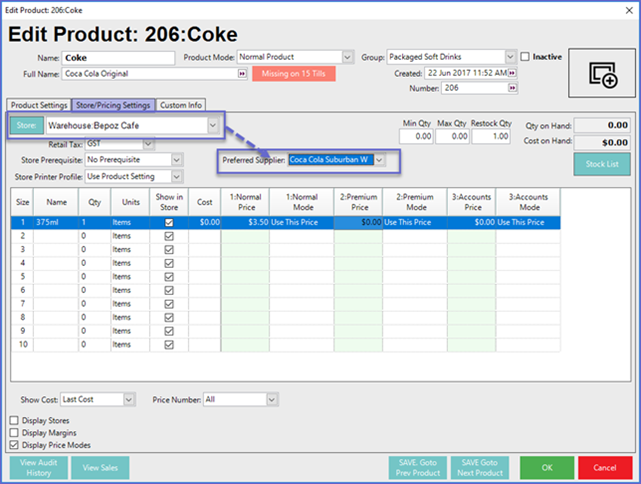
- The Preferred Supplier for a Product can be set by Store using a drop-down which is located on the Store/Pricing Settings tab of the Product Maintenance window
- The drop-down options will include all of the Suppliers in the System's database along with an option called 'Use Product Setting'
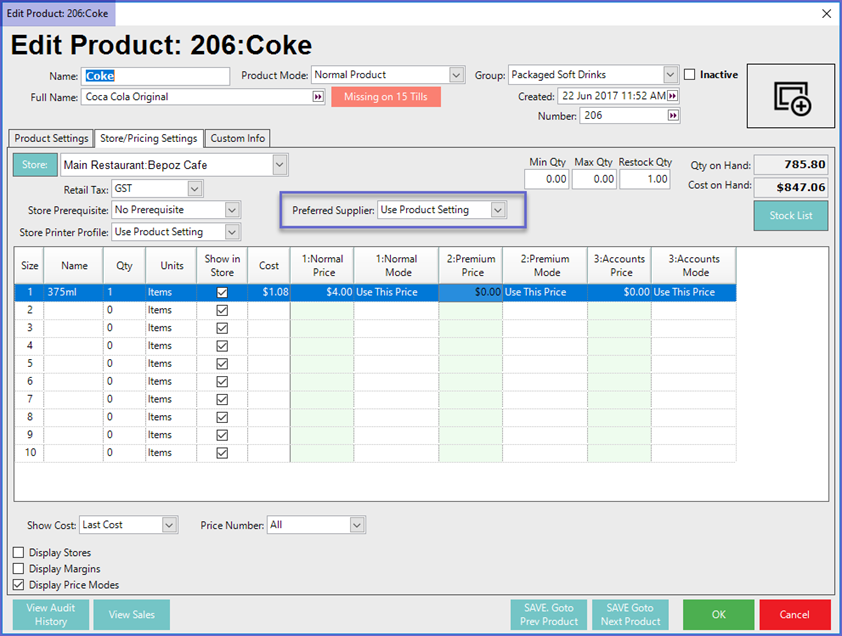
- If the "Use Product Setting" option is selected, the Preferred Supplier as set in the Product Settings will be used
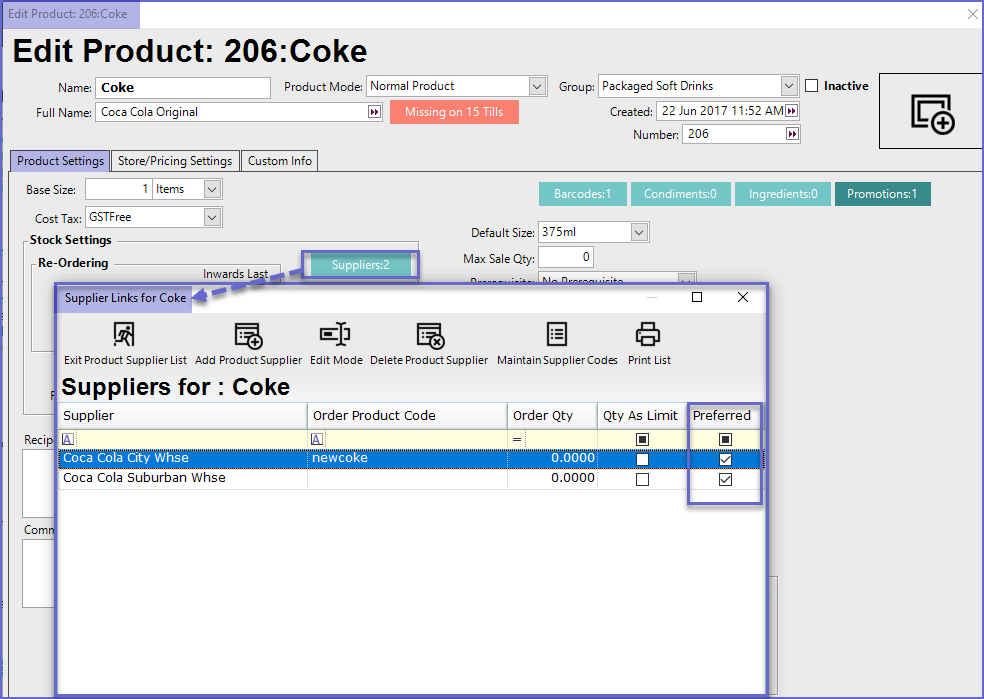
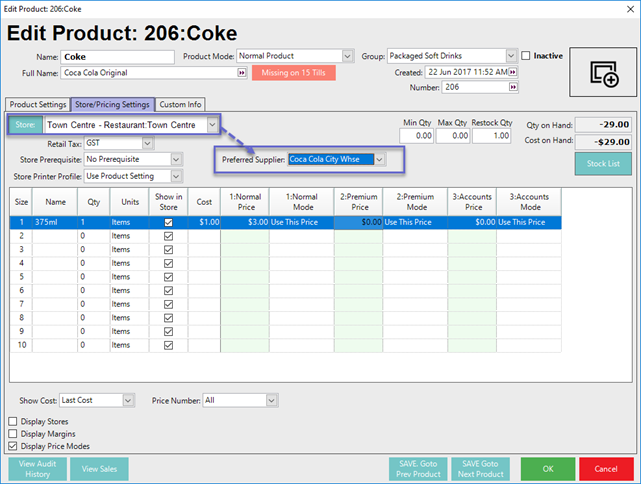
- This allows for each Store to have a different Preferred Supplier if required when using Auto PO processes or Requisitions
- This may be needed in situations where Stores in different locations receive (or prefer to) a Product from Suppliers that are specific to the Stores' location
- For example, if an Organisation has a Store in Town Centre and a Warehouse Cafe in a Suburb and they also have two suppliers for Coca-Cola, one for each location
- The customer can configure the Town Centre Restaurant store to have the Preferred Supplier as the Coca-Cola City Whse for their Coca-Cola Products, while the Warehouse Cafe can configure the Coca-Cola Suburban as their Preferred Supplier
- Even if the customer has a Preferred Supplier set for the Product overall
Supplier Product Code Drop-Down
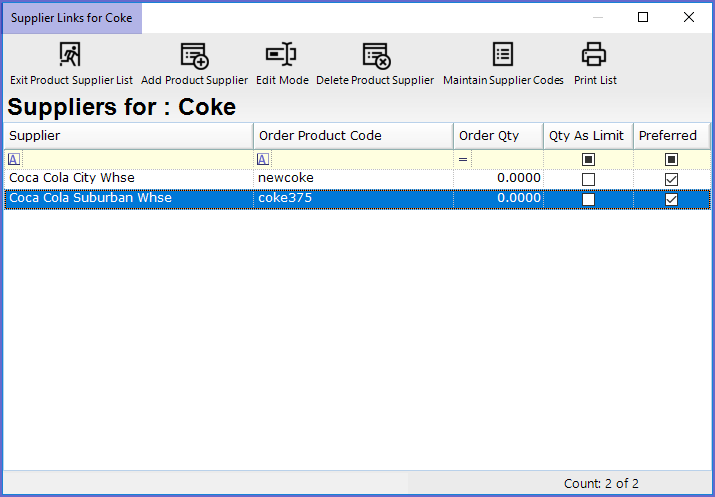
- To set a Default Supplier Code, use the Edit Mode from the Supplier Links window, then choose the desired Code from the drop-down
- To enter Edit Mode, either click the Edit Mode button within the header section or double-click anywhere on the list
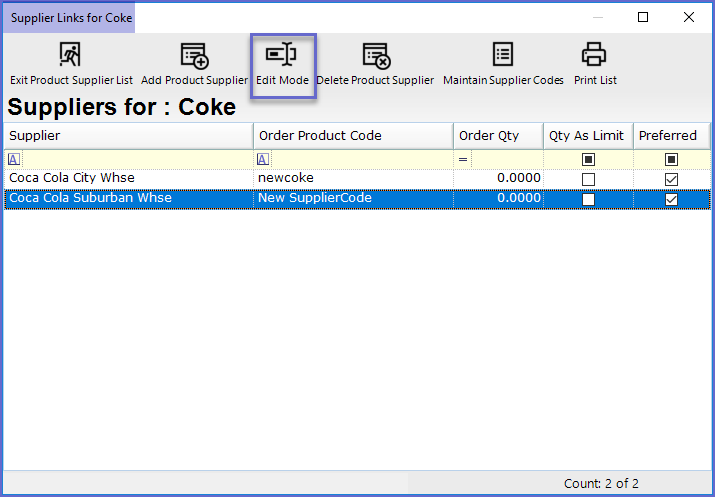
- After entering into Edit Mode, a drop-down containing the available Supplier Codes for each Product will be accessible
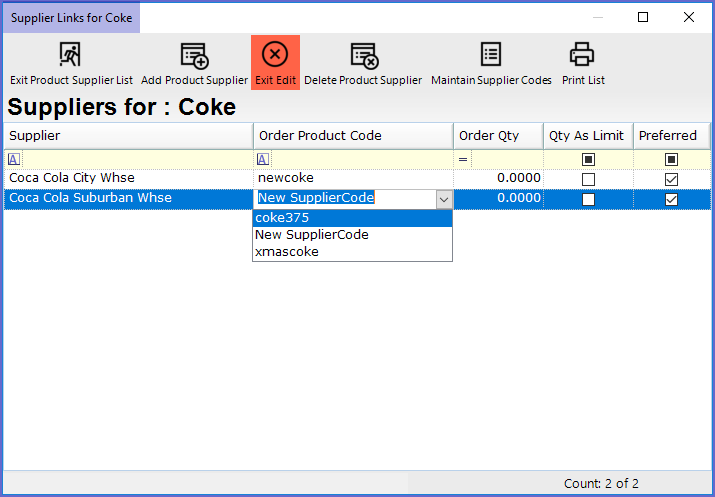
- Select the desired Code and click Exit Edit
- The selected Code will now be the PO Default Supplier Code