
Overview
Raffles & Draws is an add-on bepoz module that allows venues to sell lottery-style raffle tickets and track them through bepoz reports.
Note: The availability of the Raffles & Draws component is controlled by a separate system authorisation. Contact your Account Manager for activation.
Prerequisites
bepoz Version
This article covers additional features only available from bepoz v4.8+
Operator Access Flags
Operators must have the relevant Raffles access options enabled in the Marketing & Promotions tab
Raffle Product Setup
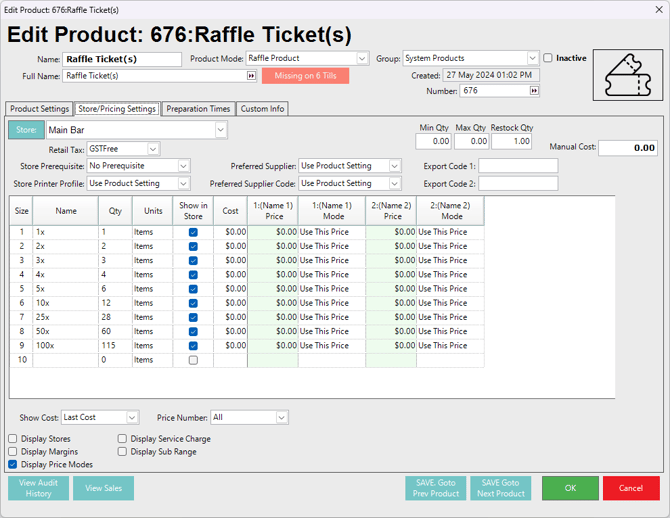
Before the raffle settings are configured, a product must be assigned to the raffle.
A raffle product is set as Non-Stocked because raffle tickets are generated and sold through the system - they do not decrement from any stock on hand levels.
Each raffle setup in the system requires its own raffle product.
The Raffle Product Price should be set to $0.00 because pricing is controlled through Raffle Setup.
Also ensure that all stores required to sell raffle tickets are added to the raffle product.
Raffle Setup
To access Raffle Setup:
-
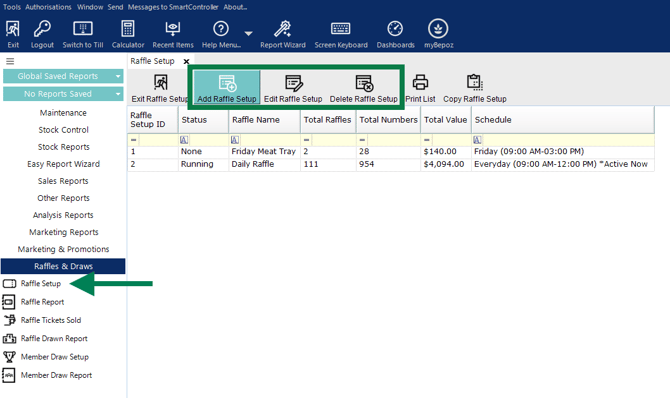
Go to Raffles & Draws, which when activated, appears below Marketing & Promotions in the BackOffice Menu.
-
Select Raffle Setup; use this workspace tab to Add, Edit, or Delete raffle setups.
-
To create a new raffle setup, click Add Raffle Setup in the header.
-
This opens the Raffle Setup window (see image below).
1. General Options (top section)
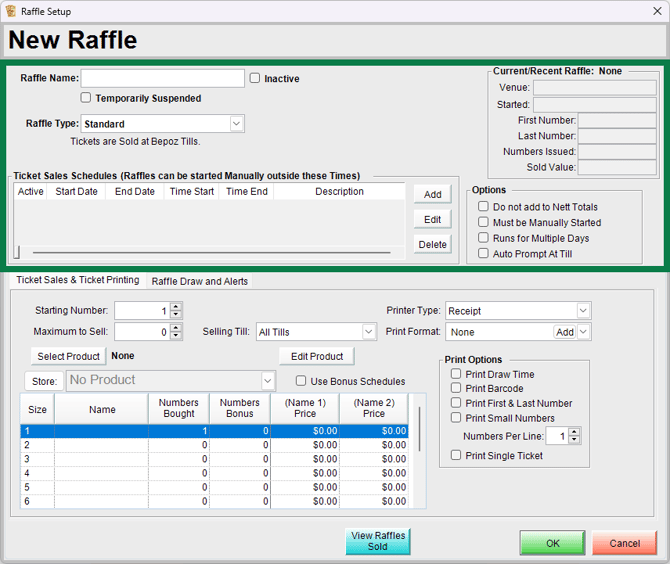
1.a - Raffle Name
Sets the name of the raffle.1.b - Current/Recent Raffle (display information only)
Shows all relevant information once raffle has begun. Will be blank for new raffle creation.1.c - Inactive and Temporarily Suspended (flags)
Allows you to deactivate/reactivate or place the raffle on hold.1.d - Raffle Type
Standard
The default raffle type supported by bepoz.External Ticket Sales
Links a third-party ticketing system while still using the till to draw the raffle.1.e - Ticket Sales Schedules
Schedules allow raffles to be activated automatically during the specified time period.
If schedules are not set up, raffles must be turned on and off manually.
1.f - Options (flags)
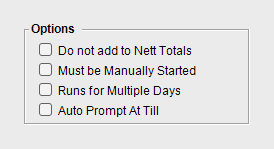
Do not add to Nett Totals
If this flag is Off, raffle ticket sales are added to the bepoz net sales total and to Internal Raffles.
If this flag is On, raffle ticket sales are not added to the net sales total or product summaries, but they are still added to Internal Raffles.Must be Manually Started
If this flag is On, the raffle must be started and stopped manually by the operator.This flag overrides the Ticket Sales Schedules function.
Runs for Multiple Days
Raffles normally run within a single day.
Turn this flag on to allow the raffle to continue across multiple days.
The raffle must then be stopped manually.Auto Prompt At Till
If enabled, the till prompts the operator to sell a ticket.
2. Ticket Sales & Ticket Printing
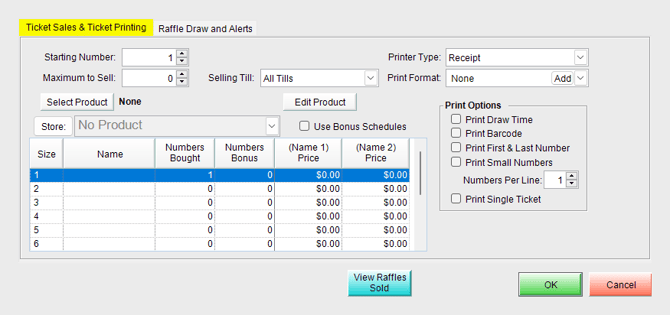
2.a - Starting Number
Sets the first ticket number issued.
If this is set, a single till must be selected for the raffle.2.b - Maximum to Sell
Sets the maximum number of raffle tickets that can be sold.2.c - Selling Till
By default the setting is all tills in all stores - you are able to set one till that can sell Raffles.2.d - Printer Type
Sets the printer type used to print tickets.2.e - Print Format
Sets the printer format used to print tickets.2.f - Select Product
Click to select the product used to sell raffle tickets.
This product must be set up with:
Product Mode set to Raffle Product.
Non-Stocked enabled.
The correct tax setting applied to meet legal requirements.
A different product must be used for each raffle setup.
2.g - Edit Product
Click to edit the selected raffle product.2.h - Store
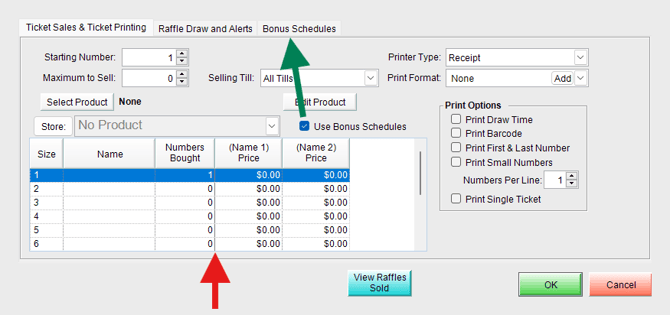
Click to add or remove stores from the product.2.i - Use Bonus Schedules
When enabled, the Bonus Schedules tab becomes available.
This hides and replaces the Numbers Bonus column on the product settings.
2.j - Print Options (flags)
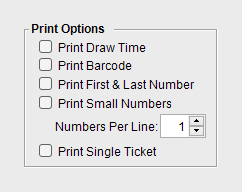
Print Draw Time
Includes the draw commence time on the ticket.Print Barcode
Includes a barcode on the ticket.This can be used to validate winning tickets at the raffle terminal when the draw is completed.
Print First & Last Number
Prints the first and last numbers at the top of the ticket in a large print format.Numbers Per line
Sets how many numbers are printed on each line.Print Single Ticket
If enabled, all numbers are printed on a single ticket.
3. Raffle Product Settings
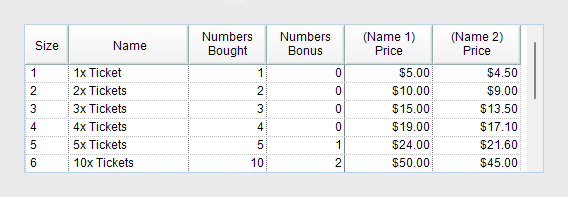
3.a - Size
The size number of the raffle product. Up to ten (10) sizes are permitted.3.b - Name
The name for each raffle product size.3.c - Numbers Bought
The quantity of raffle numbers issued.3.d - Numbers Bonus
Enter the quantity of bonus raffle numbers issued when the ticket is sold.
If Use Bonus Schedules is enabled, this column is hidden and the Bonus Schedules tab is used instead.3.e - Price Column(s)
Sets the purchase price in the column for the raffle product relative to the Size.
If you have multiple Price Names configured in your BackOffice setup, only the first two will ever display.
4. Raffle Draw and Alerts
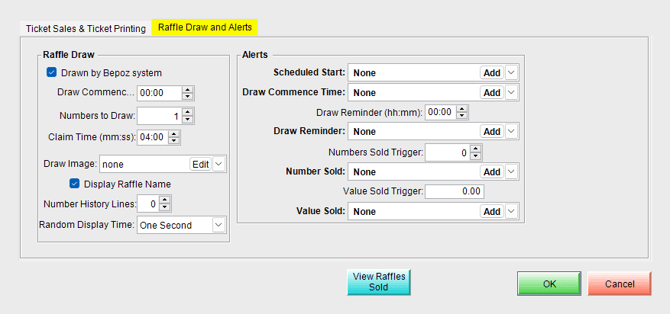
4.a - Raffle Draw
Drawn by Bepoz system
This flag must be enabled for the bepoz system to draw the raffle.Draw Commences
Sets the draw commence time.This can also be printed on the receipt.
Numbers to Draw
Sets how many numbers are drawn for the raffle.This is generally the number of prizes to be won.
Claim Time (mm:ss)
Sets the time, in minutes and seconds, in which drawn tickets must be claimed.Draw Image
Sets the image associated with the raffle.This appears as the background image on the customer screen.
Display Raffle Name
Displays the raffle name at the top of the customer draw screen.Number History Lines
Sets how many previous numbers are shown at the bottom of the customer draw screen.Random Display Time
Sets how long random numbers appear before the drawn number is displayed.4.b - Alerts
This section is optional and can be used to provide additional notification settings.
Scheduled Start
Adds a contact list to receive a message when raffle ticket sales are scheduled to begin.Draw Commence Time
Adds a contact list to receive a message when the draw is scheduled to commence.Draw Reminder (hh:mm)
Adds a contact list to receive a message before the draw commences, based on the preset number of hours and minutes.Number Sold
Adds a contact list to receive a message when the Number Sold Trigger is reached.Value Sold
Adds a contact list to receive a message when the Value Sold Trigger is reached.
5. Bonus Schedules
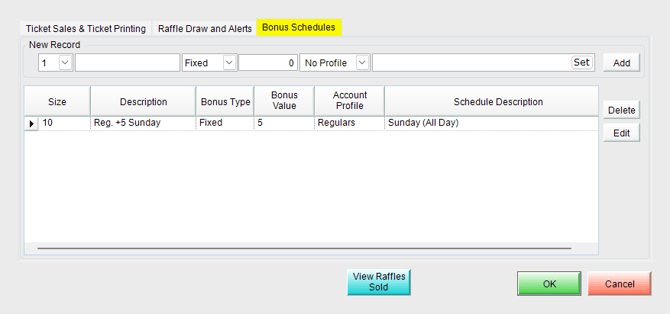
When enabled, the additional Bonus Schedules tab appears.
-
Select Bonus Schedules to open the setup window.
-
Complete a New Record entry by filling out each relevant field as required, and then selecting Add.
-
Entries may be deleted and edited according to the venue needs.
-
Click OK to save the raffle setup.
updated to: bepoz v4.9.0