
Overview
If an Operator has the authorisation to utilise Manager Functions, they will be able to Recall a Transaction.
Once Recalled, Transactions can be Reprinted and Refunds can be processed. If the desired Transaction was from a previous date, the Operator can select a past Start Date to view Transactions from.
Prerequisites
- To access Recalling and Refunding features, the applicable Operator Privileges will need to be enabled
- General: "Operate Tills" Flag
- Managers: "Manager Functions" Flag
- Managers: "Manager Override" Flag
- System Setup: "Maintain Till Function Maps" Flag
"Recall Transaction List" Sub-Function
- The Recall Transaction List Sub-Function will need to be available on the designated Till and Function Map to process a Transaction
"No Transaction Refund" Flag - Venue Maintenance
- To be able to Refund a Recalled Transaction, a flag in Venue Maintenance will need to be configured to display a Refund button within the Recalled Transaction Window
Selecting a Transaction
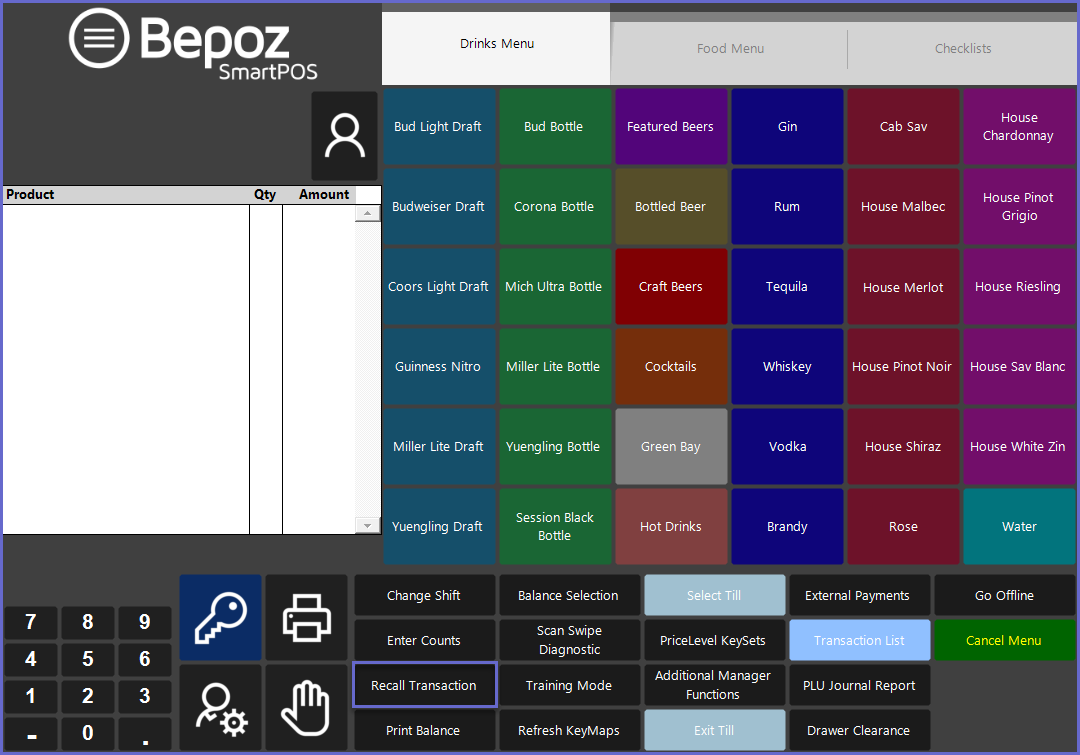
- To select a Transaction to Reprint or Refund, the Operator will first need to select the Recall Transaction function button from the Manager Function Panel
- In order for a Transaction to be Reprinted and/or Refunded, select the Recall Transaction function button
- The location of and/or the text displayed on this Function Key may vary on your system; check with your Bepoz Administrator
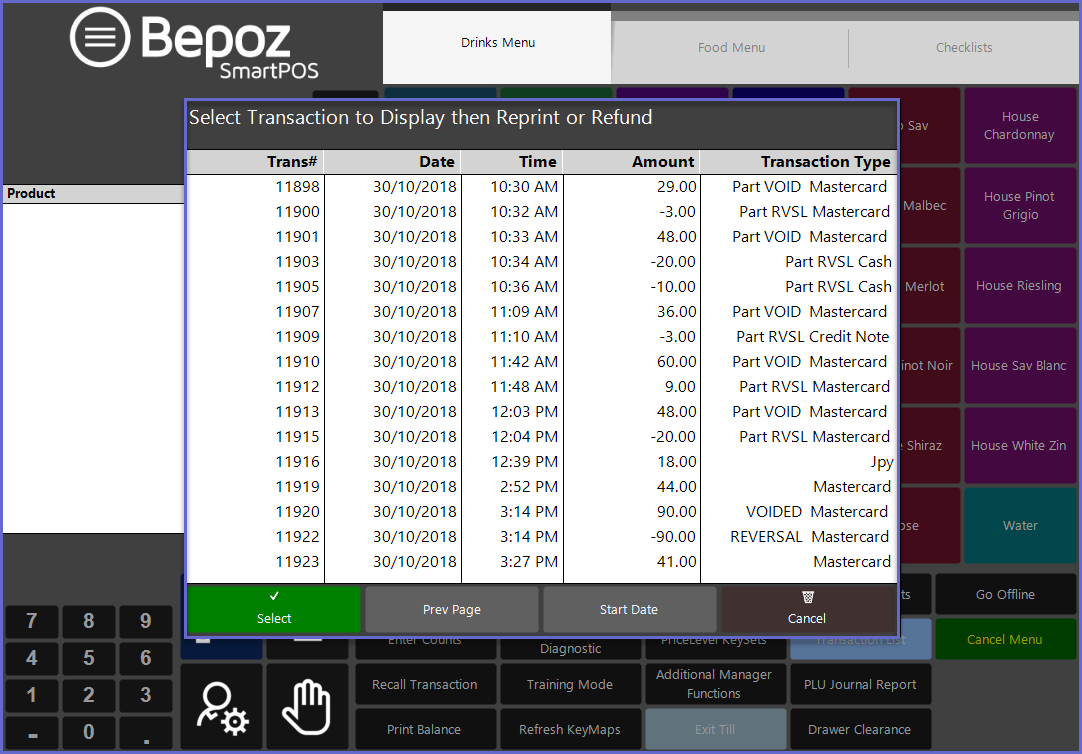
- A new window will then appear displaying all previous Till Transactions
- Information such as Transaction Number, Date, Time, and Amount can all be used to locate the desired Transaction
- By default, this screen will display the most recent Transaction at the bottom, preceded by other Transactions in chronological order
- The Next Page and Prev Page buttons can be used to navigate through the list of Transactions
- Select the desired Transaction either by double-tapping on the Transaction or by highlighting the Transaction and tapping on the Select button
Quantity Refund
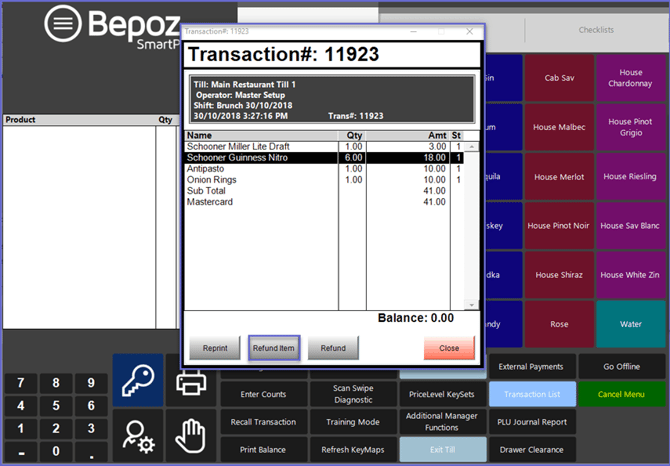
- To Refund Product(s) with more than one (1) quantity, select the desired Product to Refund and tap the Refund Item button
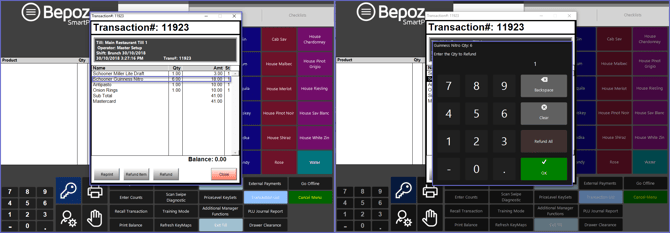
- Once selected, a window will appear prompting to input the quantity to be Refunded
- By default, the current quantity will be displayed automatically
-
After the desired quantity has been input, press OK to return to the Recalled Transaction window
-
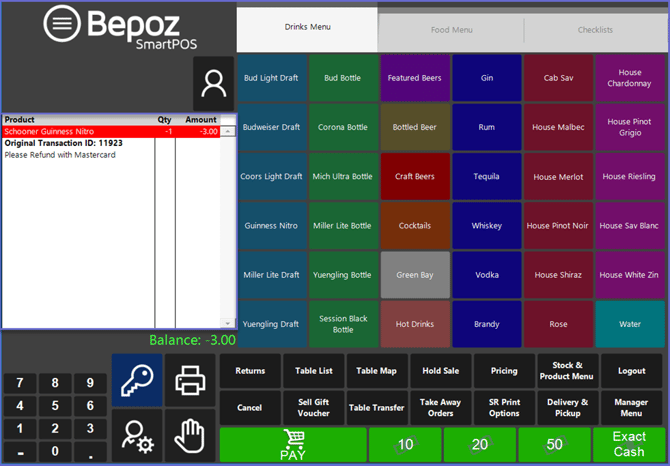
Select the Refund Item button again and all Refunded Products will be displayed in the Transaction Window with the quantity and the amount returned
-
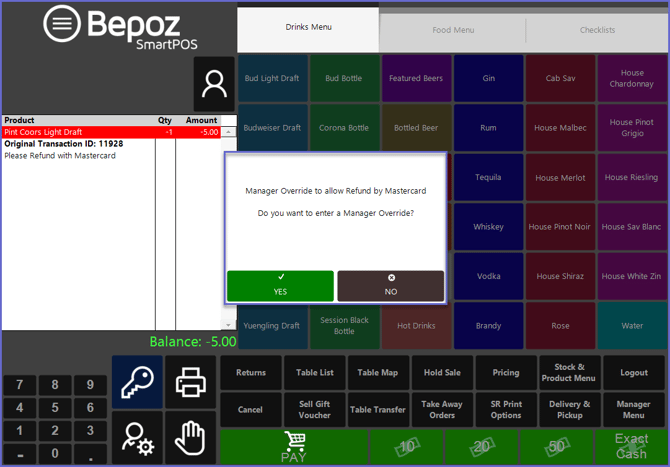
When proceeding with the Refund Payment, a Manager Override will be required if the logged on Operator does not have the authorization to Refund a Transaction
Individual Product Refund
- To Refund an individual Product, select the desired Product and tap on the Refund Item button
- The Refunded Product will be displayed in the Transaction Window with the amount returned
Whole Refund
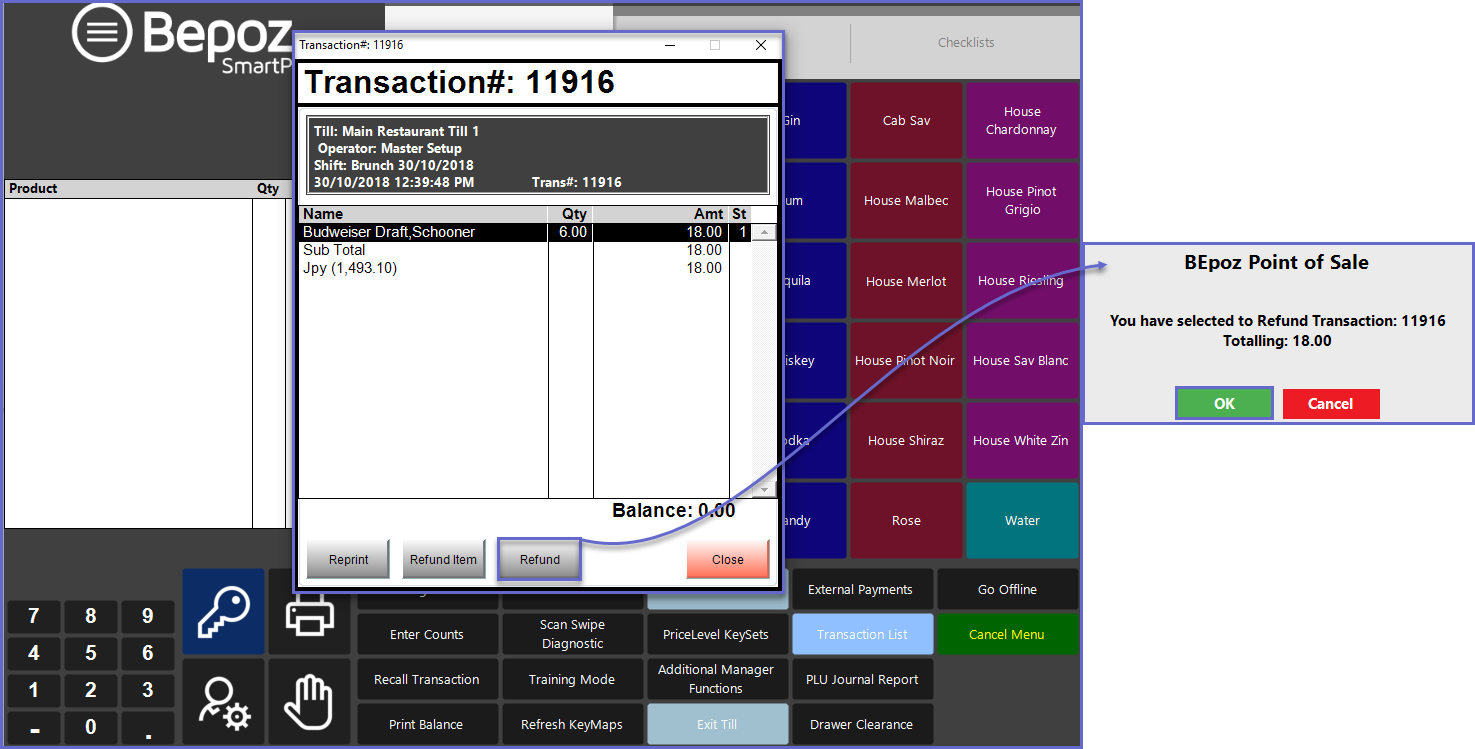
- To process a Whole Refund, select the Refund button
- A prompt message will appear and to complete the Refund Process for a Whole transaction, Select OK
- After this, all Refunded Products will be displayed in the Transaction Window with the quantity and the amount returned
Transaction Type Status
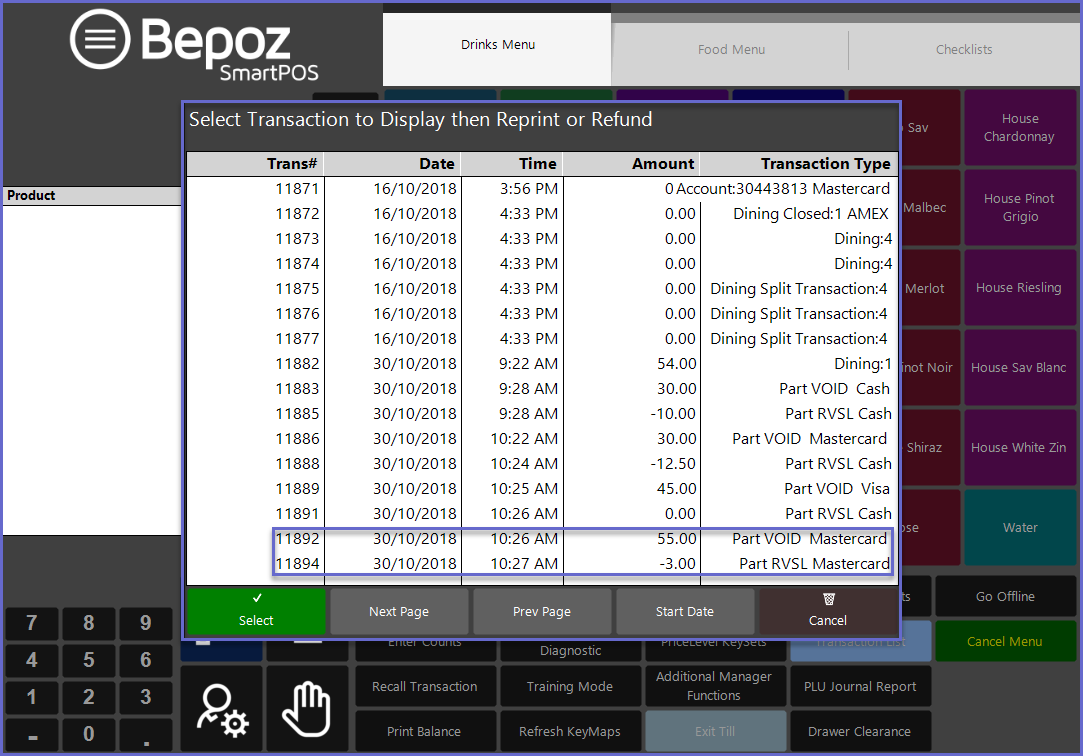
- For all Refund Processes on SmartPOS, the original Transaction will appear in the Transaction List as Void
- The Refund Transaction will have a separate Transaction Number with a negative Monetary Amount and RVSL (Reversal) will be displayed for the Transaction Type
Refunding Tables - From Version 4.7 its now possible to refund Table Transactions including Bistro. Follow the above processes after having selected the Table transaction from the list