Overview
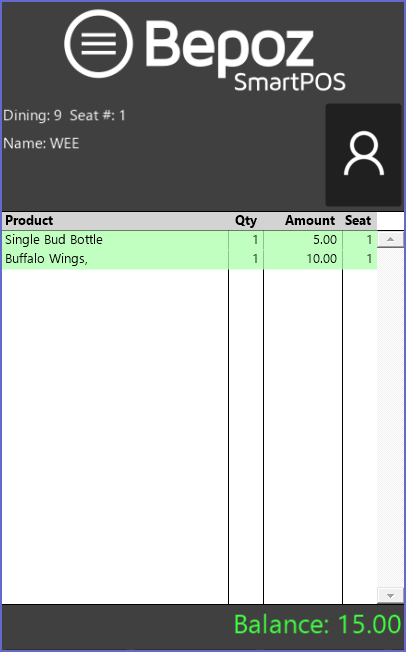
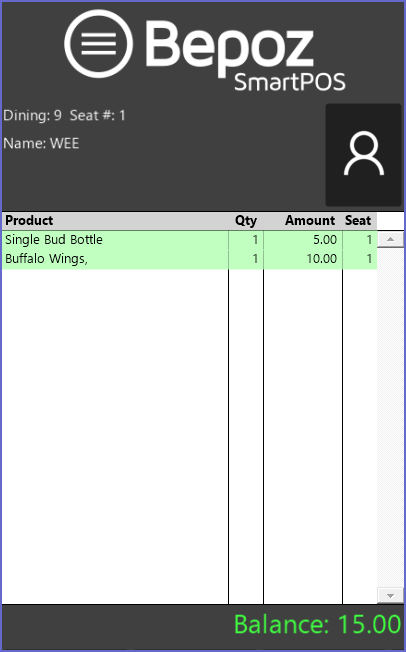
To Reopen an Active Table, the Operator will follow the same workflows as demonstrated in the previous article - "Beginning a New Table or Tab Transaction", however, when the Table List or Table Map appears, tap on the desired Table or highlight and tap 'Select'. When the Table is opened, the previously Saved and Sent Products will be highlighted in green.
The Operator can add more Products, perform other Functions, Print the Bill, Tender the Transaction, or Save & Send.
Prerequisites
- Operator Privilege to Operate Tills
- Operator Privilege for Table Sales
- Operator Privilege to Create New Tables
- Operator Privilege for Table Waiter, Allowed Tables
Reopening a Table Account
From Table List
- To Reopen an active Table, Operators can simply click on the Table List Till Function button
- This will open the same window that displays all the active tables
- Operators can then click on the Table to edit and Press the Select button
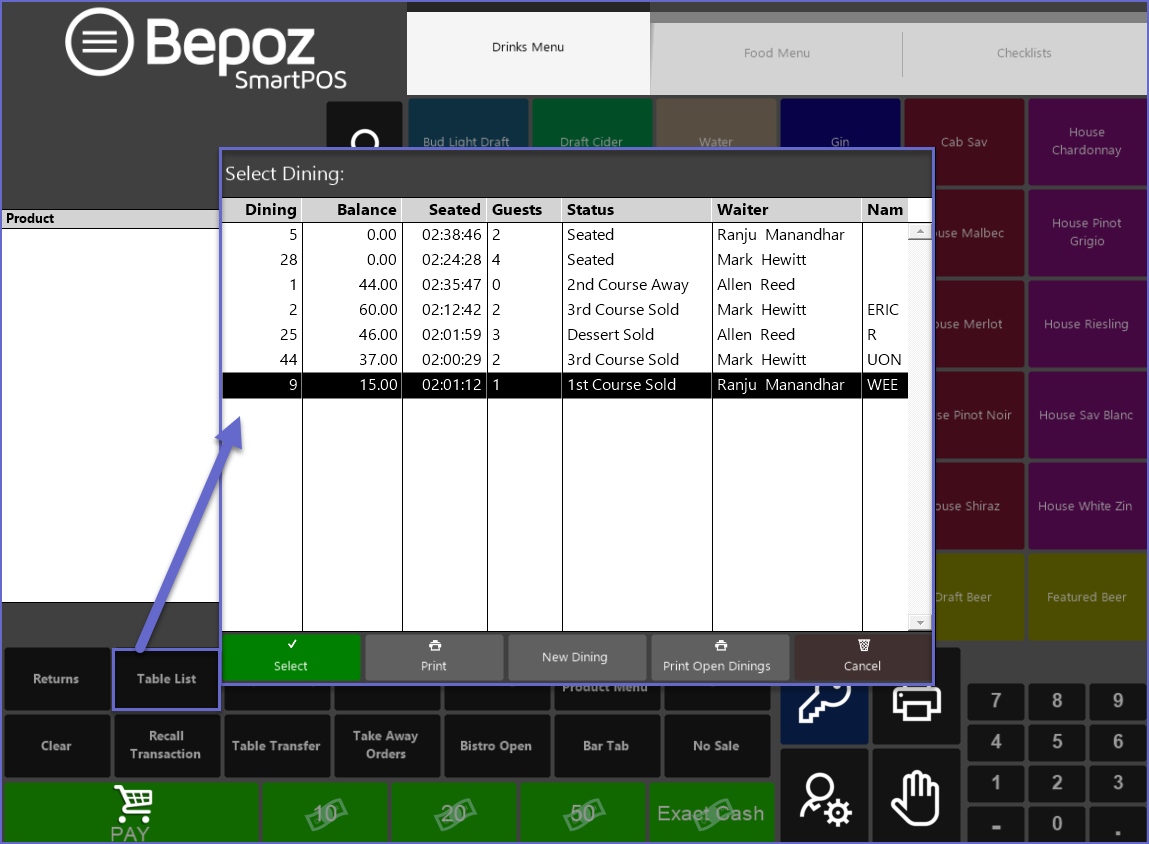
- The Selected table will open in which previously saved Products will be highlighted
- The Operator can now add more Products, perform other Functions, Print the Bill, Tender the Transaction, or Save & Send
From Graphical Map (floor plan)
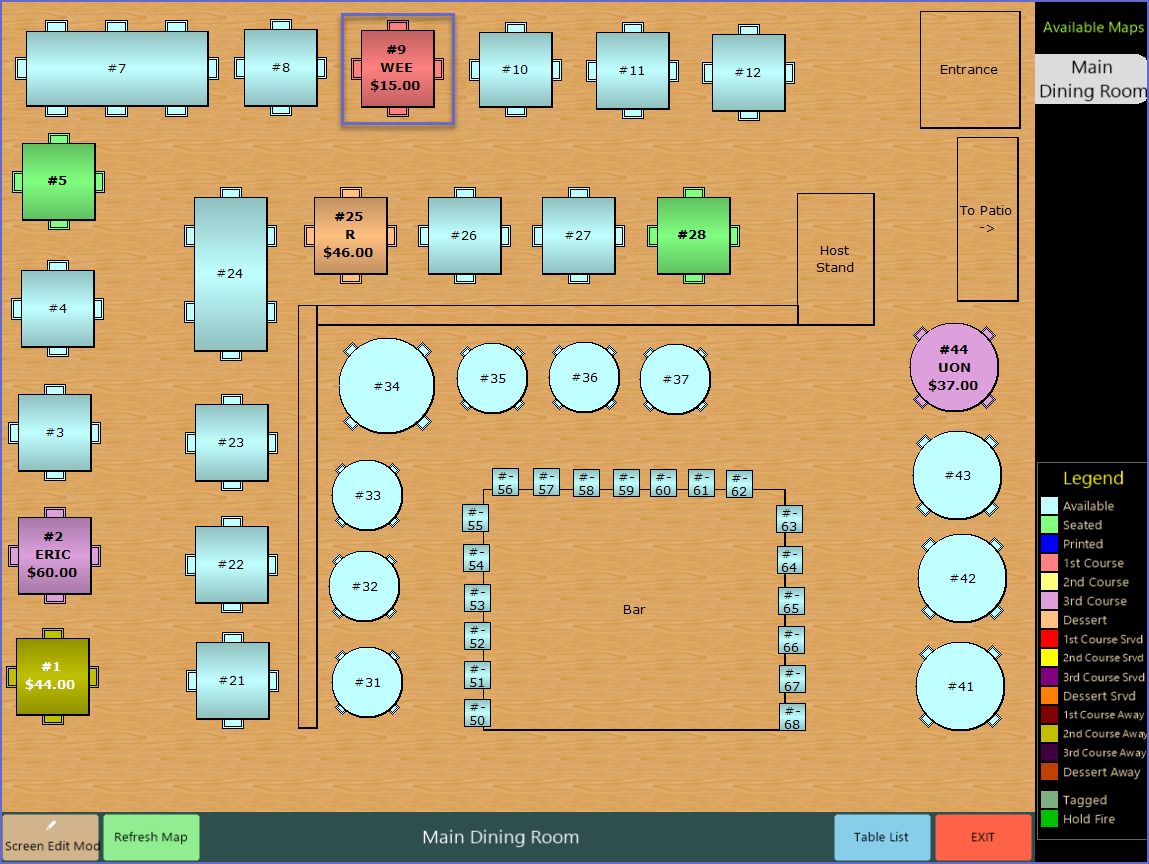
- Similar to the Table List, Operators can simply click on the Table Map Till Function button to re-open an active Table
- This will open the graphical map that displays all the Tables
- Operators can then click on one of the active Tables to Edit the transaction
- The Selected Table will open in which previously saved Products will be highlighted
- The Operator can now add more Products, perform other Functions, Print the Bill, Tender the Transaction, or Save & Send