
Overview
OverSell Quantities allow an Operator to enter the available sellable quantity for selected Products from the POS. This is useful for limited-availability Products where staff need visibility of the remaining quantity during service.
When the entered quantity reaches zero, the POS displays warning behaviour to help reduce accidental overselling. Once OverSell Quantities are posted, the updated quantities are also reflected in BackOffice.
This workflow is generally used for Non-Stocked Products, but Stocked Products may also use OverSell Warning behaviour when configured with Stock Control.
Prerequisites
Ensure the Operator has access to:
-
Use the POS Till.
-
Use Stock-related Till functions.
-
Access BackOffice where Product settings need to be reviewed or changed.
-
View and edit Product configuration.
-
Edit Product pricing or Product-related settings where required.
Additional secured Till Button privileges may also be required if the related Till Function button has been protected by a specific privilege level.
Product Setup
Before an OverSell Quantity can be entered at the POS, the Product needs to be configured to allow OverSell Warning behaviour.
For the Product to display the remaining quantity correctly:
-
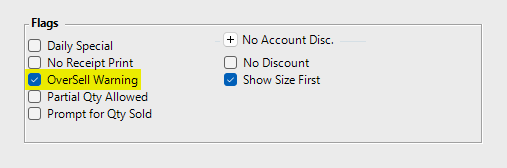
The Product must have the relevant OverSell Warning setting enabled.
-
** The Product MUST be available through a Group or Keylist. **
-
The Product should not be placed only as an individual KeyMap button, as the quantity display will not appear in that layout.
When the OverSell Warning setting is enabled, the POS can display warnings when the available quantity reaches the configured threshold for the Venue.
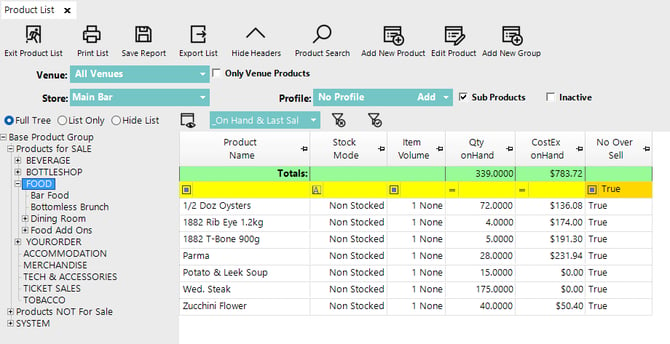
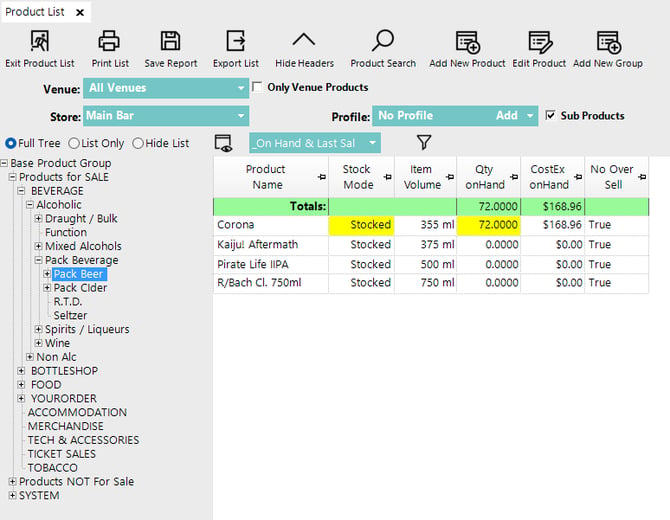
Image below shows Products configured with OverSell Warning behaviour and quantity values visible in BackOffice.
Set OverSell Quantity
1. Select the Set Count Down Till Function button on the POS.
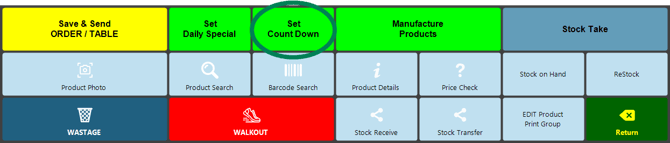
📌 Note: The Set Count Down FunctionMap Key may appear in a different location or with different button styling depending on the venue setup. The function is the same even when the POS layout is customised - 'Set OverSell Quantities'.
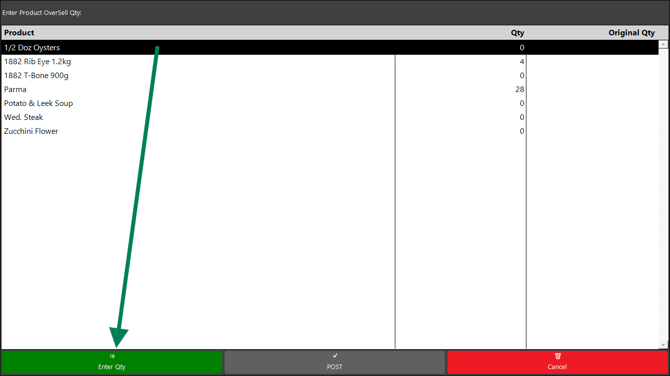
2. Select the Product that requires a new quantity.
3. Select Enter Qty or double-click the Product on the screen.
4. Enter the available quantity using the on-screen number pad.
5. Select OK.
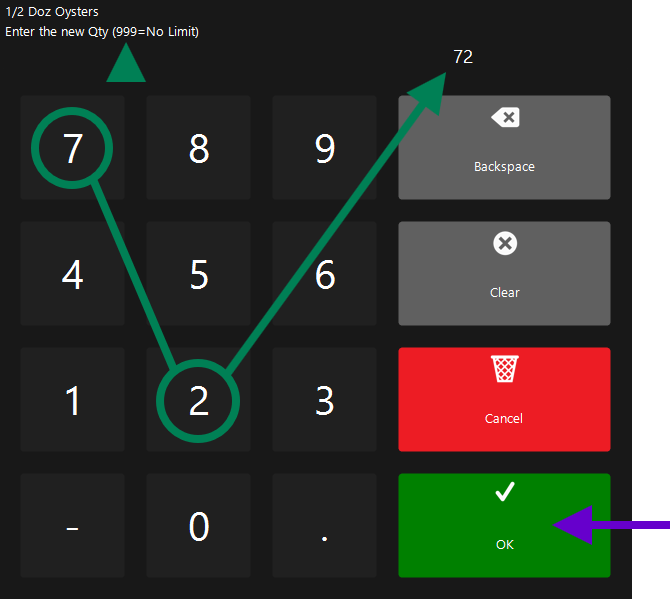
📌 Note: Entering 999 sets the Product with no limit. When this value is used, warning prompts and Quantity On Hand display behaviour will not apply in the same way as a limited quantity.
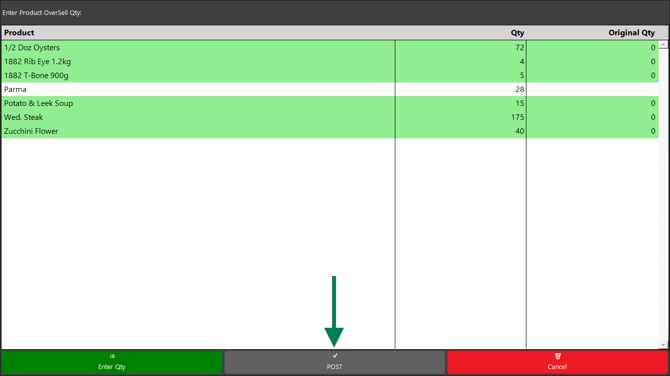
6. Repeat the quantity entry steps for each required Product. Edited quantities will show highlighted in green.
7. Select POST to save the entered quantities.
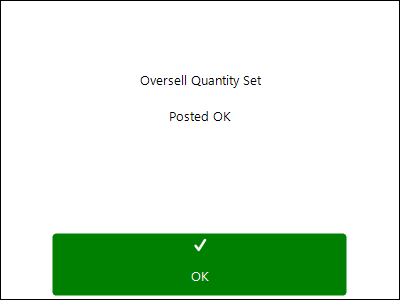
8. Confirm the posting prompt when it appears.
POS Selling Behaviour
💡 Reminder: The Product(s) must be available through a Group or KeyList button for the POS quantity indicator to display. Products placed only as individual KeyMap buttons will not show the countdown indicator.
After quantities have been posted, the POS can show the remaining quantity directly on eligible Product buttons.
Image below has been edited to display the Product keys in a grid.
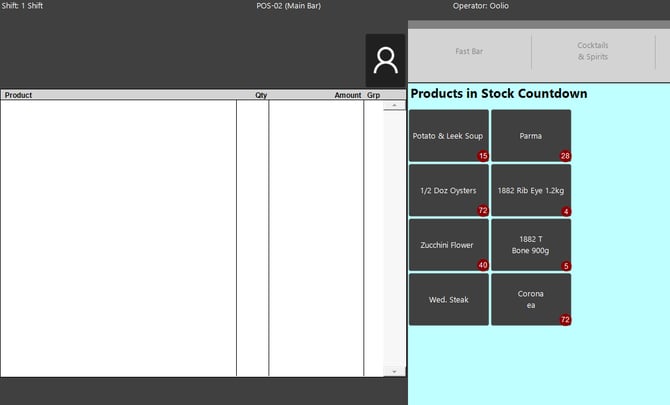
The quantity indicator reduces as Products are added to a sale. This applies whether the Operator adds the Product using repeated single button selections or enters a higher quantity in one action.
The countdown is updated live across connected POS Tills within the same Store. When a countdown Product is added to an open sale, that quantity is temporarily reserved before the sale is finalised. This helps reduce the chance of the same remaining stock being sold at another POS Till during busy service periods.
When the available quantity reaches zero, the Product button will display a red cross indicator to show that the countdown has been exhausted.
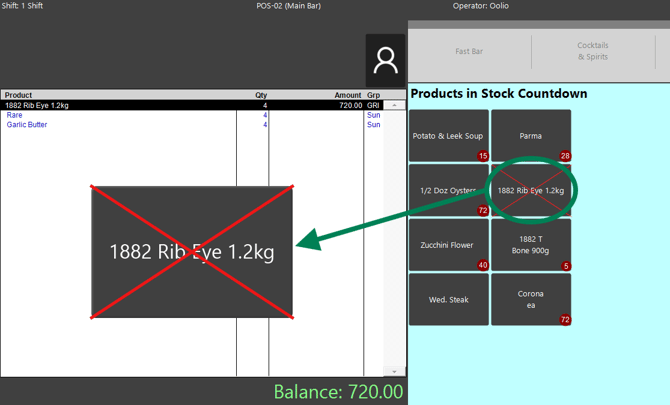
📌 Note: The small quantity indicator is only shown when the available count is 99 or lower. If the available count is 100 or higher, the POS does not show the quantity indicator on the Product button.
Zero Quantity Warning
If an Operator selects a Product after its available quantity has reached zero, the POS displays a warning prompt before continuing.
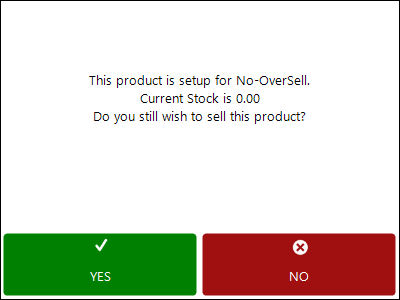
The Operator can choose:
-
YES to continue selling the Product.
-
NO to cancel the selection.
Selecting YES allows the sale to continue regardless of the Operator permission level.
Stocked Product Behaviour
Products configured as Stocked Products can also use OverSell Warning behaviour.
For the POS quantity indicator to appear on a Stocked Product button, the Product must have the OverSell Warning setting enabled. The displayed quantity is then drawn from the Product’s Stock on Hand for the relevant Store in BackOffice.
This differs from Non-Stocked Products, where the Operator-entered OverSell Quantity controls the countdown value.
Confirmation and Troubleshooting
After setup is complete:
-
Non-Stocked Products with OverSell Warning enabled can be updated through the Set Count Down POS function.
-
Posted OverSell Quantities are reflected in BackOffice.
-
Eligible Product buttons can show the remaining quantity on the POS when the available quantity is 99 or lower.
-
Countdown quantities are reserved across connected POS Tills under the same Store while the sale remains active.
-
Products that reach zero will display a red cross indicator.
-
Products selected at zero quantity display a warning prompt before the sale continues.
If a Product does not show a quantity indicator on the POS:
-
Confirm the Product has OverSell Warning enabled.
-
Confirm the Product is available through a Group or Keylist.
-
Confirm the available quantity is 99 or lower.
-
For Non-Stocked Products, confirm the Product appears in the Set Count Down POS list.
-
For Stocked Products, confirm the relevant Store has the expected Stock on Hand value in BackOffice.
Resetting Oversell Quantities
A Scheduled Job can be configured in BackOffice to reset Oversell Quantities for Products with the Oversell Warning setting enabled.
This can be used to reset countdown quantities automatically on a schedule, or manually when needed. For example, a venue may reset eligible Products back to 999 so they behave as unlimited until a new countdown quantity is entered at the POS.
Scheduled Jobs are configured per Store. If multiple Stores need Oversell Quantity resets, separate Scheduled Jobs may be needed.
Contact the bepoz Support Team for assistance with configuring this reset process.
updated to: bepoz v4.9.0.1