Overview
The 'Set Daily Specials' Till Function allows an Operator to easily change the Name and/or Price of a Product from a SmartPOS Workstation to set up a Daily Special.
It requires some setup in BackOffice first.
Prerequisites
- Operator Privilege to access BackOffice
- Operator Privilege to Operate Tills
- Operator Privilege for Stock Functions at Till
- Operator Privileges to Edit Products and Edit Prices
- Additional privilege flags may need to be enabled if a particular Till Function is configured to require a "Till Button Privilege" which are numbered 1-7
Product Settings
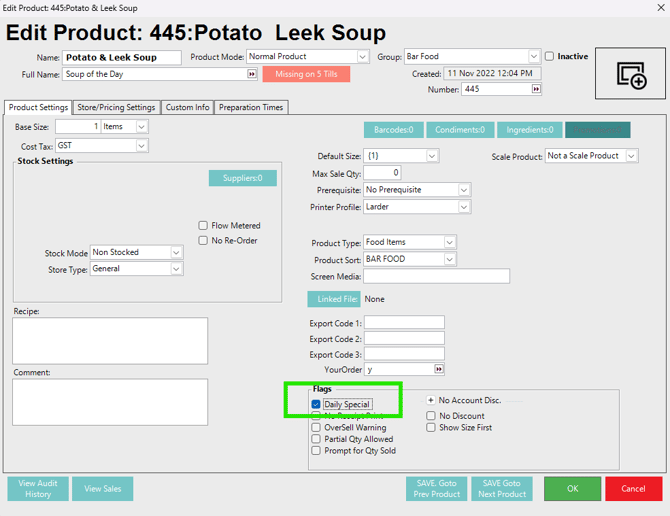
To set Daily Specials for a Product, the Product must first have the Daily Special Flag enabled via the Edit Product feature within BackOffice
- When this Flag is enabled, the Product can easily have its Name and Price changed at the till using the 'Set Daily Specials' Till Function
Set Daily Specials
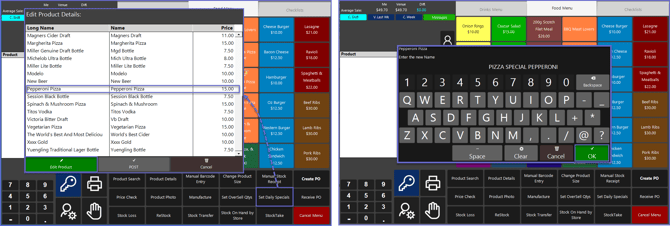
- After tapping on the Set Daily Specials Till Function button, an Edit Product Details window will open displaying a list of valid Products which Daily Specials can be set up for
- This list will show both the Product Name of each Product and the current Price of each Product
- To edit a Product, either double-tap the Product or highlight the Product and tap the Edit Product button
- A window will open displaying an alphanumeric keyboard allowing the Operator to enter a new "Specials" Name for the Product
- After a Name has been entered, a window will open displaying a number pad allowing the Operator to enter a new Price for the Product
- Only the "Name" can be edited in this manner, the "Long Name" must be changed via BackOffice
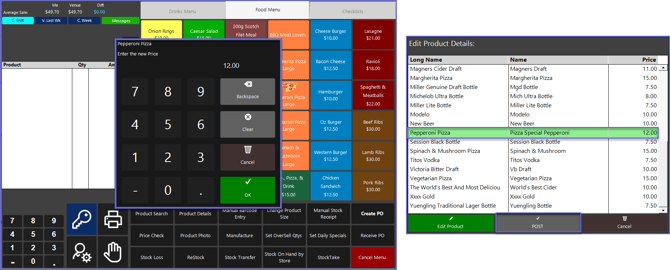
- The new Name and Price will display in the Edit Product Details window and any edited Product will be highlighted in green
- Repeat the previous steps for any additional Daily Specials and then tap the Post button
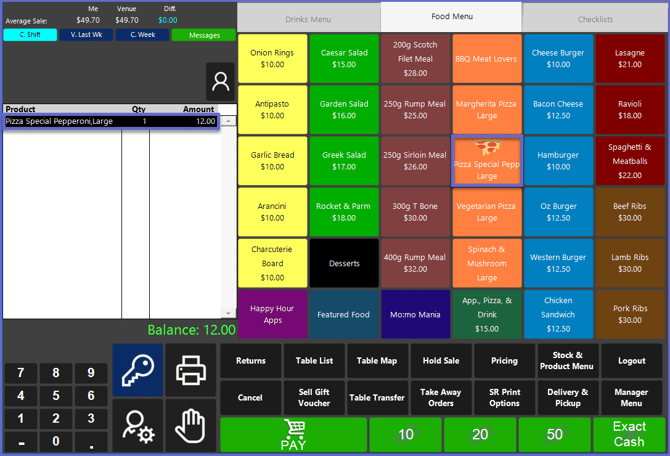
- The new Name and Price will now display in the Transaction Window when the Product is sold