
Overview
Images and videos displayed on the SmartPOS Customer Screen may appear stretched or squashed if their aspect ratio does not match the resolution of the customer display.
Common aspect ratio examples:
- 1920 x 1080 px - High Definition (16:9)
- 1280 x 800 px - widescreen (16:10)
- 1024 x 768 px - Standard Definition (4:3)
- 800 × 600 px - Standard Definition (4:3)
To prevent distortion, create images and videos using the same aspect ratio as the customer display and ensure media files are stored and configured correctly in bepoz.
How to find the display resolution (Windows 10 / Windows 11)
-
Right-click the Desktop of the hardware device and select Display settings.
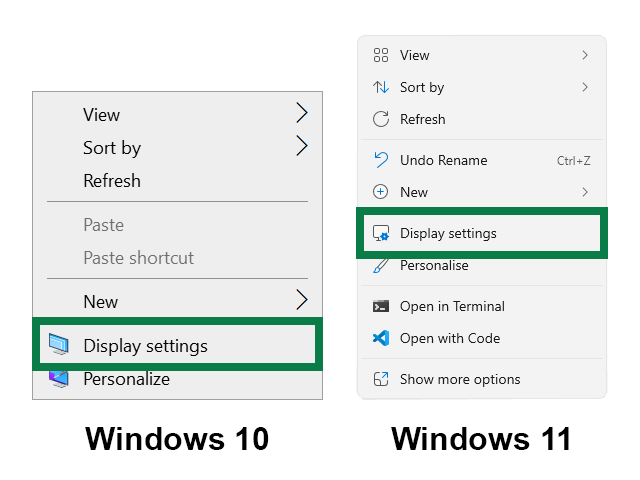
-
In Display, select the Display number you wish to isolate and scroll to Scale and layout. Image below is from a Z15W-M Oolio POS till:
-
Display #1 - POS Till, 1920 x 1080
-
Display #2 - attached Customer Screen, 1280 x 800
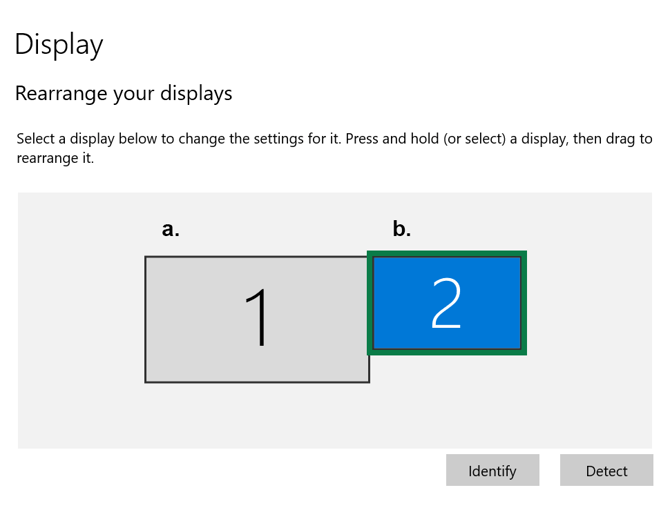
- Once selected, check Display resolution (for example, Display #2, 1280 × 800).
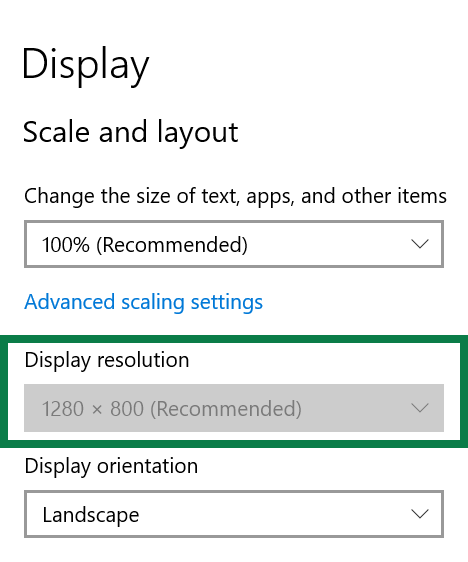
-
Tip: When the customer screen is attached to a POS till, it is typically Display 2 and may have a different aspect ratio to the POS till.
Requirements
-
Images should be saved as
.jpg(for example,promo1.jpg), but may be saved as Bitmap.bmp. - Video files can be
.mp4,.wmv, or.avi, files must play in Windows Media Player (codecs may need to be installed). - For images keep the file sizes under 500 KB.
- For video keep the file sizes under 3 MB.
Caution: Bitmap (.bmp) files use little to no compression and can easily exceed the 500 KB guideline. While bepoz supports them, monitor file size carefully.
Recommended format: JPEG (.jpg or .jpeg)
Image Dimensions in Windows
To find the dimensions of a .jpg file in Windows:
-
In File Explorer, locate the
.jpg. -
Right-click the file and select Properties.
-
Select the Details tab.
-
Under the Image section, check Dimensions (for example,
1000 x 1000).
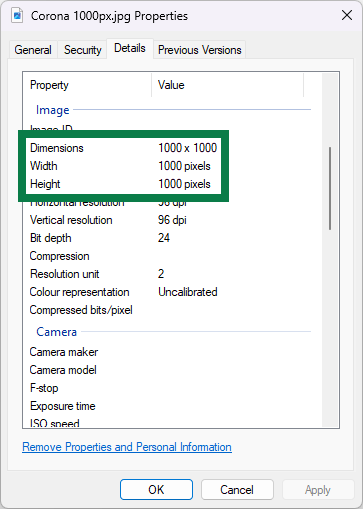
Aspect Ratio Image Examples
For the examples below, the images are based on a high definition screen (16:9).
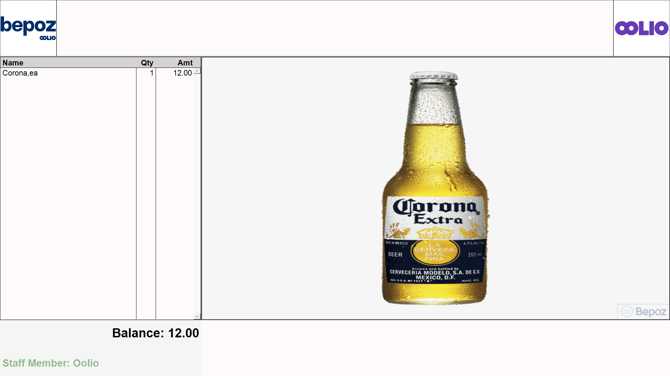
1. Incorrect aspect ratio
The dimensions for this image are square (1000 × 1000 px). This results in a squashed image on the Customer Screen.
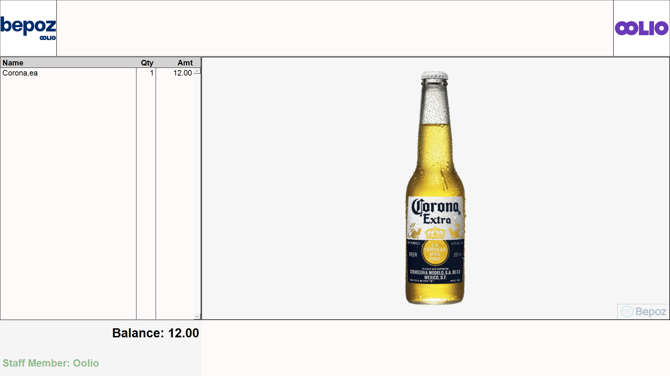
2. Correct aspect ratio
The dimensions for this image match the Customer Screen aspect ratio (16:9). This results in the image displaying correctly.
Managing Marketing Media and Product Images
See this Knowledgebase Article to learn how to setup and manage images for the Customer Screen (click link):