
Overview
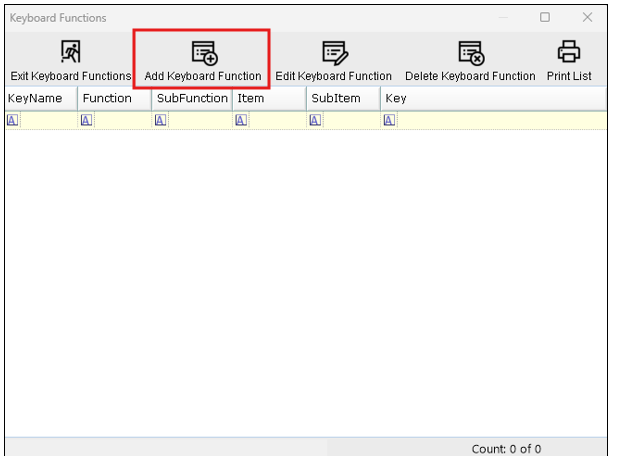
On the Function Map menu there is a Keyboard Functions icon button that can be used to assign any Function, SubFunction, Item and SubItem to a Keyboard Shortcut.
These are useful when the POS is not a Touch Screen device such as a PC with normal Monitor.
Prerequisites
Operator Permissions to Access System Setup is required.
Steps
-
Go to System Setup. Click Till Function Maps.

-
Click the Keyboard Functions menu button.
-
Click Add Keyboard Function
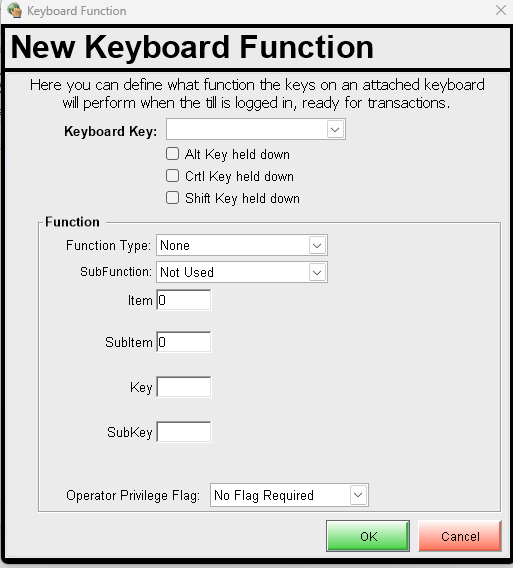
Example Scenario: Assign a Shortcut to Print a Receipt such as ALT+Z
-
On the Keyboard Key drop-down choose the first key to use which in this example is Z
-
Then Select the Alt Key held down option.
Next setup the Function as you would on any Function Map:
-
Select the Function Type. In this example: Print.
- Select the Item. In this example: 1 (for the Receipt printer channel)
- Select the SubItem. In this example: 0
- If the Function requires a Key or SubKey, enter these in the correct fields, as above.
- Enter the Operator Privilege Flag, as required to lock down the Function.
- Click OK to Save.
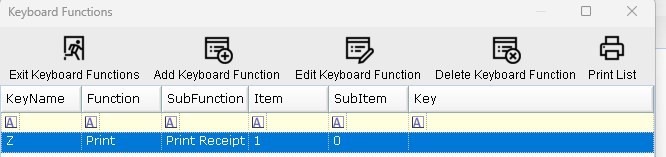
Log into the POS and test.
Note: try not to conflict with any of the built-in Windows Shortcuts.