Skip to content
  • There are no suggestions because the search field is empty.

📄KeyMap Key Sizes

This article covers an overview of the available KeyMap Sizes in SmartPOS.

Overview

This article covers an overview of the available KeyMap Sizes in SmartPOS.

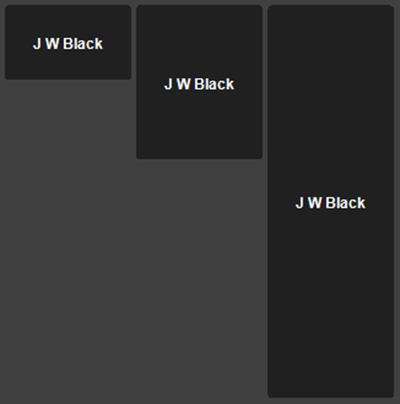
Buttons on a SmartPOS Workstation can range in Size vertically from one (1) Single button up to the length of an entire column.


Prerequisites 

  • To access KeyMap features, the applicable Operator Privileges will need to be enabled 
    • Operator Maintenance 'Maintenance' Tab
      • Products: "Maintain Keymap Settings" Flag


KeyMap Sizes 


Size  

  How-To 

Single
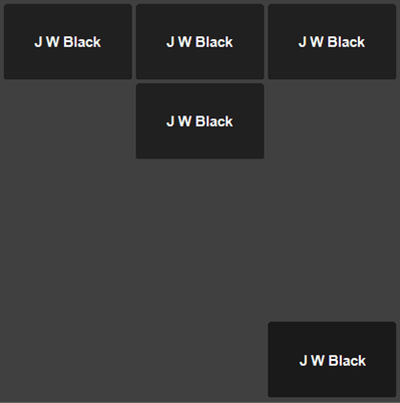
  • To display a Single button, nothing needs to be done after assigning a Product, Group, or KeyList to a Key Space
Double
  • To display a Double button, a Key Space must be assigned exactly the same as the Key Space above or below it
    • This will display as a Double button on the SmartPOS Workstation Screen
Triple+
  • To display a Triple button or larger, there must be an empty Key Space/s between two (2) buttons that are assigned exactly the same and are vertical to one another
    • This method can be used to display a Triple button at a minimum, up to a Full Column button at maximum


KeyMap Edit View


SmartPOS Workstation Layout View