
Overview
After an Operator has Logged On to a SmartPOS Workstation, Training Mode can be enabled to allow for SmartPOS Training. This can be a useful tool for Training New Operators or for Testing purposes.
When in Training Mode:
- No Live operations are affected
- Products will not be removed from Stock
- Network or shared printers cannot be accessed
- Other Workstation or networked Functionality will be inaccessible
- Points and Account Balances will not be accessible
Prerequisites
- To access Training Mode features, the applicable Operator Privileges will need to be enabled
- Managers: "Managers Functions" Flag
- Operator Maintenance 'Till Privileges' Tab
Entering Training Mode
- After logging on to a SmartPOS Workstation, complete the following steps to Enter into Training Mode
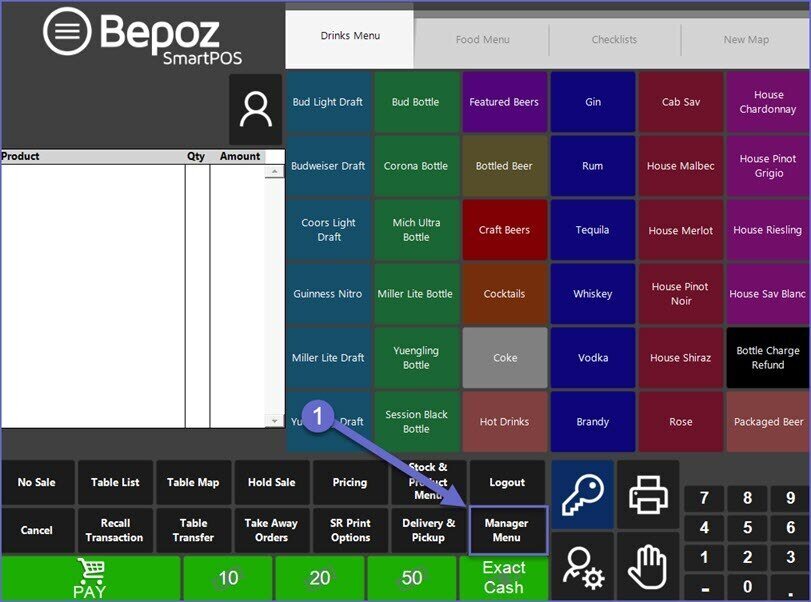
- From within the main Function Panel, select the Manager Menu button
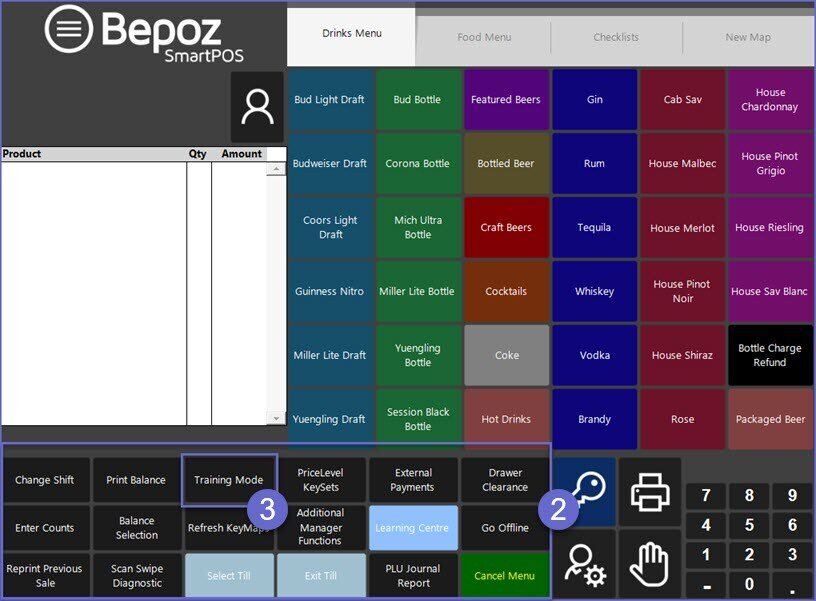
- This will change the Function Panel to display the Manager Menu Function Panel and the associated buttons
- This Till Function Button may be located elsewhere within the Till Function Panels depending on the System's configuration
- Select the Training Mode button from within this panel
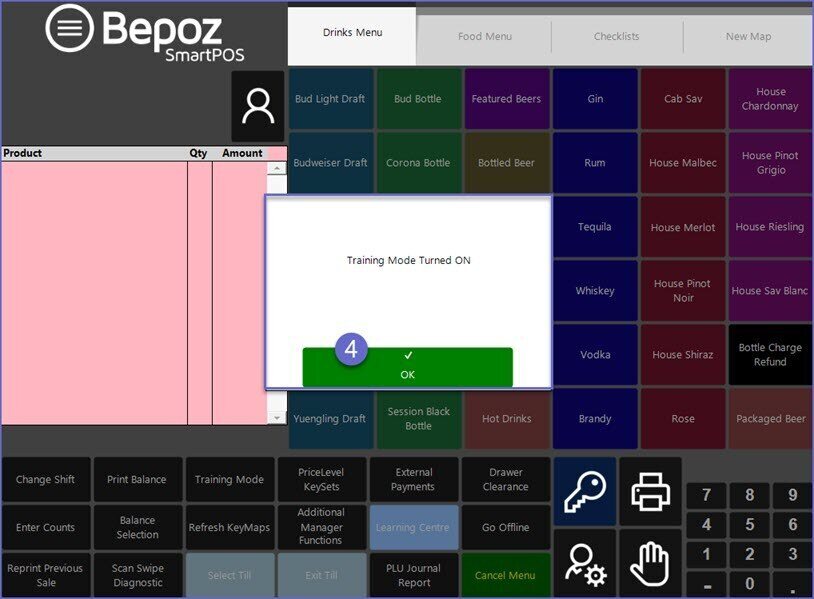
- A warning prompt will display informing the Operator that Training Mode has been turned On and the white color in the Transaction Window will change to pink; select OK
Using Training Mode
Product Selection
- After entering into Training Mode, the Operator can begin a Transaction as usual
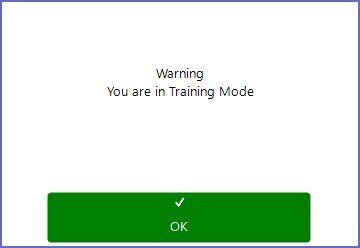
- The first time a button is selected, a 2nd warning prompt will display again informing the Operator that Training Mode has been enabled
- Select OK
- Proceed through Product selection and any other desired functions such as Voids, Cancels, Manager Functions, etc.
Payments
- Payment workflow can be followed while in Training Mode
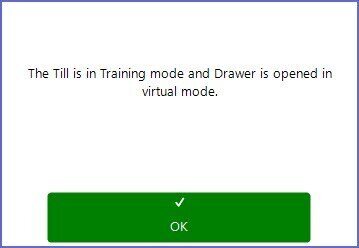
- When a Payment has been Tendered in Training Mode, the Cash Drawer will not open
- A prompt will appear informing the Operator that the Drawer is being opened in Virtual Mode
Other
- After a Payment has been Tendered and a Training Transaction is complete, the Workstation will remain in Training Mode
- Each time a new Transaction is begun, a warning prompt will display that the Workstation is in Training Mode
- Even after an Operator logs out and a new Operator logs on, the Workstation will remain in Training Mode until Training Mode is turned off
Exiting Training Mode
- When a Workstation is finished being used for Training or Testing, Training Mode will need to be manually turned off
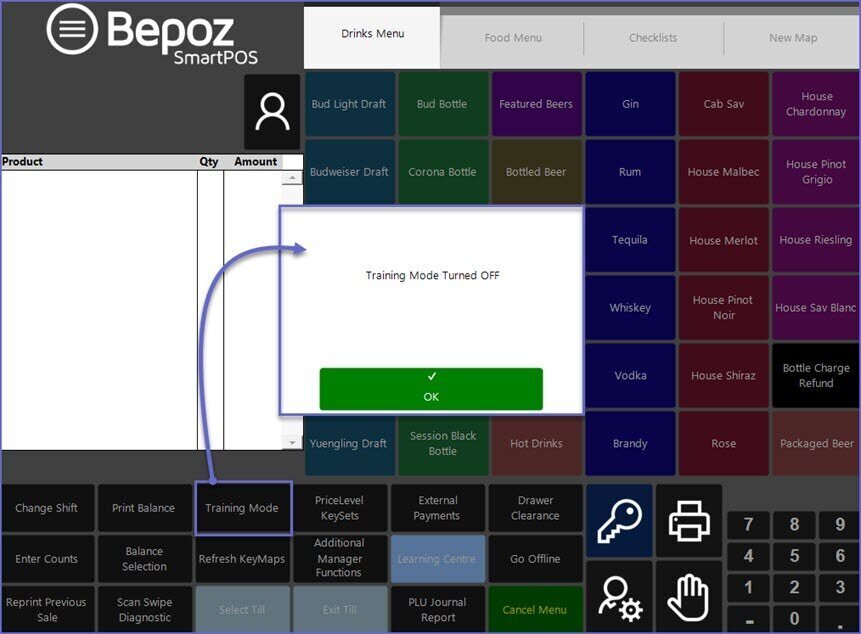
- To exit Training Mode, Go to the Manager Menu and Click on the Training Mode button again
- A prompt will display informing the Operator that Training Mode has been turned Off and the pink color in the Transaction Window will change to the normal white
- Select OK
- Training Mode will now be disabled
- The SmartPOS Workstation can now be used for Processing Live Transactions
Video walkthrough - How to put a SmartPOS in Training Mode