
Overview
The stock Re-Initialise function is designed to overwrite both the Quantity on Hand and Cost on Hand for any Product selected for Re-Initialisation.
Once a Re-Initialisation has been applied there is no reversal function.
Prerequisites
- For an Operator to have access to perform Stock Re-Initialisations, the Reinitialise Stock flag within the Stock Control tab of Operator Maintenance must first be enabled
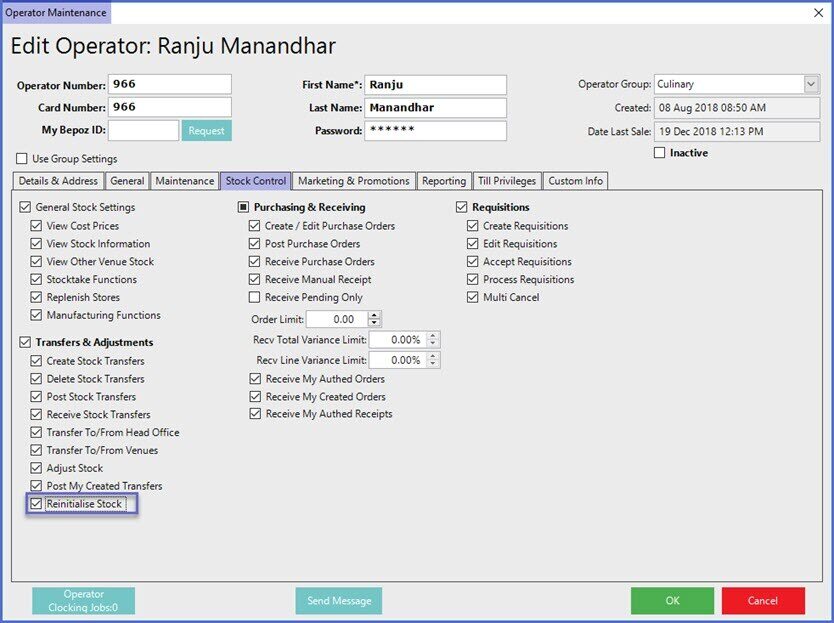
Reinitialise Stock
- Go to BackOffice > Stock Control menu
- Select Stock Re-Initialise; a prompt will appear which will need to be addressed prior to proceeding
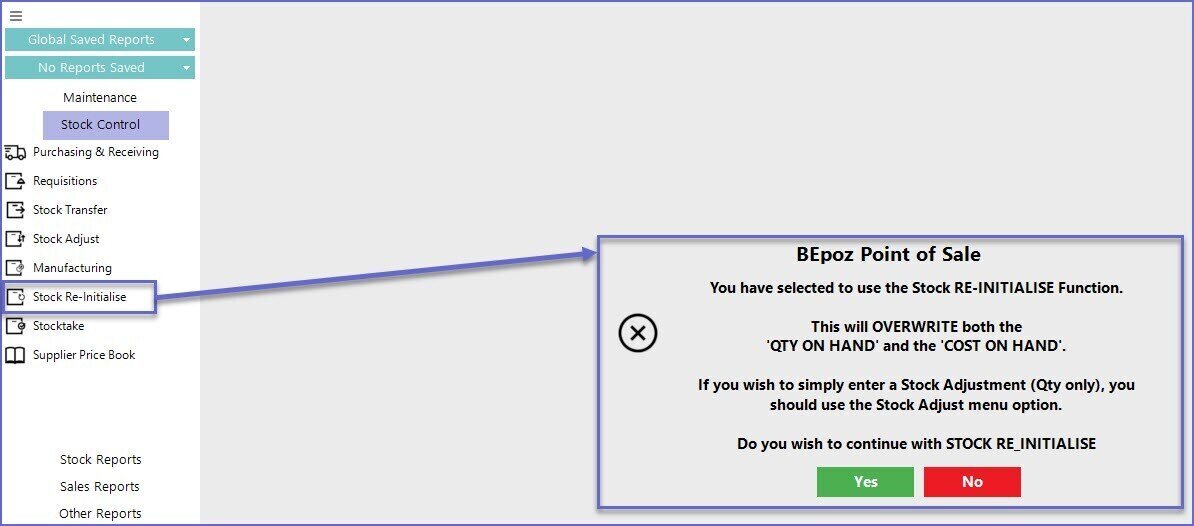
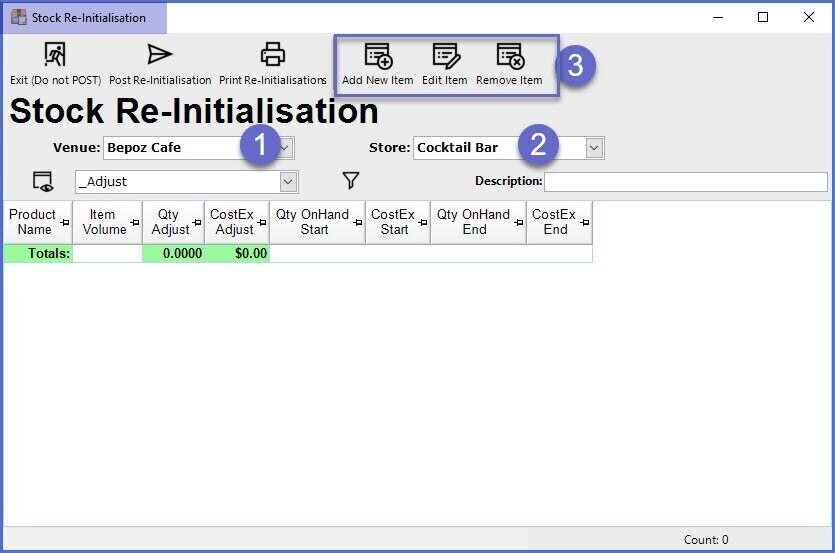
- Once done, the Stock Re-Initialisation window will appear where Products can be added by clicking on the 'Add New Item' button
- Before adding items to the Re-Initialisation select a Venue and Store
- Use the buttons within the header section to Add, Edit, and Delete Items from the Re-Initialisation
- When adding a Product, another window will appear which will contain fields for entering the NEW Qty and NEW CostEx
- Once the information is updated, select OK to proceed
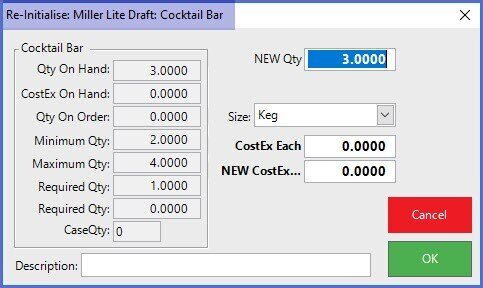
- Repeat the previous steps until all Products which need to be Re-Initialised have been added
- After all of the Products have been added, select the Post Re-Initialisation button
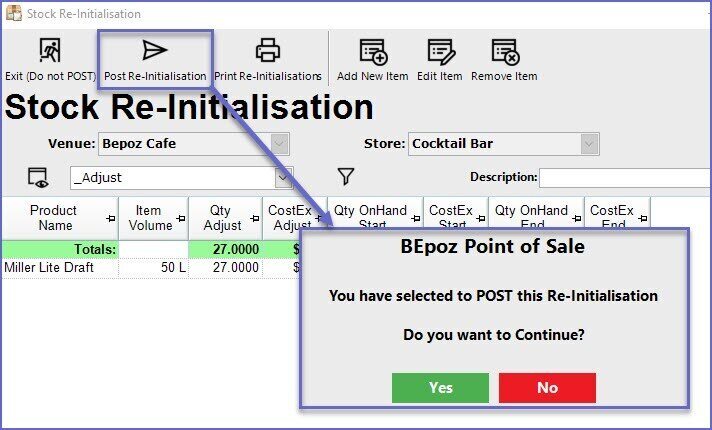
- Select Yes to Confirm the Re-Initialisation
Video Walkthrough