Overview
To allocate a Table Map to a SmartPOS Workstation is similar to a KeyMap in that it needs to be assigned to a Table Map Set first.
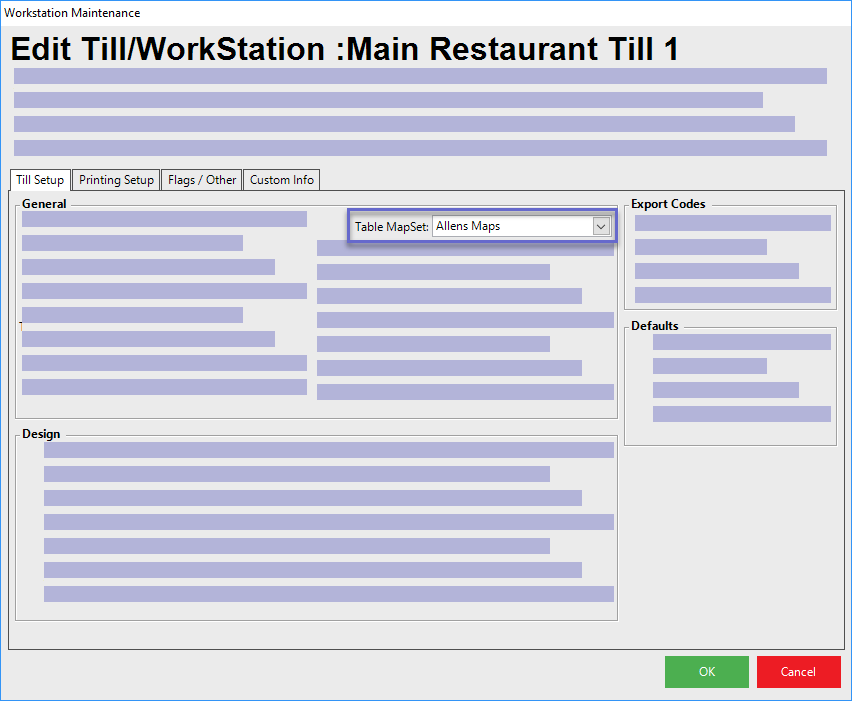
The TableMap Set can then be assigned to the till via System Setup in BackOffice and Workstation Maintenance for the desired Till.
Prerequisites
- To access Table Map features, the applicable Operator Privileges will need to be enabled
- Operational Setup
- "Maintain Weekly Schedule" Flag
- System Setup Section Flags
- "Access Venue, Stores & Tills" Flag
- "Maintain Venue Stores & Tills" Flag
Table Map Layout
- Multiple Table Maps can be grouped together into Table Map Sets
- To Access the Table Mable sets, click on the "Table Map Sets" Icon on the Menu Bar of Table Maps & Sets section
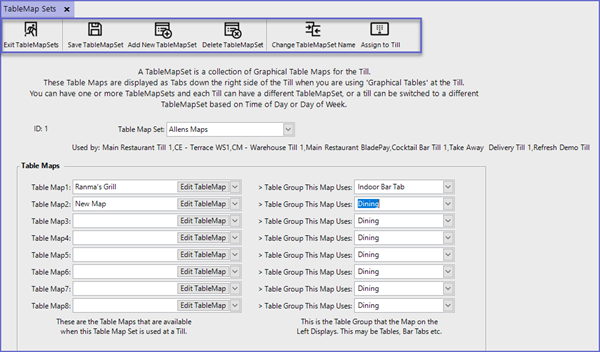
- Each Table Map can point to a different Table Group
- Table Groups are configured within BackOffice System Setup > Venue Maintenance and allow each Venue to have a unique set of rules applied to each Table Group
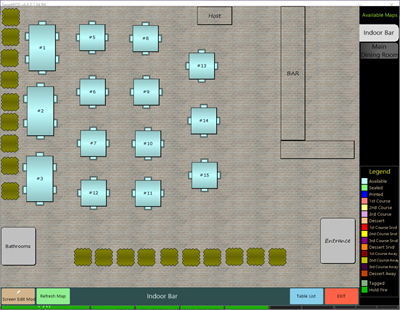
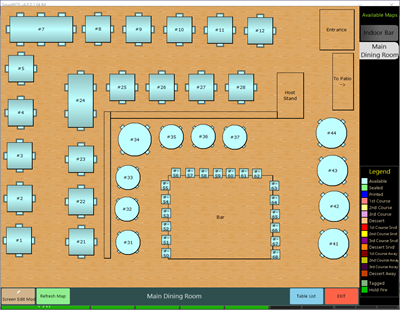
- Below is an example of a Table Map Set and how it will present at the SmartPOS Workstation
Configuring via Workstation Maintenance
- Each SmartPOS Workstation can have its own Table Map Set as these are not defined by either the Venue or Store
- These are maintained in Workstation Maintenance for the individual SmartPOS Workstation
Updating via Weekly Schedule
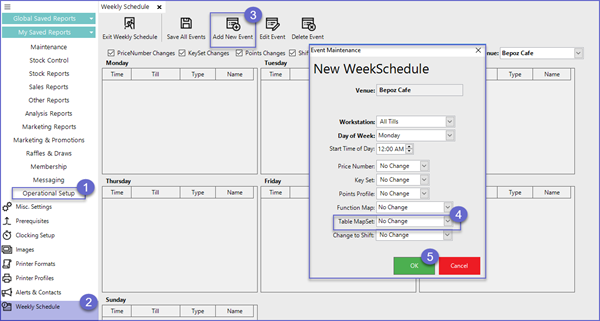
- Table Map Sets can be updated using the Weekly Schedule component where the configured changes will be applied automatically according to the Scheduled Events
- Go to Operational Setup > Weekly Schedule
- Click on "Add New Event" button
- Add the desired Event Maintenance details such as Workstation, Day of Week, etc. and select the desired "Table MapSet" from the drop-down